Difference Between PDF and Word Document: A Practical Comparison
Explore the difference between PDF and Word documents, analyzing editing capabilities, layout fidelity, accessibility, security, and best use cases to help professionals choose the right format for their workflow.


Both formats serve different purposes: PDFs fix the document’s layout and appearance, ensuring consistency across devices, while Word documents prioritize editability and collaborative workflows. The difference between PDF and Word document also extends to accessibility, security, and workflow integration. This guide compares use cases, editing capabilities, and best practices to help professionals decide which format to use in a given scenario.
Core distinctions: format, editability, and fidelity
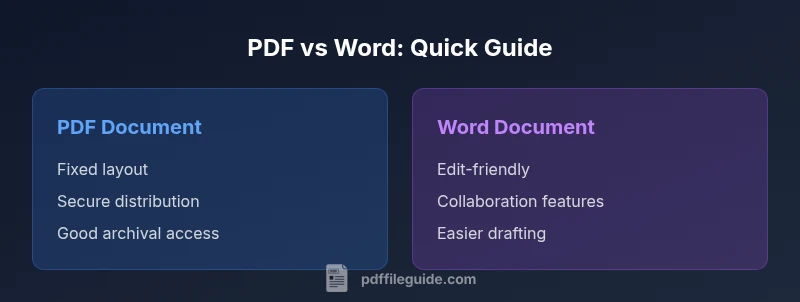
The difference between pdf and word document centers on two core axes: editability and layout fidelity. PDF files are designed to preserve a document’s final appearance, regardless of the reader’s device or software, making them ideal for forms, reports, and official distributions. Word documents, by contrast, are designed for ongoing editing, revision, and collaboration. They excel when content, structure, or styling needs to change frequently. According to PDF File Guide, understanding these defaults helps professionals pick the right tool for drafting versus publishing. In practice, many teams keep both formats in their workflows: draft in Word, finalize in PDF. When you start a new project, map the lifecycle early to decide where each format fits best.
Use-case mapping: when to choose PDF vs Word
Choosing between PDF and Word hinges on the document’s purpose and lifecycle. If the goal is archival stability, legal or compliance-ready formatting, or universal viewing, a PDF is often the better choice. If the objective is rapid iteration, collaborative editing, or heavy redlining, Word offers a more natural environment for authors and reviewers. Real-world workflows frequently involve generating a Word draft, collecting comments, then exporting a polished PDF for distribution. PDF File Guide notes that pairing these formats can accelerate approval cycles while maintaining presentation integrity and trackable edits.
Editing capabilities and collaboration workflows
Editing and collaboration differ sharply between the two formats. Word documents support real-time co-authoring, track changes, and inline comments, which streamline feedback. PDFs require editors or converters to adjust content; even then, changes are usually non-destructive and may involve form fields, annotations, or redaction. When collaboration is essential, teams often use Word for drafts and joint edits, then convert to PDF for a stable final version. PDF security, permissions, and signing workflows add governance that Word alone cannot deliver, making PDFs a preferred format for externally shared materials.
Formatting fidelity and typography: why layout matters
Layout fidelity is a primary reason to choose PDF for final documents. Fonts, kerning, spacing, and embedded media render consistently in PDF, preserving a designer’s intent. Word can alter typography if fonts are missing, templates aren’t loaded, or default settings differ across devices. For teams handling complex documents with lots of graphics, charts, or precise pagination, PDFs minimize the risk of reflow or misalignment. However, when the content is text-heavy and subject to frequent edits, Word’s dynamic layout options can be advantageous during the drafting phase, provided the final export is done with care.
Accessibility and compatibility considerations
Accessibility is a critical factor when selecting between PDF and Word. Well-structured Word documents with headings, alt text for images, and proper reading order can be highly accessible, especially when converted carefully. PDFs can also be accessible, but achieving this requires tagging, semantic structure, and compliance with standards like PDF/UA. Compatibility across platforms matters too: PDFs are universally viewable with free readers, while Word files require compatible word processors and sometimes version-specific features. For teams serving diverse user groups, plan for accessibility from the outset and verify with assistive technologies.
Security, permissions, and digital signatures
Security models differ markedly. PDFs support encryption, password protection, restrictions on copying or printing, and digital signatures, making them suitable for official documentation and regulated workflows. Word documents offer password protection and editing restrictions, but their security model is often less mature for distribution to external parties. When sensitive information travels outside the organization, PDFs with encryption and certificate-based signatures reduce risk and provide a clear audit trail. For internal drafts, Word’s version control and comment tracking add collaboration leverage, while PDFs ensure the final artifact remains intact.
File size and performance implications
File size and performance vary with content type. PDFs can be compact when optimized, especially for documents dominated by static graphics or scanned pages, but embedding high-resolution media can increase size. Word files may grow with embedded objects, comments, and tracked changes, potentially slowing performance on older hardware. For long-term storage, PDFs often compress effectively without sacrificing readability, which is why many archives standardize on PDF for distribution. Conversely, Word remains preferable during the creation stage because it minimizes the friction of frequent edits and collaborative work.
Conversion workflows: from Word to PDF and vice versa
A common workflow begins with drafting in Word and converting to PDF for distribution. Proper settings—such as embedding fonts, preserving image quality, and enabling accessibility tagging—help preserve fidelity during export. Converting from PDF back to Word is less reliable for complex layouts; smart OCR tools or professional converters can recover text, but formatting and graphic placement may require manual adjustment. When planning conversions, test with representative pages and maintain an original Word draft for re-editing. PDF File Guide emphasizes verifying the output against the source to catch discrepancies early.
Best practices for archiving and sharing
For archival stability, store PDFs with metadata, descriptive file names, and a stable versioning scheme. Include a readable accessibility layer, an uncompressed source when possible, and note the software versions used to create the file. For internal sharing, keep Word versions for collaboration, but provide PDFs for external recipients to ensure uniform viewing. Establish a simple policy that documents progress from draft (Word) to final (PDF) and align with organizational records management standards. PDF File Guide stresses the importance of consistent formats across projects to reduce confusion and ensure quick retrieval.
Common myths and misperceptions
A frequent myth is that PDFs cannot be edited at all; in reality, many tools support form fields, annotations, and subtle edits, though not as fluidly as Word. Another misconception is that Word always preserves formatting when sharing; cross-platform packaging can still alter fonts or layout. A third misconception is that PDFs are inherently insecure; while PDFs can be secured, insecure sharing practices can undermine protection. By understanding these nuances, professionals can design better workflows that balance editability with stable publishing.
Comparison
| Feature | PDF document | Word document |
|---|---|---|
| Editability | PDF: editing is generally non-destructive and requires dedicated tools; edits are often post-export | Word: designed for ongoing editing, commenting, and tracked changes |
| Layout fidelity | PDF: preserves exact layout across platforms and viewers | Word: layout can shift with fonts, templates, and system settings |
| File size & media handling | PDF: compression options; efficient for text with embedded images | Word: size grows with embedded media and revisions |
| Accessibility support | PDF: requires tagging and structure for screen readers (PDF/UA) | Word: built-in accessibility features when structured properly |
| Security & signing | PDF: encryption, permissions, and digital signatures | Word: password protection and editing restrictions |
| Best use case | PDF: final distribution, forms, official documents | Word: drafting, collaboration, and revision-heavy work |
Strengths
- PDF preserves exact formatting across devices and platforms
- Word enables real-time collaboration with track changes and comments
- PDF offers stronger distribution security options (encryption, signatures)
- Word supports easier editing workflows and version control
Disadvantages
- PDF editing is typically more limited without specialized tools
- Word documents can suffer from formatting drift when shared across systems
- Converting Word to PDF may introduce compatibility issues with complex layouts
- PDFs may require additional steps to extract editable content
Word excels for drafting and collaboration; PDF excels for stable distribution and archiving
Choose Word when editing and collaboration drive productivity. Opt for PDF when you must preserve appearance and provide secure, shareable final documents. The best workflow often combines both formats, using Word for creation and PDF for distribution.
Questions & Answers
What is the main difference between PDF and Word documents?
The main difference is editability versus fixed formatting. Word is best for drafting and collaboration, while PDF preserves layout and ensures consistent viewing across devices.
The main difference is that Word is great for editing and collaboration, while PDF keeps the layout fixed for consistent viewing.
Can you convert Word to PDF without losing formatting?
Yes, most modern tools can export Word to PDF with high fidelity, especially when fonts are embedded and high-resolution media is handled properly. Some complex layouts may still require manual adjustments after export.
You can convert Word to PDF with good fidelity, but check formatting after export for complex layouts.
Are PDFs editable after they’re created?
PDFs can be edited with specialized editors, form fields, or OCR-based tools, but editing behavior is generally less fluid than Word. For extensive edits, start from Word or preserve the source file.
PDFs can be edited, but not as easily as Word unless you have the right tools.
Which format is better for collaboration?
Word is typically better for live collaboration due to track changes and comments. PDFs are better for final review and distribution, where edits are minimal.
For teamwork, Word shines with collaboration features, while PDFs are for final versions.
How should I archive documents for long-term accessibility?
Archive final documents as PDFs with proper tagging and metadata. Keep the editable Word source for future updates, if needed, and maintain a clear version history.
Archive as PDFs for stability, keep Word copies for updates.
What are common pitfalls when converting between formats?
Expect potential font substitution, image repositioning, and loss of editable features. Always validate fonts, layout, and accessibility during conversion.
Conversion can alter fonts and layout; always verify after export.
Can Word documents be read reliably on all devices?
Word documents are widely supported, but viewing quality depends on the software version and operating system. Exporting to PDF remains the most device-consistent option for sharing.
Word works on many devices, but PDFs ensure the same look everywhere.
Key Takeaways
- Assess workflow: draft in Word, finalize in PDF
- Prioritize layout fidelity for external sharing
- Leverage Word for collaboration; PDF for distribution and security
- Plan accessibility and tagging from the start
- Test conversions to minimize formatting surprises