How to View a PDF: A Complete Guide for All Devices
Learn how to view PDFs on desktop, tablet, and mobile. This guide covers viewers, apps, settings, and accessibility tips to open, read, and navigate any PDF.


Open and read a PDF across devices by selecting a compatible viewer and locating your file. This quick answer outlines the essential steps, common tools, and best practices to ensure you can view, navigate, and interact with PDFs on desktop, tablet, and mobile. Having the right viewer and settings helps prevent errors and saves time.
What it means to view a PDF across devices
Viewing a PDF across devices means the same document can be opened on a desktop computer, a tablet, and a smartphone without losing layout or functionality. The PDF format is designed to be portable and consistent, but the viewing experience depends on the software you use, the device's screen size, and the available features such as zoom, search, and annotations. According to PDF File Guide, choosing the right viewer is as important as the file you receive. The goal is a readable, navigable rendering that preserves fonts, images, and hyperlinks. Different platforms offer different capabilities: desktop apps often provide robust search and form interaction; mobile apps favor quick navigation and offline access; web browsers can handle basic viewing without installing additional software. When you aim to view a pdf smoothly, you should consider file integrity, device compatibility, and whether you need offline access or cloud-based collaboration. PDF File Guide analysis also underscores that consistency across devices reduces friction for busy professionals.
If you work with PDFs regularly, developing a standard viewing setup helps you view a pdf quickly and reliably. This means having a preferred viewer across devices, knowing how to access offline copies, and understanding when a browser vs. a dedicated app is preferable. The end goal is a smooth, distraction-free reading experience that keeps you focused on content rather than tools. Remember that accessibility considerations—like text reflow and contrast—affect how you view documents, especially on smaller screens.
Essential viewing tools and formats
Choosing the right tool for viewing a PDF is as important as receiving a clean file. Most devices come with a built-in viewer that handles basic navigation, search, and zoom. If you need more features (annotations, form filling, or advanced search), installing a dedicated viewer like a widely-used app or using a modern browser extension can improve your experience. On mobile, single-tap access to the document and offline mode can make reading easier when you’re on the go. When selecting tools, prioritize compatibility with your operating system and the specific features you rely on, such as outline access, text search, or hyperlink navigation. PDF File Guide recommends testing a couple of options to ensure your preferred viewer preserves layout and fonts accurately across devices. Also verify that the file is a true PDF (extension .pdf and valid PDF structure) to avoid rendering issues.
If you need to share or collaborate, some viewers offer cloud syncing or comments. In these cases, ensure the viewer aligns with your organization’s privacy and security requirements. For web users, many modern browsers render PDFs reliably without extra software, but occasional performance differences can occur with large files or complex media. Always keep your software updated to benefit from the latest rendering improvements and accessibility fixes.
When evaluating viewers, consider whether you need features like daylight/night mode, text reflow, or reflow for narrow screens. A dependable setup will include a primary viewer, a secondary backup option, and a quick-access method to retrieve offline copies when network access is limited.
Step-by-step: your viewing workflow
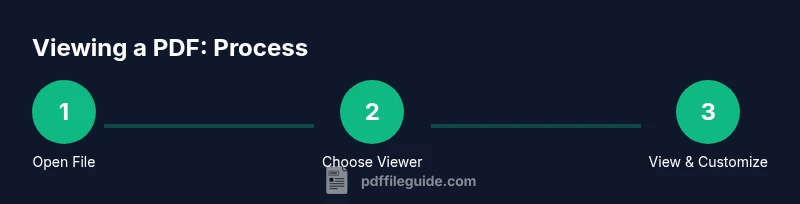
Below is a practical workflow you can adopt to view a pdf efficiently, whether you are on a desktop, tablet, or smartphone. The steps are designed to be quick and repeatable, with options to customize based on your device.
- Locate the PDF file: Start by finding the file on your device or in your cloud storage. Use a clear naming convention and verify the extension is .pdf to prevent confusion with other formats.
- Choose a viewer: Pick a viewer that matches your needs. If you’re offline or on a mobile device, a dedicated app may offer better readability and features; otherwise, a browser-based viewer can be convenient.
- Open the PDF: Double-click the file or select Open with your chosen viewer. Confirm that the document renders correctly, including fonts and images.
- Navigate effectively: Use page thumbnails, the outline, or the search feature to jump to sections quickly. If the document is long, bookmarking important pages can save time.
- Adjust display: Set your preferred zoom level, layout (single page vs. continuous), and color mode (light/dark). For readability, enable text reflow if your viewer supports it.
- Save preferences and share: Save your viewing preferences in the app, and export or share specific pages if needed. Keeping a consistent setup across devices speeds future access.
Tip: If you encounter difficulties, switch to a different viewer temporarily to determine if the issue is file-based or viewer-based. This approach often resolves problems without lengthy troubleshooting.
Accessibility and viewing PDFs
Accessibility is essential when viewing PDFs, especially for long documents or shared materials. All readers benefit from properly structured content, alternative text for images, and clear reading order. For screen reader users, ensure the PDF has proper tagging, logical reading order, and meaningful headings. When possible, enable text-to-speech features or high-contrast modes to improve legibility. The PDF File Guide Editorial Team stresses that accessibility should be baked into the document creation process, not retrofitted after publication. If you’re viewing PDFs created by others, use viewer features that respect accessibility settings, such as reflow text on small screens, adjustable font sizes, and navigation by headings. In professional settings, verify that PDFs meet accessibility standards before distribution, which can reduce barriers for colleagues and clients who rely on assistive technology.
Troubleshooting common viewing issues
Even with the best tools, you may run into issues when viewing PDFs. Common problems include slow rendering, missing fonts, or pages that appear garbled. Start by trying a different viewer to determine if the problem is with the file or the software. Check that the file isn’t corrupted by attempting to open a copy of the file or downloading it again. If fonts don’t render correctly, update your viewer or enable font embedding options if available. For password-protected documents, ensure you have the correct permissions and password. If you’re using a mobile device, ensure the file is fully downloaded for offline viewing. As a preventative measure, keep your devices updated with the latest software versions to minimize compatibility issues. The PDF File Guide analysis emphasizes testing across devices to identify and address issues proactively.
Advanced viewing features and workflow tips
Modern PDF viewers offer features beyond simple reading. Use search to locate terms quickly, outlines to jump to sections, and bookmarks to save important pages. Annotations let you highlight text or add notes without altering the original file, which is useful for review and collaboration. If you work with fillable forms, ensure the form fields render correctly and preserve interactive behavior. For accessibility-conscious work, verify the reading order and add alternative text to images when creating PDFs. In daily workflows, customize toolbar shortcuts for frequent actions like zoom, search, and page navigation. Regularly back up your preferred viewing setup and consider creating a standardized workflow document so team members can replicate your environment. The PDF File Guide Editorial Team recommends documenting your settings for consistency across devices and teams.
Tools & Materials
- Device with a PDF viewer(Desktop, tablet, or mobile device capable of opening PDFs)
- PDF viewer app or browser(Pre-installed or downloadable (e.g., Acrobat Reader, browser viewer))
- Internet connection (optional)(Needed for online viewers or cloud sharing)
- PDF file(Ensure the file is not corrupted)
- Printer (optional)(If you need to print the document)
Steps
Estimated time: 5-15 minutes
- 1
Locate the PDF file
Find the target PDF file on your device or cloud storage. Confirm the file extension is .pdf and that the file is accessible.
Tip: Use a consistent file naming scheme to simplify future retrieval. - 2
Choose a viewer
Select a PDF viewer that fits your device and needs. If offline access is important, prefer a dedicated app over a browser.
Tip: Test multiple viewers to see which renders fonts and images most accurately. - 3
Open the PDF
Open the file with your chosen viewer and verify that all pages render cleanly without distortions.
Tip: If loading is slow, try a lighter viewer or a smaller file version. - 4
Navigate and search
Use the outline, thumbnails, and built-in search to jump to sections quickly and locate terms.
Tip: Learn keyboard shortcuts for faster navigation. - 5
Adjust display settings
Set zoom level, page layout, and color mode for comfortable reading, especially on small screens.
Tip: Enable night mode if available to reduce eye strain. - 6
Save preferences and share
Store your viewing settings and export or share pages if needed while preserving the original layout.
Tip: Document your preferred setup for cross-device consistency.
Questions & Answers
How do I open a PDF file?
To open a PDF, locate the file and choose a compatible viewer. Most systems include a built-in viewer, or you can use a dedicated app or a web browser.
To open a PDF, locate the file and choose a viewer. Most devices have a built-in option, or you can use a dedicated app or browser.
Can I view PDFs offline?
Yes. After downloading the file, you can view it offline with a viewer that supports offline access. Ensure the document is fully downloaded before disconnecting.
Yes, you can view PDFs offline after downloading the file.
Why won't a PDF open on my device?
Causes include a corrupted file, an outdated viewer, or restricted access. Try a different viewer, re-download the file, or check permissions.
If a PDF won't open, try another viewer or re-download the file.
Is viewing a password-protected PDF different?
Password-protected PDFs require a password or permission from the author. Do not bypass protections and ensure you have legitimate access.
Password-protected PDFs require a password.
How can I view PDFs on mobile?
On mobile, use a dedicated PDF app or the device's browser. Many apps offer offline mode and easier navigation on small screens.
On mobile, use a PDF app or browser for easier viewing.
Can I print a PDF?
Yes, most viewers offer a print option. Check page range, orientation, and scaling to ensure the printed result matches the on-screen view.
Yes, you can print a PDF; adjust settings as needed.
Watch Video
Key Takeaways
- Choose a reliable viewer for consistent rendering.
- Use built-in features to navigate, search, and annotate.
- Check accessibility settings to support all readers.
- Keep software up to date for security and compatibility.