How to Open a PDF: A Practical Guide for 2026
Learn reliable methods to open PDF files on desktop, mobile, and the web. Covers password protection, accessibility, and troubleshooting for professionals who edit, convert, and optimize PDFs.


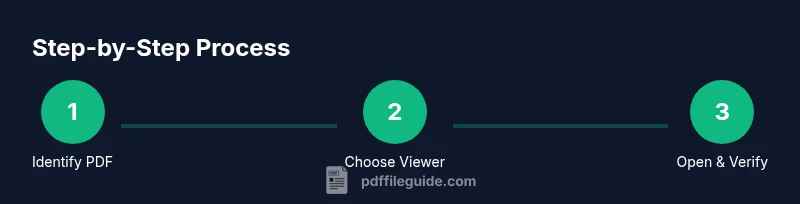
To open a PDF, locate the file and pick a viewer—browser, PDF app, or built-in reader. Ensure you have permission and a compatible viewer installed. If password protected, enter the password when prompted. If the file is damaged, try another viewer or re-download from a trusted source. If none works, request a newer version or contact the sender.
Why opening PDFs reliably matters
Opening PDF files correctly is a fundamental skill for students, professionals, and casual users. A PDF is designed to preserve layout across devices, but getting it to display properly depends on your viewer, device, and file permissions. If you’re wondering how to open a pdf on your device, this guide walks you through reliable methods. According to PDF File Guide, most opening issues stem from viewer compatibility or permission prompts rather than the file itself. In this section we lay the groundwork: what a PDF is, why some viewers struggle with it, and how to pick the best method for your situation. We'll cover desktop, mobile, and online approaches and explain when a password prompt or a restricted document blocks access. By understanding the basics, you’ll reduce time spent fumbling with settings and improve reliability across tools.
Key concepts: viewer, browser, and permissions
PDF viewing starts with three core concepts: the viewer, the file, and the permissions tied to that file. A viewer is any program that renders the PDF; a browser with an integrated viewer is often the fastest option, while dedicated apps offer more features like annotations and form filling. File associations determine which program opens PDFs by default; changing them can speed up access. Permissions control whether you can view, copy, or print the document. If you see a prompt to enable features or download plugins, weigh security versus convenience. PDF File Guide recommends confirming you’re using a trusted viewer and that the file isn’t damaged or password-protected.
Desktop opening: built-in viewers and popular apps
On Windows, you can open PDFs with Edge or the built-in Photos app; on macOS, Preview is a reliable default. If you need more features—like form filling or advanced editing—consider dedicated readers such as Adobe Acrobat Reader or Foxit. To open, locate the file, then double-click or right-click and choose the preferred application. Default apps can be changed in system settings to streamline future opens. For a quick start, drag the PDF into the app window or use File > Open. These methods are fast, but ensure your software is up to date for best compatibility.
Browser-based viewing: quick access
Many PDFs can be opened directly in a web browser. Drag-and-drop the file into an open browser window, or right-click the file and select Open with [Your Browser]. Browsers like Chrome, Firefox, Safari, and Edge render most PDFs without needing extra software. This method is ideal for quick viewing, sharing links, or performing light reading. Note that some interactive features (like long forms) may not behave the same as in a dedicated viewer, and browser plugins should be kept up to date for security reasons.
Handling password-protected PDFs
If a PDF is password-protected, you must obtain the password from the sender or administrator. In most readers, a prompt will appear asking for the password; enter it carefully to avoid lockouts. If you forget the password, request a reset or a new copy. For corporate or sensitive documents, consider using a secure password manager to store access credentials. Do not share passwords insecurely or through untrusted channels.
Mobile devices: iOS and Android workflow
Opening PDFs on mobile devices typically relies on built-in viewers (Preview on iOS, Google Drive or Files on Android) or dedicated apps. Tap the file from your email, cloud storage, or download location to launch in the default viewer. You can usually adjust zoom, brightness, and page layout with intuitive gestures. Make sure to keep your apps updated and enable offline access if you need to view PDFs without an internet connection.
Accessibility and assistive technologies
For users relying on screen readers or other assistive tech, ensure PDFs are tagged and accessible. Many readers offer read-aloud features and keyboard navigation; enable tagged PDFs, alternate text for images, and proper heading structures. If a PDF isn’t accessible, try a different viewer or ask the author to provide an accessible version. PDF File Guide emphasizes accessibility as a best practice for inclusive document sharing.
Troubleshooting common issues when opening PDFs
If a PDF won’t open, check that the file extension is .pdf and that the file isn’t corrupted. Try another viewer or download the file again from a trusted source. Ensure your viewer is updated and that your security settings aren’t blocking the file. If the document is password-protected, confirm you have the correct credentials. For enterprise environments, confirm there are no policy restrictions on opening PDFs.
Security and privacy best practices when opening PDFs
Only open PDFs from trusted sources to minimize malware risk. Disable unnecessary plugins, keep software up to date, and avoid enabling scripts or external content from unknown senders. When handling sensitive documents, use offline viewing or secure cloud services with encryption. Finally, wipe temporary files after viewing sensitive PDFs to reduce residual data.
Tools & Materials
- Device with a display(Desktop, laptop, or mobile device capable of rendering PDFs)
- PDF file to open(Ensure you have rights to view)
- PDF viewer software or web browser(Examples: Preview, Adobe Reader, Foxit, Chrome, Edge, Firefox)
- Password (if required)(Provided by sender/administrator)
- Internet connection (optional for online viewers)(Only needed for cloud-based viewing or updates)
- Charger or power source for mobile devices(Prevents interruptions on extended viewing)
Steps
Estimated time: 6-12 minutes
- 1
Locate the PDF file
Use File Explorer (Windows) or Finder (macOS) to locate the .pdf. Confirm the file size and date to ensure you have the correct version. If it came via email or cloud, download or save to a known folder.
Tip: Use the search tool and sort by date to find the most recent copy quickly. - 2
Choose a viewing method
Decide whether to use a browser, built-in viewer, or a dedicated PDF app. Browsers are fastest for quick reads; apps offer annotations and forms. Consistency helps with file handling and features.
Tip: Set a default viewer for faster future opens. - 3
Open the PDF in your chosen viewer
Open the file by double-clicking, dragging into the viewer, or using File > Open. Verify that the layout matches the original and that pages render correctly.
Tip: If you see a blank page, try refreshing or switching viewers. - 4
Enter password if required
If a prompt appears for a password, enter the correct credentials. If you don’t have them, contact the sender or administrator. Do not bypass security protections.
Tip: Keep passwords in a secure manager and avoid writing them in plain text. - 5
Adjust viewing settings
Use zoom, page layout, and night mode to improve readability. Accessibility features like Read Aloud can help when needed. Save your preferred layout for next time.
Tip: Keyboard shortcuts (e.g., + and -) speed up zoom adjustments. - 6
Test on a second device
Open the same PDF on another device or in a different viewer to ensure consistency and detect device-specific issues.
Tip: If differences appear, note which viewer handles annotations or forms best. - 7
Handle password-protected files securely
If access is restricted, avoid sharing passwords in notes or messages. Use secure channels to transfer credentials when necessary.
Tip: Consider asking for a non-password-protected version when appropriate. - 8
Troubleshoot and verify accessibility
If you still can’t view the document, check tagging, try a different reader, and ensure accessibility options are enabled. Verify the document is not corrupted.
Tip: Consult the sender for a fresh copy if issues persist.
Questions & Answers
What is the simplest way to open a PDF?
Open the PDF with your browser or default PDF viewer for quick results. This is usually fast and requires no extra software.
Open the PDF with your browser or default viewer for a quick start.
Why does a PDF require a password to open?
Some PDFs are protected to restrict access. You’ll need the correct password from the sender or administrator to view the content.
If a password is needed, obtain it from the source and enter it when prompted.
Can I open PDFs without installing software?
Yes. Most modern browsers can open PDFs directly, and many devices have built-in viewers for quick access.
Yes—your browser or built-in viewer can usually open PDFs without extra apps.
What should I do if a PDF won’t load or seems corrupted?
Try a different viewer or re-download the file from a trusted source. Check that the file extension is correct and that the file isn’t damaged.
If it won't load, download again or try another viewer.
Is opening PDFs a security risk?
Only open PDFs from trusted sources, keep software updated, and avoid enabling unseen content from unknown senders.
Yes, stick to trusted sources and keep software updated to stay safe.
How can I improve PDF accessibility?
Use tagged PDFs, enable read-aloud features, and ensure meaningful headings and alternative text for images.
Ensure tagging and accessibility features are enabled for screen readers.
Watch Video
Key Takeaways
- Choose a reliable viewer to open PDFs.
- Check file integrity and permissions before viewing.
- Use password prompts securely and obtain credentials responsibly.
- Leverage accessibility features for inclusive viewing.
- Follow safe practices to avoid malware when opening PDFs.