How to Email a PDF That Is Too Large: A Practical Guide
Learn practical methods to send a large PDF by email without sacrificing quality. This guide covers compression, splitting, archiving, and cloud sharing, with step-by-step instructions and safety tips for professionals who edit, convert, and optimize PDFs.


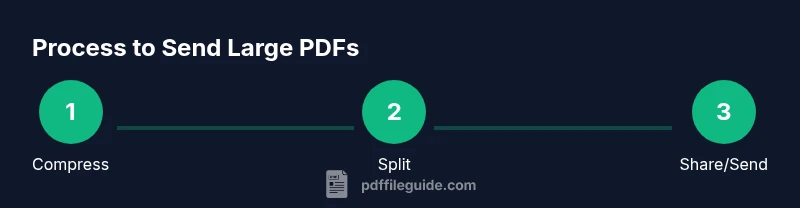
According to PDF File Guide, there are practical ways for how to email a pdf that is too large by compressing, splitting, or sharing a secure link. This quick guide outlines step-by-step methods to email oversized PDFs, with options that fit different recipients and security needs. Following these steps helps preserve readability while staying within common attachment limits.
What makes a PDF too large and how email works
PDF files become large when they bundle high-resolution images, embedded fonts, and metadata. When you attach such a file to an email, many providers enforce size limits that prevent delivery or degrade performance for the recipient. The PDF File Guide team notes that understanding the root causes helps you pick the most reliable method for sending. In this section we cover common reasons a PDF can outgrow an inbox, and how email systems process attachments so you can plan your workflow with confidence.
Quick checks before you start
Before you try any sending method, confirm a few basics: is the PDF really larger than the recipient's mail limit, or could it be a server-side quarantine? Do you need to preserve exact visual fidelity or is reduced quality acceptable? Are you sending to someone with limited bandwidth? These considerations save time and reduce back-and-forth. PDF File Guide suggests noting the file size, the recipient’s preferred delivery method, and any security requirements so you can select the simplest, most effective approach from the start.
How to email a pdf that is too large by compressing the content
Compression is often the fastest fix. Start with downsampling images to a lower resolution and reducing color depth where feasible. Then, remove duplicate assets, unused fonts, and embedded thumbnails. If the PDF consumer product uses layers or complex vector data, consider flattening some layers to stabilize rendering. After compression, re-check the size and the visual quality, aiming for a balance between clarity and file size. This approach is ideal when data sensitivity is not extreme and you need a quick send.
Optimizing PDF content (images, fonts, metadata)
Beyond basic compression, optimization trims metadata, redundant fonts, and non-essential metadata streams. Embedded fonts can explode file size; substituting system fonts when possible and subset embedding can shrink dramatically. Tools that remove metadata (creator, timestamps) also help. Test the document on multiple devices to ensure that text remains searchable and images remain legible. PDF File Guide emphasizes preserving readability while trimming weight.
Splitting the PDF into smaller parts
If you can segment the document into logical chunks, sending multiple smaller files often beats one oversized attachment. Pick natural breakpoints: chapters, sections, or appendices. Label each part clearly (e.g., Part 1 of 3) and keep a short note in the email explaining how to combine results if needed. This method preserves both readability and layout when recipients have tight bandwidth or strict attachment limits.
Archiving the file (ZIP) and password considerations
Compressing into a ZIP archive can drop overall size, especially when used with strong compression. If you encrypt the archive, share the password through a separate channel to reduce risk. Be aware that some email systems block ZIP files or misclassify them as suspicious; in those cases, rely on alternative delivery methods. Always verify the recipient can decompress the archive on their device.
Using cloud storage: sharing a link instead of attachments
Hosting the file in the cloud avoids attachment limits altogether. Upload the PDF to a trusted service (e.g., Google Drive, OneDrive, or Dropbox) and set permissions so only the intended recipient can view or download. Include a short, clear note in your email about the link, expiration if available, and steps for access. This approach balances convenience with security and is especially useful for very large PDFs.
Using secure transfer services for sensitive documents
For highly confidential files, consider a dedicated file transfer service that offers encryption in transit and at rest, audit trails, and access controls. These platforms often provide time-limited links and recipient authentication to minimize exposure. If you must use such a service, explain the security features briefly in your email so the recipient understands why this method is chosen.
Authority Sources
To support best practices, consult trusted sources for file sharing and PDF handling. For example, see NIH for general digital document security principles, Adobe for PDF optimization techniques, and Microsoft’s security blog for best practices in secure file transfer. These references help you stay compliant and informed while choosing the most appropriate delivery method.
Final tips for smoother delivery
Always test your delivery with a quick send to yourself or a colleague before notifying the main recipient. Keep your subject lines clear (e.g., “Project Docs – Large PDF Attached/Link”); include brief context in the email body; and provide instructions for accessing the file. When in doubt, prefer a cloud link over a large attachment to minimize bounce-backs and delays.
Tools & Materials
- Email client(Gmail, Outlook, Apple Mail, or equivalent)
- PDF file(The large file you intend to send)
- Compression tool(Built-in features, or third-party apps (e.g., 7-Zip))
- Cloud storage account(Google Drive, OneDrive, or Dropbox for hosting large files)
- Archive software(To create ZIP/RAR archives when needed)
Steps
Estimated time: 15-30 minutes
- 1
Check recipient limits
Confirm the recipient’s email provider limits or preferences. If unsure, plan for a link-based delivery to avoid bounce-backs.
Tip: Ask the recipient which delivery method they prefer before sending. - 2
Choose a compression strategy
Select compression that reduces size without unacceptable quality loss. Start with image downsampling and removing unused resources.
Tip: Preview the document after each change to ensure readability. - 3
Apply targeted optimization
Trim metadata and embedded fonts, and consider subset embedding to shrink size further while preserving legibility.
Tip: Test on multiple devices to ensure text remains searchable. - 4
Decide between splitting or archiving
If compression isn’t enough, split by logical sections or create a password-protected ZIP to reduce size.
Tip: If you ZIP, share the password separately and securely. - 5
Prepare a cloud link (optional)
Upload to a trusted cloud service and configure access so only the recipient can view or download.
Tip: Enable link expiration if available and add a short access note in your email. - 6
Choose a transfer service (optional)
For sensitive files, use a service that offers encryption and access controls.
Tip: Explain security features briefly in your email to build trust. - 7
Craft the email message
Write a concise message describing the file and delivery method. Include any needed instructions for access or combining parts.
Tip: Include a clear subject line and a short context sentence. - 8
Test delivery and confirm
Send a test message to yourself or a colleague to verify the file or link works and that permissions are correct.
Tip: Ask for quick confirmation from the recipient after delivery.
Questions & Answers
Can I email a large PDF directly, or is a link always better?
Direct attachments work for smaller files but often fail for very large PDFs. Links are typically more reliable for oversized documents, provided you manage permissions and expiration carefully.
Direct attachments can fail for large files; sharing a secure link is usually more reliable, with proper permissions.
What’s the typical size limit for attachments across popular providers?
Attachment limits vary by provider; many platforms cap at tens of megabytes. If your file is larger, use a cloud link or a transfer service to ensure delivery.
Attachment sizes vary, often tens of megabytes; use a cloud link for larger files.
Will compressing a PDF ruin its quality?
Compression can reduce image resolution and metadata. Test the document after compression to confirm legibility and ensure essential details remain clear.
Compression may affect quality; test to ensure readability remains acceptable.
Are cloud links secure for sending confidential PDFs?
Cloud sharing can be secure if you use access controls, expiration dates, and restricted permissions. For high-sensitivity files, combine secure transfer services with strong credentials.
Cloud links can be secure with proper access controls and expirations.
What should I do if the recipient can’t access the cloud link?
Provide alternate delivery options, such as a password-protected archive or a secure transfer service, and confirm the recipient can access the file before closing the loop.
If access fails, offer an alternative method and verify delivery.
Watch Video
Key Takeaways
- Choose delivery method based on recipient needs
- Compress and optimize only as needed to preserve readability
- Cloud links reduce attachment issues and improve reliability
- Test delivery to avoid surprises
- Protect sensitive files with proper security measures