How to Send PDF Files to Email
Learn how to send PDF files to email securely and reliably. Attach, compress, or share via cloud links with best practices for professional sending.


You can send PDF files to email by attaching the PDF in your webmail or app, or sharing a cloud link when needed. For large files, compress or use a secure link; always verify the recipient's address and consider password protection for sensitive documents. PDF File Guide offers practical steps and tips.
Why sending PDF files to email remains essential
In today’s digital workflow, email remains a reliable way to share documents across devices and platforms. PDFs preserve layout and fonts, ensuring recipients see the file as intended. For many professionals, the simplest path to distribution is to send a PDF directly via email. According to PDF File Guide, a well-handled email attachment can reduce back-and-forth and speed up approval processes. When you know how to send pdf files to email effectively, you can also tailor your approach for security, accessibility, and file size considerations. This section explains the core reasons people rely on email for PDFs and how to balance convenience with reliability.
- Compatibility: PDFs look the same on Windows, macOS, iOS, and Android.
- Traceability: Email provides a straightforward record of who sent what and when.
- Security options: Password protection or encryption can be added when needed.
By mastering the basics, you’ll avoid common pitfalls such as broken attachments, misaddressed emails, or misformatted documents.
Choosing the right method: attach vs link
There isn’t a one-size-fits-all approach to sending PDFs. For small documents under typical size limits, attaching the file directly to an email remains the fastest method. However, for large PDFs or when you need to control access, sharing a secure cloud link can be more efficient and scalable. This is particularly helpful when collaborating or when recipients have slow connections. In such cases, you can upload the PDF to a trusted cloud service and paste the link in your email. PDF File Guide emphasizes evaluating file size, recipient needs, and security posture before choosing attach or link. This decision affects delivery speed, accessibility, and how easily the recipient can view the file on different devices.
Key considerations:
- File size relative to provider limits
- Recipient access and permissions
- Security requirements for sensitive information
Sending to the right address: double-check and subject lines
Before you click send, confirm the recipient’s email address and the intended recipient group. A small mistake in an address can mean confidential information ends up in the wrong hands. Craft a concise subject line that indicates the document type and purpose, for example: "Project Plan: Q2 Milestones (PDF)". In addition, enable a brief message that sets context and a note about any password protection or next steps. This practice reduces confusion and helps the recipient locate the attachment quickly. The PDF File Guide approach stresses checking the recipient’s domain and any alias email addresses used for distribution lists to minimize misdelivery.
Tips:
- Use recipient’s name or project name in the subject to clarify intent.
- If you use a distribution list, consider sending a test email to yourself first.
Attaching PDFs in common email clients: Gmail, Outlook, and mobile apps
Attaching a PDF is typically straightforward across major clients. In Gmail, click the paperclip icon or drag the file into the compose window. In Outlook, use Attach File from the message toolbar or drag-and-drop. On mobile, tap the paperclip or attach icon within the compose screen. If you’re sharing via a tablet or smartphone, ensure the PDF is saved to a reachable location like Drive or iCloud for easier access. When you know how to send pdf files to email, you’ll recognize subtle differences in menus across platforms, but the core steps stay the same. Always verify the final email includes the correct file name and size before sending.
Practical note:
- If the file is huge, consider attaching a compressed version or providing a cloud link to avoid hitting size limits.
Handling large PDFs: compression, split, and cloud links
Large PDFs can push past email size limits. Start by compressing the file with built-in tools or third-party software to reduce size without sacrificing readability. If compression isn’t sufficient, consider splitting the document into logical parts or converting to a more compact format. Another robust option is to upload the PDF to a trusted cloud service and share a secure link in the email. This approach also allows you to manage access controls and view/download permissions. PDF File Guide recommends testing the link yourself to ensure it opens correctly on different devices and browsers.
Best practices:
- Provide a brief explanation in the body about why a link is used.
- Set an expiration date on cloud links when possible.
Security considerations: password protection and encryption
For sensitive PDFs, password protection adds a layer of defense. Always encrypt or password-protect the document, then share the password through a separate channel (not in the same email). Use strong, unique passwords and consider password managers for safe handling. When you send password-protected PDFs, inform the recipient about the password method and any access permissions. This safeguards confidential information while still enabling timely access for authorized readers. PDF File Guide highlights that be mindful of the password delivery method to avoid interception.
Security tips:
- Do not email passwords in the same message as the attachment.
- Use a passphrase rather than a simple numeric password for better security.
Accessibility and readability when sharing PDFs via email
Accessibility matters when sending PDFs to a broad audience. Ensure the PDF contains tagged structure, alternative text for images, and proper reading order. If the document is meant for assistive technologies, consider creating a plain-text summary or an accessible version in addition to the PDF. When possible, share a version that complies with accessibility guidelines (PDF/UA) and provide instructions for readers using screen readers. This approach improves usability for all recipients and broadens the document’s reach. PDF File Guide recommends testing accessibility with a basic reader to verify compatibility across devices.
Troubleshooting common issues and fixes
If recipients report problems opening a PDF, start with the basics: confirm the file wasn’t corrupted during transfer, verify the recipient’s email address, and check for attachment size limits. If the file won’t open on some devices, consider offering a cloud link as a fallback. For password-protected PDFs, ensure the password was delivered securely and that the recipient is using compatible software. When issues persist, re-share a fresh copy or ask the recipient to download the file from a trusted cloud location. This proactive approach minimizes delays and miscommunications.
Troubleshooting checklist:
- Re-send with a fresh copy
- Confirm recipient address and access rights
- Provide an alternative access method (cloud link) if necessary
Tips for mobile users and cross-platform emailing
Mobile devices can complicate attachment handling due to smaller screens and app differences. To streamline, prepare PDFs with clear filenames, ensure offline access if needed, and test opening the file on both Android and iOS devices. When sharing across platforms, prefer cloud links for large files and remind recipients to check their spam or promotions folders if they don’t see the message. By keeping formats consistent and offering clear instructions, you minimize cross‑platform friction when learning how to send pdf files to email.
Alternatives to emailing PDFs when size is a problem
If you consistently encounter size constraints, consider using alternative distribution methods. Cloud storage links, secure portals, or collaborative platforms can provide controlled access without clogging inboxes. For ongoing projects, establish a standard workflow that includes preferred methods for large documents and password protection. These alternatives help maintain professional communication while reducing the risk of failed deliveries. PDF File Guide suggests documenting your chosen method for team consistency.
Best practices and quick-start checklist
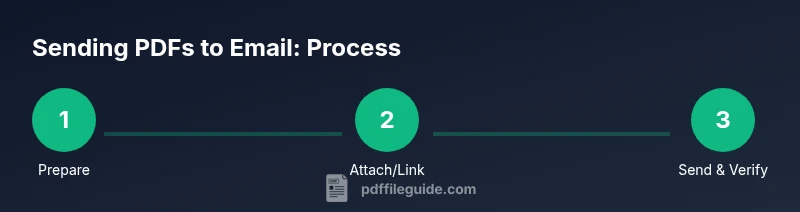
Here’s a compact checklist to get started fast: verify the recipient address, choose attach or link based on size and security, attach the PDF or paste a secure link, add a clear subject and message, respect privacy by not emailing passwords in the same message, and test by sending a copy to yourself. This practical cadence keeps sending PDFs via email predictable and reliable. Remember, mastering the basics is the foundation of effective document sharing.
Tools & Materials
- Email account (Gmail, Outlook, or similar)(Essential for sending the PDF via email.)
- PDF file(s) ready to send(Ensure the correct version and file integrity.)
- Stable internet connection(Necessary for uploading and sending attachments.)
- Web browser or email app(Used to compose and send messages.)
- Cloud storage account (optional)(Useful for sharing large files via link.)
- Password manager (optional)(Helpful for generating and storing strong passwords.)
Steps
Estimated time: 5-15 minutes
- 1
Prepare the PDF and recipient details
Verify the PDF file name and size, and confirm the recipient’s email address. Note the purpose of the document and any password protection you’ve applied. This preparation minimizes errors when you attach the file.
Tip: Use a clear, recipient-focused file name like Project-Plan_Q2.pdf. - 2
Open your email composer
Launch your email client and start a new message. If you’re using mobile, ensure you’re in the latest version of the app for stable attachments.
Tip: Keep the subject concise and informative to speed recipient recognition. - 3
Attach the PDF (paperclip or drag-and-drop)
Click Attach File or drag the PDF into the composer. Confirm the file appears as a safely attached item before continuing.
Tip: If the file is large, consider a cloud link instead of a direct attachment. - 4
Verify recipient and subject
Double-check the recipient address and an appropriate subject line. Add a brief note explaining the attachment’s purpose and any next steps.
Tip: Avoid auto-fill mistakes by selecting the address from your contacts instead of typing. - 5
Add a message and any context
Provide a short, clear message describing the PDF’s content and relevance. Mention if password protection is in use and how to access the file.
Tip: Include a realistic deadline or call-to-action to prompt timely review. - 6
Handle large files with alternatives
If the PDF is too big, compress it or upload to cloud storage and paste the link. Ensure the recipient can access it without extra steps.
Tip: Test the link yourself before sending to ensure it works on multiple devices. - 7
Send and monitor delivery
Send the email and monitor for delivery failures. If a bounce occurs, correct the address and resend or use an alternate method.
Tip: Consider requesting a read receipt if your workflow requires confirmation. - 8
Secure sensitive PDFs
If the document contains confidential information, password-protect the PDF and share the password securely through a separate channel.
Tip: Use a strong, unique password and avoid including it in the same email as the attachment.
Questions & Answers
What is the simplest way to send a PDF via email?
The simplest method is to attach the PDF using the paperclip icon in your email client and send to the correct address. For large files, consider a cloud link.
Attach the PDF with the paperclip icon and send to the right address; if large, share a cloud link.
How can I send large PDFs without hitting size limits?
If a PDF is too large, compress it or upload to a trusted cloud service and paste the link in your message. This avoids attachment size restrictions.
Compress the file or use a cloud link to avoid size limits.
Should I password-protect PDFs before emailing?
Yes, if the content is sensitive. Password-protect the document and share the password securely through a different channel.
Password-protect sensitive PDFs and share passwords separately.
What if the recipient can't open the PDF?
Check the recipient's software compatibility and ensure the file isn’t corrupted. Offer an alternate format or a cloud link if needed.
Verify compatibility and provide alternatives if it won’t open.
Is it safer to use cloud links instead of attachments?
Cloud links can improve security and control access, especially for large or confidential documents. Use links with expiration or access restrictions when possible.
Yes, cloud links offer better control for security and access.
How can I confirm the recipient received the PDF?
Ask for a confirmation reply or use read receipts if your email client supports them. Follow up if you don’t hear back.
Request a confirmation or use read receipts when possible.
Watch Video
Key Takeaways
- Attach or link based on file size and security needs.
- Verify recipient address and provide clear context.
- Password-protect sensitive PDFs and share passwords separately.
- Test access on multiple devices before sending.