How to Separate PDF Pages: A Practical Guide
Learn reliable methods to split a PDF into individual pages or ranges using built-in tools, desktop apps, online services, and command-line utilities. This guide focuses on privacy, accuracy, and efficiency for professionals who edit PDFs.


You will learn reliable methods to split any PDF into separate pages or page ranges. This guide covers built-in shortcuts, offline software, and online tools, with tips for privacy and consistency. By the end, you can extract pages for drafts, reviews, or archiving with confidence. Whether you're preparing a report, sharing a chapter, or preparing documents for collaboration, these approaches help you work efficiently.
Understanding why you might separate a PDF into pages
In professional workflows, separating a PDF into pages is common for reviews, approvals, and sharing only relevant content. By isolating pages, you can focus discussions on specific sections without sending the entire document. The PDF File Guide team notes that this practice accelerates feedback cycles and improves document management. When done carefully, page separation preserves original formatting, hyperlinks, and accessibility features while producing clean, stand-alone PDFs for distribution. This approach also supports compliance by ensuring that reviewers access only the content pertinent to their role. For editors and administrators, separating pages can simplify archiving, version control, and auditing, especially when multiple stakeholders require access to different parts of a larger document.
Core concepts behind page separation
A PDF is a container of individual pages; splitting it produces new PDFs where each file contains one or more pages from the source. Key ideas include: (a) page ranges vs. single pages, (b) preserving internal links and media when possible, and (c) output naming that reflects the source. Page numbering in the new documents can match the original or reset locally, depending on the tool. Understanding these concepts helps you choose the right method for your workflow and ensures a reliable, reproducible result. The goal is to create concise, portable PDFs that maintain readability and accessibility.
Desktop methods: built-in tools and offline software
Many operating systems and PDF editors offer built-in split or extract functions. On macOS, Preview lets you select pages in the thumbnail sidebar and export them as a new PDF; Windows users can use the Print to PDF feature or a built-in export option in their PDF viewer. For more advanced needs, offline software provides batch splitting, range-based extraction, and bookmark-aware outputs. When choosing offline tools, look for features like: (1) extract pages by ranges, (2) preserve hyperlinks, (3) retain metadata, and (4) support batch processing. Remember, PDFs with security settings may require a password to extract content. PDF File Guide recommends verifying the integrity of the resulting files after splitting to ensure no content was altered during the process.
Online services: pros, cons, and privacy considerations
Online PDF split tools can be fast and convenient, especially for single-file tasks or quick one-off jobs. They require uploading your document to a third-party server, which introduces privacy and confidentiality considerations. If you choose online methods, prefer reputable, privacy-focused services and avoid handling sensitive or regulated content unless you have explicit controls and a data retention policy. After splitting, download the resulting files and delete them from the service promptly. PDF File Guide emphasizes performing due diligence on data handling practices and understanding the service’s privacy policy before uploading any document.
Command-line tools for power users
For automation and batch processing, command-line tools offer powerful page-separation capabilities. Tools like pdfseparate (part of the Poppler suite) can split a multi-page PDF into individual pages with simple syntax, while qpdf can extract specific page ranges into new documents. Typical workflows involve specifying input files, defining output naming patterns, and applying ranges such as 1-3, 5-7, or 1-end. This approach is ideal for reproducible pipelines in professional environments where scripts run as part of larger document workflows. Always test commands on a copy of the file to avoid accidental data loss.
Handling multi-page extraction with ranges and bookmarks
Splitting by ranges (e.g., 1-3, 5-8) helps isolate meaningful sections, while preserving bookmarks can be essential for navigation in the resulting files. If your source PDF includes bookmarks, a capable tool should either maintain them in the output or allow you to recreate them after extraction. When a single operation would yield many files, consider scripting the process to generate a named set of PDFs that reflect the source structure. This approach minimizes manual steps and reduces the likelihood of misnaming or misplacing pages.
Common pitfalls and how to avoid them
Mistakes often arise from miscounted pages, incorrect ranges, or losing hyperlinks during export. Always verify page integrity by opening each output file and checking page order, images, and hyperlinks. Keep a master copy of the original document until all extractions are complete. If you are using online tools, confirm the privacy posture and delete data after download. Be mindful of document security settings; if a PDF is password-protected, you’ll need the correct credentials to extract pages. Finally, establish a consistent naming scheme to prevent overwriting or misidentification of split results.
Best practices for naming, organizing, and version control
Create a clear naming convention that includes the source filename, page range, and a version tag (e.g., Report_Audience_en_01-04_v1.pdf). Organize outputs into a dedicated folder structure that mirrors the source hierarchy (e.g., by chapter or section). Maintain a log of the splits you perform, including tool used, date, and options chosen, to facilitate reproducibility. If you manage many PDFs, consider automation with a small script that automates extraction and saves the results in the expected locations with consistent metadata. This discipline reduces manual errors and speeds up collaborative workflows.
Authority sources
- https://www.adobe.com/content/dam/acom/en/devnet/acrobat/pdfs/pdf_split_guide.pdf
- https://www.iso.org/standard/63711.html
- https://www.nist.gov/publications
Tools & Materials
- PDF viewer/editor with page extraction capability(Essential for most methods; look for extract or split features)
- Print-to-PDF or export-to-PDF capability(Useful when built-in split isn't available; enables saving ranges as new PDFs)
- Destination folder or storage medium(Plan a structured folder system to organize outputs)
- Internet connection(Needed for online splitting tools; ensure a trusted environment)
- Password for protected PDFs (if applicable)(Needed only if input PDFs are secured)
Steps
Estimated time: 30-45 minutes
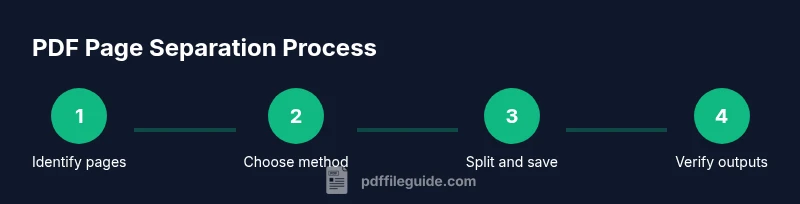
- 1
Identify pages to extract
Open the PDF and note the exact pages or ranges you need. Use page thumbnails or a table of contents to guide your selection.
Tip: Double-check page numbers against the source to avoid missing sections. - 2
Choose your splitting method
Decide whether to use built-in tools, offline software, or an online service based on privacy needs and volume of pages.
Tip: For sensitive documents, prioritize offline methods to avoid uploading content. - 3
Open the tool and load the PDF
Launch your chosen tool and load the source PDF. Ensure you’re working on a copy to preserve the original.
Tip: If using a command line, confirm the file path and permissions first. - 4
Specify page ranges
Enter the exact pages or ranges to extract. Use separate outputs if you need multiple files.
Tip: When in doubt, start with a small range to validate the process. - 5
Set output naming and destination
Define a clear file naming scheme and choose a destination folder that mirrors your source structure.
Tip: Include source name and range to prevent confusion later. - 6
Run the split
Execute the split command or click the split/export button and monitor progress.
Tip: If the tool supports progress indicators, use them to catch errors early. - 7
Verify the results
Open each output file to verify page order, content integrity, and linked elements.
Tip: Check bookmarks and metadata if the tool preserves them. - 8
Document your process
Record tool used, ranges extracted, and output conventions for future audits or repeats.
Tip: Maintains reproducibility and reduces confusion in collaborative environments.
Questions & Answers
What is the simplest way to split a PDF into individual pages?
Use built-in export or print-to-PDF features in your PDF viewer. For quick single-page extractions, this is usually fastest and keeps formatting intact.
Open your PDF, choose export or print-to-PDF, and save each page as its own file if available.
Can I split pages from a password-protected PDF?
Yes, if you know the password. Without the password, extraction is not possible with standard tools.
If you have the password, unlock and then extract; otherwise, you’ll need proper authorization.
Is online splitting safe for confidential documents?
Only use trusted services and avoid uploading highly sensitive materials. Review each service’s privacy policy and data handling terms first.
Be cautious about privacy. If unsure, prefer offline methods or local tools.
Should I preserve bookmarks when splitting a PDF?
Many tools can preserve or recreate bookmarks in the output; check the final files to ensure navigation remains intuitive.
Check that bookmarks still point to the right sections after splitting.
Can I automate splitting for many PDFs?
Yes, use a script or batch process with command-line tools to apply consistent page ranges across multiple files.
You can automate splits with scripts for consistent results across many documents.
Watch Video
Key Takeaways
- Plan extraction by clear page ranges.
- Choose a method based on privacy and volume.
- Verify outputs before archiving.
- Name files consistently and document the process.
- Preserve original formatting and hyperlinks when possible.