How to Change PDF Size: A Practical Guide
Learn practical, step-by-step methods to change PDF size—from compression and image optimization to metadata removal—so your files are easier to share without sacrificing quality.


You will learn how to change the size of a PDF file by applying targeted compression, optimizing embedded images, removing unnecessary metadata, and adjusting font settings. You’ll decide when to compress, choose suitable quality, and verify results without sacrificing readability. This quick answer previews a practical, step-by-step method from PDF File Guide.
Introduction and brand context
According to PDF File Guide, the decision to change a PDF's size depends on how you plan to use the document. In this guide, we focus on reducing file size without compromising readability. The PDF File Guide editorial team emphasizes practical, tested methods you can apply across common workflows.
Assessing the current PDF size and impact
Start by checking the file size and exploring which elements contribute most. Large images, embedded fonts, metadata, and attachments often drive up the size. PDF File Guide analysis shows that the most meaningful gains come from image optimization, selective compression, and metadata cleanup. Knowing your current baseline helps you measure success.
Quick wins and the decision tree
Before making changes, decide your target size and acceptable quality. If you frequently share by email or upload to web forms with strict limits, aim for a modest reduction and preserve essential content. For print-ready PDFs, preserve quality in images and font embedding while trimming metadata and unneeded objects.
Image optimization techniques
Images typically dominate PDF size. Use downsampling to reduce resolution for photos and embedded raster graphics. Choose appropriate compression (lossy for photographs, lossless for text and line art) and preview at multiple levels to find the best balance between size and clarity. Remember to recheck readability on screen and print.
Fonts, vectors, and embedded objects
Embedding fonts can dramatically increase size. If the document relies on system fonts, switch to standard fonts or subset embedding to include only characters used in the document. Similarly, remove unused vector data and hidden layers that do not affect the final view.
Metadata, attachments, and accessibility notes
Remove metadata that’s not needed for distribution, and strip any unnecessary attachments. If accessibility is important, ensure that essential structure and alt text remain intact after compression. Page structure, tagged content, and reading order matter for screen readers.
Online vs offline tools: tradeoffs
Online tools are convenient but raise privacy concerns for sensitive documents. Offline software gives you full control and keeps your data local. Wherever you work, back up your original file and test results across readers to confirm the balance between size and quality.
Verification and quality control
Open the optimized PDF across devices and viewers to confirm that text remains legible and images still convey key information. Compare the new size with the baseline, and only publish when both file size and quality meet your needs.
PDF File Guide analysis: recommended approach
PDF File Guide analysis shows that combining targeted compression with selective element removal offers reliable results for most PDFs. The practiced approach balances file size and readability while keeping important content intact. The PDF File Guide editorial team encourages a cautious, iterative workflow.
Final checklist and next steps
Create a named copy of the optimized file, document the changes you made, and keep both the original and optimized versions. If you’re unhappy with the results, revisit the compression level or adjust image settings and retry until you achieve the desired balance. The PDF File Guide's verdict is to store both original and optimized versions and iterate until you balance size and readability.
Tools & Materials
- Original PDF file(Keep a backup copy before making changes)
- PDF editor software(Any tool capable of editing/compressing PDFs)
- Quality assessment tool(Optional: compare visual quality after compression)
- Web browser(For online tools if offline tools are not available)
- Storage space(Ensure enough disk space for intermediate files)
Steps
Estimated time: Estimated total time: 45-90 minutes
- 1
Open and assess
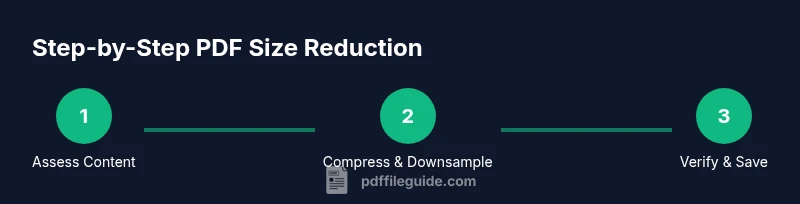
Open the PDF and review its content, images, fonts, and metadata to identify where the bulk comes from. Look for large images, embedded fonts, and unnecessary attachments. This initial assessment helps you tailor the optimization strategy.
Tip: Save a backup of the original file before making any changes. - 2
Set a target size and method
Decide on a target file size and choose an optimization approach (compression, downsampling, or both). Clear targets prevent over- or under- compression and preserve readability.
Tip: Choose lossless options for text-heavy docs; use lossy compression for image-heavy PDFs if quality is acceptable. - 3
Compress images and downsample
Reduce the resolution and quality of embedded images to reduce file size significantly. Downsampling reduces color depth or sampling rate, often with minimal perceived loss.
Tip: Test multiple downsampling levels to find the best balance. - 4
Remove unnecessary elements
Eliminate unused metadata, hidden layers, or embedded fonts that aren’t essential for your use case. Keeping only what's necessary reduces size.
Tip: If you must keep fonts, consider subset embedding to minimize font data. - 5
Save as a new optimized PDF
Save the modified file as a new document with a distinct filename to preserve the original. This way you can compare quality and size easily.
Tip: Use a naming convention like projectname_opt.pdf. - 6
Verify results
Open the optimized PDF in multiple readers, check key pages, and confirm the size reduction meets your goal. If not, revisit steps.
Tip: Keep the original intact until you’re satisfied with the result.
Questions & Answers
What is the most effective way to reduce a PDF’s size without noticeable quality loss?
The most effective approach is a combination of image downsampling, selective compression, and metadata cleanup. Start with the largest elements first and verify readability after each change.
Compress images and remove unnecessary metadata, then check readability to avoid quality loss.
Can I increase a PDF’s size?
You can increase a PDF’s size by adding high-resolution content or embedding fonts/graphics, but it’s usually not recommended unless required for print-like quality.
Yes, by embedding high-resolution content or fonts, but only if you need it.
Is online compression safe for sensitive documents?
Online tools can be convenient, but for sensitive documents use offline software or trusted sites with strong privacy policies and local processing.
Online tools can be risky for sensitive files; prefer offline tools.
Will removing metadata affect accessibility?
Removing metadata can improve privacy but may impact searchability and accessibility metadata. Keep essential accessibility tags if needed.
Removing metadata can improve privacy; ensure you don’t strip needed accessibility data.
Watch Video
Key Takeaways
- Identify the main size drivers (images, fonts, metadata).
- Choose a clear target size before starting.
- Test across devices and readers to ensure readability.
- Back up the original file and preserve an optimized version.