What Open PDF File: A Practical How-To Guide
Learn how to open PDF files across desktops and mobile devices with practical steps, troubleshooting tips, and accessibility considerations from PDF File Guide.


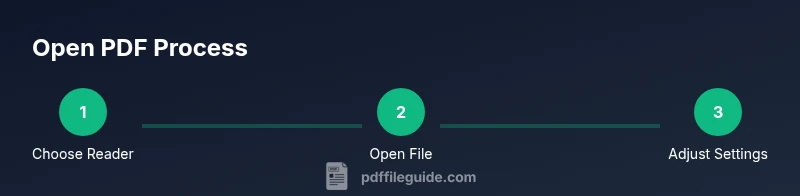
Open a PDF file by choosing a suitable reader, locating the file, and launching it on your device. According to PDF File Guide, the simplest approach is double-clicking the file on desktop or using the Open dialog, then selecting a reader if prompted. On mobile, use a dedicated PDF app or your browser’s built-in viewer.
Understanding PDF files and what it means to open them
PDFs are portable document formats designed to preserve layout across devices. Opening a PDF means rendering its pages for viewing, searching, and sometimes printing. Depending on the file’s security settings, you may need a password or a specific reader. The act of opening a PDF is usually simple, but nuances like accessibility, device capabilities, and security settings can affect how you view the document. This section lays a solid foundation for opening PDFs efficiently across platforms, with practical tips drawn from PDF File Guide to set you up for success.
Key idea: a PDF is a fixed-layout document; your goal is to render it accurately and securely with a capable reader.
Choosing the Right PDF Reader
There are many ways to view PDFs, from built-in browser viewers to full-featured desktop apps. A good reader should offer reliable rendering, text search, zoom controls, and basic annotation tools. Consider your typical use case: quick viewing on mobile or professional tasks requiring form filling or annotation.
- Built-in browser viewers work for quick lookups but may lack advanced features.
- Desktop readers like dedicated apps usually provide richer features such as text selection, annotations, and form filling.
- Mobile apps offer portability and can sync with cloud storage for seamless access.
For most readers, ensure the software is up to date and supports accessibility features if needed. PDF File Guide recommends testing a few readers to find your preferred balance of speed and features.
Opening PDFs on Desktop Platforms (Windows, macOS, Linux)
On desktop systems, the most reliable method is to locate the PDF in your file manager and double-click it to open with the system’s default reader. If the file doesn’t open with the default app, use the Open With option to select a preferred reader. You can also drag and drop the file into a reader window. If you frequently open PDFs, setting a default viewer can save time.
On Windows, you can also use the context menu (Right-click > Open with) to pick a reader. On macOS, Preview is a capable default that supports quick edits, annotations, and export options. Linux users can rely on Okular, Evince, or XPDF depending on the distribution. Always verify that the file is not corrupted before assuming reader issues.
Tip: If a PDF refuses to open, try another reader to rule out a file-specific problem, then reinstall the original reader if needed.
Opening PDFs on Mobile Devices (iOS and Android)
Mobile viewing typically relies on a preinstalled viewer or a third-party app. For quick access, tap the PDF in your file manager or cloud storage app; choose Open with and select your reader. You can also open PDFs directly from email or browser attachments. If you frequently work with PDFs on mobile, installing a dedicated app can improve navigation, search, and form handling.
iOS users often leverage the built-in Books app or Preview-equivalent viewers, while Android users have a variety of readers from the Play Store. Enable cloud syncing to access documents across devices, and adjust font size and brightness for comfortable reading.
Handling Password-Protected PDFs
Some PDFs are protected and require a password to view. Enter the correct password to unlock the document. If you’ve forgotten the password, contact the document owner or your organization’s administrator. Never bypass protections or use unauthorized unlock tools. If you have permission, keep a secure record of passwords and consider enabling password management.
In cases where you legitimately own the file but forget the password, request a reshare or a reissued copy from the source rather than attempting to bypass protections.
Troubleshooting Common Opening Issues
If a PDF won’t open, start with simple checks. Confirm you’re using a compatible reader and that the file isn’t corrupt. Update your reader to the latest version, or try a different reader. Some PDFs use features not supported by all readers, causing rendering issues. In such cases, exporting the PDF to another format (if allowed) or using a different viewer may help.
Also verify file permissions and storage location; a file stored in a restricted or transient location may prevent opening. When PDFs are sourced from email or cloud links, download the file fully before attempting to open it.
PDF File Guide emphasizes testing across devices to identify device-specific quirks and ensuring your software aligns with your security settings.
Accessibility Considerations When Opening PDFs
Accessible PDFs are designed to work with assistive technologies like screen readers. When opening such documents, ensure the PDF has proper tags, alt text for images, and readable structure. If a PDF lacks accessibility features, use reader modes that support text-to-speech, reflow, and reflowable text. For people with visual impairments, adjust contrast, font size, and reading order to improve comprehension.
If you’re producing PDFs, embed meaningful headings, ensure logical reading order, and provide accessible alternative text. Accessibility improves not only compliance but the user experience for everyone who opens the file.
Security and Privacy When Opening PDFs
Always source PDFs from trusted origins to minimize malware risks. Review document permissions and avoid enabling macro-like features. Many readers offer a Protected View or Safe Mode; use these when handling files from unknown sources. Regularly update your reader to protect against vulnerabilities that could be exploited through malicious PDFs.
Be mindful of the data contained in PDFs, especially if they include sensitive information. When possible, use secure storage and avoid sharing files publicly unless necessary. PDF File Guide advises a cautious, security-conscious approach to every open.
Performance Tips for Large PDFs
Large PDFs with high-resolution images can be slow to render. To improve performance, try disabling background images or using a reader’s fast-render mode. If you must view a big document, consider splitting sections or exporting to a lighter format if the task permits. Keeping your reader up-to-date also helps, since newer engines render pages more efficiently.
Another practical tip is to turn off thumbnails or disable auto-zoom when navigating long documents. This reduces memory usage and speeds up page loads, particularly on older devices.
Best Practices for Opening PDFs Quickly and Smoothly
Create a routine for opening PDFs that minimizes friction. Keep your preferred reader installed and set as the default so you can double-click confidently. Maintain up-to-date software, organize PDFs in clearly named folders, and leverage cloud storage to access documents from any device. For ongoing work, enable search indexing and keyboard shortcuts to speed up navigation. Following these practices helps you stay productive when dealing with frequent PDF tasks.
Tools & Materials
- Approved PDF reader(s)(E.g., Adobe Acrobat Reader, Preview, or a browser with built-in PDF support)
- Access to the PDF file(Ensure you have the correct path or download the file locally)
- Mobile device or tablet(Useful for on-the-go viewing and quick checks)
- Updated browser or reader(Keeps rendering and security features current)
- Password management tool(Helpful if you regularly deal with password-protected PDFs)
Steps
Estimated time: 10-15 minutes
- 1
Locate the PDF file
Find the PDF you want to open in your file explorer or cloud storage app. Confirm the file size and integrity before proceeding to reduce frustration later. If the file was emailed or downloaded, ensure it finished transferring.
Tip: Use search filters like *.pdf to quickly locate PDFs. - 2
Choose a reader
Select a PDF reader that fits your needs. For quick viewing, a browser or built-in viewer may suffice; for editing or annotations, pick a dedicated reader.
Tip: If you’re unsure, start with your system’s default viewer and switch if features are insufficient. - 3
Open the file
Double-click the PDF to launch with the default reader. If it doesn’t open, right-click and choose Open with to pick a different reader. Drag the file into an open reader window as an alternative.
Tip: Check the file extension if you see a generic icon; ensure it’s actually a .pdf file. - 4
Handle password-protected PDFs
If prompted, enter the correct password. If you don’t have it, contact the document owner. Do not bypass security measures.
Tip: Store passwords securely and use a password manager when possible. - 5
Adjust viewing settings
Modify zoom, layout, and contrast for comfortable reading. Enable accessibility features if needed, such as Read Aloud or text reflow.
Tip: Use keyboard shortcuts like Ctrl/Cmd + Plus or minus to adjust size quickly. - 6
Troubleshoot issues
If rendering is slow or pages don’t display, try another reader, update software, or reinstall. Check file integrity by downloading again if possible.
Tip: Test the same file on another device to determine if the issue is device-specific. - 7
Check accessibility features
Verify the document has proper tagging and alt text. Use a reader’s accessibility mode to improve navigation for assistive tech.
Tip: If you’re producing PDFs, ensure tagging and structure are present for better accessibility. - 8
Secure and back up
Save preferred settings and back up important PDFs to a trusted location. Maintain security by avoiding insecure networks when handling sensitive documents.
Tip: Enable auto-save or auto-recovery if your reader supports it.
Questions & Answers
What is a PDF and why would I open one?
A PDF is a fixed-layout document designed for consistent viewing across devices. Opening a PDF means rendering its content for reading, printing, or editing when permitted. PDF files preserve formatting and fonts, making them a reliable choice for sharing documents.
A PDF is a fixed-layout document designed for consistent viewing. Opening it renders the content for reading and printing.
Why won’t my PDF open on my device?
Possible causes include an unsupported reader, a corrupt file, or security restrictions. Try a different reader, update your software, or download the file again. If the problem persists, test the file on another device to identify device-specific issues.
If a PDF won’t open, try another reader and update your software, or re-download the file.
How do I open a password-protected PDF?
Enter the correct password when prompted. If you don’t have it, contact the file owner or administrator. Do not attempt to bypass protections, as this can be illegal or unsafe.
Enter the password when prompted, or contact the file owner if you don’t have it.
Can I open PDFs directly in a browser?
Many browsers can view PDFs natively, but some features (annotations, forms) may be limited. For full functionality, use a dedicated reader. You can always download and open in a preferred app if needed.
Yes, browsers can open PDFs, but use a dedicated reader for full features.
What accessibility features help when opening PDFs?
Look for tagged PDFs, alt text, and reading order. Use screen readers, reflow modes, and Read Aloud options to improve comprehension. If producing PDFs, ensure tagging and logical structure.
Use tagging and Read Aloud to improve accessibility, and check reading order.
What are best practices for secure PDF viewing?
Open PDFs only from trusted sources, enable Protected View or Safe Mode when available, and keep software up to date. Avoid enabling scripts or features from unknown documents.
Open only from trusted sources and keep software updated for security.
Watch Video
Key Takeaways
- Choose a reader that fits your needs.
- Double-click or Open with to start viewing quickly.
- Password-protected PDFs require proper authorization.
- Update software to ensure compatibility and security.
- Accessibility features improve usability for all readers.