Why Aren't PDFs Printing? Urgent Troubleshooting Guide
Urgent guide to diagnose and fix PDF printing issues: printer, driver, and PDF restrictions, with step-by-step fixes and practical tips for reliable printing.


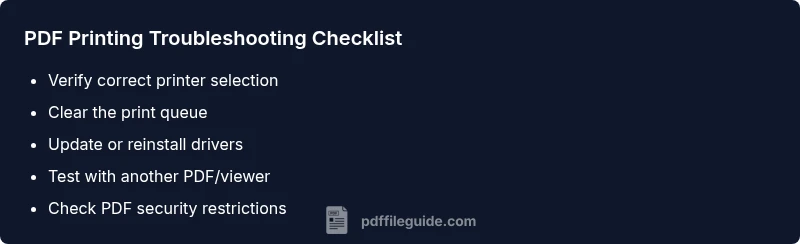
Most PDF printing issues stem from a misconfigured printer, a blocked print queue, outdated drivers, or PDF security restrictions. Start by selecting the correct printer and clearing the print queue. If that doesn’t fix it, update the printer driver or try a different PDF viewer. PDF File Guide notes that simple checks usually resolve the problem before deeper fixes.
Why PDFs Won’t Print: Common Causes and Quick Diagnostics
When you’re in a rush, a stubborn PDF that won’t print can derail your workflow. The root causes are often surprisingly simple: the wrong printer selected, a jammed print queue, outdated drivers, or a PDF with security restrictions that prevent printing. According to PDF File Guide, these issues surface most often in professional environments where multiple devices share a single network. Start with the basics: confirm you’re sending the document to the correct printer, clear any stalled jobs, and test with another PDF to rule out file-specific problems. If the problem persists, the culprit is usually one of a small set of culprits—driver problems, queue issues, or document protections. By addressing these few factors, you’ll restore reliable printing in most scenarios before moving on to more complex fixes.
The keyword here is structured troubleshooting. If you notice the PDF prints when opened in another viewer but not in your default application, the issue most likely lies with the viewer or its print settings. Also, be mindful of corporate or PDF security policies that can block printing or restrict certain pages. These quick checks are fast, non-destructive, and often sufficient to get you back to work. Remember to document changes so you can repeat successful steps in the future.
notes}: null,
Steps
Estimated time: 30-60 minutes
- 1
Identify the printing problem
Clarify whether the PDF prints at all, prints partial pages, or shows errors. Note any error messages and the software you’re using to print. This baseline helps you decide the next fixes without wasting time.
Tip: Document the exact errors to speed up support if needed. - 2
Check printer selection and queue
Open the print dialog and confirm the correct printer is selected. Clear the print queue of any stalled jobs and try printing a test page. A stale queue is a common culprit for stubborn PDFs.
Tip: If you have multiple printers, set the primary one as default for the test. - 3
Restart spooler and reset connections
On Windows, restart the Print Spooler service; on macOS, reset the printers system. Reconnect USB/Wi‑Fi printers and re-add them if needed, then attempt printing again.
Tip: A fresh spooler session often resolves stuck jobs. - 4
Update or reinstall drivers
Go to the printer manufacturer’s site, download the latest driver, and install. If the manufacturer offers a cleaner tool, run it to remove old components before reinstalling.
Tip: Keep the printer model and OS version handy during install. - 5
Test with alternate viewer or export
Open the PDF in another viewer or export the file to an image or another printable format, then print that version to determine if the issue is viewer-specific.
Tip: Export to a high-quality image for reliable printing. - 6
Check PDF permissions and security
Open the PDF’s properties to see if printing is restricted. If permitted, save a non-restricted copy or request an unlocked version from the sender.
Tip: Do not bypass security on sensitive documents.
Diagnosis: PDF prints fail or produce incomplete output
Possible Causes
- highPrinting restrictions embedded in the PDF
- highOutdated or incompatible printer driver
- mediumStuck or blocked print queue / spooler issue
- mediumIncorrect printer selected in OS or application
- lowPDF viewer limitations or security settings
Fixes
- easyCheck that the correct printer is selected and that the document is sent to the active queue
- mediumUpdate or reinstall the printer driver to the latest version from the manufacturer
- easyRestart the print spooler service and clear the print queue, then reprint
- easyTry printing from a different PDF viewer or export the PDF to another format (e.g., image) and print that file
- mediumReview PDF security settings and permissions; if printing is restricted, obtain necessary permissions or a non-restricted copy
- easyVerify hardware status (printer online/offline, connected via USB/Wi-Fi) and cables
Questions & Answers
Why won’t my PDF print at all on this computer?
Start with the basics: confirm the correct printer is selected and clear the print queue. If the problem persists, update the printer driver and try a different PDF viewer. Some PDFs have security restrictions that prevent printing, which requires a non-restricted copy or permission.
First check the printer and queue, then update drivers and try another viewer. If the PDF is protected, you may need a different file.
Why is only part of my PDF printing?
Partial printing often means pages are misordered in the document or the print job was interrupted. Check the page range in the print dialog, try printing a single page, and ensure the PDF isn’t corrupted. If needed, save a fresh copy of the PDF and retry.
Usually it’s a page range or a corrupt file—check the dialog and try again with a clean copy.
Can printing vary between browsers and PDF viewers?
Yes. Some viewers apply different color management, fonts, or security rules. Always test printing from the intended application, and, if possible, print to image or export to another format to locate the source of the discrepancy.
Different apps handle PDFs differently, so test across a couple of viewers.
Are PDF restrictions a real blocker to printing?
Security settings can prevent printing or restrict pages. If you can’t remove restrictions, obtain an unprotected copy from the sender or request permission to print.
Printing can be disabled by the PDF’s security settings; you may need a different copy.
What should I do if the printer shows “offline”?
Check connections, restart the printer, and verify the device shows as online in your OS. If the problem persists, reconnect the printer to the network or switch to a USB connection to rule out network issues.
If the printer is offline, recheck cables and network, then reconnect.
Can mobile devices print PDFs reliably?
Most mobile apps support printing, but capabilities vary by OS and app. If issues occur, save the PDF on a computer and print from the desktop viewer to isolate device-specific problems.
Mobile printing can be hit-or-miss; try desktop printing to diagnose.
Watch Video
Key Takeaways
- Verify the printer and queue first.
- Update drivers before deeper changes.
- Test with different viewers or export formats.
- Check for PDF printing restrictions and permissions.
- If unresolved, involve IT or printer support.