Why Is My PDF Not Printing? An Urgent Troubleshooting Guide
Urgent guide to diagnose and fix PDF printing issues. From permissions and queues to drivers and fonts, learn practical steps to get PDFs to print reliably.


If you're wondering why is my pdf not printing, start by checking basic blockers: confirm the document isn’t password-protected or restricted, inspect the printer queue for stalled jobs, and try a different PDF to isolate file vs. printer. For stubborn files, select 'Print as image' in the print dialog or export as a simpler PDF. PDF File Guide notes these steps resolve the majority of issues.
Common Causes of PDF Printing Failures
PDF printing failures can stem from several root causes, and the fastest path to resolution is to identify which category your issue fits. Common culprits include document security restrictions embedded in the PDF, printer queue blockages, driver incompatibilities, and file-specific problems such as embedded fonts or complex graphics that the printer cannot render correctly. PDF File Guide emphasizes starting with the simplest checks and moving toward more technical fixes. By understanding these categories, you can systematically isolate the problem and apply the appropriate fix rather than guessing. Keep in mind that many printers treat PDFs differently than other document types, so issues may appear even when other files print without problems.
Verify Printer Status and Basic Setup
Before you dive into file analysis, confirm the hardware and software basics are sound. Check that the printer is powered on, connected to the computer (via USB or network), and that there are no red lights or error messages. Open the printer queue and cancel any stalled jobs; restarting the spooler on Windows or reinitializing the print system on macOS often clears stubborn hiccups. Print a test page from the printer's own settings to confirm hardware functionality. If the test page fails, the issue is likely hardware or connection-related rather than the PDF itself. If the test page succeeds, continue with PDF-focused checks.
Check PDF Permissions, Security, and Restrictions
Many PDFs include security settings that disable printing or require a password. If printing is restricted, you may see messages such as 'Printing is disabled' or 'Document restrictions apply.' To verify, open the PDF in your reader and review the document properties or security settings. If you have permission, remove restrictions or ask the file creator for an unlocked version. In corporate or shared environments, group policies or PDF security profiles can also block printing. If you cannot modify the file, testing with a different PDF can confirm whether the problem is the file or the printer.
Update and Troubleshoot Printer Drivers and OS Settings
Outdated or incompatible drivers are a frequent cause of PDF printing issues. Check for driver updates from the printer manufacturer and install any available patches. Also ensure the correct printer is selected as the default in your operating system and that the printer's firmware is current. If your system recently updated, test printing from another app to see if the problem is OS-level. On Windows, restarting the Print Spooler service can resolve stuck jobs; on macOS, resetting the printing system may help. Always back up settings before making sweeping changes.
Workarounds: Printing as Image and Exporting Simplified PDFs
Some PDFs contain fonts, transparency, or color spaces that printers struggle to render. A reliable workaround is to print the document as an image. In the print dialog, choose the option 'Print as image' (or export to a new PDF with flattened content). This approach bypasses complex rendering and often yields a clean print. If that works, you can then re-export the PDF with simplified fonts and embedded resources. Note that printing as image may increase file size and reduce text selectability.
Test Scenarios to Isolate the Issue
Create a small, simple PDF from a known-good source and attempt to print it. If the simple PDF prints, compare with the original to identify problematic elements such as fonts or embedded graphics. Try printing from a different application (for example, print from a PDF reader, browser, or word processor) to see if the problem is app-specific. If all PDFs fail, focus on the printer or driver. If only certain PDFs fail, the file itself is likely the cause.
Special Cases: Large or Complex PDFs
Very large PDFs or those with many high-resolution images can overwhelm printers or memory, causing incomplete prints or failed jobs. Large files may require splitting into smaller parts or using a reduced resolution export. Similarly, PDFs with advanced color profiles or transparency layers may not render identically across printers. In these cases, flattening layers or converting to an image-based PDF can restore reliable printing. Always save a backup before making major changes.
Quick Fix Checklist You Can Run Right Now
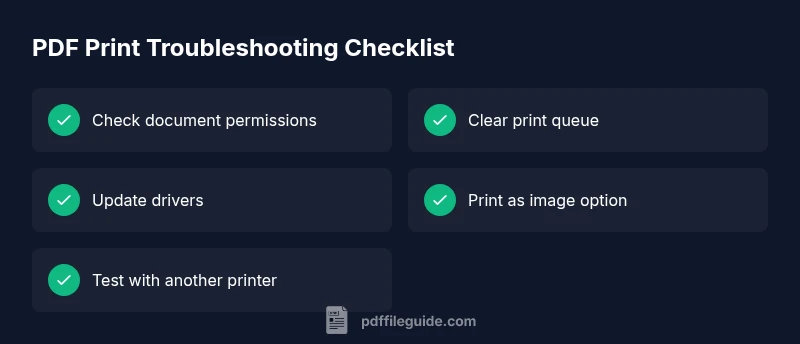
Use this rapid sequence to triage the issue without waiting for support: 1) Print a test page; 2) Try a different PDF; 3) Check the queue and restart spooler; 4) Update drivers; 5) Enable Print as image; 6) Test with another printer; 7) Reboot the computer and printer. Following these steps in order often resolves most problems within minutes. If the issue persists, professional IT support may be required, particularly in corporate environments.
Steps
Estimated time: 30-45 minutes
- 1
Check PDF security and permissions
Open the PDF and review the Security or Properties panel to see if printing is allowed. If you see restrictions, obtain permission or an unlocked copy before proceeding. This step prevents wasted troubleshooting on a file that cannot be printed.
Tip: If you don’t have the password, contact the file creator. - 2
Test the printer with a simple print
Print a basic document or a test page from the printer directly to ensure hardware and connection are functioning. If the test page prints, the issue is likely PDF-specific. If not, focus on hardware or drivers.
Tip: A successful test page narrows the problem to the PDF or software. - 3
Clear print queue and restart spooler
Open the printer queue, cancel all jobs, then restart the Print Spooler service (Windows) or reset the printing system (macOS). This clears stuck tasks that can halt new print jobs.
Tip: Sometimes a full reboot of the printer helps too. - 4
Update drivers and firmware
Visit the manufacturer’s site to download the latest printer driver and firmware. Install, restart, and test printing again. Outdated software is a common cause of PDF print failures.
Tip: Verify you installed the correct driver for your exact printer model. - 5
Try Print as Image or flatten the PDF
In the Print dialog, select Print as image, or export/flatten the PDF to remove complex graphics and fonts. This often resolves rendering issues that stop printing.
Tip: Printing as image disables text selection but improves compatibility. - 6
Compare with a different PDF or app
Print a different PDF or try printing from another application to determine if the issue is file-specific or app-specific. This helps you decide whether to escalate or adjust workflow.
Tip: If all PDFs fail across apps, hardware or driver issues are likely.
Diagnosis: PDF won't print after basic checks
Possible Causes
- highDocument restrictions or password protection on the PDF
- highStalled print queue or spooler service
- highOutdated or incompatible printer driver or OS settings
- mediumFont embedding issues or complex graphics in the PDF
- lowPrinter hardware issues or connectivity problems
Fixes
- easyCheck the PDF security settings and obtain an unlocked version if printing is restricted
- easyClear the print queue and restart the spooler or reboot the printer
- easyUpdate the printer driver and firmware; ensure the correct printer is selected as default
- easyTry printing with 'Print as image' or export the PDF as a flattened file
- easyTest with a different printer or computer to isolate hardware or network issues
Questions & Answers
Why won't my PDF print after recent software updates?
Software updates can reset printer settings or update drivers in a way that blocks printing. Re-select the printer, check the default status, and install any available driver patches. If issues persist, roll back or quarantine the update to test.
Software updates can reset printer settings; reselect the printer and verify drivers after updates.
How do I tell if a PDF is password-restricted?
Open the PDF and view its Security or Properties section to confirm whether printing is allowed. If printing is restricted, obtain an unlocked version or contact the file creator for access.
PDF security can block printing; check permissions in the document properties.
What is Print as image and when should I use it?
Print as image renders each page as a bitmap, bypassing font and transparency rendering problems. Use this when fonts or complex graphics cause print failures, then consider re-exporting a simpler PDF.
Print as image bypasses rendering issues by treating pages as images.
If other PDFs print but this one doesn’t, what should I do?
If only this PDF fails, the file is likely corrupted or has embedding issues. Try flattening fonts or exporting to a new PDF. If still failing, request a different version from the creator.
If others print fine, the issue is with this PDF’s content.
When should I contact a professional?
If you have exhausted checks for permissions, queues, drivers, and software, and the issue persists across devices, it’s time to involve IT support or a printer technician.
If the problem persists after thorough checks, seek professional help.
Watch Video
Key Takeaways
- Check for document restrictions first and obtain permission if needed.
- Clear the print queue and restart spooler to resolve common blocks.
- Update printer drivers/firmware and verify default printer settings.
- Use Print as image to bypass rendering issues when necessary.
- Test with another PDF or printer to isolate the cause quickly.