Why Would a PDF Not Print: Troubleshooting Guide
Urgent troubleshooting guide to diagnose and fix why a PDF won’t print, covering restrictions, drivers, rendering modes, and exporting alternatives. Learn fast steps to restore reliable printing for important documents.


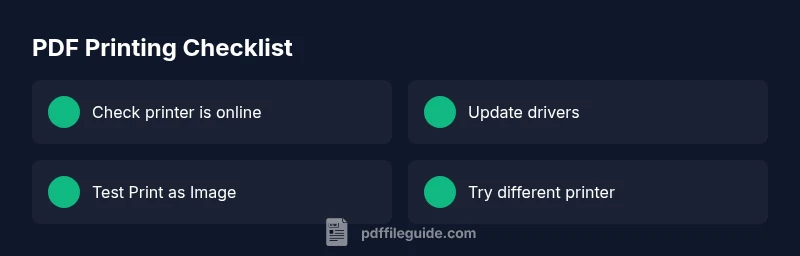
Most PDF print failures come from three buckets: file restrictions, printer driver problems, or misconfigured print options. Start with quick, low-effort checks: ensure the printer is online and not paused, try another printer, and attempt to print the PDF as an image. If issues persist, adjust the document’s security settings, update drivers, or export a new printable version.
Why PDFs Won't Print: Top Causes
According to PDF File Guide, the most common printing obstacles stem from document permissions, driver compatibility, and rendering options. Some PDFs ship with printing restrictions that block or limit output; others rely on embedded fonts that your printer can't render, leading to incomplete pages or missing glyphs. Additionally, if the application rendering the PDF isn't fully compatible with the printer, you may see garbled text, missing images, or blank pages. In many cases, the problem isn't a broken printer but a mismatch between the file's settings and the printer's capabilities. By understanding these core causes, you can quickly diagnose and pick the right remedy. This section provides practical distinctions and real-world scenarios to help you triage efficiently.
First, Do These Quick Checks
Start with the simplest checks that often solve the problem without diving into settings. Verify the printer is online, not paused, and has enough ink or toner. Print a test page from another application (like a Word document) to confirm the printer itself is functioning. Open the PDF in the original viewer and try printing a different page or a small range to see if the issue is project-specific. If another device or another browser prints the PDF correctly, the fault likely lies with the original workstation or software configuration rather than the file. Document each test and its outcome to speed up subsequent support calls if needed. These fast checks are your first line of defense against wasted time.
PDF Restrictions, Security, and Encryption
Some PDFs include printing restrictions set by the creator or by an information-rights management (IRM) system. If printing is disallowed or limited to certain users, you may receive an error, a warning, or a silent failure. Password-protected PDFs can also block printing entirely if you don’t provide the correct credentials. Check the file properties or security menu in your PDF viewer for permissions: printing allowed/allowed for low/high resolution, or printing not allowed at all. If you have legitimate access, you can request an updated version from the author or remove restrictions using authorized methods. Always verify agency or organizational policies before attempting workarounds.
Printer Drivers, Cables, and Hardware
Outdated or corrupted printer drivers are a very common source of PDF printing problems. Update to the latest driver from the manufacturer’s site and restart the printer and computer. If you’re on a networked printer, verify queue status and ensure no stalled jobs block subsequent prints. Cable integrity matters too: loose USB or network cables can drop data streams, causing partial prints. If you have multiple printers, set a different default to see whether the issue is printer-specific. Finally, check for firmware updates for the printer, which can improve compatibility with newer PDF rendering engines.
Rendering Modes: Print as Image vs Vector
Many PDF viewers offer a choice to print as an image or as vector data. Printing as an image can resolve font substitutions, color mismatch, and rendering glitches, but it increases the file size and reduces print quality for complex documents. If you’re seeing garbled text or missing fonts, try printing with the 'Print as image' option in your PDF viewer’s print dialog. Conversely, if you need precise font rendering and sharp lines, prefer vector printing and ensure your viewer is up to date. Some drivers also handle these modes differently on Windows vs macOS; testing both platforms can reveal where the breakdown occurs.
When to Export or Rebuild the PDF for Print
If the original file is poorly constructed for print, exporting to a different format can fix issues. Try exporting to a new PDF using a different creator or printer profile, or convert the document to images (PNG/JPEG) for printing. You may also consider saving as a PostScript file and sending to a printer that handles PS data. In some cases, flattening transparency, embedding fonts, and lowering color profiles can reduce rendering inconsistencies. After exporting, re-import the new file into your workflow and test printing again on the same printer.
Troubleshooting Workflows and Diagnostic Flow
Adopt a structured workflow to avoid circular fixes. Start with the simplest, most reliable checks—printer status, test print with another app, test print from a different device. If the PDF still won’t print, examine file-level factors: permissions, encryption, fonts. Escalate to driver updates or device firmware, then try alternate export or image printing. Maintain a small playbook: note the steps you tried, the results, and the exact PDF version. If none of these steps resolve the issue, contact your IT department or the printer vendor’s support with a concise summary and copies of the affected files.
Prevention: Best Practices for Reliable PDF Printing
To minimize future issues, standardize your print workflow. Keep PDF viewers and printer drivers up to date, verify permissions before distributing secured documents, and use print-friendly layouts when possible. Establish a quick-verify test page for major print runs, and document the steps that work for each document type. Finally, consider creating a dedicated print profile for your most-used printers that optimize color, duplexing, and scaling. Regularly review your processes to catch problems early and reduce downtime.
Steps
Estimated time: 60-90 minutes
- 1
Reproduce and Gather Details
Document the exact symptoms (blank pages, garbled text, partial print). Note the PDF version, viewer, OS, printer model, and driver version. Gather any error messages or security prompts.
Tip: Create a quick facts sheet to paste into a ticket. - 2
Check Printer Status and Connections
Verify the printer is online, not paused, and has sufficient ink/toner. Check cables (USB/network) and test the printer with a simple non-PDF print.
Tip: Restart the printer spooler service if prints stall. - 3
Inspect PDF Security and Permissions
Open the PDF in a viewer and review permissions. If printing is restricted or password-protected, obtain authorized access or a non-restricted copy.
Tip: Document permissions before proceeding with fixes. - 4
Test Print as Image
In the print dialog, choose 'Print as image' option and print a page or two to see if rendering changes the result.
Tip: This bypasses font and vector rendering issues. - 5
Update Drivers and Software
Update the printer driver and the PDF viewer to the latest versions. Reboot both computer and printer after updates.
Tip: Keep a record of versions for future reference. - 6
Try Alternative Device/Viewer
If possible, print the same PDF from another computer or operating system to determine if the issue is device-specific.
Tip: A cross-platform test can quickly isolate the problem. - 7
Export or Rebuild the PDF for Print
Export the PDF with different settings, flatten layers, or convert to images for printing. Consider a PostScript export if supported by your printer.
Tip: Test print after each export to confirm fixes. - 8
Document Results and Escalate
Summarize tested steps and outcomes. If unresolved, contact IT or the printer vendor with your playbook and copies of the file.
Tip: Provide exact file version, device, and driver details.
Diagnosis: Printed output shows missing pages, garbled text, or blank pages
Possible Causes
- highDocument printing restrictions or security settings blocking printing
- highOutdated or corrupted printer driver
- mediumPDF rendering option set to Print as Image or incorrect page scaling
- lowPrinter offline or not selected as default
- lowFont embedding issues or data corruption in the PDF
Fixes
- easyCheck printer status (online, not paused) and ensure the correct printer is selected
- easyUpdate or reinstall the printer driver; restart printer and computer
- easyOpen the PDF and try printing as image or adjust page scaling (Fit to Page)
- easyTest printing from another device or viewer to isolate the fault
- easyExport a new printable version of the PDF or convert to image for printing
- mediumReview and adjust PDF restrictions with authorized access
- hardIf issues persist, contact IT or printer vendor support with a summary
Questions & Answers
Why is my PDF printing blank pages?
Blank pages typically indicate a rendering or font embedding issue, or a printer misinterpretation of vector data. Start by printing as image, updating drivers, and checking page ranges. If the problem persists, test another PDF to confirm whether the issue is file-specific.
Blank pages usually come from rendering or font problems; try printing as image and update your software. If it still fails, check another PDF to see if the issue is with the file.
Can printing restrictions prevent printing a PDF?
Yes. Some PDFs restrict printing via security settings or IRM. If printing is blocked, you’ll see a warning or be unable to print at all. Obtain proper access or request a non-restricted version from the author.
Security restrictions can block printing. Get the proper access or a non-restricted copy to proceed.
How do I enable Print as Image in a PDF viewer?
Open the print dialog in your PDF viewer, look for an option labeled Print as image, and enable it before sending to print. This can bypass font and rendering issues.
In the print dialog, enable Print as image to bypass font problems and rendering glitches.
Why won’t my printer print from a PDF viewer but does from other apps?
This often points to viewer-specific rendering settings or a faulty driver interaction. Test with a different viewer or update the viewer and printer driver. If the issue persists, try printing from another device.
If printing works with other apps, the PDF viewer or its settings are likely the culprit. Update software and try another device.
What should I do if fonts don’t render correctly?
Try printing as image, embed or substitute fonts, and ensure the printer driver supports the font set. Check for font embedding options when exporting or saving the PDF anew.
Fonts can fail to render if they’re not embedded. Print as image or embed fonts when exporting.
When should I contact IT or printer support?
If you’ve tried the standard checks and the PDF still won’t print, escalate to IT or the printer vendor with a summary of steps taken and the affected file. They can inspect permissions, firmware, and network issues.
If basic fixes don’t help, contact IT or the printer vendor with a clear summary of what you tried.
Watch Video
Key Takeaways
- Check permissions first to rule out security blocks
- Update drivers and try print-as-image for problematic PDFs
- Test across devices to isolate the fault
- Export or re-create the PDF if the file is corrupt
- Document results for faster support and prevention