Why PDF Won't Print: Quick Troubleshooting Guide
Diagnose and fix PDF printing problems quickly when PDFs won't print. This urgent guide from PDF File Guide covers common causes, practical fixes, printer settings, driver issues, and prevention tips to avoid future failures.


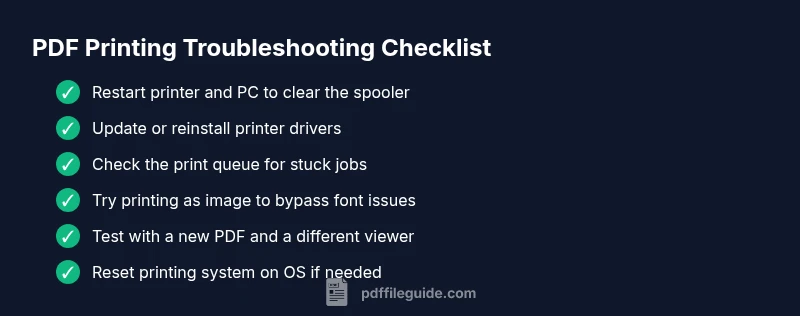
Most PDF print failures come from printer spooler glitches or blocked fonts. A fast fix is to restart the printer and your computer, update or reinstall the printer drivers, and try printing a test PDF from another application. If the issue remains, verify the PDF for corruption, save a fresh copy, and test with a different printer or print as image.
Start with the basics
If you’re seeing why pdf won't print, the fastest way to begin is to reset the obvious culprits: the printer, the spooler, and the PDF viewer. According to PDF File Guide, many print failures originate from spooler glitches or mismatched drivers. In this urgent phase, perform a quick checklist: restart devices, verify the printer queue, and test a simple PDF from a different app. Also ensure the file itself isn’t corrupted and you’re sending to a valid printer. This initial pass saves time and narrows the field before diving into deeper causes. By keeping the scope tight, you avoid chasing phantom problems and you’ll have a solid baseline for the next steps.
Common culprits behind PDF printing failures
Here are the most frequent causes you'll encounter, ordered from easiest to more complex:
- Outdated or corrupted printer drivers: can cause the printer to reject a PDF or produce gibberish.
- Print spooler issues: a stuck queue or service crash stops all jobs.
- Font embedding and rendering problems: missing fonts or font subsetting in the document can fail the render.
- PDF file corruption or optimization artifacts: sometimes a damaged page or compressed object blocks printing.
- Printer settings like “print as image” being enabled or misconfigured: rarely the culprit but worth checking.
Understanding these helps you pick the right fix first and reduces back-and-forth with support.
Start with the printer and drivers
Begin with the simplest and most common fixes. Ensure the printer is online and not paused. Open the print queue and cancel stuck jobs. Restart the printer and the computer to clear the spooler cache. Then, check for driver updates through Windows Update, macOS Software Update, or the printer manufacturer’s site. If updates fail or driver corruption is suspected, reinstall the driver completely. These steps address the top two failure modes and often restore normal printing behavior.
Check the PDF itself and viewer settings
Some PDFs contain embedded fonts or graphics that rendering engines on printers struggle with. Open the PDF in a reputable viewer and try printing another document to determine if the issue is document-specific. If possible, export or save the PDF as a new copy, or print to a different PDF/A variant. Another robust workaround is to enable printing as image in the print dialog, which bypasses font and vector rendering issues and can yield a clean print.
System-level checks and fixes
Operating system components also influence printing reliability. On Windows, restart the Print Spooler service and clear the printer queue. On macOS, reset the printing system and re-add your printers. On Linux, ensure the CUPS service is running and that the correct printer is selected. If you’re in a corporate environment, confirm there are no group policies or central print queues conflicting with local print tasks. These deeper checks catch issues that user-level tweaks miss.
Safe workarounds you can try now
If standard fixes don’t resolve the issue, try a safe workaround: save the PDF as an image-based file in the viewer and print the image, or export the PDF to a new file using a different tool and reprint. Reducing the document to a raster image often sidesteps embedded font problems and complex vector instructions. You can also print a single page first to confirm the page-level behavior before reprinting the entire document.
Prevention and best practices
To reduce future print failures, keep your printer firmware and drivers up to date, ensure fonts are embedded when needed, and print from a consistent viewer. Regularly reboot devices to refresh spooler services and monitor for persistent errors. Maintain a clean print queue, avoid sending extremely large or corrupted PDFs, and store a clean backup copy of frequently printed documents. Staying proactive minimizes downtime and keeps your workflow moving.
Steps
Estimated time: 25-40 minutes
- 1
Reproduce and document the issue
Open the PDF and attempt a print. Note the exact error messages, printer name, and file path. Write down any recent changes to drivers or OS updates. This context guides the rest of the process.
Tip: Capture screenshots of any error dialogs to share with support if needed. - 2
Reset printers and spooler
Cancel all print jobs, restart the printer, and restart the computer. If on Windows, restart the Print Spooler service and clear the printer queue; on macOS, reset the printing system and re-add the printer.
Tip: Perform these steps in a single troubleshooting session to avoid mixed states. - 3
Update or reinstall drivers
Check the device manager (Windows) or System Report (macOS) for driver versions. Download the latest driver from the manufacturer and install it. Reboot afterward and test again.
Tip: Prefer clean install options if the old driver seems corrupted. - 4
Test with a different PDF/app
Print another PDF from a different viewer or export the current file to a new PDF. If the new file prints, the issue is likely with the original PDF’s fonts/objects.
Tip: If other PDFs print fine, focus on the file’s font embedding or content. - 5
Apply safe workarounds
Enable 'Print as Image' in the print dialog or save/export the PDF from a different tool and attempt to print again. This bypasses tricky rendering paths.
Tip: Use this sparingly; it can increase file size and reduce sharpness. - 6
Assess system and settings
Review OS print settings, note any recent updates, and verify the correct printer is selected in the print dialog. Check for network printer conflicts if using shared printers.
Tip: Document any policy or admin changes that could impact printing.
Diagnosis: PDF won't print
Possible Causes
- highOutdated or corrupted printer drivers
- highPrint spooler service issues
- mediumFont embedding/rendering problems in the PDF
- lowPDF file corruption or optimization artifacts
Fixes
- easyRestart the print spooler and clear the printer queue; then reboot the PC and printer
- easyUpdate or reinstall printer drivers; verify OS compatibility
- easyPrint as image or export to a new PDF to bypass font/render issues
- mediumRepair the PDF or recreate a fresh copy from the original source
Questions & Answers
What is the most common reason a PDF won't print?
The most common cause is a mismatch between the printer spooler and drivers, or font rendering issues within the PDF. Troubleshooting these areas usually resolves the problem quickly.
The most common cause is printer driver or spooler issues, or font problems within the PDF. Start with drivers and spooler checks.
Does printing a PDF as an image affect quality?
Printing as an image bypasses font and rendering problems but can increase file size and reduce sharpness, especially for detailed graphics.
Printing as an image bypasses font issues but may increase file size and reduce sharpness.
How do I print a password-protected PDF?
You need the correct password or permission from the author to print. Without authorization, printing will be blocked for security reasons.
You need the password or permission to print password-protected PDFs.
Will updating drivers fix issues in all cases?
Driver updates fix many cases, but not all. If the PDF itself is corrupted or uses uncommon fonts, other fixes may be required.
Driver updates fix many things, but not every case; sometimes the PDF itself is the culprit.
What should I do if none of the fixes work?
If nothing works, contact IT or the printer manufacturer support. Provide the error messages, OS version, and printer model to accelerate diagnosis.
If nothing helps, reach support with details like your OS and printer model.
Watch Video
Key Takeaways
- Restart devices to refresh print queues.
- Update drivers and confirm spooler status.
- Test with alternate PDFs and viewers for isolation.
- Use image printing or re-export when rendering problems occur.