Why is PDF Not Letting Me Copy and Paste? An Urgent Troubleshooting Guide
Discover why PDFs block copying and pasting and learn fast, compliant fixes. This guide explains permissions, OCR needs, and viewer issues with actionable steps from PDF File Guide.


Copy-paste blocks in PDFs mainly due to document restrictions, content that is not selectable (text in an image), or viewer-specific protections. Start by checking permissions, passwords, and whether the content is text. If allowed, use OCR or export options to extract text. PDF File Guide helps you decide between legitimate access and compliant alternatives.
Why copy-paste might fail in a PDF: the practical reality
For many professionals, the question why is pdf not letting me copy and paste isn't a bug—it's a security or format decision baked into the document. When you encounter a blocked clipboard, your first instinct should be to verify whether the PDF is protected or the content is not text at all. In high-pressure workflows, a minute wasted on this check compounds delays, so start with the simplest explanation: text vs image and permission status. If the file was created by someone else, the author may have set restrictions to prevent copying, printing, or editing. Even when you can see text on the screen, the underlying content could be an image; that means you can't copy characters directly and must rely on OCR or alternative extraction methods. The PDF File Guide analysis shows that many copy-paste issues are solvable with a few deliberate checks, rather than resorting to risky or non-compliant workarounds. Keep in mind: always respect copyright and licensing terms, and use legitimate paths to access content.
Common culprits behind copy-paste blocks in PDFs
There are several frequent causes for copy-paste failures. First, many PDFs include security settings that explicitly deny text extraction, image copying, or printing. Even when a file opens without a password, the document owner might have imposed restrictions under the document security policy. Second, the content you see may actually be embedded as an image; the app might display readable characters, but there is no underlying text to copy. Third, some PDFs rely on fonts or encoding that complicate selection, causing erratic behavior where selecting text yields nothing or garbled results. Finally, some PDFs come from scanned sources or use image-based layers over vector text, making simple copy-paste attempts fail. In practice, begin with checking permissions, verify whether content is text or image, and test with another viewer to rule out software-specific quirks.
How to verify permissions and protections in your PDF viewer
Begin by opening the file and checking the document properties. In most readers, you can access File > Properties or Document Properties, then navigate to Security or Permissions. Look for statements like 'Allowed: Text access, Copying, Printing' and note if a password prompt appears. If the viewer shows restrictions, copying may be blocked; you’ll need proper authorization from the author. On Mac, Windows, and mobile apps, the steps are similar but placement varies. If you can’t locate a permissions section, try opening the PDF in a different viewer or updating your current app to ensure you’re not experiencing a viewer-specific quirk. Understanding the exact restriction helps you decide whether to pursue access or use a compliant alternative.
When content is an image: OCR and text recognition
If the text you see is actually part of an image, there is no native text to copy. This is common with scans, faxes, or exported images. Optical Character Recognition (OCR) converts images of text into selectable, searchable text. Many modern PDF tools include built-in OCR, or you can use standalone OCR software. When you run OCR, start with a quality scan, select the appropriate language, and review the extracted text for accuracy. Remember, OCR results may require manual correction, especially for complex layouts or unusual fonts. For PDFs with sensitive or copyrighted material, ensure you have rights to extract text and handle any outputs according to your organization’s policies.
Export options and extracting text when allowed
If permissions permit, PDFs often offer export options. Look for an Export or Save As feature that can convert the document to Word, Rich Text, or plain text. Exported content is typically easier to edit or copy than the original PDF, and it preserves formatting better than a simple screenshot. If export is unavailable, look for 'Copy with Formatting' or 'Select All' then copy to another application. In some cases, a combination of selecting text, copying, and pasting into a text editor works, but only if the document’s permissions explicitly allow it. Always operate within the author’s licensing terms and your organization’s policy.
A practical workflow: diagnosis to solution
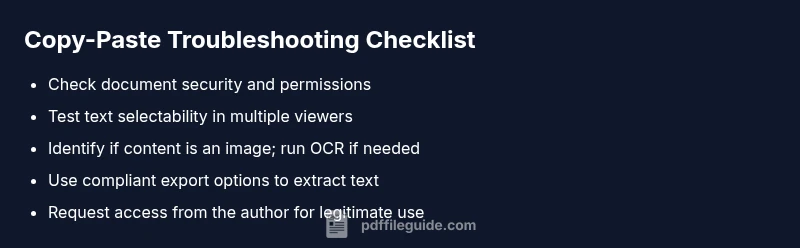
Follow a measured sequence to resolve copy-paste issues. First, verify whether a password is required or if there are explicit copy restrictions. Next, determine if the content is text or an image. If it’s text and copying is allowed, try a different viewer or update your current one. If it’s an image, run OCR or export to a text-friendly format. If you still can’t copy, contact the author for permission or a source file. Finally, document your steps for future reference and ensure all actions comply with licensing terms.
Prevention: best practices for future PDFs
To minimize future copy-paste problems, request PDFs with clear text rather than scanned images when possible. When creating PDFs, enable copy permissions and provide accessible text layers for screen readers. Include OCR-ready text in scanned documents and use embedded fonts to prevent rendering issues. If you routinely share PDFs internally, consider sharing a compliant alternative (like a Word or text file) in addition to the PDF. Regularly test your PDFs in multiple readers to catch viewer-specific issues early.
When to seek help and how to stay compliant
If you’re unsure about a document’s permissions or rights, consult your legal or compliance team before attempting extraction. When access is blocked for legitimate reasons, contact the author or the file owner to request permission or an unlocked version. Document all communications and keep a record of approved uses. Staying compliant protects you and your organization from copyright or licensing violations, and it preserves your professional reputation.
Steps
Estimated time: 45-75 minutes
- 1
Verify password and restrictions
Open the PDF and check for a password prompt. Then review the document properties to see if copying, printing, or editing are allowed. If there are restrictions, you cannot copy content until you obtain proper access.
Tip: If you have legitimate access, ask for an unlocked version or a permissions grant. - 2
Test text selection in another viewer
Open the same file in a different PDF reader or browser. If copy works elsewhere, the issue is likely viewer-specific. Otherwise, proceed to the next step.
Tip: Ensure you’re using the latest version of the software. - 3
Determine if content is text or image
Try selecting a few characters; if nothing is selectable, the content may be an image. In that case, OCR is needed to extract text.
Tip: Look for inconsistencies in font rendering that hint at an image layer. - 4
Run OCR on image-based content
Use built-in OCR features or dedicated OCR software. Choose the correct language and review output for accuracy.
Tip: OCR quality improves with a clean scan and proper language settings. - 5
Try export or alternate extraction
If permissions allow, export to Word or Plain Text. If not, use 'Save As' or 'Export' options that your viewer supports.
Tip: Always verify the export respects licensing terms. - 6
Request access or the original file
If you need to copy substantial text for legitimate work, contact the author or file owner for an accessible version.
Tip: Keep a record of permissions granted for audits.
Diagnosis: Copy-paste from a PDF not working when text should be selectable
Possible Causes
- highDocument restrictions or password protection
- highContent is actually an image (scanned or locked text)
- mediumViewer-specific feature or mode disabling copy
- lowFont encoding or complex layout issues
Fixes
- easyCheck document permissions and password prompts; request access if needed
- easyTest text selection in another reader or on another device to rule out viewer issues
- easyIf content is an image, run OCR or export text with proper permissions
- easyIf none work, obtain the original file or permission from the author
Questions & Answers
Why is pdf not letting me copy and paste?
Copy protection, password protection, or image-based content can prevent copying. Verify permissions and whether the text is actually selectable. If needed, use OCR on image content or request access to an unlocked version.
PDFs may block copying due to permissions, or because the content is an image. Verify permissions and use OCR or request access if needed.
How can I tell if a PDF is password protected?
A password prompt appears when opening the file, or the document properties show restricted access. If you can view content but cannot copy, review the Security/Permissions settings for specific allowed actions.
A password prompt or restricted permissions indicate protection. Check the document's Security settings to confirm what’s allowed.
Can I bypass copy restrictions legally?
No. Bypassing protections without authorization can violate copyright and licensing terms. Seek the author’s permission or an unlocked version instead.
No, you should not bypass protections. Get permission or an accessible version from the author.
What should I do for scanned PDFs?
Use OCR to convert the image-based text into selectable text. Choose a reliable OCR tool, verify language settings, and correct OCR errors afterward.
For scanned PDFs, OCR is your route to selectable text. Then review and correct any mistakes.
Is exporting to Word or Text always available?
Export options depend on the file’s permissions. If allowed, exporting can preserve formatting and produce editable text; otherwise, request access or use OCR.
Export options depend on permissions. If allowed, export; if not, request access or OCR.
How can I prevent this in future documents?
Request PDFs with editable text, enable copy permissions when creating documents, and provide accessible text or OCR-ready content alongside scans.
Ask for editable text PDFs, enable permissions, and provide accessible text alongside scans.
Watch Video
Key Takeaways
- Check permissions first before trying workarounds
- Distinguish text from image to choose the right fix
- Use OCR or export options for compliant text extraction
- Always obtain permission for protected content