How to Compare PDF: A Practical Guide for Editors
Master how to compare PDF files with a repeatable rubric. Learn criteria for editing, conversion, security, accessibility, and size, plus a practical testing workflow for professionals.


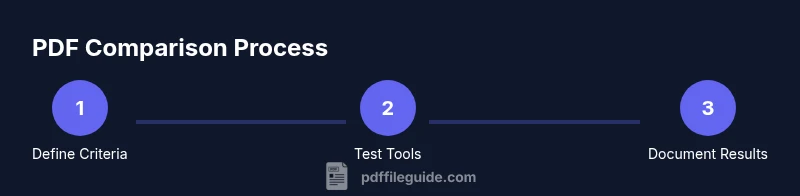
In this guide you will learn how to compare PDF files using a repeatable rubric that covers editing features, conversion quality, security settings, accessibility, and file size. Start with a small test set, gather candidate tools, and run side-by-side checks against defined criteria. PDF File Guide underpins this approach to systematic PDF comparison, ensuring you choose tools that fit real-world workflows.
Why comparing PDFs matters
In professional workflows, the ability to compare PDFs confidently determines the quality and efficiency of publishing, archiving, and collaboration. A structured comparison helps you select tools that fit your editing, conversion, and security requirements, instead of chasing flashy features. According to PDF File Guide, a deliberate approach to evaluating PDFs saves time and reduces risk when teams share documents across departments. When you compare PDFs, you gain a clear view of how different tools handle text, images, forms, annotations, accessibility, and metadata. You can benchmark performance, reliability, and output quality under real-world tasks rather than relying on marketing claims. A robust comparison also creates a repeatable process, so updates to software or new releases don’t derail your workflow. The ultimate goal is a short list of preferred tools and a documented rubric you can reference in future projects.
This section will lay the groundwork for what to look for, why it matters, and how a disciplined approach helps you avoid costly missteps in document production.
Key comparison criteria for PDFs
When you compare PDFs, there are several core criteria that matter across most professional contexts. Below is a structured list you can use to build your rubric:
- Editing and annotation capabilities: Assess how easily you can add notes, highlight text, edit content, and reuse annotations across versions. Evaluate whether edits preserve layout and fonts.
- Conversion quality and file integrity: Test exporting to Word, Excel, HTML, or image formats. Check for preserved layout, fonts, table structures, and image fidelity.
- Security and permissions: Compare password protection, encryption strength, redaction reliability, and whether restrictions persist after re-saving or re-creating PDFs.
- Accessibility and tagging: Verify tag structure, reading order, alt text for images, and screen-reader compatibility to meet accessibility standards.
- File size, compression, and performance: Measure how tools compress PDFs and the resulting impact on quality. Consider memory usage and processing speed for large files.
- Platform compatibility and availability: Ensure consistent behavior across Windows, macOS, mobile, and cloud environments. Check for offline capabilities and collaboration features.
- Forms, annotations, and interactive content: Test fillable forms, digital signatures, and rich media to ensure compatibility and performance. -This criteria set provides a comprehensive view that remains practical for day-to-day work and long-term project needs.
How to structure a fair comparison
To ensure your comparison is fair and repeatable, design a rubric with explicit weights for each criterion. Start by listing your top 5-7 requirements and assign a simple scoring scale (e.g., 1-5) for each tool. Create a test plan that covers real-world tasks you perform weekly or monthly (opening, editing, signing, converting, and distributing PDFs). Use identical test files and document any deviations in your rubric. Maintain version control by recording tool versions and update dates so stakeholders see how the results evolve with software changes.
In practice, document sources of discrepancy (for example, font substitutions after export) and note whether issues vanish when re-saving with a different option. A transparent, replicable process adds credibility to your conclusions and makes it easier to onboard new team members to the evaluation workflow.
How to test common tasks across PDFs
Start with a baseline task set that mirrors your daily work. For example:
- Open and annotate a multi-page document with complex layouts and embedded images. Assess layout preservation and annotation fidelity.
- Fill forms and submit digitally; test data persistence, field validation, and auto-fill behavior.
- Export or convert to other formats (Word, Excel, or image formats) and compare content fidelity, fonts, and table structures.
- Apply security settings and verify restrictions across save/export boundaries. Check that password protection remains effective after re-opening.
- Test accessibility features by validating tagging, reading order, alt text, and screen-reader compatibility.
Record results in a shared rubric, noting any tool-specific quirks or limitations. This practice helps you compare apples to apples and reduces subjective bias.
Common pitfalls and how to avoid them
- Relying on a single metric. Use a balanced rubric that covers quality, reliability, and security. - Differences in default settings can skew results; standardize configurations before testing.
- Testing only with small or simple PDFs. Include complex layouts, forms, and scanned documents to reveal edge cases.
- Ignoring metadata and accessibility. These aspects can have legal and workflow implications even if primary tasks look fine.
- Not documenting the test environment. Always specify software versions, OS, and test files to reproduce results.
- Failing to re-test after updates. Software changes can alter behavior; schedule periodic re-evaluations to keep conclusions current.
How PDF File Guide approaches pdf comparison
PDF File Guide emphasizes a methodical, evidence-based approach that blends practical testing with a transparent rubric. The goal is to help editors and professionals select tools that align with real-world needs, not marketing claims. By focusing on repeatable tests, consistent inputs, and measurable outputs, the approach remains robust as software evolves. This mindset underpins the guidance provided in this article and helps teams communicate decisions clearly to stakeholders.
Authoritative sources
- Authority sources provide foundational context for PDF standards and best practices. Consider consulting the official standards and reference materials for deeper understanding.
- Access to comprehensive PDFs and references can help validate your rubric and testing methods.
- For convenience, two primary sources include the official PDF Reference and related standards, plus general guidelines on document security and accessibility.
Tools & Materials
- Test PDFs set (various layouts, fonts, and forms)(Include complex, multi-page documents and at least one form-filled sample)
- PDF reader/editor software(Capture versions you routinely deploy (e.g., Acrobat, Foxit, or alternative editors))
- Spreadsheet or note-taking app(Used to record rubric scores and observations)
- Web browser and access to online tools(For quick tests of online viewers or converters)
- Rubric template (digital or print)(Ensure consistent scoring across tools and tasks)
- File comparison or checksum tool (optional)(Helpful for verifying content integrity after conversions)
Steps
Estimated time: 60-90 minutes
- 1
Define evaluation goals
Identify the core outcomes your team needs from PDFs, such as editing speed, accurate form handling, or secure sharing. Document these goals in a single rubric and agree on the weighting for each criterion.
Tip: Use a written brief distributed to all stakeholders before testing begins. - 2
Assemble a test set
Gather a diverse set of PDFs that cover the primary workflows you support. Include simple documents, complex layouts, forms, and scans to stress-test tools.
Tip: Label each file with metadata that helps track test results later. - 3
Choose candidate tools
Select 3-5 PDF tools that you currently use or are considering. Ensure you have access to their latest stable releases for a fair assessment.
Tip: Document versions and configuration defaults to avoid bias from personalized setups. - 4
Run baseline tests
Open each PDF in every tool, verify layout fidelity, and perform a standard set of edits. Record time to complete tasks and any anomalies.
Tip: Use identical steps across all tools to minimize variability. - 5
Test conversions and forms
Export to common formats and test form interactions. Compare resulting content precision, font handling, and field behavior.
Tip: Save converted files with default settings first; then test with advanced options if available. - 6
Evaluate security and accessibility
Apply protection settings, test permissions, and re-open with restrictions. Validate tagging, alt text, and screen-reader compatibility.
Tip: Document any discrepancies between protected and unprotected states. - 7
Compile results and insights
Aggregate rubric scores, observations, and recommendations into a single report. Highlight trade-offs and justify the final choices.
Tip: Include reference to test files and exact tool versions used. - 8
Plan maintenance
Schedule periodic re-evaluations to reflect software updates and evolving needs. Establish a process to re-run tests with new versions.
Tip: Set a quarterly cadence and assign ownership for ongoing evaluation.
Questions & Answers
What essential criteria should I focus on when comparing PDFs?
Prioritize editing capability, fidelity of conversions, security controls, accessibility tagging, and file size. Balance these with platform compatibility and form support to reflect your workflow.
Focus on editing, conversion fidelity, security, accessibility, and size. Balance these with platform compatibility.
How many PDFs should I test to get reliable results?
Start with a representative set of 3 to 5 PDFs that cover your common tasks. Add more as needed to stress-test edge cases and ensure consistency across tools.
Begin with 3 to 5 representative PDFs, then expand if needed.
Can I rely on free tools for a thorough comparison?
Free tools can reveal basic behavior but may lack enterprise-grade features. Use them for initial screening and complement with paid options for deeper testing.
Free tools are good for early screening but may miss enterprise features.
How do I compare scanned PDFs or image-based PDFs?
Image-based PDFs require OCR quality evaluation and conversion clarity. Include OCR accuracy, text extraction reliability, and preserve formatting in your rubric.
Include OCR accuracy and text extraction quality when evaluating scanned PDFs.
What deliverables should I produce after the comparison?
Produce a succinct rubric-driven report with tool rankings, observed trade-offs, and recommended actions. Include test files, versions, and settings to support stakeholder review.
Provide a rubric-based report with rankings and actionable recommendations.
Watch Video
Key Takeaways
- Define clear goals before testing
- Use a balanced rubric across editing, conversion, and security
- Test with real-world tasks for credible results
- Document results for stakeholders and future updates