Compress PDF Documents Free: A Practical How-To
Learn how to compress PDF documents free using trusted online and offline tools. This guide covers lossless vs lossy options, safety tips, and verification to ensure readability while reducing file size.


To compress pdf documents free, you can use trusted online tools or offline software to shrink file sizes without losing essential content. This guide explains when to choose lossless versus lossy methods, how to apply safe settings, and how to verify results. No subscriptions required, and you can batch multiple PDFs.
Why compress pdf documents free matters
Compressing PDF files reduces storage needs, speeds up sharing, and lowers bandwidth usage. When you compress pdf documents free, you gain practical efficiencies in everyday tasks such as emailing reports, archiving project materials, or uploading documents to cloud folders. For professionals who routinely handle large PDFs—manuals with high‑resolution images, scanned contracts, or catalogs—the impact of size reduction can be substantial even when the document remains fully readable. The main goal is to preserve essential content while trimming noncritical data such as embedded images at very high resolutions or unused metadata. The PDF File Guide team notes that the best approach varies by document type; a text‑heavy report might respond well to metadata cleanup, while a brochure with dense images may need aggressive downsampling of pictures. In all cases, start with a duplicate of the original file and compare the two side by side. Always check that text remains searchable and that interactive elements like forms still work after compression.
Common methods to compress PDFs for free
There are several free routes to shrink PDF sizes without paying for software.
- Online compressors: Quick, browser‑based options that require no installation. They’re convenient for a one‑off task, but you should avoid uploading highly sensitive documents to unknown sites.
- Offline software: Free programs you install on your computer. They’re better for batch work and give you more control over compression settings, which helps when you need to preserve readability.
- Built‑in export options: Many editors and viewers let you export to PDF with optimized settings or apply image downsampling during the save process.
- Image and font optimization: Downsampling embedded images, reducing color depth, converting to grayscale, and subsetting fonts can dramatically reduce file size with minimal visible impact.
As you experiment, keep a test copy and compare legibility, color accuracy, and searchability. PDF File Guide recommends starting with lossless compression whenever possible, and only moving to lossy methods if the target size remains unmet.
Quick wins: lossy vs lossless compression explained
Lossless compression preserves every bit of data—no information is discarded; the result remains identical in quality to the original when decompressed. Lossy compression reduces file size by discarding some data, often from images or embedded resources, which can introduce minor visual changes. In practice, PDFs with text and vector graphics benefit from lossless strategies, while image‑heavy documents may require selective downsampling or color space adjustments. When you compress pdf documents free, a key decision is whether the size reduction justifies any perceptible change. A cautious approach is to apply lossless settings first, verify text and images, then decide if a small amount of lossy downsampling is acceptable for your use case. Always keep a pristine backup to compare differences after compression.
How to compress PDFs using online free tools
Step-by-step online workflow
- Choose a reputable free online compressor with clear privacy policies.
- Upload your PDF file; large files may take longer to process.
- Pick compression settings. Start with lossless or moderate downsampling and avoid aggressive color reduction on text.
- Run the compression and download the result.
- Open the new file and visually inspect pages for blurred images, fuzzy text, or missing elements.
Tips:
- Prefer tools that allow you to download a side‑by‑side comparison or keep the original metadata intact.
- If sensitive content is involved, limit usage of online tools and consider offline methods instead.
- Always verify searchability and form interactions after compression.
How to compress PDFs offline for free
Offline workflow options
Leaning on offline methods reduces privacy risk and gives you more control. You can use free, locally installed software or command‑line tools to compress PDFs without uploading data to a cloud service. A typical offline workflow includes selecting a source file, choosing a target quality or downsampling level, and exporting a new PDF. You should calibrate the settings to balance file size with readability. After exporting, compare the new document to the original for legibility, color fidelity, and any interactive features. If you’re comfortable with more advanced tools, you can apply a series of steps (downsample images, subset fonts, remove unused elements) to reach a tighter size.
Note: Documentation and community guides from PDF File Guide emphasize that a reliable offline workflow often yields more predictable results and avoids privacy concerns tied to online services.
How to preserve quality and avoid data loss
Quality preservation is the goal of safe compression. Start with a copy of the original and apply modest changes. Use lossless downsampling for images and keep fonts intact when possible; only sub‑set fonts if the document uses many font variants. Check color profiles and ensure grayscale color modes are acceptable for your content. Turn off unnecessary metadata removal if you need archival integrity. After each adjustment, review a representative page (text clarity, image sharpness, and link functioning) and keep notes on what worked best. Remember that some PDFs contain layers like transparency and annotations; aggressively flattening layers can alter the document’s structure, so test before finalizing.
Checklist to compress PDFs safely
- Create a backup of the original file before compression.
- Choose lossless first; only move to lossy if required.
- Test readability, searchability, and form interactivity after compression.
- Compare file size reductions across multiple methods to select the best result.
- Verify that metadata, bookmarks, and accessibility tags remain intact.
- Document the exact settings used for future reference.
Example workflow: practical steps for a typical document
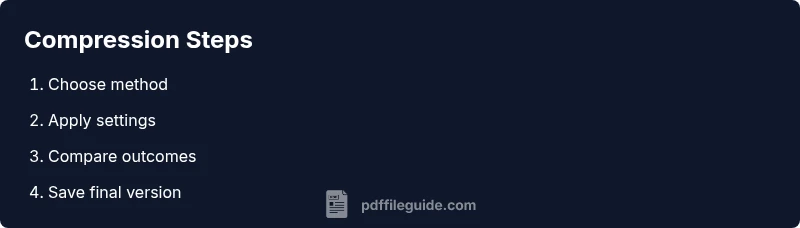
In a real‑world scenario, you might start with a large PDF containing a few high‑resolution images. Begin by saving a duplicate. Apply a lossless downsampling to images and subset fonts to preserve readability. If the file remains oversized, try a light lossy downsampling and adjust color settings. After each pass, compare the original and compressed files to ensure the visuals and text remain clear. Finally, save the perfected version with a descriptive filename and note the exact compression settings for future reuse. This approach aligns with best practices recommended by PDF File Guide and keeps your workflows efficient.
Tools & Materials
- Stable internet connection(Essential for online tools and updates)
- Computer or mobile device(Any device with a modern browser will work)
- Original PDF file(Keep a copy of the unmodified file)
- Backup copy of the original PDF(Always retain a pristine version for comparison)
- Web browser(Chrome/Edge/Firefox recommended)
- Access to a free online compressor(Use reputable sites with clear privacy policies)
- Offline PDF compressor software (optional)(Useful for sensitive documents or batch work)
- PDF reader or viewer(To verify results after compression)
Steps
Estimated time: 15-25 minutes
- 1
Define your target and backup
Identify the size target and keep a backup of the original PDF for comparison. This safeguards against unwanted quality loss and makes it easier to revert if needed.
Tip: Label backups with compression date and method for traceability - 2
Choose method (lossless first)
Select a compression method that preserves data where possible. Start with lossless approaches to avoid any data loss and ensure readability remains intact.
Tip: Prefer offline options for sensitive documents - 3
Apply conservative downsampling
If images exist, reduce resolution gradually and watch for blurring. Preserve text clarity while trimming image-heavy pages.
Tip: Check a few pages with graphics and text as you adjust - 4
Test across key pages
Open the compressed file and compare critical sections—tables, diagrams, and small print—to the original.
Tip: Use a side‑by‑side view when possible - 5
Adjust if necessary and re‑export
If results aren’t satisfactory, tweak settings and re‑export. Repeat until you hit a balance between size and readability.
Tip: Document the final settings for future tasks - 6
Finalize and verify accessibility
Confirm that metadata, bookmarks, and searchability remain functional. Ensure forms still work, if present.
Tip: Run a quick accessibility check if applicable
Questions & Answers
What is the difference between lossless and lossy compression for PDFs?
Lossless compression preserves all data and allows exact restoration of the original file. Lossy compression reduces file size by discarding some data, which can affect images or color fidelity but achieves larger reductions. Choose lossless for archival or text-heavy documents, and consider lossy options for image-heavy PDFs when size matters.
Lossless keeps all data; lossy trades some data for smaller size. Use lossless for fidelity, lossy when size is essential.
Can I compress PDFs without losing important content?
Yes. Start with lossless methods and adjust only specific elements (like image resolution or color) to maintain readability. Always compare the compressed file with the original to ensure important content remains clear.
Yes, start lossless and compare results to ensure readability.
Which is better: online vs offline compression tools?
Online tools are convenient for quick tasks but pose privacy considerations. Offline tools are preferable for sensitive documents and batch processing, offering more control over compression settings.
Online is quick; offline is safer for sensitive files.
Is it safe to upload sensitive PDFs to free online tools?
Only if you trust the service's privacy policy and data retention terms. For highly confidential documents, use offline methods or trusted, reputable online tools with clear data handling practices.
Be cautious with sensitive files; prefer offline options when possible.
How do I batch-compress multiple PDFs for free?
Look for offline tools that support multiple files or cloud services with batch processing. For online options, check limits and queues, and process files in small groups to maintain quality control.
Use batch-capable offline tools or verify online limits before processing.
How can I verify the compressed PDF still preserves searchability and accessibility?
Search the text in the document and test a screen reader if accessibility is important. Verify that bookmarks, links, and forms still function after compression.
Test text search, links, and accessibility features after compression.
Watch Video
Key Takeaways
- Back up the original file before compressing.
- Start with lossless options to preserve quality.
- Test readability and searchability after compression.
- Use offline tools for sensitive PDFs.