Online PDF Compression: Free Tools and Best Practices
Discover how to compress PDF files online for free without sacrificing readability. This guide helps you compare safe tools, follow a practical workflow, and protect privacy while shrinking file sizes.


Online pdf compression via free web tools lets you shrink a PDF's size without installing software. It typically lowers image resolution, trims metadata, and optimizes fonts, balancing quality with speed. This quick guide helps you pick safe tools, understand trade-offs, and start compressing today. Expect some loss of fine details in photos, but the overall document stays readable.
What online pdf compression means and why it matters
Online pdf compression refers to reducing the file size of a PDF using web-based services. These tools run in your browser, so you don’t download software. The goal is to minimize storage and improve sharing speed while maintaining readability. According to PDF File Guide, the best practices begin with choosing trusted tools and understanding their privacy policies. The balance between size reduction and document integrity is central to achieving reliable results across devices and platforms.
Safety, privacy, and choosing a free tool
When selecting a free online compressor, privacy and data handling are critical. Many services state they delete uploaded files after processing, but policies vary widely. PDF File Guide analysis shows that users care about confidentiality, data retention limits, and whether you can opt out of tracking. Look for clear privacy terms, encryption in transit, no account required for basic use, and transparent charges if limits are surpassed. If in doubt, test with a non-sensitive document first and review the service’s data deletion statement.
How compression affects quality and readability
Compression works by reducing image resolution, downsampling color data, and sometimes stripping nonessential metadata. Fonts can be subset or embedded more efficiently, and the document’s structure may be optimized. The trade-off is straightforward: lower file size often comes with a drop in image sharpness and color accuracy. For text-heavy PDFs, changes are usually negligible; for image-rich files, you may notice noticeable blurring or artifacts at aggressive settings. Always verify readability after compression.
Practical comparison: free online tools you can trust
Free online compressors vary in speed, limits, and output quality. Some offer batch processing, others require manual uploads per file. Key considerations include whether the tool preserves hyperlinks, whether it adds a compression watermark, and if you can preview results before downloading. If you need to compress multiple documents regularly, compare tool performance on a representative sample to decide which yields the best balance of size and quality for your needs.
Step-by-step workflow overview for context
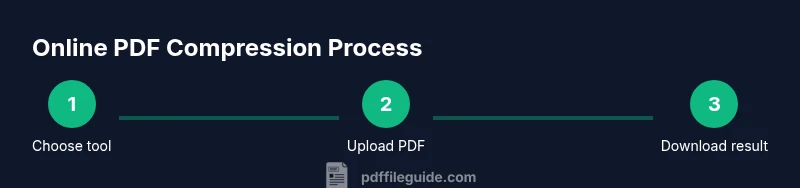
A typical workflow starts with selecting a reputable free online compressor, uploading your PDF, choosing a compression level, reviewing a quick preview, and downloading the optimized file. Always keep a backup of the original. If the result isn’t acceptable, re-run with a milder setting or try a different tool. The process is quick, but the quality outcome depends on the content type (text vs. images) and the compression algorithms used by the service.
Common mistakes and how to avoid them
Common pitfalls include over-compressing which degrades readability, using unfamiliar tools without privacy assurances, and uploading sensitive documents to unknown sites. Always review privacy policies, test with non-sensitive files first, and compare results from multiple tools. Keeping a local backup of the original file helps prevent data loss if compression needs adjustment.
Authority sources and further reading
For a deeper technical understanding of PDF structure and compression standards, consult: • Adobe PDF Reference (pdf_reference_archive) • PDF Association resources • ISO standards related to PDF specifications. These sources provide foundations on how PDFs store text, images, and vector data, helping you make informed choices when online compression is part of your workflow.
Tools & Materials
- Web browser (Chrome/Edge/Firefox)(Modern browser with JavaScript enabled)
- PDF file to compress(Prefer a non-sensitive sample for testing)
- Stable internet connection(Prefer wired or strong Wi-Fi for large files)
- Backup copy of the original PDF(Keep a copy in case you need to revert)
- Privacy policy checklist(Review data deletion and retention terms)
Steps
Estimated time: 25-40 minutes
- 1
Choose a trusted free tool
Select a reputable online compressor with clear privacy terms and no mandatory login for basic use. This reduces risk when handling sensitive documents.
Tip: Check for a visible data deletion policy and user reviews before uploading. - 2
Upload the PDF
Open the tool and upload your PDF file. Ensure the file you upload is the correct one and avoid drag-and-drop pitfalls with large files.
Tip: If the site shows a warning about file size, choose a smaller test document first. - 3
Select compression level
Choose a balanced or moderate compression to maintain readability. Aggressive settings can save more space but degrade quality.
Tip: Start with a mid-level setting and adjust based on preview quality. - 4
Preview and adjust
Use any available preview to assess image sharpness and text clarity. If quality is unacceptable, increase quality slightly or try a different tool.
Tip: Document text should be crisp; zoom into images to inspect artifacts. - 5
Download and verify
Download the compressed file and quickly verify readability, hyperlinks, and layout. Compare the new size with the original.
Tip: Keep the original until you’re satisfied with the result. - 6
Securely delete local traces
Clear browser cache or download history if privacy is a concern. Some tools offer auto-deletion; rely on those when possible.
Tip: If using shared devices, always log out and remove local traces after use.
Questions & Answers
Is it safe to compress PDFs online if they contain sensitive data?
Online compression can pose privacy risks. Use tools with strong privacy policies, end-to-end encryption, and explicit data deletion promises. For highly sensitive documents, consider offline software or trusted enterprise services.
Online compression can risk exposure of sensitive data. Prefer tools with clear privacy terms or stick to offline software for highly confidential documents.
Will compression always reduce file size?
Not always. Very large or image-heavy PDFs may show limited size reduction without noticeable quality loss. Testing different tools helps identify the best balance.
Size reduction isn’t guaranteed for every file; test tools to find the best balance of size and quality.
Are there file size limits on free online compressors?
Many free tools impose file size caps or daily limits. If you hit a cap, try a different service or upgrade to a paid option for larger files.
Most free tools have size limits; if you exceed them, switch tools or consider a paid option.
Can I compress multiple PDFs at once online?
Some tools support batch uploads, but many require one file at a time. For frequent needs, find a tool that offers batch processing and compare results.
Some tools allow batch uploads; others don’t. Look for batch processing when you have many files.
Should I delete my files after compression?
Yes, if privacy is a concern, ensure the service deletes your data promptly and clear browser history after use.
Yes—delete files and clear your browser data if privacy matters to you.
What should I compare between tools besides size?
Compare image quality, text clarity, hyperlinks integrity, and whether the tool preserves accessibility features.
Compare quality, links, and accessibility preservation beyond just file size.
Watch Video
Key Takeaways
- Choose trusted online tools with clear privacy policies.
- Balance size reduction with readability; test multiple settings.
- Keep backups of originals for safety and flexibility.
- Verify results after download to ensure integrity.
- Use privacy-conscious practices on shared devices.