How to Make a Small PDF: Practical Size Reduction Guide
Shrink PDFs efficiently without sacrificing readability: image downsampling, metadata removal, font optimization, and compression for faster sharing and storage.


This guide shows how to make a small pdf by applying targeted optimizations: trim unnecessary content, downsample images, compress fonts, remove metadata, and consolidate fonts. Use built‑in export options or dedicated PDF editors. For best results, balance quality and size and test the final file across devices. Start by backing up the original PDF before making changes.
Why making a small PDF matters
When you share documents online, a smaller PDF uploads faster, downloads quicker, and consumes less bandwidth. For professionals who edit, convert, and optimize PDFs, controlling size means easier collaboration, reduced storage costs, and smoother client experiences. If you’re asking how to make a small pdf, the answer lies in a thoughtful combination of removals, compressions, and format adjustments. According to PDF File Guide, target reductions typically come from trimming unnecessary pages or objects, and from optimizing embedded assets. In today’s workflow, shrinking a file is not about sacrificing readability or fidelity; it’s about preserving essential content while trimming what isn’t needed. This approach also helps teams meet delivery deadlines and maintain compliance with file-sharing policies across platforms.
Key terms you’ll encounter include downsampling, metadata removal, font optimization, and object consolidation. By understanding these concepts, you’ll be better equipped to choose the right tools and settings for your specific documents. The goal is a practical, repeatable process that yields consistently smaller PDFs without compromising the user experience. As you proceed, keep your primary objective in focus: specify a target size or a practical performance threshold, then work toward it with precision.
Core techniques for shrinking a PDF (with the keyword in mind)
If you’re learning how to make a small pdf, start with the fundamentals and move toward more targeted optimizations. The most impactful changes typically involve images, fonts, and metadata. First, review the file for large, high‑resolution images that aren’t essential for viewing on screens. Downsampling or compressing these images reduces file size considerably while maintaining legibility. Next, remove embedded metadata and hidden data that aren’t necessary for your readers. Metadata, comments, and revisions can inflate file size and often aren’t needed for distribution. Font handling also matters: if the document uses many embedded fonts, consider replacing them with standard system fonts or subset embedding to minimize bloat. Finally, eliminate unused objects and streamline vector elements to prevent unnecessary complexity. These steps are often more effective than simply “saving for web” without reviewing content. Throughout this process, maintain a balance between visual quality and size, and verify by opening the document on multiple devices and viewers. The practical takeaway: focus on assets you can control—images, metadata, and fonts—before touching layout.
Evaluating impact: quality vs. size (neutral guidance for decision making)
When you shrink a PDF, you should assess how the changes affect readability, accessibility, and print quality. Start by comparing the original and revised files side by side on a few devices and viewer applications. Ensure text is legible, images remain clear enough for the intended purpose, and color fidelity remains acceptable for your audience. If the document will be printed, test print a sample to confirm that reduced image resolution doesn’t noticeably degrade output. Based on PDF File Guide research, the most noticeable gains come from optimizing images and removing redundant assets while preserving essential typography and layout. Use a simple checklist to document what was changed and why, so you can revert if needed.
Additionally, evaluate the file’s accessibility features and searchability. Removing metadata or flattening layers can affect screen readers or search indexing in some contexts, so plan accordingly. If accessibility is important, consider preserving essential semantic structure and including alternate text for images. This section helps you make informed trade-offs rather than guessing which adjustments will best meet your needs.
Choosing tools and workflows (efficient paths to a smaller file)
The how to make a small pdf problem can be solved with the right toolkit. Start with built‑in options in major editors (such as export or optimize settings) and supplement with specialized tools when needed. For quick tasks, Preview on macOS or a reputable PDF editor on Windows can perform basic downscaling, metadata removal, and font consolidation without extra plugins. If you regularly compress PDFs, consider a workflow that automates repetitive steps. Save presets for common document types (e.g., reports, invoices, e‑books) so you can apply consistent settings across files. When choosing tools, verify that they offer non‑destructive editing, batch processing, and transparent quality controls. The aim is to create a repeatable process you can apply to a wide range of documents while maintaining control over output quality. A careful tool choice reduces the risk of unintended data loss and ensures predictable results.
A practical workflow to shrink PDFs (stepwise, end-to-end)
This section outlines a repeatable workflow from backup to final validation.
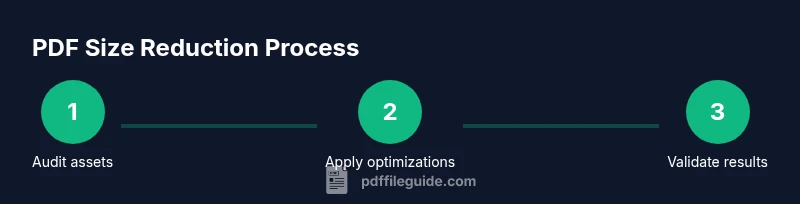
- Prepare: Create a labeled backup copy and note the target size or distribution channel. Ensure you have the originals intact to revert if necessary.
- Inspect: Review the document for unnecessary graphics, large images, and embedded fonts that could be optimized.
- Apply optimizations: Downsample images, remove metadata, and revise fonts. Use your editor’s preview to compare before/after quality.
- Validate: Save the optimized file, then test readability, searchability, and print quality where appropriate.
- Document: Log changes, settings used, and the final file size for future reference.
- Automate: If you compress PDFs often, create a reusable preset or script to standardize results.
Estimated total time: varies by document complexity; plan for a focused session of 30–60 minutes for typical files.
Extending savings with presets and automation (scaling your workflow)
Once you’ve established effective settings, scale your approach with presets and automation. Many tools support batch processing, so you can process multiple PDFs with a single configuration. Save your most successful combinations as presets for easy reuse. If your organization handles large volumes, consider a centralized workflow with version control and audit trails to track changes. Automation reduces human error and ensures consistent outcomes across teams. Finally, keep abreast of improvements in compression algorithms and new features in your preferred tools to continually refine your size reduction strategies.
Conclusion and next steps (final guidance)
Shrinking PDFs is about intentional optimization rather than generic compression. By focusing on assets you control—images, metadata, and fonts—you can achieve meaningful size reduction while preserving essential usability. The PDF File Guide team recommends adopting a repeatable, well‑documented workflow and validating results on key devices and scenarios. With practice, you’ll refine your approach and become proficient at delivering compact, high‑quality PDFs that meet your audience’s needs.
Tools & Materials
- PDF editing software(Adobe Acrobat Pro, Preview (macOS), or comparable editors)
- Backup copy of original PDF(Always keep an unmodified version)
- Image and font optimization guidance(Reference settings within your tool or vendor presets)
- Quality check checklist(Checklist to compare original vs compressed outputs)
Steps
Estimated time: Approximately 30-60 minutes for typical documents
- 1
Back up the original
Create a clearly named copy of the PDF and store it in a separate folder. This ensures you can revert any changes if the quality drops below an acceptable threshold.
Tip: Use a versioned filename (e.g., DocName_v1_original.pdf) to avoid mix-ups. - 2
Audit assets for optimization
Scan the document for large images, embedded fonts, or unnecessary metadata. Identify elements that contribute most to file size and plan targeted edits.
Tip: Keep a running list of assets you will adjust and justify each change. - 3
Downsample images and compress
Apply image downsampling to non‑critical visuals and choose an appropriate compression level. Maintain legibility for on-screen viewing and printing where needed.
Tip: Prefer lossless for text-right elements and light lossy for photographic content. - 4
Remove metadata and unused objects
Clear hidden data, comments, and metadata that aren’t essential for your readers. Prune unused page objects to reduce overhead.
Tip: If metadata is needed for compliance, extract only the essential fields. - 5
Consolidate or subset fonts
If fonts are embedded, switch to system fonts if possible or subset to include only used characters. This reduces font data dramatically.
Tip: Test both full and subset font options to verify readability. - 6
Save, test, and document
Export using your chosen settings, then compare the compressed file to the original. Verify readability, search, and print quality. Document the final size and settings used.
Tip: Keep a preset for future use to ensure consistency.
Questions & Answers
What is the most effective method to shrink a PDF without losing quality?
In most cases, reducing image resolution and removing unused objects provide the biggest gains without sacrificing essential content. Pair this with selective font optimization and metadata cleanup.
The best methods are to downsample images, prune unused data, and optimize fonts while keeping the document readable.
Can downsampling affect print quality?
Yes. Downsampling can reduce print sharpness if images are essential for print accuracy. Always test print quality before finalizing.
Downsampling can affect print quality, so test a print sample before finalizing.
Are there free tools to compress PDFs effectively?
There are several reputable free tools that cover basic compression tasks such as metadata removal and image downsampling. For advanced features, consider a paid editor or add-on.
Yes, there are free options for basic compression, with more features available in paid tools.
Should I remove embedded fonts or keep them?
If the document relies on specific typography for branding, keep necessary fonts; otherwise, removing or subset-embedding fonts can greatly reduce size.
If a font is essential for appearance, keep it; otherwise, subset or remove embedded fonts to save space.
What should I test after compression?
Open the file on multiple devices and viewers, search text, verify links, and print a sample page to ensure readability and accuracy.
Test on different devices, check search, and print a sample to ensure quality remains.
Does removing metadata affect accessibility?
Removing metadata usually doesn’t affect content accessibility, but avoid removing accessibility tags or structure needed by assistive technologies.
Metadata removal can impact accessibility if you delete structure tags; preserve essential accessibility info.
Watch Video
Key Takeaways
- Back up originals before compression.
- Target image, metadata, and font assets for the biggest size savings.
- Validate readability and accessibility after optimization.
- Use presets and automation to scale the workflow.