How to Reduce PDF Size in Adobe: A Practical Guide
Learn proven methods to shrink PDF files in Adobe Acrobat Pro without sacrificing readability. Includes step-by-step optimization, image downsampling, font handling, and validation tips for professionals.


To reduce PDFs in Adobe, start with Acrobat Pro's Optimize PDF tool. Downsample images, compress fonts, and remove metadata and hidden data. Create a backup copy first, then compare size and visual quality. If needed, adjust image quality and font embedding to balance file size with readability.
Why reducing PDF size matters
For professionals who exchange reports, brochures, and client documents, smaller PDFs load faster and are easier to share. In Adobe workflows, a well-optimized PDF preserves readability while trimming unnecessary data such as unused images, metadata, and embedded fonts. The goal is to balance document quality with a practical file size, especially when sending documents via email or uploading to portals. The core idea behind how to reduce pdf in adobe is to target the elements that contribute most to size without harming essential content. PDF File Guide emphasizes starting with a baseline optimization and validating every change against readability and accessibility needs.
Quick Wins in Adobe Acrobat Pro
Adobe Acrobat Pro offers fast, auditable options to trim a PDF without rebuilding content. Begin with the Optimize PDF tool (File > Save as Other > Optimized PDF…). Use the Preset drop-down to apply sensible defaults and then fine-tune image downsampling, compression, and font handling. For many document types, these settings alone yield meaningful reductions while keeping graphics clear and text legible. Always create a backup copy before optimizing and verify that forms, links, and accessibility remain functional after compression. If you routinely work with similar documents, save a custom optimization profile to reuse settings and ensure consistency across projects.
Image optimization and downsampling options
Images typically account for most PDF size. In the Optimize PDF dialog, focus on Image Settings: choose a downsampling method (Bicubic for color images, Subsample for monochrome) and set a target resolution that preserves readability. For screen-oriented documents, 150–200 ppi often suffices; for print-quality handouts, you might opt for higher values, then evaluate visual impact. When choosing compression, JPEG is a reliable default with quality tuned to your tolerance for artifacts. Remember: aggressive downsampling can blur details in charts and photos, so test on multiple pages to confirm legibility.
Fonts, Assets, and Reducing Redundancies
Font embedding can inflate file size if every variant is included. In the optimization dialog, consider subsetting fonts so only the glyphs used in the document are embedded, or remove unused font subsets if your workflow allows. Audit other embedded assets like high-resolution logos, vector graphics, or unused form fields. Removing redundant elements such as annotations, obsolete bookmarks, named destinations you no longer reference, and hidden layers can trim size without affecting essential content. Maintain a backup to recover any items needed for accessibility or indexing.
Metadata, attachments, and hidden data
Metadata (author, creation date, and application details) can add kilobytes to a PDF. In many cases, stripping metadata and removing hidden data (such as hidden layers, comments in non-displayed layers, or embedded thumbnails you don’t need) reduces size with minimal impact on the user experience. Be mindful of version history, accessibility tags, and document structure that may be required for compliance or assistive technologies. Save a version with metadata removed to compare differences clearly and ensure you retain necessary information for audit trails.
Advanced techniques for large or image-heavy PDFs
For very large PDFs, consider incremental saving and object optimization to avoid re-creating the entire document. Downsampling combined with selective compression can dramatically shrink files that are image-heavy, while preserving text clarity. If your document includes translucent or complex vector artwork, practice caution: certain optimizations can alter rendering fidelity. In those cases, test across multiple platforms and devices to confirm results. When in doubt, run a side-by-side comparison of a few pages to ensure the compressed version remains faithful to the original intent.
Testing and validation after compression
Validation is essential after any optimization. Open the optimized file on different devices and viewers to verify that text remains crisp, images render correctly, and hyperlinks still work. Check forms, bookmarks, and navigation actions. If your document will be shared externally, run a quick accessibility check to ensure screen readers can interpret the content. In professional workflows, document the before/after sizes and the optimization settings used so you can reproduce results in future projects.
Accessibility and distribution considerations
A compact PDF should still be accessible. Preserve tagged PDFs when necessary and ensure that alternative text for images remains intact after optimization. When distributing, verify that file size reductions do not hinder searchability or indexing by search engines and document-management systems. If accessibility needs are high, create an optimized version that preserves tags and structure, then deliver the accessible file alongside the compressed version for distribution flexibility.
Troubleshooting common issues after optimization
If you notice degraded image quality, revisiting the image downsampling rate and compression level is helpful. If links or forms stop responding after compression, revert to a previous version and reapply optimization with finer adjustments.Certain workflows may require leaving specific elements uncompressed or using different presets for final output. Keep a changelog of what you modified so you can quickly revert or adjust as required.
Summary: making optimization a repeatable practice
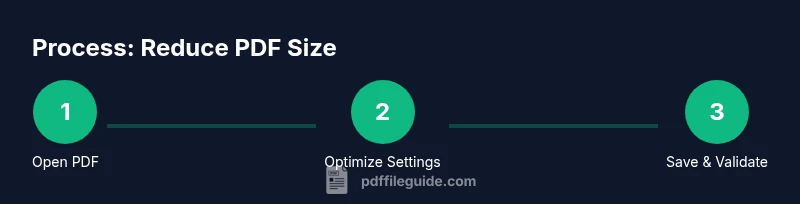
A practical workflow for reducing PDF size in Adobe involves: back up, run Optimize with sensible presets, tailor image and font settings, strip nonessential metadata and attachments, save a separate compressed version, and verify readability and accessibility. Establish a standard profile for common document types to ensure consistency across projects. This approach keeps your PDFs lean without sacrificing the information users rely on.
Tools & Materials
- Adobe Acrobat Pro(Essential tool for comprehensive optimization and auditing)
- Original PDF file(Keep as the baseline for comparison)
- Backup copy(Always create before applying changes)
- Standard web/print reference documents(Helpful for testing readability after downsampling)
Steps
Estimated time: 30-60 minutes
- 1
Open the PDF in Acrobat Pro
Launch Adobe Acrobat Pro and open the document you want to compress. Confirm you have the original file as the baseline for comparison.
Tip: Use Save As to create a separate working copy to avoid overwriting the original. - 2
Access Optimize PDF tool
Navigate to File > Save as Other > Optimized PDF. This opens the optimization dialog with presets and advanced options.
Tip: If you see the Preview option, enable it to view size and quality changes in real time. - 3
Choose a useful preset or customize
Select a preset that matches your goal (web, print, or screen) and adjust image downsampling and compression as needed.
Tip: For screen use, start with 150–200 ppi and JPEG compression; for print, test higher values. - 4
Subset fonts and remove unused elements
Enable font subsetting to limit embedded fonts to used glyphs and remove redundant elements like metadata and hidden data when appropriate.
Tip: Preserve essential accessibility features; avoid removing tagged content if accessibility is required. - 5
Audit with Space Usage and Audit Tools
Use the Audit Space Usage tool to identify which items contribute most to file size and target them for optimization.
Tip: Document which items you modify for future reference. - 6
Save as a new optimized file
Use Save As to create a distinct optimized copy and compare it side-by-side with the original for fidelity.
Tip: Keep a changelog of settings used for reproducibility.
Questions & Answers
Can I reduce PDF size without Acrobat Pro?
Yes, you can reduce size with free tools by exporting to optimized formats or using built-in previews, but Acrobat Pro provides the most control and audit features for reliable results.
Yes, you can reduce size with free tools, but Acrobat Pro offers the most control for reliable results.
Does reducing image quality affect readability?
Reducing image quality can affect readability of charts and photos. Always test on the pages that rely on visuals and consider preserving higher quality for figures or diagrams.
Lowering image quality can impact readability; test key pages and preserve important visuals.
Will removing metadata delete important information?
Removing metadata can reduce file size but may affect document properties and searchability. Keep a version with metadata if needed for audits, and document what was removed.
Metadata removal can affect properties and searchability; keep a version with metadata if needed.
What is the best preset for general documents?
A balanced preset for general documents typically provides a good trade-off between size and readability. Start with a screen or web preset, then tailor image and font options as needed.
Start with a balanced preset like screen or web, then fine-tune.
Can I automate PDF optimization for multiple files?
Yes, you can set up batch processing or actions in Acrobat Pro to apply a consistent optimization profile across many files, saving time and ensuring uniform results.
Yes, use batch processing to apply the same optimization across multiple PDFs.
Watch Video
Key Takeaways
- Identify the main size drivers: images, fonts, and metadata
- Use Optimize PDF with sensible presets before manual tweaks
- Test readability after every optimization step
- Preserve accessibility and essential document structure
- Document your settings for repeatable results