Mastering an Online PDF Compressor: Quick, Safe, and Effective
Learn how to shrink PDFs online with a trusted online pdf compressor. This guide covers selection, privacy, settings, and quality checks to ensure readable results while saving space and reducing upload times.


Use an online pdf compressor to shrink PDFs safely and quickly without installing software. This quick guide shows you how to choose a trusted tool, select appropriate compression settings, and validate output to preserve readability and accessibility while improving shareability, download times, and storage efficiency. This approach minimizes quality loss and keeps documents searchable.
What is an online pdf compressor and why use one?
An online pdf compressor is a web-based service that reduces the size of PDF files without requiring you to install software on your device. For professionals who routinely share reports, proposals, or manuals, the ability to shrink a file while maintaining legibility matters. A high-quality online pdf compressor preserves text, vectors, and images while removing redundant data, metadata, or embedded fonts that contribute to bloat. When done correctly, the result is a file that uploads faster, travels over networks with less bandwidth, and consumes less storage—without sacrificing essential features like searchability or accessibility. The term 'online pdf compressor' covers a range of approaches, from image downsampling and color space optimization to font subsetting and metadata cleaning. The key is to balance size reduction with output quality to meet your exact use case, whether it’s archiving, emailing, or publishing a document online. This balance will vary by document type: a text-heavy report may tolerate aggressive compression, while a graphic-heavy brochure may require more nuanced settings. In the rest of this guide, we’ll explain how to evaluate tools, apply settings, and verify results across common scenarios.
Privacy, security, and reliability considerations when choosing an online compressor
When you upload a PDF to an online compressor, you entrust the provider with your content. Look for providers that publish a clear privacy policy, data retention terms, and secure transmission (TLS). Favor tools that delete files after processing and offer auditable workflows. Reliability matters too: check service uptime, the ability to handle large files, and whether the tool supports batch processing. If your document contains sensitive information, consider offline or self-hosted options, or use reputable cloud services with strong encryption and access controls. By choosing a trusted tool, you reduce risk while still gaining the benefits of reduced file sizes and easier sharing.
What to prepare before you compress: files, settings, and backups
Before you begin, create a backup of the original PDF and note any essential features that must be preserved (searchability, form fields, accessibility tags). Confirm the document isn’t password-protected or, if it is, ensure you have the password to allow processing. Review the most important quality aspects: text clarity, image sharpness, color accuracy, and embedded fonts. If the PDF includes scanned pages, consider whether OCR is required in the final version and how that impacts file size. Having a plan for what you want to preserve (hyperlinks, bookmarks, metadata) helps you select the right compression profile and avoids surprises after download.
Defining a realistic workflow: single-file vs batch processing
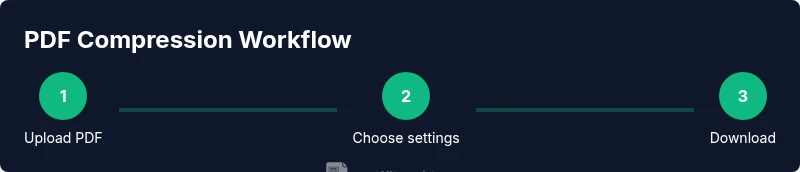
For occasional sharing, a single-file workflow is often sufficient: upload one PDF, adjust a few settings, and download. If you routinely deal with multiple documents, batch processing can save time, but it may come with tighter file-size caps or longer processing times. In either case, aim to keep the same balance between size and quality across all files. Use consistent settings across documents to produce uniform outputs, which makes downstream workflows simpler and more predictable for colleagues and clients.
How compression settings affect quality and accessibility
Compression settings typically control image downsampling, image quality, font subsetting, and metadata removal. Higher downsampling reduces file size but can blur images; aggressive compression may affect color fidelity and edge sharpness. To preserve accessibility, ensure that text remains searchable and that structure (headings, alt text for images) is not broken. If you rely on form fields or interactive features, verify that these elements still function after compression. Always test with representative pages to avoid unexpected degradation.
Practical tips for common document types
Text-heavy PDFs, such as reports and manuscripts, usually tolerate stronger compression with minimal risk to legibility. Image-heavy PDFs, like brochures, require more careful tuning to preserve visual impact. For multi-language documents, verify font rendering and kerning after compression to avoid garbled text. If your document includes embedded fonts, prefer font subsetting to limit font data while preserving appearance. Remember to re-check hyperlinks and bookmarks, as some services strip or alter metadata during processing.
Troubleshooting and avoiding the most common pitfalls
If you notice blur or color shifts after compression, revert to a lighter setting or a different tool. If text becomes non-searchable, the compression may have removed OCR data; either re-run with OCR or avoid aggressive downsampling. Never assume one tool’s output is universally correct—compare multiple outputs or run a quick QA pass with a sample page. Finally, safeguard sensitive content by avoiding public, free services for confidential documents and use trusted providers with transparent policies.
Tools & Materials
- Device with internet access(Desktop, laptop, or tablet with modern browser)
- Original PDF file(Have a backup copy before compressing)
- Trusted online PDF compressor(Choose providers with transparent privacy policies)
- Optional: test PDFs(Useful for trial runs before finalizing important files)
- PDF viewer or reader(To quickly validate output locally)
Steps
Estimated time: 15-30 minutes
- 1
Open the PDF in the compressor
Navigate to your chosen online PDF compressor and upload or drag your PDF into the workspace. Ensure the page loads correctly and the file is the one you intend to compress. This step establishes the starting point for the quality checks to come.
Tip: If the site accepts drag-and-drop, use a stable browser window to prevent accidental file moves. - 2
Choose a compression level
Select a level that balances size reduction with readability. Start with a middle option if available, then preview the result before committing to final output. Avoid extreme downsampling on graphics unless necessary.
Tip: When in doubt, pick 'balanced' or 'standard' presets first. - 3
Set output options
Verify that essential features such as text searchability, bookmarks, and hyperlinks are preserved. If you need accessibility tags, ensure they are retained. Decide whether to optimize images further or keep them at their current resolution.
Tip: Turn on accessibility and font-embedding checks if the tool offers them. - 4
Upload or confirm the file
If you’re handling more than one file, you can queue them for batch processing. For a single document, confirm the upload is complete and that the correct file is ready for processing.
Tip: Check that the file name is clear and avoid spaces or special characters. - 5
Download the compressed PDF
Save the output to a known location. If the tool offers multiple variants, choose the one that aligns with your needs (e.g., smaller size vs. higher quality).
Tip: Rename the file to reflect its compressed version to avoid confusion with the original. - 6
Verify integrity and accessibility
Open the compressed file and perform a quick QA: check text readability, image clarity, and link functionality. Compare page counts and verify metadata remains intact where important.
Tip: Run a quick keyword search to confirm that text remains searchable.
Questions & Answers
What exactly is an online pdf compressor, and how does it work?
An online pdf compressor uses algorithms to reduce image resolution, optimize fonts, and remove unnecessary metadata to shrink a PDF's file size, often without affecting readability.
An online PDF compressor lowers file size by optimizing images and fonts while keeping content readable.
Are online compressors safe for confidential documents?
Security depends on the provider's policy. Use trusted services with clear privacy terms, and avoid uploading sensitive files to questionable platforms.
Be cautious with confidential files; choose trusted tools with clear privacy policies.
Will compression affect the quality of my PDF?
Yes, most compressors trade some quality for smaller size. You can usually adjust settings to balance readability and size.
Compression changes can impact image quality; adjust settings to keep it acceptable.
Can I batch compress multiple PDFs at once?
Many online compressors offer batch processing. Check limits and ensure output formats are preserved.
Yes, several tools support batch work; watch limits.
What should I check after compression?
Verify that text remains selectable, images appear legible, and search works. Compare file size and page count.
After compressing, open the document to verify readability and functionality.
Do I need software to compress PDFs?
No, online compressors work in a browser, though offline software exists with more control.
You can compress PDFs directly in your browser or with desktop apps.
Watch Video
Key Takeaways
- Choose a trusted online compressor with clear privacy terms.
- Balance size reduction with readability and accessibility.
- Always test the compressed output against the original.
- Use backups to protect your content during experimentation.