Can You Edit PDF with Google Docs? A Practical Guide
Learn how to edit PDFs in Google Docs, including what converts well, limitations, and best practices. Step-by-step guidance helps you convert, edit, and export PDFs using Google Drive—ideal for lightweight text edits.


Yes—Google Docs can edit some PDFs by converting them to a Google Docs document. Import the PDF to Google Drive, right‑click and choose Open with Google Docs, and begin editing. Be aware that formatting, fonts, and images may shift, and complex layouts may not convert cleanly. For heavy edits, use a dedicated PDF editor.
What Google Docs can do with PDFs
Editing PDFs directly in Google Docs is not a full replacement for a professional PDF editor. When you open a PDF in Google Docs, the platform attempts to convert the content into editable text, which can be sufficient for quick tweaks, note-taking, and light rewriting. The conversion tends to preserve basic elements like paragraphs and headings, and it often keeps simple lists intact. According to PDF File Guide, this approach works best for lightweight edits on text-heavy PDFs. If your document relies on precise typography, multi-column layouts, or extensive images, you should expect some reflow and adjustments after conversion. Use Google Docs as a first pass or for collaboration, then verify the final output in a dedicated tool if needed.
What Google Docs can and can't preserve during PDF conversion
Google Docs does a respectable job with plain text and straightforward formatting, but it struggles with complex tables, embedded fonts, and intricate page layouts. Images may shift, captions may detach, and color fidelity can degrade. For forms and interactive fields, Google Docs cannot recreate native PDF form functionality; you’ll often need to recreate fields in a PDF editor. The key takeaway is to treat the conversion as a best-effort draft rather than a faithful replica of the original layout. This reality underlines the importance of testing the converted file on multiple devices and software.
The conversion workflow: from Drive to Google Docs
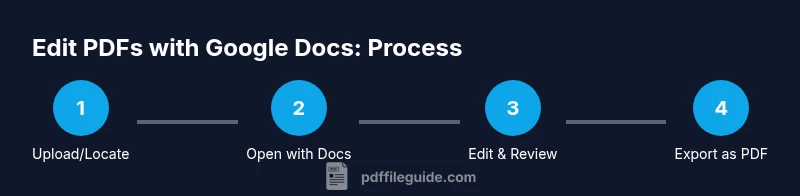
Begin by uploading or locating your PDF in Google Drive. Right-click the file and select Open with > Google Docs. The system will process the document and open a new Google Docs file containing the converted text and images. Expect a short delay if the PDF is lengthy or image-heavy. After the conversion, use the formatting toolbar to adjust headings, lists, and alignment. Save a backup before making large edits to avoid losing the original layout, and compare the converted draft with the original to identify sections that require special attention.
Editing basics: text, images, and links in the converted document
In the converted Docs file, start with plain text edits—correct typos, update terminology, and revise sections for clarity. Use the built-in tools to resize or reposition images, adjust bullet and numbering styles, and update hyperlinks. If fonts do not match, consider applying the closest available font in Docs and reformatting paragraphs to maintain readability. Remember that some font-heavy PDFs won’t map perfectly; in those cases, you may need to re-create visual elements in Docs instead of relying on exact font replication.
OCR and scanned PDFs: when you need editable text from images
If your source PDF is image-based or scanned, Google Docs cannot extract text accurately without OCR (optical character recognition). The conversion may produce errors in words, punctuation, and layout. For best results, enable OCR during the initial upload or pre-process the document with an OCR-capable tool before opening in Google Docs. Always proofread the resulting text and adjust formatting to reduce residual errors from the recognition process.
Best practices to preserve layout and readability
Begin with a clean backup of the original PDF. When editing, focus on content that benefits from text edits rather than trying to preserve every visual detail. Use consistent headings, lists, and spacing to improve readability after conversion. Export the edited document back to PDF to verify how the final file will appear when shared or printed, and adjust as needed. For accessibility, ensure headings and semantic structure remain intact so screen readers can navigate the document effectively.
When to choose a dedicated PDF editor instead
For documents with complex layouts, heavy use of tables, vector graphics, or advanced form fields, a dedicated PDF editor will deliver more reliable results. Tools designed for PDFs typically preserve fonts, spacing, and interactive elements more faithfully. Use Google Docs for quick edits, collaboration, and text-focused changes, but plan to switch to a PDF editor when fidelity and interactivity are critical.
Exporting edited content back to PDF: steps and considerations
After you finish editing in Google Docs, export the file as a PDF via File > Download > PDF Document. Open the exported PDF to verify that text edits, links, and basic formatting appear as intended. Check that any images, charts, or tables retained essential details. If something looks off, return to the Docs file, adjust, and re-export. Keep in mind that some formatting can shift between conversion passes, especially with complex layouts.
Privacy, security, and cloud-editing considerations
Editing PDFs in Google Docs involves storing your file in the cloud. If your document contains sensitive information, review your sharing settings and consider downloading a local copy for editing or using enterprise-grade tools with stricter access controls. Always sign out of shared devices and enable two-factor authentication for added protection. The privacy posture of cloud-based editing should align with your organization’s data-handling policies.
Tools & Materials
- Computer or device with internet access(Desktop or laptop; modern browser recommended)
- Google account(Needed to access Google Drive and Google Docs)
- PDF file to edit(Have a backup copy before editing)
- Web browser(Latest version preferred)
- Backup copy of the original PDF(Preserve the source in case you need to revert)
- OCR-capable tool (optional)(Helpful for image-based PDFs to improve text extraction)
- Notes for edits(Keep change logs or comments for collaboration)
Steps
Estimated time: 15-25 minutes
- 1
Open Google Drive and locate your PDF
Sign in to your Google account, upload the PDF if it isn’t already in Drive, and create a backup copy. This step ensures you have a fallback if the conversion or edits don’t meet expectations.
Tip: Keep a local backup as a quick fallback. - 2
Open with Google Docs to start conversion
Right-click the PDF, choose Open with > Google Docs, and wait for the conversion to complete. The result is a new Google Docs document containing the editable content.
Tip: If your file is large, give the conversion time to process fully. - 3
Review and adjust the converted document
Scan for formatting shifts, misplaced headings, or broken tables. Use the toolbar to correct fonts, spacing, and alignment to improve readability.
Tip: Turn on outline view to quickly navigate headings. - 4
Edit text, images, and links as needed
Make your edits, update citations, fix typos, and adjust image positions. Ensure links point to correct destinations and test them.
Tip: Use Ctrl/Cmd+F to find specific text quickly. - 5
Add comments for collaboration
Use the comments feature to annotate questions or suggestions. Tag teammates with @mentions to assign tasks.
Tip: Keep a changelog in the comments when collaborating. - 6
Export back to PDF for final distribution
From the Docs menu, select File > Download > PDF Document to create the final PDF. Review the export for any last-minute formatting issues.
Tip: Compare the exported PDF with your edited Doc to catch discrepancies.
Questions & Answers
Can I edit any PDF in Google Docs?
Not every PDF can be edited cleanly in Google Docs. Simple text-heavy PDFs usually convert well, while complex layouts, fonts, and forms may not map perfectly. For best results, treat Google Docs as a starter for lightweight edits and resort to a dedicated PDF editor for intricate documents.
Not every PDF edits cleanly in Google Docs; start with simple ones and use a dedicated editor for complex layouts.
Will Google Docs preserve fonts and layout after conversion?
Fonts and layout are often preserved only roughly. Expect potential shifts in font rendering, spacing, and column structure after conversion.
Fonts and layouts may shift after conversion; review carefully.
How do I edit a scanned PDF?
If the PDF is scanned, you’ll need OCR to convert it to editable text before editing in Docs. Google Docs offers basic OCR, but results vary; consider a dedicated OCR tool for higher accuracy.
OCR helps, but results vary; use a dedicated OCR tool for accuracy.
Is editing PDFs in Google Docs free?
Yes. Editing PDFs in Google Docs is free with a Google account, though some features may depend on your Google workspace plan.
Yes, it’s free with a Google account.
Can I export edited PDFs back to PDF with links and forms?
You can export to PDF, but interactive form fields may not transfer. Check links and form behavior after export to ensure functionality.
You can export, but forms may not stay interactive.
What are the main limitations of editing PDFs with Google Docs?
The main limits are complex layouts, precise typography, and form fields. Image-heavy PDFs often lose alignment and fidelity in conversion.
Limits include complex layouts and forms; review carefully.
Watch Video
Key Takeaways
- Back up the original PDF before editing.
- Expect layout changes after conversion.
- Use Google Docs for lightweight edits only.
- Export to PDF to finalize and share.
- Choose a dedicated editor for complex PDFs.