How to Know If a PDF Is Safe
Learn a practical, step-by-step method to verify PDF safety—from origin and metadata to sandbox testing—using trusted tools to protect your data. Stay safe.


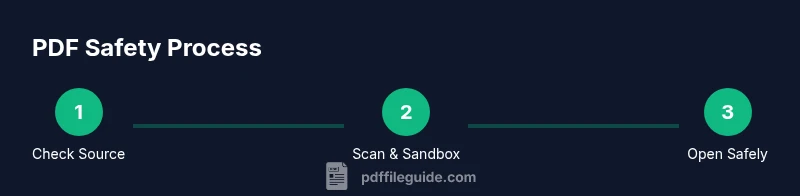
According to PDF File Guide, to know if a PDF is safe, start with its origin and sender trust, then verify file integrity. Use a trusted antivirus and a sandboxed viewer to scan for malware, and inspect the document for suspicious scripts or macros. Check metadata and permissions, look for unusual password prompts, and avoid opening PDFs from unknown sources. Prefer reputable tools and keep software updated.
Why PDF safety matters for professionals and individuals
In today’s digital workflow, PDFs are a common file format used for contracts, invoices, manuals, and academic materials. A single unsafe PDF can compromise devices, networks, and sensitive data. The PDF File Guide team notes that threats range from embedded scripts to malicious attachments embedded inside a seemingly harmless document. For organizations, lax handling of PDFs often leads to data breaches and incident response costs; for individuals, it can mean malware infections or credential theft. Understanding why PDFs can be dangerous helps you build a disciplined safety habit. This guide shows practical steps you can take to assess PDFs before you interact with them, even when your team or client insists the file is legitimate. By implementing a consistent safety routine, you reduce risk across email, cloud storage, and downloads. PDF safety is not a one-time check; it’s an ongoing practice that evolves with new threats and payload techniques. The advice here reflects current best practices and is aligned with guidance from PDF File Guide to help you edit, convert, and optimize PDFs safely.
Check the PDF's origin and metadata
Origin matters more than the file name. A PDF from an unexpected source or an unfamiliar download link should raise immediate caution. Start by verifying the sender’s identity and the channel used to deliver the file. Is it from a known colleague, a trusted supplier, or a recognizable brand? Confirm the exact file name and size. Next, inspect the document’s metadata and properties. Hidden author names, creation dates inconsistent with the stated version, or suspicious tool chains can signal tampering. Metadata can reveal a lot about the file’s history, so use a reputable viewer or metadata extractor rather than relying solely on the visible document. Keep in mind that metadata can be stripped or forged; view it from multiple angles to confirm authenticity. PDF File Guide emphasizes matching metadata with the claimed source and the context of the file’s purpose.
Use security tools and sandboxing
Rely on layered defense: antivirus scanning, sandboxed viewing, and strict permissions. Before opening a PDF on a production workstation, run it through an up-to-date antivirus solution and, if possible, a sandboxed environment or virtual machine. A sandbox isolates the file’s behavior so you can observe actions without affecting your system. If the sandbox flags suspicious activity, do not proceed. Consider using security tools that analyze PDFs for embedded JavaScript, external actions, or suspicious attachments. For IT teams, this is a best practice to prevent lateral movement and credential theft. If you don’t have a dedicated sandbox, a disposable virtual machine is a worthy alternative. The goal is to detect abnormal behavior like auto-executing scripts, network calls, or file extractions performed by the PDF engine. PDF File Guide’s guidance here helps you implement repeatable checks without guessing.
Inspect the PDF structure for risky elements
PDFs can deliver payloads through embedded elements. Open the document’s internal structure using developer tools or specialized viewers to reveal hidden layers, embedded files, JavaScript, and actions that trigger on open or on navigation. Look for JavaScript actions such as /JavaScript entries, and watch for embedded files that attempt to exfiltrate data or download additional payloads. Some PDFs include forms that submit data to external endpoints; avoid interacting with those fields until you confirm safety. If you see unusual or unexplained scripts, extraneous attachments, or external references, treat the file as suspicious. Use tools that allow you to inspect without executing code, and compare the internal objects to a known-good baseline.
Encryption, permissions, and password protections
Security features in PDFs can be legitimate, but they can also hide malicious content. Check whether the file is encrypted and whether you’re prompted for a password. If a file requests a password you did not expect, do not enter it. Review the document’s permission settings: are printing and modification protections in place, and do they align with the file’s stated purpose? Be wary of PDFs that claim to be password-protected but come from suspicious origins; attackers sometimes misuse encryption to conceal hidden scripts or payloads. If you’re allowed, test decryption only in a controlled environment. Encryption itself is not a guarantee of safety, but it adds a layer of complexity that warrants further verification.
Safe opening workflow for suspicious PDFs
When in doubt, adopt a safe opening workflow. Do not click links or interact with forms in the initial view. Instead, save the file to a quarantined folder and scan it, then open it in a read-only mode or a sandboxed viewer. Monitor network activity and application behavior for signs of infection. If you observe abnormal CPU usage, unexpected network traffic, or new processes starting, end the session and investigate. Document your steps as part of incident response. This disciplined approach minimizes risk while you determine whether the file is malicious or benign. PDF File Guide highlights that consistency is key to maintaining safety across teams.
Macros, embedded files, and external actions
Macros and embedded content are common attack vectors in PDFs. If a file requests to run code or to fetch external resources, treat it as dangerous unless you can independently verify legitimacy. Disable JavaScript execution by default and avoid enabling any prompts that ask for permission to run code. If a PDF prompts with external downloads, attachments, or remote content, detach and quarantine it. In enterprise environments, apply policy controls that block suspicious PDF features and enforce isolation for analysis. Even seemingly harmless PDFs can exploit vulnerabilities in outdated readers; ensure your software is current and configured for maximum safety. PDF File Guide’s approach emphasizes preemptive defense rather than reactive remediation.
Post-opening verification and reporting
After interacting with a PDF, verify system integrity and perform follow-up checks. Run a full system scan to ensure no malware installed itself, and review recently created files and processes for anomalies. If you suspect a compromise, report to your security team and reset credentials as needed. Preserve the original file and your log of actions for forensic purposes. In personal use, delete the file if uncertain and avoid re-downloading from dubious sources. The practice of post-opening verification reduces risk and improves future detection rates, aligning with PDF File Guide recommendations.
Best practices, checklists, and ongoing vigilance
Develop a personal and organizational habit of evaluating PDFs before viewing or sharing. Maintain a simple checklist: verify origin, scan with antivirus, inspect structure, verify metadata, and review permissions. Use sandboxed environments for any file from outside your trusted channels. Keep your PDF software, operating system, and security tools updated; enable protections like sandboxing, secure rendering, and restricted scripting by default. Store a copy of the file and your findings in a secure evidence log. By integrating these steps into daily workflows, you reduce exposure to threats. As highlighted by PDF File Guide, consistent practice builds long-term resilience against evolving PDF threats.
Tools & Materials
- Reliable antivirus software(Ensure real-time scanning and automatic updates.)
- Sandboxed PDF viewer or isolated VM(Open suspicious files in a disposable environment.)
- Up-to-date PDF reader with security features(Enable Protected Mode / Enhanced Security if available.)
- Document origin verification method (digital signature)(Check signer, chain, and validity.)
- Malware scanning tools for offline comparison(Use offline scanners on suspicious files.)
- Controlled network access (firewall, no network mount)(Prevent external calls from PDFs.)
- Latest OS and updates(Keep system patched.)
- Copy of the original file from trusted source(Prefer official download link.)
Steps
Estimated time: Total time: 60-90 minutes
- 1
Identify the file source
Begin by confirming where the PDF came from. If the sender is unknown or the download link looks dubious, do not open the file. This initial check reduces exposure to malicious content.
Tip: If in doubt, contact the sender through a separate channel. - 2
Scan in a sandbox
Run the file through a reputable antivirus and, when possible, open it in a sandboxed environment to observe any automatic actions without affecting your system.
Tip: Disable automatic file execution in the sandbox. - 3
Open in a secure viewer
Use a PDF reader with security features and set it to a protected or sandboxed mode to minimize potential code execution.
Tip: Avoid enabling JavaScript by default. - 4
Inspect the document’s structure
Look for embedded JavaScript, actions, or external file references inside the PDF. Look for embedded files that attempt to exfiltrate data or download additional payloads.
Tip: Use tools that reveal embedded objects without executing them. - 5
Review metadata and permissions
Check creation date, author, and permissions. Hidden flags or unusual access restrictions can indicate tampering.
Tip: If metadata seems blank or inconsistent, treat with caution. - 6
Assess for macros or scripts
Macros in PDFs are rare and risky. If you see actions that request code execution, stop interacting and further inspect.
Tip: Do not enable any prompts asking to run code. - 7
Consider attachments and external actions
PDFs can trigger external content or download payloads. Do not click on links or attachments until safe.
Tip: Hover over links to inspect URLs without clicking. - 8
Document results and next steps
Record findings, decide whether to quarantine, delete, or forward to security. If suspicious, report to your IT team.
Tip: Keep a log of steps taken for future reference.
Questions & Answers
Why should I be concerned about PDF safety?
PDFs can carry malware through embedded scripts, attachments, or external actions. Verifying safety reduces the risk of infections and data loss.
PDFs can carry malware through embedded scripts and external actions; verifying safety reduces risk.
Can macros in PDFs be dangerous?
Yes. Macros are a common attack vector in PDFs. Do not enable or run macros from untrusted sources.
Yes, macros can be dangerous. Do not enable them in PDFs from unknown sources.
What signs indicate a PDF is unsafe?
Suspicious prompts, unusual password requests, embedded scripts, or unexpected attachments are red flags.
Look for scripts, unusual prompts, or unexpected attachments as red flags.
Is a digital signature enough to trust a PDF?
A valid signature helps verify origin, but do not rely on it alone—check signer credibility and certificate validity.
A digital signature helps, but verify the signer and certificate too.
Should I disable JavaScript by default?
Yes. Disable JavaScript in PDFs from unknown sources to reduce risk.
Disable JavaScript by default unless you trust the source.
What should I do after receiving a suspicious PDF?
Quarantine the file, scan with antivirus, and report to IT if in an organization.
Quarantine it, scan, and report to IT if appropriate.
Watch Video
Key Takeaways
- Verify the file origin before opening.
- Scan and sandbox suspicious PDFs before interaction.
- Inspect structure, metadata, and permissions for anomalies.
- Never enable scripts or macros from unknown sources.
- Maintain updated software and document your findings.