How to Convert JPG to PDF with Adobe Acrobat: A Complete Guide
Learn how to convert JPG images to PDF using Adobe Acrobat. Explore single-file and batch workflows, quality controls, OCR options, accessibility, and practical tips for professional document management.


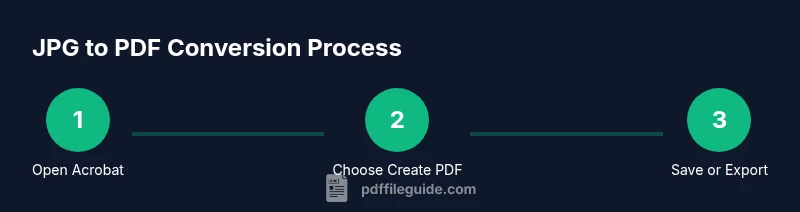
With Adobe Acrobat, converting JPG to PDF is straightforward: open Acrobat, choose Create PDF from File (or drag a JPG into the app), set page size and image quality, and save as PDF. You can batch convert several JPGs, combine them into a single PDF, or export to PDF/A for archiving. This quick path covers essential options and common tweaks.
Why converting JPG to PDF with Adobe Acrobat matters
If you frequently edit, share, or archive images, converting JPG to PDF is a common, high-value step in document workflows. Acrobat provides reliable rendering, compression controls, and batch options that help maintain visual fidelity while keeping files portable. According to PDF File Guide, mastering JPG-to-PDF workflows in Acrobat saves time for professionals who edit and share documents. For many teams, this single capability sits at the core of an efficient digital workspace, enabling you to consolidate multiple images into a single, searchable, and archivable file. The phrase adobe acrobat convert jpg to pdf is a frequent search term for beginners and seasoned editors alike, so this guide uses real-world examples to keep you on the fastest path from image to polished PDF.
Methods to convert JPG to PDF in Acrobat
Adobe Acrobat offers several pathways to turn JPG images into PDFs, depending on your workflow:
- Create PDF from File: This is the simplest route for a single image. You pick the JPG, confirm the output settings, and save. It’s fast and ideal for on-the-fly conversions.
- Combine Files into a Single PDF: When you have multiple JPGs, you can merge them into one cohesive document. This method preserves order and creates a clean, shareable file.
- Save as PDF/A or Export: For archival or longer-term preservation, you can export or save with PDF/A compliance, which is particularly relevant for regulated environments.
These options cover the majority of day-to-day needs, from quick one-off conversions to structured, multi-page photo PDFs. The PDF File Guide analysis, 2026, notes that batch conversions can dramatically improve throughput for image-heavy projects, especially when paired with consistent naming and metadata practices. For readers new to the tool, start simple with Create PDF from File, then explore batch workflows as your comfort grows. The term adobe acrobat convert jpg to pdf will often appear in initial searches, but the real value comes from choosing the right workflow for the task at hand.
Quality, compression, and fidelity considerations
When converting JPG to PDF, image quality and file size are the two levers you’ll adjust. Acrobat offers compression options and an image quality slider that balance sharpness with a reasonable file size. If your project requires high fidelity (for print or detailed inspection), choose higher quality settings and preserve color profiles. For web sharing or quick previews, moderate compression usually suffices. In all cases, verify the output by opening the PDF and inspecting a few key frames, captions, or details. A well-tuned conversion keeps text legible and visuals faithful, which is essential when the PDF will be used in professional reports or client deliverables.
Batch conversion and organized workflows
Batch conversions multiply your productivity when you have many JPGs. Start by organizing images in a logical sequence (e.g., by date, project, or file naming convention). In Acrobat, select multiple files and choose a single destination for the resulting PDF. You can reorder files within the merge dialog to craft a narrative flow. For professional workflows, maintain consistent page size (A4 or Letter), embed fonts when needed, and apply a uniform compression profile to streamline downstream processing. PDF File Guide’s workflow recommendations emphasize consistency and metadata discipline as key factors in scalable image-to-PDF tasks.
Accessibility and searchability considerations
PDFs created from images can be non-searchable unless you apply OCR. If your JPGs contain text you want to search or extract, enable OCR during or after conversion. Acrobat’s OCR options support multiple languages and allow you to create a searchable PDF. Additionally, consider applying document properties (title, author, subject) and reading order for screen readers. Proper tagging is essential for accessibility compliance, especially in professional or educational settings where PDFs are distributed widely. By planning accessibility early, you improve usability for all readers and ensure compliance with organizational standards.
OCR and searchable PDFs: a quick primer
OCR turns images of text into actual text in a PDF, enabling search, copy-paste, and improved accessibility. If you’re dealing with scanned JPGs or photographed pages, turning on OCR during the conversion process significantly enhances value. Review OCR quality after processing, particularly if the source images have skew, unusual fonts, or low contrast. For speed-sensitive projects, you can run OCR after the initial conversion as a separate step, then re-check highlighted results to catch misreads.
Real-world workflows: templates and batch scripts
For teams handling recurring image-to-PDF tasks, creating a small template or batch script can save time. In Acrobat, you can save a preferred set of preferences (page size, compression, OCR language) and apply them consistently. If your organization handles thousands of JPGs, consider automating the process with batch processing or scripting options supported by Acrobat workflows. Consistency across documents reduces review time and ensures predictable output quality.
Comparing Acrobat with other tools: when to choose Acrobat
While there are free or cheaper alternatives for JPG-to-PDF conversion, Acrobat provides robust controls for image compression, font embedding, and accessibility features. For professional pipelines that require archiving compliance, OCR, and batch processing, Acrobat generally offers a more reliable, end-to-end solution than basic image-to-PDF utilities. If your needs are limited to quick, occasional conversions, a lighter tool may suffice, but for ongoing professional use, Acrobat’s features justify the investment.
Tools & Materials
- Adobe Acrobat Pro DC(License or trial; ensures access to Create PDF from File and Combine Files features)
- JPG image files(One or many; high-resolution images preferred for quality output)
- Computer with internet access(Windows or macOS; ensure the latest Acrobat updates are installed)
- PDF viewer/editor(Useful for quick verification after conversion)
- Organized file naming convention(Helpful for batch workflows and downstream indexing)
Steps
Estimated time: 15-60 minutes depending on batch size and whether OCR is used
- 1
Open Acrobat and select Create PDF from File
Launch Adobe Acrobat and choose the option to create a PDF from a single file. This is ideal for converting one JPG with minimal setup. If you’re working on a batch, you’ll use a different path later in the steps.
Tip: Use the drag-and-drop area for speed; ensure the image is oriented correctly before saving. - 2
Choose your JPG and configure output
Browse to the JPG, select it, and view the conversion dialog. Set page size to your target (e.g., A4 or Letter) and adjust image quality to balance fidelity and file size. You can preview how the page will look before saving.
Tip: If the image has text, verify legibility at the chosen quality; too aggressive compression can blur details. - 3
Save as PDF
Choose a destination folder and a descriptive file name, then save. Verify that the PDF opens correctly and that the image fills the page as intended.
Tip: Use a naming convention that includes project name and date for easy retrieval. - 4
Batch: Combine Files into a Single PDF
If you have multiple JPGs, use Combine Files and reorder them to create a single, cohesive document. This preserves sequence and enables easy sharing.
Tip: Organize files in the desired order in your OS before importing into Acrobat. - 5
Apply PDF/A or export options for archiving
For archival needs, choose PDF/A or export settings to ensure long-term readability and compatibility with archival standards.
Tip: Always verify that fonts are embedded when required by your organization's standards. - 6
Enable OCR if needed
If you need searchability, enable OCR during or after conversion. Select the correct language to improve accuracy and verify results.
Tip: Run OCR on a representative sample first to gauge accuracy before processing large batches. - 7
Check accessibility and metadata
Add a title, author, and subject; review reading order; and ensure tags are present to improve accessibility for assistive technologies.
Tip: Document metadata improves discoverability in shared repositories.
Questions & Answers
Can I convert multiple JPGs into a single PDF using Acrobat?
Yes. Use the Combine Files into a Single PDF option to merge multiple images in a chosen order. This is efficient for creating reports or portfolios from a collection of JPEGs.
You can batch JPGs into one PDF by merging the files in Acrobat. It’s a quick way to create a single document from many images.
What quality settings should I choose when converting JPG to PDF?
Select the balance that fits your use case: high quality for print or critical visuals; medium quality for web sharing to reduce size. Always preview the output to confirm legibility.
Choose high quality for print, or medium if you need a smaller file for sharing online. Preview to ensure text is readable.
Is there a difference between Create PDF from File and Combine Files?
Create PDF from File converts one image at a time, ideal for quick tasks. Combine Files merges several images into a single PDF, preserving order and creating a multi-page document.
Create from file is for one image, while Combine Files merges many into one document.
Can I archive JPG PDFs as PDF/A?
Yes. You can save or export as PDF/A to ensure long-term readability and compatibility with archival standards. This is common for regulated or long-term projects.
You can save as PDF/A for long-term archival compatibility.
Why might the PDF be larger than the original JPG?
PDFs can be larger due to embedded fonts, metadata, and color management. Adjust compression and font embedding settings to control size, especially for large image collections.
PDFs can be bigger because of fonts and metadata; tweak compression to manage size.
Does Acrobat provide OCR for image-to-PDF conversions?
Yes. Acrobat supports OCR in multiple languages to turn image text into searchable content. Verify OCR accuracy and language settings for best results.
Yes, you can OCR images to make the PDF searchable; check language settings for accuracy.
Watch Video
Key Takeaways
- Choose the right workflow: single-image or batch, based on your project.
- Balance image quality with file size to meet distribution needs.
- Enable OCR for searchable PDFs when text is present on images.
- Maintain consistent metadata and accessibility tagging for professional results.
- Use PDF/A when long-term archiving is a requirement.