How to Convert JPG to PDF Using Adobe Acrobat Online
Learn how to use the Adobe Acrobat online JPG to PDF converter to transform images into shareable PDFs. This educational guide covers step-by-step tasks, tips, and privacy best practices for PDF File Guide readers.


According to PDF File Guide, you can quickly convert a JPG to PDF using the Adobe Acrobat online JPG to PDF converter. This browser-based tool requires only an internet connection and, if you opt for cloud saving, an Adobe account. It preserves image quality and layout, producing a polished PDF you can share instantly. Follow the steps below.
What is the Adobe Acrobat Online JPG to PDF Converter
The Adobe Acrobat online JPG to PDF converter is a browser-based tool that lets you transform single or multiple JPG images into a single PDF or separate PDFs without installing software. It supports drag-and-drop uploads or file selection, and it preserves overall image quality and layout across pages. For professionals, this online option offers speed, cross-device accessibility, and a straightforward interface. PDF File Guide notes that this online tool is designed for quick conversions with reliable results, making it a practical choice for impromptu reviews, client sharing, or quick document packaging. By comparing alternatives, you’ll see that the online converter prioritizes simplicity while delivering predictable output that fits common document workflows.
Why the online converter can be preferable to desktop apps
Online JPG to PDF tools, including the Adobe Acrobat option, remove the friction of software installation and occasional compatibility issues. They are especially useful for quick tasks on devices where you don’t want to install apps or when you need to share a file immediately from a public machine. However, cloud-based options can raise privacy considerations, so it’s important to weigh convenience against security. PDF File Guide analysis shows that many professionals value the ability to access files from any device without syncing software, which can streamline collaboration and reduce setup time.
Preparing your JPG files for conversion
Before converting, ensure your JPGs are high enough resolution to avoid pixelation in the final PDF. Name files in a clear, consistent way (for example: project-client-date-01.jpg) to simplify ordering and tracking. If you’re combining multiple images into a single PDF, collect them in the correct sequence, or keep a rough outline of the intended order. Cropping or adjusting orientation ahead of upload can prevent unwanted margins or rotated pages. Keeping source images organized also helps preserve metadata and ensures that the resulting PDF looks professional when shared with clients or teammates.
Step-by-step workflow overview for the Adobe online JPG to PDF converter
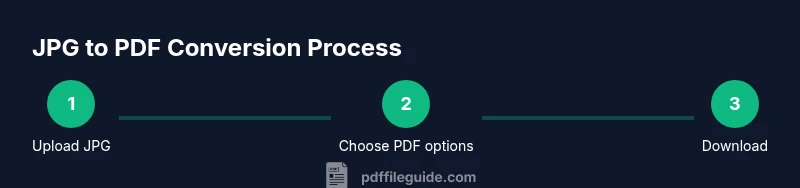
This section provides a high-level roadmap of what you’ll do in the tool. You’ll upload one or more JPG files, decide whether you want a single PDF or multiple, set page options such as orientation and size, convert, and then download or save the result. If you’re working with sensitive images, consider whether cloud saving is appropriate or if you should disable cloud options and download locally. The process is designed to be accessible to beginners while still offering enough control for professional documents. The goal is a clean, readable PDF you can attach to emails or upload to a project folder.
Tips for accuracy and quality when converting
Always preview the PDF after conversion to verify image alignment, margins, and page order. For multi-page PDFs, double-check that all intended images are included in the proper sequence. If you notice any distortion, re-check orientation settings or consider re-uploading with adjusted scaling. For retained image fidelity, avoid overly aggressive compression settings and choose a higher image quality preset when available. Remember that the online tool aims for balance between speed and output quality, which is ideal for quick turnarounds.
Privacy, security, and data handling with online tools
When using an online converter, review the provider’s privacy policy to understand how uploaded files are stored and for how long. If you’re working with sensitive client information, you may prefer offline processing or cloud-saving-enabled workflows that allow immediate deletion after download. PDF File Guide recommends using private browsing modes for occasional sessions on shared devices and clearing browser cache after completion to minimize residual data. If you must share the converted PDF publicly, consider redacting sensitive details or applying password protection after conversion using Acrobat’s broader feature set.
Tools & Materials
- Device with internet access(Laptop, desktop, tablet, or smartphone with a modern browser)
- Web browser(Chrome, Edge, Firefox, or Safari updated to latest version)
- JPG image(s) ready for conversion(High-resolution images; recommended 1920x1080 or higher)
- Adobe account (optional)(Needed only if you want cloud saving or cross-device access)
- Privacy-conscious workflow(Consider private browsing or local download for sensitive files)
Steps
Estimated time: 30-45 minutes
- 1
Open the Adobe Acrobat online JPG to PDF converter
Launch a supported browser and navigate to the official Acrobat online JPG to PDF tool. Ensure you are connected to the internet and are on the correct, legitimate site to avoid phishing or cloned pages. This initial step sets the stage for a smooth conversion.
Tip: Verify the URL before uploading any files to prevent credential or data exposure. - 2
Upload your JPG file(s)
Drag-and-drop your JPGs into the designated area or click to browse and select. If converting multiple images, choose the option to combine into a single PDF or create separate PDFs based on your needs. Upload time will depend on file size and network speed.
Tip: For large files, consider uploading one at a time to monitor quality and avoid timeouts. - 3
Arrange the image order
Reorder the uploaded images to reflect the intended sequence of pages in the final PDF. This is crucial for narratives, reports, or client deliverables where page flow matters.
Tip: If you notice a mis-order, remove the image and re-upload in the correct sequence. - 4
Set page size and orientation
Choose the target page size (for example, A4 or Letter) and orientation (portrait or landscape). This ensures the final PDF matches your document requirements and printing expectations.
Tip: If the images have a fixed aspect ratio, set orientation consistently to avoid unexpected cropping. - 5
Convert to PDF
Click the Convert or Create PDF button to generate the document. Wait a few moments while the tool processes the file(s).
Tip: Look for a progress indicator and verify that the pages appear in the expected order. - 6
Download or save to cloud
Choose to download the PDF to your device or save it to a cloud location if you’re signed in. Cloud saving enables access across devices but review privacy settings.
Tip: If you require offline access, download a local copy immediately after conversion. - 7
Verify, rename, and share
Open the downloaded PDF to confirm readability and page order. Rename the file with a clear, descriptive name and share via email or a secure link as needed.
Tip: Consider applying password protection if the content is sensitive.
Questions & Answers
Is the Adobe Acrobat online JPG to PDF converter free to use?
Yes, the basic online converter is available at no cost for simple JPG to PDF conversions. Some advanced features or cloud-saving options may require a paid plan or an Adobe account.
The basic conversion is free, with optional paid features for advanced needs.
Can I merge multiple JPGs into one PDF?
Yes. The online tool supports combining several JPGs into a single PDF, making it convenient for multi-page documents or reports.
Yes, you can combine several JPGs into one PDF.
Is there a file size limit for uploads?
Upload size limits vary by service plan and browser capabilities. If you encounter limits, try reducing image resolution or splitting into multiple PDFs.
There can be a upload size limit; reduce image size or split if needed.
Where are my uploaded files stored and for how long?
For online converters, files may be stored temporarily on servers as part of the processing. Check the provider’s privacy policy; delete files after download if possible.
Files may be stored briefly on servers; delete after download when possible.
Can I edit the PDF after conversion?
Basic edits like reordering pages or adding annotations can be done in many PDF readers, but advanced editing often requires dedicated PDF editors.
You can edit some aspects in a reader, but for advanced edits you’ll need a editor.
Do I need to install anything to use the converter?
No installation is required for the online JPG to PDF converter. You only need a supported web browser and internet access.
No installation needed; just a browser and internet.
Watch Video
Key Takeaways
- Use the Adobe Acrobat online JPG to PDF converter for quick, cloud-friendly conversions.
- Prepare high-quality JPGs and determine page order before uploading.
- Review privacy options and consider local downloads for sensitive content.
- Verify the final PDF before sharing and rename clearly for recipients.