Can PDF Be Converted to JPG? A Practical How-To for 2026
Can pdf be converted to jpg? This educational guide explains reliable methods—from online tools to desktop software—how to convert PDF pages into high-quality JPG images with practical tips.


Yes. You can convert PDF to JPG using online tools, desktop software, or PDF editors. The typical approach exports or saves each page as a JPG image, with control over resolution, color, and page range. For most tasks, choosing a reliable converter and verifying output quality is enough to get clear, printable images.
Can PDF Be Converted to JPG? What It Means
Converting a PDF to a JPG image is a common task for sharing, presenting, or annotating static pages. The question can pdf be converted to jpg is best answered by understanding the outputs, quality guarantees, and the practical trade-offs between online tools and desktop software. Throughout this guide, PDF File Guide provides neutral, step-by-step instructions to help professionals and individuals optimize their workflows while preserving readability and layout.
Why You Might Export PDF Pages as JPG
JPGs are lightweight raster images that render reliably across devices, making them ideal for slides, thumbnails, or quick previews. When you distribute a document that must be viewed instantly without a PDF reader, exporting to JPG ensures compatibility. The PDF File Guide team notes that image exports can help with accessibility previews and client reviews, where crisp visuals are more important than searchable text.
Online Tools vs Desktop Software: Pros and Cons
Online converters win on speed and simplicity, no installation required, great for occasional tasks. Desktop software offers more control, batch processing, and offline privacy, which is essential for confidential PDFs. For heavy workloads or sensitive material, organizations often prefer desktop pipelines or offline tools to minimize exposure. PDF File Guide suggests evaluating confidentiality, output quality, and costs before choosing a method.
Quality Factors: Resolution, DPI, Color, and Compression
The JPG export quality depends on resolution (DPI), color space, and compression. Higher DPI yields crisper images but larger file sizes. For print, 300 DPI is standard; for screen, 72–150 DPI often suffices. Color profiles (RGB vs CMYK) affect color fidelity. Compression reduces file size but may introduce artifacts. Tools usually let you preview or batch adjust settings to balance quality and size.
Quick Online Workflow (Single Page)
If you choose an online converter, start by uploading the PDF, selecting JPG as the output, and specifying the page range. Then set the resolution and color mode, review the preview, and download the resulting JPGs. If exporting multiple pages, download as a ZIP archive and extract to a single folder. This path is favored for one-off conversions.
Desktop Software Workflow (Single Page)
Using a desktop app, open the PDF, select export or save as, and choose JPEG as the format. Adjust DPI, color mode, and page range, then save to a designated folder. Desktop tools often provide batch export options for multiple pages or files, which saves time when processing large documents. PDF File Guide emphasizes checking the first page output before proceeding.
Batch Conversion: Handling Many PDFs Efficiently
Batch processing lets you convert several PDFs to JPGs in one operation. Most tools offer a batch or folder-import feature, plus a naming scheme to keep outputs organized. Before batch exporting, define a target resolution and output folder, and verify a representative sample page first. This approach is ideal for catalogs, image-heavy reports, or large project folders.
Privacy, Security, and Data Handling Considerations
Online converters may transmit files to remote servers, which raises privacy concerns for sensitive documents. If data sensitivity is high, prefer offline tools or in-house software and ensure the service has a clear privacy policy. Always delete uploaded files after download when possible, and avoid sharing credentials or login information in public or insecure networks.
Troubleshooting Common Issues
If colors appear off after export, check color profiles and ensure RGB is used for screen viewing. If pages are cropped or misaligned, verify page size and margins, and re-export with adjusted settings. Large PDFs may produce slow processing or failed exports; try splitting the document or reducing resolution. Regularly update software to fix known bugs.
Next Steps, Alternatives, and Best Practices
Consider extracting images directly from PDFs when you only need a few visuals, or using OCR-enhanced exports if text needs recognition later. For archival or professional use, maintain an auditable workflow with logs, checksums, and an organized folder structure. The best practice is to test outputs on multiple devices and confirm the results meet your requirements.
Tools & Materials
- PDF files to convert(Source PDFs ready for export (single-page or multipage))
- Web browser(Chrome/Edge/Firefox recommended for online tools)
- Internet connection(Stable connection for online methods)
- Desktop software (optional)(Adobe Acrobat, Affinity, or other PDF/image tools)
- Image viewer/editor (optional)(To review or crop outputs)
Steps
Estimated time: 15-40 minutes
- 1
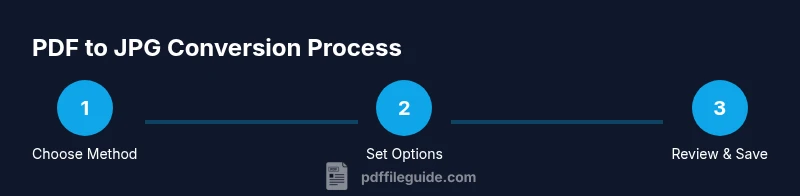
Choose conversion method
Decide whether you will use an online tool or desktop software. Consider file sensitivity, batch needs, and whether you require offline processing for privacy. This decision shapes the rest of the workflow.
Tip: If the document contains confidential data, start with a desktop workflow to minimize exposure. - 2
Open the PDF and select pages
Open your source PDF in the chosen tool and determine which pages to export. If the document is long, plan a reasonable range or select all pages for a full export.
Tip: For batch tasks, preset a common page range to save time. - 3
Set output options
Choose JPEG as the format, define the resolution (DPI), color mode (RGB for screen, CMYK for print), and page range. Preview options help anticipate final quality before exporting.
Tip: Use 300 DPI only if print quality is needed; for web, 150 DPI often suffices. - 4
Export or save as JPG
Execute the export or save-as action and select a destination folder. If multiple pages are exported, outputs are typically saved as separate JPG files or as a ZIP archive.
Tip: Name the output folder clearly to avoid misplacing files. - 5
Review a sample page
Open at least one resulting JPG to confirm alignment, color accuracy, and legibility. If issues are found, adjust resolution or color settings and re-export.
Tip: Test a representative page first—this saves time on large projects. - 6
Batch export for multiple PDFs
If processing many PDFs, use batch or folder-import features. Define a consistent naming pattern and ensure the output folder matches your organization system.
Tip: Consider a folder structure like project/year/pdf-name/page-number to stay organized. - 7
Validate outputs and organize files
Scan the exported JPGs for missing pages or artifacts. Keep a log of which PDFs produced which files to aid future audits.
Tip: Create a simple checklist to track success/failures across batches. - 8
Store outputs securely
Back up your JPG outputs to the appropriate storage location, and consider retention policies if handling sensitive material.
Tip: If possible, keep a copy offline or in a secure, access-controlled location.
Questions & Answers
Can I convert multiple PDF pages into a single JPG image?
Usually each page becomes its own JPG image. Some tools offer a collage or single-page export, but it's less common. Check the tool's options.
Most tools export one image per PDF page. Some tools support single-image exports, but it's not standard.
Will converting to JPG preserve searchable text?
No. JPG is a raster image; text cannot be searched unless OCR is applied after export.
No. JPGs are images; to search text you’d need OCR.
Is it safe to use online PDF to JPG converters?
Online tools can pose privacy risks for sensitive documents. Use trusted providers, check privacy policies, or avoid uploading confidential files.
Online tools can leak data; use trusted services.
What resolution should I use for printing vs screen viewing?
For print, use 300 DPI; for screen, 72-150 DPI. Higher DPI improves quality but increases file size.
For print, 300 DPI; for screen, 72 to 150 DPI.
Can I batch convert PDFs to JPGs on a computer?
Yes. Many desktop apps and some online tools support batch exports. Make sure to define a consistent output folder.
Yes—batch exports are common.
Are there free tools without watermarks for JPG exports?
Free options exist but may limit resolution or add watermarks. Read terms and test before large tasks.
Free tools may limit quality or add watermarks.
Watch Video
Key Takeaways
- Identify the best method (online vs offline) for your file sensitivity.
- Export at suitable resolution to balance quality and size.
- Batch processing accelerates multi-file workflows.
- Always verify outputs with a sample before full export.