Convert PDF to JPG Free: A Comprehensive How-To
Learn how to convert PDF to JPG free using online tools, desktop software, and built-in OS features. This educational guide covers safe options, quality tips, privacy considerations, and troubleshooting to help professionals edit and share images from PDFs without paying for software.


According to PDF File Guide, you can convert PDF to JPG for free using online tools, desktop software, or built-in features. This guide highlights safe, no-cost options, explains when to choose each method, and gives step-by-step instructions to preserve image quality, page layout, and color accuracy while batch-processing multiple files without installing paid software.
Why converting PDF to JPG for free matters
In professional settings, sharing information from PDFs as image files (JPG) can streamline review, annotation, and distribution. Free conversion options let you export pages as high-resolution raster images without investing in paid software. This matters for teams that need quick previews for clients, educators distributing figures, or researchers compiling visuals from reports. By choosing the right resolution and color profile, you can preserve essential details like text clarity and color fidelity. This guide from PDF File Guide explains safe, no-cost paths so you can convert when you need a quick screenshot of a page or a full document’s imagery. Understanding the trade-offs between quality and file size helps you select the best method for your workflow while keeping costs down.
The approach here emphasizes privacy-friendly tools and verifiable results, so you can share JPGs confidently with colleagues and stakeholders. You’ll learn how to balance speed, accuracy, and file size, and you’ll leave with a repeatable process you can apply to future PDFs without license fees.
Understanding the formats: PDF vs JPG
PDF is a portable document format designed for precise layout and scalable content; JPG is a raster image that captures a fixed resolution. When you convert, you trade vector data and text selectability for a bitmap image. If a page contains text, you may lose selectable text unless you perform OCR after conversion. Color accuracy, compression artifacts, and DPI settings influence the final appearance, especially for screenshots or complex columns. For multi-page PDFs, you need to decide whether to convert entire documents or extract individual pages as separate JPG files. Understanding these fundamentals helps you choose the right approach and prevents surprises when you share the results. As PDF File Guide notes, the goal is to get clean, legible images without watermarks or prohibitive costs.
Free conversion methods at a glance
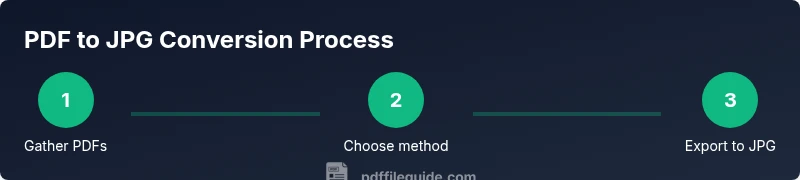
You have three broad paths to convert PDFs to JPG for free:
- Online converters: Fast and convenient, ideal for single pages or small batches.
- Desktop software: More control, better privacy for sensitive files, and suitable for larger batches.
- Built-in OS features: No extra downloads, best for quick, non-secure tasks.
Each method has trade-offs in terms of quality, privacy, speed, and file size. This section helps you pick the path that fits your workflow without investing in paid tools.
Online converters: safety, privacy, and tips
Online tools are easy to use but carry privacy considerations. When using a web-based service, avoid uploading highly sensitive documents. Look for clear data retention policies, ensure the site uses HTTPS, and consider temporary processing only (no account required). If watermarks appear, try another service or move to an offline method. For batch needs, online tools that support multiple files can save time, but verify output quality before distributing widely. Always download results to a known, secure folder.
Desktop software options: free and open-source
Free desktop tools provide more control over DPI, color space, and output format. They are generally safer for sensitive documents because your files never leave your device. Typical workflows involve opening a PDF, choosing an export or save-as option, selecting JPG as the target format, and configuring resolution and color depth. When possible, use batch processing features to convert several pages or files in one go. Remember to review license terms to ensure the software remains free for your intended use.
Built-in OS features and browser capabilities
Many operating systems include built-in capabilities for converting or exporting PDFs to images. For example, macOS users can leverage Preview to export pages as JPGs, while Windows users may rely on the Photos app or the built-in print dialog with a PDF printer configured for image output. Linux users often can convert with open-source toolchains from the command line. These options prevent extra downloads and keep your workflow lightweight, but you may trade off some advanced settings for simplicity.
Quality control: preserving resolution, color, and layout
The key to high-quality JPGs lies in selecting the right DPI (dots per inch), color space (typically sRGB for web), and compression level. Higher DPI yields larger file sizes but crisper text, while too much compression introduces artifacts that blur detail. If your PDF contains color-sensitive graphics, verify color profiles after conversion and adjust gamma or color management settings if available. For pages with multiple columns or figures, zoom in to check text legibility and alignment after export, and consider exporting individual pages for selective quality checks.
Batch processing: how to scale conversions
Batch processing saves time when you have many PDFs. Use a tool that supports folder input, multi-page export, and consistent output naming. Establish a naming convention (for example, file-page.jpg) and an output directory that mirrors your source structure. If you need two or more JPG sizes, export once at the desired resolution and then resize in a separate step with a lightweight image editor. Batch workflows are especially valuable for researchers, educators, and publishing pipelines.
Common pitfalls and troubleshooting
Common issues include blurred text, color shifts, unexpected page rotations, and watermarks on outputs from some free services. To mitigate these, test a sample page first, adjust DPI, verify color profiles, and compare results across multiple tools when quality matters. If images seem off, revert to a higher resolution or a different tool, and avoid relying on untrusted online services for sensitive files. Document your chosen method so your team can reproduce the results consistently.
Tools & Materials
- Web browser (latest version)(Ensure privacy settings allow file downloads and local caching if needed.)
- PDF files to convert(Collect all target PDFs; note any password protection and page ranges.)
- Free offline or desktop converter(Choose a reputable open-source tool to avoid watermarks and data leakage.)
- Image viewer/editor (optional)(Useful for quick quality checks and resizing after export.)
Steps
Estimated time: 30-45 minutes
- 1
Gather PDFs and define output goals
Collect all PDFs you plan to convert. Decide whether you need full-page JPGs or per-page exports, and set target output resolution and color profile. This upfront planning minimizes rework and helps you pick the right tool.
Tip: Define a target DPI (e.g., 150–300) based on how the images will be used. - 2
Choose a free conversion method
Compare online, offline, and built-in OS options. Consider privacy, batch needs, and control over output quality. Pick the method that best aligns with your content sensitivity and volume.
Tip: If the document contains sensitive data, favor offline tools over online services. - 3
Open the chosen tool and load PDFs
Launch your tool and import the PDFs you prepared. For online tools, upload files; for desktop apps, use the Open or Import option. Verify that the file list matches your plan.
Tip: Check for password prompts and unlock if needed before proceeding. - 4
Configure output settings
Set output format to JPG, choose resolution (DPI), color profile (sRGB), and page range. Decide whether to export each page as a separate image or combine pages into a multi-image sequence.
Tip: Use higher DPI only if you need sharper text; for web use, 150–300 DPI is usually sufficient. - 5
Run the conversion
Execute the conversion, saving outputs to a dedicated folder. Monitor progress for large batches to catch any errors early.
Tip: If possible, enable a progress log to capture any failed pages for retry. - 6
Review output for quality
Open a sample output to confirm legibility, color accuracy, and alignment. Look for artifacts or crop issues and adjust settings if needed.
Tip: Pay attention to edge artifacts around text and figures. - 7
Batch process additional PDFs
If more files exist, repeat the process or use batch processing features to queue multiple conversions. Maintain consistent naming conventions.
Tip: Use a mirrored folder structure to keep outputs organized. - 8
Organize and label the results
Rename files consistently (e.g., document-page.jpg) and store them in clearly labeled folders. Create a simple index if you’re exporting many pages.
Tip: Create a short CSV log mapping source to output for traceability. - 9
Document and finalize your workflow
Record the exact tool, settings, and steps used so your team can reproduce results. Share guidelines to ensure consistency across future conversions.
Tip: Keep a quick-reference checklist handy for future batches.
Questions & Answers
Is it safe to use online PDF to JPG converters for sensitive documents?
Online converters can expose your content to third parties. If the document contains sensitive or personal data, prefer offline or desktop tools and review the site’s privacy policy before uploading.
Online converters can pose privacy risks; use offline tools for sensitive documents and only trust reputable services for non-confidential files.
Will JPG output be searchable or editable like the PDF?
JPG is a raster image, so text is not natively searchable or editable. If you need text search, run OCR after the conversion or export to a PDF with OCR.
JPG outputs are images, not text. Use OCR afterward if you need searchable text.
Do free tools add watermarks to JPGs?
Some free tools apply watermarks unless you opt for a paid tier. Choose tools explicitly offering watermark-free output or use offline options to avoid this issue.
Some free tools add watermarks; look for watermark-free options or use offline software.
Can I batch convert multiple PDFs at once?
Yes, many desktop tools support batch processing. Online services may limit batch size or impose quotas, so desktop workflows are often more scalable.
Batch conversion is common in desktop tools; online services may limit how many files you can process at once.
Is there an automation option for repeated tasks?
Yes, some open-source or command-line tools allow scripting to automate recurring conversions. This requires a bit more setup but saves time long-term.
You can automate with scripting if you’re comfortable with command-line tools.
How do I ensure color accuracy in JPG outputs?
Choose consistent color profiles (like sRGB) and, if possible, calibrate your monitor. Some tools offer color management options that help reduce shifts.
For consistent colors, stick to standard profiles like sRGB and verify across devices.
Watch Video
Key Takeaways
- Choose a free path that fits privacy needs and batch size
- Configure output settings before converting to ensure quality
- Batch process with consistent naming for scalability
- Always review a sample output to catch issues early
- Document your workflow for repeatable results