How to PDF into JPG: A Practical Guide
Learn reliable methods to convert PDF to JPG using online tools, desktop software, and built-in exports. This guide covers settings, privacy, and workflow tips for professionals editing PDFs.


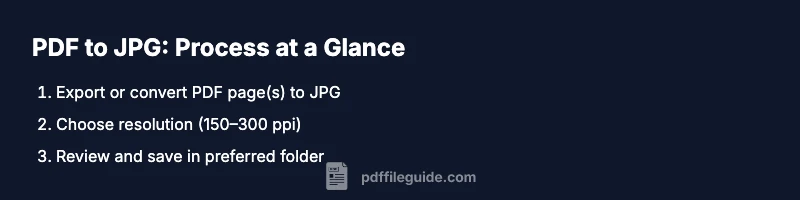
You can turn a PDF into a JPG by using online converters, desktop software, or built-in export options. This guide walks you through when to choose each method, how to adjust resolution and color settings, and how to verify output quality. By the end, you’ll convert single pages or entire PDFs quickly and safely.
What is PDF to JPG conversion?
When you convert a PDF page into a JPEG image, you rasterize vector content into a bitmap. This is useful for previews, slides, research, or sharing content when others can't access a PDF reader. The conversion can be page-by-page or batch; you can preserve transparency for PNGs, but JPGs do not support transparency, so opaque results may occur. In general, plan your output resolution to balance quality and file size. According to PDF File Guide, the most common use cases are creating thumbnails for large documents and embedding page images into presentations. By understanding the basics, you can choose the appropriate method and settings for your workflow.
When to convert PDF pages to JPG
There are several practical reasons to convert PDF pages to JPG images. Web previews and social media posts often benefit from image formats that load quickly. For presentations, one-page JPGs can simplify sharing across devices where PDF support is limited. PDF File Guide analysis shows that professionals frequently convert high-importance pages for quick review or client pilots, then keep the native PDF for archiving. When you choose to convert, consider how many pages you need, whether you want a single image per page or a montage of pages, and how you will use the resulting files in downstream workflows.
Key considerations: resolution, color, and compression
Resolution determines perceived sharpness and file size. For on-screen viewing, 150–200 ppi is usually sufficient; for print, aim for 300 ppi or higher. Color space matters: RGB is standard for JPGs; if your source uses CMYK or Pantone, conversions may alter appearance. JPEG uses lossy compression, so higher quality settings preserve detail but increase file size. If your PDF includes transparency or layered images, be aware that JPG will flatten them. The goal is to balance fidelity with practicality. As you plan, set a target resolution and test output on a representative device or monitor.
Methods at a glance: online tools, offline software, and built-in export
You have three broad paths: online converters, desktop software with export features, and built-in export options within PDF editors or image editors. Online tools are fast and convenient but require uploading your files, which raises privacy concerns. Desktop tools give more control and batch options but may require installation. Some PDF readers and editors offer an export-to-JPG function; others require using an image editor to re-import PDF pages. For most workflows, choosing a method that preserves your originals and supports batch processing yields the best balance of speed and quality.
Online converters: step-by-step example
To use an online converter, open a trusted site, upload your PDF, select JPG as output, and pick a resolution. Some tools let you choose page range and output quality. After processing, download the JPG files to your computer. Always review the results, especially colors and artifacts. If you handle sensitive documents, consider offline options instead. The steps are similar across providers, though the interface may vary slightly.
Desktop software workflow: export from PDF editor
In desktop software, open the PDF, choose the export or save as image option, select JPG, and set your resolution and color settings. If the tool offers a batch-export feature, you can process all pages or multiple PDFs at once. Save your outputs in a clearly named folder and organize by document name. This approach keeps your data on your device and generally provides higher privacy and stability.
Batch conversion and automation basics
When workflows require many pages or documents, batch conversion saves time. Use a batch-export feature or scripting to iterate over PDFs and apply consistent settings across all outputs. If you’re comfortable with automation, you can script the conversion using command-line tools or batch files, depending on your operating system. Establish a naming convention that preserves the source file name and page number, for example doc1-page-001.jpg. Always test a small batch before running large jobs.
Privacy, security, and quality assurance when converting PDFs
Online conversions expose data to third-party servers; never upload confidential files unless you trust the provider and understand the privacy policy. For sensitive material, offline methods are safer and allow you to verify integrity locally. After conversion, compare the resulting JPGs to the source PDF to ensure pages loaded correctly, colors are accurate, and no artifacts appeared. Keep a backup of the original PDFs as part of a professional workflow.
Practical workflow tips for professionals
Develop a repeatable process that you can document and share with teammates. For frequent tasks, build templates that fix output paths, naming conventions, and quality settings. Maintain an organized library of converted images to simplify retrieval and reuse in slides, reports, or websites. Finally, stay adaptable: as software updates roll out, re-test your settings to maintain consistent results.
Tools & Materials
- Computer or device with internet access(Needed for online tools and tutorials)
- Original PDF file(s)(Source documents for conversion)
- Web browser(Modern browser for online tools)
- Output folder / directory(Organize converted JPGs by document)
- Image viewer or editor(Review results and adjust if needed)
Steps
Estimated time: 45-75 minutes
- 1
Choose your conversion method
Decide whether to use online, offline, or built-in export based on privacy needs and batch size.
Tip: If privacy matters, start with offline tools. - 2
Prepare input and output locations
Place PDFs in a dedicated folder and create a clearly named output directory.
Tip: Define a naming scheme before starting. - 3
Configure conversion settings
Set the desired resolution (e.g., 150–300 ppi) and color mode (RGB).
Tip: Test a single page to confirm quality. - 4
Run the conversion
Execute the conversion for the selected pages or documents.
Tip: Monitor progress for large batches. - 5
Review the results
Open a sample JPG to verify alignment, colors, and artifacts.
Tip: Compare with the source PDF. - 6
Organize and archive
Move outputs to organized folders and back up originals.
Tip: Keep a conversion log.
Questions & Answers
What is the best method to convert PDF to JPG?
There isn't a universal best method; online tools are quick, offline tools are safer for sensitive documents, and built-in export options are convenient for workflow integration.
For privacy, use offline tools; for speed, online tools work well.
Can I convert all pages of a PDF to JPG at once?
Yes, most tools support batch export or batch processing to create a JPG per page or a montage per document.
Yes, batch export is common.
Will output quality be affected?
Output quality depends on the chosen resolution, color settings, and compression level; higher resolution yields better detail but larger files.
Higher resolution means better detail but larger files.
Is it safe to use online converters for confidential PDFs?
Online converters can pose privacy risks; prefer offline methods or trusted websites with clear privacy policies for confidential documents.
Be cautious with sensitive documents online.
How can I batch convert multiple PDFs?
Use batch processing features in desktop software or tools that support bulk actions, then apply consistent settings across files.
Batch processing saves time.
Can I export only certain pages?
Yes, many tools let you select a page range for conversion.
You can convert specific pages.
Watch Video
Key Takeaways
- Choose the right method for your privacy needs
- Set appropriate resolution to balance quality and size
- Verify output before archiving
- Organize outputs with a clear naming convention