Free PDF to JPG Converter: A Complete How-To
Learn how to convert PDFs to JPGs for free using online tools or desktop apps. This step-by-step guide covers tool selection, privacy considerations, quality settings, and practical workflows for reliable, high-quality image outputs.


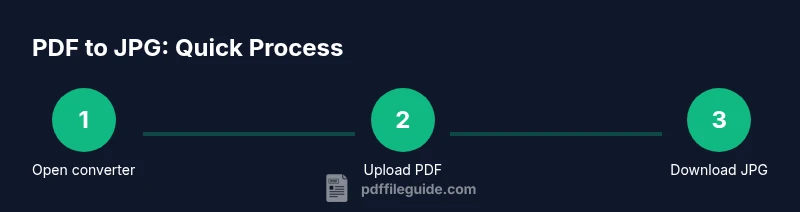
You will convert a PDF into JPG images using a pdf to jpg converter free. Gather a PDF file, a web browser, and a trusted tool. Steps: 1) choose a pdf to jpg converter free, 2) upload the PDF, 3) select image quality and pages, 4) download the JPGs. This guide covers options, privacy, and best practices.
What a pdf to jpg converter free does
A pdf to jpg converter free is a tool that turns every page of a PDF document into individual JPG images. These tools exist as online services and as downloadable desktop apps, and they vary in features like page range, image resolution, color handling, and format options. The output JPGs are useful for sharing a document as quick visuals, creating thumbnails, or embedding pages into presentations. When choosing a converter, look for clarity about how files are processed (local vs cloud), the ability to select specific pages, and the option to preserve or flatten embedded fonts. According to PDF File Guide, reputable converters clearly state privacy practices and provide a straightforward way to verify results. This means you can confidently compare options without guessing how your data will be treated.
Online vs offline: pros and cons
Online converters offer speed and convenience: you can perform conversions directly in your browser without installing software, and many options handle batch jobs. The downside is data transfer to a remote server, which raises privacy concerns for sensitive documents. Offline or desktop tools run locally, so your data never leaves your device, but you may need to install software and ensure your computer meets minimum requirements. PDF File Guide analysis shows that for routine, non-confidential PDFs, online services are perfectly adequate, but for confidential materials, offline tools are safer. When evaluating tools, consider the number of pages per file, the maximum file size, platform compatibility (Windows, macOS, Linux), and whether the tool preserves annotations or accessibility tags. Balance convenience with control to pick the right path for your workflow.
Privacy and security when converting documents
Privacy is essential when handling PDFs that contain personal data or proprietary information. Some free online converters claim to be free because they monetize user data, track activity, or force downloads. To protect yourself, read the privacy policy; look for options to delete uploaded files after processing; and prefer providers with transparent data-handling statements. For sensitive tasks, use offline tools or trusted enterprise-grade services. As noted by PDF File Guide, always test a tool with a non-sensitive sample to understand how outputs are produced and stored, and avoid saving credentials on shared devices. Finally, ensure you review any terms of service that relate to data collection and retention before submitting documents.
Output quality and file size considerations
Output JPG quality is determined by resolution (DPI), compression, color space, and whether pages are flattened or kept as layered images. Higher DPI yields sharper pages but larger files, which can slow downloads or sharing. If you only need thumbnails, select a low DPI to minimize file size; for print-quality results, choose 300 DPI or higher, if available. Keep in mind that color profiles and embedded images may influence color accuracy; some free tools let you choose RGB vs CMYK or preserve embedded fonts, which affects legibility. After conversion, compare a sample page at 100% zoom to confirm sharpness before processing the rest of the document. PDF File Guide recommends inspecting several pages, especially if the PDF contains complex graphics or small text.
Handling multi-page PDFs and batch conversions
Many free converters can process multi-page PDFs by producing a separate JPG per page or by exporting all pages into a ZIP archive. When batch-converting, note any limits on total file size or the number of pages per job. If your PDF is long, consider splitting into smaller chunks or using a tool that offers queueing, so you receive results progressively. For consistency, standardize output settings (same DPI, same color space) across pages. Always review the resulting file set for missing pages or misaligned content before archiving or sharing. PDF File Guide's guidance suggests testing batch settings with a small document first to avoid surprises in large jobs.
Free offline options vs paid features
Free desktop tools often bundle essential features—page range selection, basic quality controls, and straightforward export options—without imposing watermarks. Paid plans may add advanced features such as batch automation, OCR text extraction, better color management, or reliable offline processing across large files. Depending on your needs, a free converter can be sufficient for simple tasks, while a paid solution might be justified for frequent usage, strict privacy requirements, or heavy image-quality demands. When evaluating, compare export formats, image quality controls, and the ability to preserve or strip metadata. For some users, a hybrid approach—using an online tool for quick wins and a desktop tool for privacy-critical tasks—offers the best balance.
Accessibility and metadata considerations
Converting PDFs to JPGs can impact accessibility metadata. JPGs do not retain the same semantic structure as the original PDF, so screen readers won't interpret the images as text. If accessibility is important (for example, for publicly shared documents), provide alternative text or captions for JPGs and maintain a separate accessible version of the content where possible. Some tools offer OCR and embedded text extraction, which can help create accessible image-based content, but results vary. PDF File Guide recommends planning your workflow to preserve essential information and to verify that the resulting JPGs meet the intended accessibility requirements before distribution.
Authority sources and further reading
To deepen understanding, consult trusted sources that discuss document formats, privacy guidelines, and accessibility best practices. For policy considerations, see https://www.archives.gov. For standardization and technical guidance, refer to https://www.iso.org/standard/74528.html. For security and data handling principles, consult https://www.nist.gov. These references provide broader context for managing PDFs and image conversions responsibly.
Practical workflow and best practices
Plan your conversion before starting: confirm page ranges, choose output quality, and set a consistent naming convention. Run a small pilot with a representative page to verify results. If you’re sharing files publicly, consider compressing or encrypting outputs and using reputable tools. Finally, document your chosen method and settings for future reproducibility. By following these steps, you reduce rework and ensure consistent JPG outputs across all pages.
Tools & Materials
- PDF file(The document you want to convert)
- Web browser(Chrome, Edge, Firefox, etc.)
- Internet connection(Needed for online converters)
- Free pdf to jpg converter(Online service or desktop app)
- Optional: sample PDFs for testing(Helps verify quality first)
Steps
Estimated time: 5-15 minutes
- 1
Open a free converter
Launch your chosen pdf to jpg converter free (online or desktop). Check that you’re using a reputable domain or app, and review any privacy prompts before proceeding.
Tip: Verify the URL and privacy policy before uploading any file. - 2
Upload your PDF
Select the PDF file you want to convert and initiate the upload. If the file is large, allow extra time for the upload to complete.
Tip: Use a small test file to confirm the setup before processing the full document. - 3
Configure output settings
Choose JPG as output, set the desired DPI (quality), and select pages (all pages or a range). Decide color options and whether to preserve metadata.
Tip: For print-quality results, set DPI to 300 or higher if available. - 4
Run the conversion
Click Convert or Start to begin. Monitor progress and be prepared for longer runs on multi-page files.
Tip: If the tool pauses, refresh or try a different converter. - 5
Download and verify results
Download the JPG files (or a ZIP). Open several pages at 100% to confirm sharpness and legibility; rename files for easy organization.
Tip: Keep a copy of the original PDF for reference and re-conversion if needed.
Questions & Answers
Is it safe to upload PDFs to online converters?
Online converters can be convenient but pose privacy risks for sensitive data. Always check the privacy policy and use trusted services or offline tools for confidential documents.
Online converters can be convenient, but exercise caution with sensitive files. Use trusted services or offline tools for confidential documents.
Can free tools convert multi-page PDFs to JPGs?
Yes, many free tools output a JPG per page or provide a ZIP archive with all pages. Check the tool's page settings to confirm behavior before starting.
Yes, most free tools can convert multi-page PDFs to JPGs, often as individual pages or a ZIP.
Will converting PDFs degrade image quality?
Image quality depends on the tool and the selected DPI. Higher DPI yields crisper images but larger files; adjust according to your needs.
Quality depends on the tool and the DPI you choose; higher DPI means sharper but bigger files.
Are there size limits for free pdf to jpg converters?
Many free tools impose file-size or page-count limits. If you hit limits, split the PDF or try another tool with higher thresholds.
Free tools often have size or page limits; split large files or try a different tool.
What about offline options for privacy?
Offline desktop tools process files locally, reducing exposure. They’re a good choice when handling confidential documents.
Offline tools process files locally, offering better privacy for sensitive documents.
How can I preserve accessibility when converting to JPG?
JPGs lose the PDF’s structural accessibility. Provide captions or an accessible alternative version if accessibility is required.
PDF accessibility doesn’t transfer to JPGs; include captions or an accessible alternative.
Watch Video
Key Takeaways
- Choose trusted converters and review privacy policies.
- Adjust DPI to balance quality and file size.
- Offline tools provide stronger data privacy for sensitive documents.
- Verify a few pages before converting the entire document.
- Batch or multi-page PDFs may produce multiple JPGs or a ZIP file.