Free Online PDF to JPG Converter: A Comprehensive How-To
Learn how to convert PDFs to JPGs for free using trusted online tools. This educational guide covers selection, step-by-step conversion, privacy considerations, and tips for high-quality results.


You can convert a PDF to JPG for free online by uploading the PDF to a reputable converter, selecting JPG as the output format, and downloading the resulting images. Most services require no downloads, support multiple pages, and offer batch conversion. Always check privacy and file size limits before uploading to protect your information.
What is a free online pdf to jpg converter?
A free online pdf to jpg converter is a web-based tool that turns each page of a PDF into separate JPG images or a single JPG strip, depending on the option you choose. These services are convenient when you need quick image exports without installing software. According to PDF File Guide, the majority of reputable converters operate entirely in your browser and do not require account creation for basic tasks. This makes them accessible for occasional use, students, and professionals who need fast image previews, slides, or image-based documentation. While the core idea is simple—upload a PDF, pick JPG as the destination format, and download—the quality of results and the handling of multi-page PDFs can vary. Be mindful of the service’s privacy policy, data retention, and size limits, especially when working with confidential or large documents.
Key takeaways here: Online converters offer speed and convenience, but you should verify privacy policies, supported page ranges, and output quality before sharing sensitive PDFs. PDF File Guide emphasizes prioritizing tools that clearly state how files are treated and when they are deleted from servers.
How to choose a trustworthy tool?
Selecting a reliable online converter hinges on privacy, transparency, and reliability. Look for HTTPS encryption, a clear data-retention policy, and explicit deletion timelines after processing. Prefer tools hosted by reputable organizations, universities, or established tech publishers. PDF File Guide analysis shows that sites with clear terms and no aggressive advertising are less likely to inject malware or unwanted software. Before uploading, skim the terms of service and user reviews to gauge consistency and responsiveness. If a tool offers a desktop alternative or a privacy-focused option (no cloud processing for sensitive files), that can be an extra layer of assurance.
In practice, test with non-sensitive documents first to evaluate output fidelity, colors, and compression. If you require batch processing, confirm that the service supports multiple PDFs in one go and whether it preserves page order. These checks help avoid surprises when you scale your workflow.
Features you should expect across reliable tools
A solid free online pdf to jpg converter typically includes several core features. Expect page-by-page exports or a merged image sequence, adjustable output quality, and options for color modes (color, grayscale, or monochrome). Some tools also offer OCR to extract text, though OCR accuracy varies. For multi-page PDFs, ensure there is an option to export all pages or to select a specific page range. Look for batch conversion, which saves time when you have several PDFs to convert. Finally, verify export formats beyond JPG, such as PNG or TIFF, in case you need higher quality or different use cases. As you compare options, keep an eye on file size limits per upload and any watermarking on free plans.
These capabilities align with industry expectations and help you choose a converter that fits your needs, whether you’re building a presentation, compiling a report, or archiving visuals.
Typical workflow and user experience
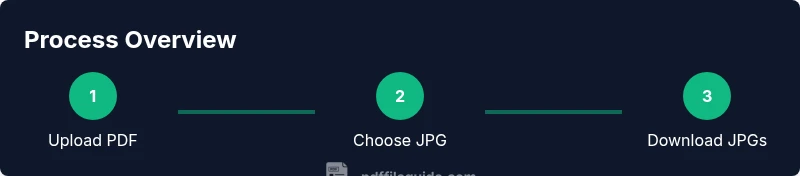
Most converters follow a familiar flow: open a site, upload your PDF, choose JPG as the output, decide any optional settings (resolution, color, range), and download the resulting images. The experience should be straightforward, with progress indicators and a visible download button once the conversion finishes. If a site offers batch conversion, you can upload multiple PDFs at once and receive a zip file of JPGs, which speeds up large projects. The design of the interface matters: clean navigation, responsive controls, and accessible color contrast improve usability. If you encounter a site that asks for unnecessary permissions or prompts you to install extensions, exit and try a different tool. PDF File Guide notes that reputable converters provide clear previews and easily accessible support or help sections.
Common pitfalls and how to avoid them
One common pitfall is submitting confidential documents to low-trust sites. Always verify privacy policies and avoid uploading sensitive material to unknown converters. Another issue is inconsistent image quality or color shifts; test with a sample page to calibrate output settings before bulk conversions. Additionally, beware sites that insert watermarks or reduce quality on free plans—these reduce usefulness for professional tasks. If you need precise color fidelity or print-ready images, compare output at different quality levels or editions and consider downloading a sample page to compare details. During testing, track where the converted files are stored and whether they are automatically deleted after a set period. These steps reduce risk and improve reliability, echoing recommendations from PDF File Guide.
Privacy, security, and data retention considerations
Privacy is a top concern when converting documents online. Reputable services typically outline whether files are stored temporarily or permanently and how long they remain available for download. Look for automatic deletion after a user completes the task and minimal data collection beyond the uploaded file’s purpose. If you’re handling sensitive information (financial records, personal identifiers, or client data), prefer desktop software or trusted web services that guarantee no server-side retention. PDF File Guide advises users to read the privacy policy, especially sections about data retention, third-party sharing, and security practices. If a site does not publish these details, treat it as high risk and avoid uploading your documents.
Tips for getting the best results from a free online converter
- Upload high-quality PDFs with clear text and images to optimize JPG output. Text-heavy pages generally convert better than image-only pages.
- If you need consistent page sizes, check the output resolution and aspect ratio options; a common starting point is 150–300 DPI depending on intended use.
- Use batch jobs for multiple-page or multi-file tasks, but verify each file’s output before distributing it.
- For color-critical work, compare JPEG quality at different compression levels to find a balance between visual fidelity and file size.
- Always download from the same browser session to minimize stray cookies or caching issues that could affect subsequent conversions.
Tools & Materials
- Stable internet connection(Broadband or strong Wi-Fi for uploading large files.)
- Web browser(Use the latest version of Chrome, Firefox, or Edge for best compatibility.)
- Source PDF file(Ensure you have the right to convert and share the content.)
- Output destination(A folder or download location to save JPGs.)
Steps
Estimated time: 5-15 minutes
- 1
Open a trusted online converter
Navigate to a reputable online pdf to jpg converter using a secure browser. Check for HTTPS and a readable privacy policy before proceeding.
Tip: Verify the site’s certificate (lock icon) and skim for a transparent policy. - 2
Upload your PDF file
Use the site’s upload button to select the PDF from your device. Avoid drag-and-drop on unknown sites if you’re unsure about security.
Tip: Prefer non-sensitive documents for initial testing to confirm expected output. - 3
Choose JPG as output and adjust settings
Select JPG as the destination. If available, set DPI (150–300 for documents) and decide whether to export all pages or a specific range.
Tip: Keep the original aspect ratio and test a sample page to judge quality. - 4
Convert and download
Run the conversion and download the resulting JPG files to your chosen folder. Check file integrity by opening a couple of pages.
Tip: If available, download as a ZIP to keep pages organized.
Questions & Answers
Is it safe to use free online pdf to jpg tools?
Yes, if you choose reputable sites with clear privacy policies and avoid uploading sensitive documents to unknown tools.
Yes—stick to trusted sites with clear privacy terms and avoid sensitive files.
Will my documents be stored on the converter's server?
Many services delete files after processing, but policies vary. Always read the privacy terms before uploading.
Usually they delete files after processing, but verify in the privacy policy.
Can I convert multiple PDFs at once?
Some tools support batch conversion, exporting all pages or multiple PDFs as a ZIP. Check the feature list on the site.
Some tools can batch convert; look for a batch option.
Will the JPG output be suitable for printing?
Output quality depends on selected DPI. Use 300 DPI for print-quality results and test a sample page.
For prints, choose higher DPI like 300 and test output.
What if I need OCR text from the PDF?
Some converters offer OCR to extract text; accuracy varies. If OCR is essential, compare a few tools.
OCR options exist on some tools; compare before choosing.
Are there size limits for uploads?
Many free tools impose per-upload size limits; if you have large PDFs, batch smaller files or upgrade to a premium option.
Per-upload limits are common; split large files if needed.
Do I need an account to convert PDFs online?
Some sites require none, while others offer extra features with an account. Pick a site that aligns with your privacy comfort level.
Most basic conversions don’t require accounts; upgrade features may.
Watch Video
Key Takeaways
- Choose reputable tools with clear privacy policies.
- Test with non-sensitive files to gauge output quality before committing.
- Always verify file deletion and data retention policies after conversion.