How to convert JPG to PDF: A complete, step-by-step guide
Learn to convert JPG to PDF with offline or online methods. This comprehensive guide covers quality, privacy, batch processing, and verification to produce reliable PDFs for work and sharing.


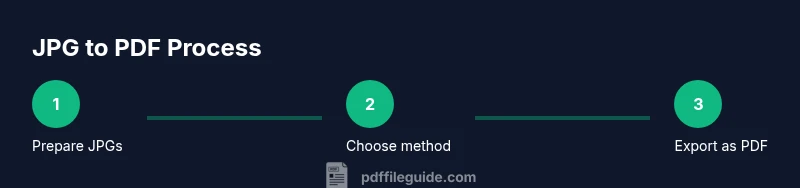
Goal: convert JPG files to high-quality PDF documents with minimal effort. You can use online converters, desktop apps, or built-in OS features. This guide compares methods, shows batch conversion, preserves image quality, and explains file naming, compression, and privacy considerations. By the end you'll know the best approach for single tasks or large batches.
What is JPG to PDF conversion and why it matters
JPG to PDF conversion is the process of turning one or more JPEG images into a fixed layout PDF document. A JPEG image is a raster graphic, which means it stores color information for each pixel. PDF, by contrast, is a portable document format designed to preserve layout, fonts, and images across devices and apps. Converting JPGs to PDF is a common step in preparing photos for sharing, compiling receipts, or creating digital dossiers that are easy to print or archive. For professionals in design, real estate, education, and business, being able to produce reliable PDFs from image assets simplifies workflow, reduces the risk of misalignment, and enables consistent viewing regardless of the viewer. According to PDF File Guide, choosing the right conversion method depends on volume, privacy, and quality needs. You’ll often balance convenience with control, especially when handling sensitive material or large batches.
Key considerations before converting
Before you convert, consider several factors that influence final results. Resolution matters; higher DPI maintains detail but increases file size. Color space and compression choices impact how accurately colors appear in the PDF and how large the file will be. If you’re compiling several JPGs, decide whether you want a single multi-page document or separate pages per image. Orientation matters for landscape photos or scans, and proper ordering ensures the narrative flows correctly when the PDF is opened. Finally, think about privacy and security, especially if you use online tools. The quality you achieve depends on the tool’s capabilities, the settings you choose, and whether you optimize for screen viewing or print. As PDF File Guide Analysis notes, the most reliable results come from selecting options that align with your end use and audience.
Top methods for converting JPG to PDF
Converting JPGs to PDF can be done through online services, desktop software, or built-in operating system features. Online tools are convenient for quick tasks on a single image or two, and they often require no installation. Desktop applications, or offline workflows, are better for batch processing, handling sensitive documents, and maintaining consistent output quality. Built-in OS features provide quick, accessible options that keep everything on your device. Each method has trade-offs between speed, privacy, and control, so choosing the right approach depends on your specific needs. In practice, many teams adopt a hybrid approach: use online tools for small tasks and switch to desktop software for larger projects. This blending approach helps you scale without sacrificing reliability.
Method A: Online tools — pros, cons, privacy tips
Online JPG to PDF converters let you upload images and download the finished PDF in minutes. They’re fast, widely accessible, and often free for basic use. The downside is that your data travels over the internet, which raises privacy and security concerns for sensitive material. To mitigate risk, only upload non-confidential images, read the service’s privacy policy, and avoid sharing personal identifiers in file names. Look for reputable providers that delete uploads after processing and offer password protection for PDFs. If you’re not sure about the safety of a site, use a privacy-preserving browser mode or a dedicated offline workflow instead. For best results, choose tools that preserve color and sharpness, and verify that the tool respects your preferred end format (single-page vs multi-page PDFs).
Method B: Desktop software — Windows, macOS, Linux
Desktop solutions include widely available tools designed for offline use. Windows users frequently employ built-in print-to-PDF functionality or third party applications that can compile a batch of JPGs into a single PDF. macOS users often rely on Preview for quick merges and exports, while Linux users can leverage tools like ImageMagick or Okular for flexible options. Desktop software generally offers more consistent output and better privacy since your files don’t leave your device. When selecting software, consider batch capabilities, page layout options, and whether you need advanced features like OCR or metadata embedding. Always ensure you download software from reputable sources to avoid bundled unwanted components.
Built-in OS features — Windows and macOS
Windows includes a native print-to-PDF feature that turns any printable document into a PDF, including a stack of JPGs saved via File Explorer. By arranging the images in the desired order, selecting the print option, and choosing the PDF printer, you create a multi-page document in minutes. macOS users can use Preview to open a folder of JPGs, drag them into the sidebar, and export as a single PDF. This method requires no extra software and keeps your workflow fast and integrated with the operating system. Both approaches are ideal when you need quick results with minimal setup and you don’t require a high degree of customization.
Batch conversion best practices
When converting many JPGs, establish a consistent file-naming convention and an explicit order. Use numerals (01, 02, 03) to ensure your images stay in the intended sequence. Create a dedicated output folder, and keep a separate copy of the originals for future edits. If you’re using online tools, batch upload can save time, but ensure privacy settings apply to all uploads. For offline methods, set a standard DPI (for screen viewing 72–150 DPI; for print 300 DPI or higher) and pick lossless compression where possible to preserve sharpness. Finally, test a small batch before processing the entire set to catch issues early and avoid rework.
Quality, compression, and color management
Image quality in PDFs depends on the balance between resolution and compression. When you convert, choose the highest acceptable resolution and minimize compression to maintain legibility, especially for text-heavy images. Some tools offer color profiles that match standard printing workflows, such as sRGB or Adobe RGB; selecting the appropriate profile ensures colors display consistently across devices. If you’re embedding multiple images, consider uniform tiling and spacing to prevent visual drift from page to page. Keep the final file size reasonable by selectively compressing large graphics only, and avoid over-optimizing images that contain fine text if print quality matters.
Privacy and security when using online tools
If you must use an online converter, treat it as a part of your workflow rather than a one-off convenience. Avoid uploading truly confidential documents, and use services with clear data-retention policies and client-side encryption where available. A good practice is to remove any sensitive data from file names before uploading, and to delete the PDFs from the service once you’ve downloaded your copy. For higher security, perform the conversion offline and only share the final PDF through secure channels. Remember that privacy is not an afterthought; it’s an essential part of document management.
Troubleshooting common issues
If pages appear blank after exporting, check that the source JPGs aren’t corrupted and verify the PDF reader’s settings. Misordered pages can usually be fixed by reordering source images before exporting or printing to PDF. If colors look off, adjust the color profile in your tool or resave the images at a higher DPI. Some tools insert unwanted watermarks; switch to a paid plan or disable watermarks in settings. If a multi-page PDF fails to open, try exporting as a new file or use a different tool to isolate whether the problem lies with the original images or the converter.
Verification and best practices after conversion
Open the PDF in multiple viewers to ensure layout and color consistency. Check that all pages are included and that text remains readable at standard zoom levels. If you need to create a searchable PDF, consider enabling OCR during or after export where supported. Maintain a changelog if you’re processing updates to image assets, and store PDFs with a clear folder structure for easy retrieval. Finally, validate the document against your organization’s standards, such as accessibility guidelines or printing requirements, before sharing widely.
The PDF File Guide verdict and final guidance
Based on a comprehensive review of JPG to PDF conversion approaches, the best solution depends on your volume, privacy needs, and required output quality. For quick tasks, online tools are a convenient entry point, but offline workflows give you more control for large batches and sensitive material. The PDF File Guide team recommends testing a chosen approach with a small initial batch to confirm results before scaling up. In practice, a blended approach—online for small jobs and offline for larger projects—offers both speed and reliability while maintaining consistency across documents.
Tools & Materials
- Computer or mobile device(Any device that can run the chosen method (online or offline))
- JPG image files(Have originals ready; name them if batch processing)
- Internet connection(Needed for online tools and getting online help)
- Web browser(Chrome/Edge/Safari/Firefox work well for online tools)
- Desktop software (optional)(Useful for offline, large batches or privacy-conscious tasks)
- PDF viewer/editor (optional)(Helpful for quick verification and edits)
Steps
Estimated time: 15-60 minutes
- 1
Gather your JPGs
Collect all JPG images you want in the PDF and decide their desired order. If they are scans, check that each image is legible and properly oriented. Create a dedicated folder to keep originals organized.
Tip: Name files with a numeric prefix to control order (01, 02, 03). - 2
Choose your conversion method
Decide whether to use an online tool, desktop software, or built-in OS features. Consider volume, privacy needs, and desired features like OCR or compression.
Tip: For sensitive documents, favor offline methods to avoid data exposure. - 3
Arrange the image order
If combining multiple JPGs, ensure the sequence matches the intended viewing order. Use a quick preview to verify flow before export.
Tip: If possible, arrange in folders that reflect the final page order. - 4
Configure output settings
Set page size, orientation, margins, and DPI. Choose high enough resolution for readability but mindful of file size.
Tip: For screen viewing, 72–150 DPI is common; for print, 300 DPI or higher is recommended. - 5
Perform the conversion
Execute the export or print-to-PDF action in your chosen tool. Confirm the tool indicates success and the file is created in the destination folder.
Tip: If using online tools, avoid multi-tasking to prevent upload errors. - 6
Review the resulting PDF
Open the PDF to check that all pages are present, text is legible, and images are not cropped or misaligned.
Tip: Zoom in on text and small details to catch issues early. - 7
Save and organize the PDF
Rename the output with a clear, descriptive filename and place it in a logical project folder.
Tip: Include date or project name for easy retrieval. - 8
Batch additional images
If you have more JPGs, repeat the process for the next batch to maintain consistency across documents.
Tip: Keep a master folder with an index of batches. - 9
Consider compression and accessibility
If size matters, apply moderate compression; if accessibility matters, enable tags or OCR where supported.
Tip: Avoid aggressive compression on text-heavy images to prevent legibility loss. - 10
Verify privacy and backups
If online, ensure data handling conforms to policy; otherwise keep offline copies and local backups.
Tip: Back up both the original JPGs and the PDFs. - 11
Document metadata and security
Add metadata if needed for indexing and consider password protection for sensitive materials.
Tip: Use strong, unique passwords if you enable encryption. - 12
Finalize and share
Confirm the final file is ready for sharing or printing and distribute via secure channels.
Tip: Share only with intended recipients using trusted channels.
Questions & Answers
What is the easiest way to convert JPG to PDF?
For quick conversions, use built-in OS features or online tools for a single image. They require minimal setup, but privacy should be considered for sensitive materials.
Use built-in features or trusted online tools for a quick conversion, keeping privacy in mind.
Can I convert multiple JPGs into a single PDF?
Yes. Most tools support combining several JPGs into one PDF. Arrange the images in the desired order before exporting and verify the page sequence.
Yes, you can combine several JPGs into one PDF—just arrange them first.
Will the image quality degrade after conversion?
Quality depends on the tool and settings. Choose high resolution and minimal compression to preserve detail; some tools let you adjust DPI.
Quality depends on tool and settings; pick high resolution to keep detail.
Is it safe to use online converters for confidential documents?
Be cautious with sensitive materials. Prefer offline tools when possible and choose reputable services with clear privacy policies.
Be cautious with sensitive documents; offline tools are usually safer.
Do I need special software to convert JPG to PDF?
No. Many systems have built-in options, and browser-based tools work well for small tasks. Choose based on volume and privacy needs.
Not necessarily; built-in options exist and online tools can work for small jobs.
What compression should I choose for a PDF created from images?
Aim for a balance: moderate compression that preserves readability. For print, favor higher quality; for quick sharing, moderate compression saves space.
Balance size and readability with appropriate compression.
Watch Video
Key Takeaways
- Choose offline methods for large volumes or sensitive files
- Organize JPGs in the desired order before exporting
- Balance resolution and compression for clarity and size
- Verify output across multiple viewers before sharing
- Maintain consistent naming and folder structure for easy retrieval