How to Convert JPG to PDF Online: A Complete Guide
Learn how to convert JPG to PDF online with secure tools, privacy tips, batch options, and best practices for quality. A comprehensive, SEO-friendly guide for editors and professionals.


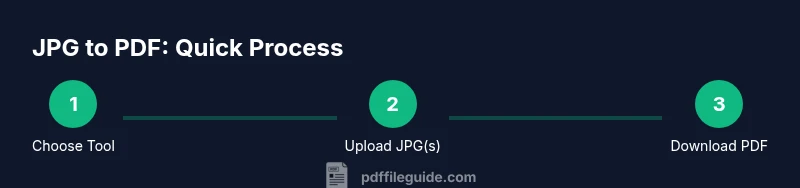
According to PDF File Guide, you can convert a JPG to PDF online in minutes with a secure tool. Upload your JPG, select 'Save as PDF', and download the result. For multiple files, choose a batch option if available. Always check privacy and file-size limits before uploading sensitive images. This method works on desktops, tablets, and phones; choose reputable sites that do not require email or account creation.
Why Convert JPG to PDF Online
Converting a JPG image to PDF online is a common, accessible solution for sharing, printing, or archiving visuals without exposing the original format. The ease of web-based tools means you can perform this task from any device with an internet connection, without installing software. For professionals who edit, convert, and optimize PDF files, the online route offers speed, convenience, and cross-device compatibility. According to PDF File Guide, trusted online converters balance speed, privacy, and output quality, making them ideal for quick JPG-to-PDF tasks when handling non-sensitive images. When you understand the nuances—image resolution, page size, and output options—you can choose a tool that preserves detail while keeping file sizes reasonable.
In this section, you’ll learn how online JPG-to-PDF conversion compares with offline approaches, including when it makes sense to steer away from online options (for confidential materials) and how to avoid common mistake traps. You’ll also gain context on how privacy policies, data retention practices, and platform reliability influence your final result. This knowledge is especially valuable for freelancers, educators, and business teams who frequently share documents with clients or colleagues.
When to Use Online vs Offline Tools
Online converters shine when you need speed, minimal setup, and cross-device access. If you have a simple single-page image and a moderate file size, an online tool can produce a PDF within minutes. Offline tools, by contrast, are preferred when you work with highly sensitive material, require enterprise-grade redaction or password protection, or need to integrate the conversion into a larger workflow without exposing files to the internet. For many daily tasks, a reputable online service paired with a privacy-conscious workflow provides a practical balance between convenience and security. PDF File Guide highlights that a mixed approach—online for quick conversions and offline for sensitive projects—often yields the best outcomes for individuals and teams.
Consider batch needs, especially for projects involving many images. Some online converters support merging multiple JPGs into a single PDF, which can save time and maintain a consistent page order. If your project requires precise control over page size, margins, or orientation, verify that the tool offers those settings or plan to adjust afterward in a PDF editor.
How to Choose a Safe Online Converter
Safety is the top priority when using online JPG-to-PDF tools. Start with HTTPS URLs, read the privacy policy, and confirm whether the service retains files after processing. Look for transparent data practices: how long files are stored, whether they are shared with third parties, and whether you can delete uploaded content immediately after conversion. Favor tools with clear terms and visible security measures, and avoid services that require an account for basic conversions if you’re not comfortable providing personal information. PDF File Guide recommends checking user reviews, privacy disclosures, and the presence of a published contact or support channel.
Additionally, assess output quality indicators like resolution preservation, color accuracy, and fidelity of embedded metadata. A trustworthy tool should preserve the original image quality without introducing unintended compression artifacts. If you regularly convert sensitive or proprietary images, consider tools that offer local processing options or downloadable apps with offline processing to minimize exposure.
Some converters provide optional features such as password protection, page ordering, and the ability to start from multiple images. If your needs include these features, verify they are available before you begin and test with a non-sensitive image to gauge behavior.
Step-by-Step: Online JPG to PDF Conversion
This section expands on the practical steps you’ll follow, including best practices to minimize quality loss and protect your data.
- Step-by-step guidance is also available in the dedicated STEP-BY-STEP block for precise action items and timings.
Common Pitfalls and How to Avoid Them
Many beginners run into issues like oversized PDFs, lost image quality, or unexpected page breaks. To avoid these problems, always preview the PDF before download, verify color profiles, and check that all intended images appear in the correct order. Be mindful of the default DPI settings—some tools compress images aggressively to reduce file size, which can degrade clarity when printing. If you notice artifacts, retry with a different tool or adjust quality settings if the option is available. Always read the tool’s help or FAQ if you encounter a non-standard image format or unusual color space.
Another frequent pitfall is using public or shared devices. When possible, perform conversions on trusted devices and clear browser data after completion to reduce exposure of your files to unauthorized users.
Troubleshooting: File Size, Quality, and Security
If your output PDF is too large for email or storage limits, try a tool that offers compression or choose a lower resolution before converting. Conversely, if you require higher detail, select the highest available DPI or a 'Print' quality option, then test the result. Security concerns often arise with free services that request email login or store data for longer periods. Use services with clear privacy policies, and delete files from the service once you’ve downloaded the PDF. If you notice inconsistent output across browsers, switch to a different browser or clear cache and cookies, then retry the conversion.
When dealing with sensitive content, prefer offline processing or reputable online services that explicitly advertise data deletion after processing. PDF File Guide suggests keeping originals backed up and considering watermark-free outputs if you need to share professional-looking PDFs in client-facing contexts.
Advanced Tips: Batch Conversion and Compression
Batch conversion is a powerful capability when you have many JPGs to process. Look for tools that allow drag-and-drop multi-file uploads, reordering of images, and the option to combine images into a single PDF or create multiple PDFs. If your chosen tool compresses images by default, compare several services to find the best balance between file size and quality. For professional workflows, consider tools that provide automation options, such as API access or CLI integration, so you can script repeated conversions and preserve consistent output. After batch processing, verify that all images appear in the intended sequence and that page sizes align with your print or display requirements.
Final Considerations and Best Practices
Always test a sample file first to understand how a tool handles your specific image characteristics (color space, DPI, and metadata). Keep a routine for validating privacy, especially for client work or personal content. Maintain backups of the original JPGs and the resulting PDFs. Document the steps you took for auditability, particularly if you integrate online conversions into a broader workflow. By following these practices, you’ll maximize reliability and minimize risk when converting JPGs to PDFs online.
Tools & Materials
- JPG image file(One or more images ready for conversion)
- Device with internet access(Computer, tablet, or smartphone)
- Modern web browser(Up-to-date Chrome/Firefox/Safari/Edge)
- Trusted online JPG-to-PDF converter(Prefer HTTPS, read privacy policy)
- PDF reader (optional)(For verifying the result locally)
- Backup copies(Keep originals in a safe location)
Steps
Estimated time: 15-25 minutes
- 1
Prepare your JPG files
Collect all images to convert and ensure they are in JPG format. Rename files with a consistent scheme to preserve desired order. If images vary in resolution, consider resizing to a common baseline to avoid unexpected scaling in the PDF.
Tip: Use a single folder for all inputs to simplify batch processing. - 2
Choose a reputable online converter
Open a trusted online converter with HTTPS, read the privacy policy, and verify that it supports either single or batch uploads. If you need constraints like password protection or page size, confirm these features before continuing.
Tip: Avoid services that request unnecessary personal data or email addresses. - 3
Upload your JPGs
Drag and drop files or use the upload button to select one or more JPGs. If you’re combining into a single PDF, ensure the tool merges pages in the intended order.
Tip: If the tool offers drag-and-drop, keep a clean workspace to prevent mis-uploads. - 4
Configure output settings
Set the output to PDF, pick page size and orientation, and choose whether to merge into one file or generate separate PDFs. If quality settings are present, select a higher DPI for print-quality output.
Tip: Choose 'Print' quality if you plan to print; otherwise, standard web quality can save space. - 5
Convert and verify
Run the conversion and download the result. Open the PDF to verify all pages appear in the correct order, with clear text and images. Check any compression or color shifts that may have occurred.
Tip: If something looks off, try another tool or adjust the quality settings and re-run. - 6
Securely store and delete originals
Store the resulting PDF alongside the originals in your preferred location. If you used a temporary online service, delete any uploaded files from the service after downloading the PDF.
Tip: Always maintain backups and avoid leaving sensitive content on public machines.
Questions & Answers
Is it safe to convert JPG to PDF online?
Online converters can be safe if you choose reputable services with HTTPS and a clear privacy policy. Avoid uploading highly sensitive documents to unknown sites. Always review permissions and data retention details before proceeding.
Online converters are generally safe if you pick trusted sites and avoid sensitive files. Read the privacy policy before uploading.
Can I combine multiple JPGs into one PDF online?
Yes. Many online tools support stacking several JPGs into a single PDF, preserving the order you specify. Use the merge feature if available and verify the final document before downloading.
Yes, you can merge several images into one PDF. Just arrange them in the order you want and convert.
What if the final PDF is blurry or has low quality?
Check the tool’s DPI or quality setting and try a higher resolution if available. Some services compress images; choose a mode that preserves fidelity for printing or professional sharing.
If the PDF looks blurry, bump up the quality setting or DPI, and re-run the conversion.
Can I password-protect my converted PDF?
Some online converters offer password protection as an option. If security matters, use a tool that supports encryption or apply password protection in a dedicated PDF editor after conversion.
Yes, some services let you password-protect the final PDF or you can add protection in a PDF editor after converting.
Do online tools retain my uploaded images?
Data retention varies by provider. Read the privacy policy and ensure the site deletes uploaded files promptly after processing. Use offline options for highly confidential content when possible.
Policies differ; choose sites that delete uploads quickly and avoid sharing sensitive data.
What should I do if batch option isn’t available?
If batch conversion isn’t available, convert images individually and use a PDF editor later to merge them. This approach preserves control over page order and output quality.
If there’s no batch option, convert images one by one and merge them later in a PDF editor.
Watch Video
Key Takeaways
- Choose trusted online converters with clear privacy policies.
- Prepare and order JPGs before upload to ensure correct PDF sequence.
- Test a sample file to verify output quality and settings.
- Prefer offline or password-protected options for sensitive content.
- Back up originals and downloaded PDFs for long-term storage.