How to Convert PDF to JPG Using Adobe Acrobat
Learn how to convert PDF files to high-quality JPEG images using Adobe Acrobat. This guide covers single-page and multi-page exports, DPI and color settings, batch conversions, and troubleshooting.


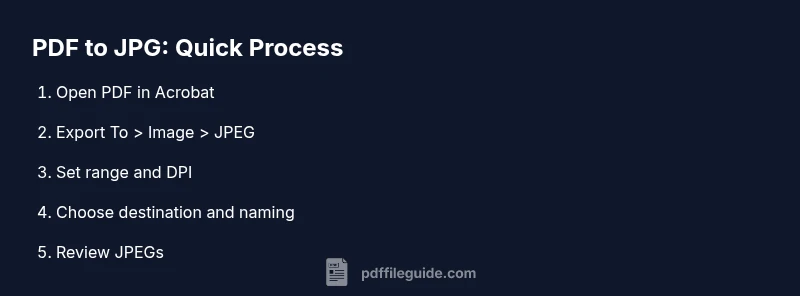
You can convert a PDF to JPG in Adobe Acrobat by exporting the PDF as JPEG images. Open the file, choose File > Export To > Image > JPEG, pick the page range, adjust DPI and color settings if needed, and save. For batch jobs, use Action Wizard in Acrobat Pro DC to apply the export to multiple PDFs.
Overview: Why convert PDF to JPG with Acrobat
According to PDF File Guide, converting a PDF to JPG with Adobe Acrobat is a reliable way to create lightweight images for websites, slides, or previews without altering the original PDF content. This workflow uses Acrobat's built-in Export To feature to render each page as a separate JPEG, preserving layout and text clarity when settings are chosen carefully. The process is designed for professionals who need consistent, repeatable results across many documents. As you read, you’ll see practical tips for balancing image quality with file size, as well as batch methods suitable for teams. The PDF File Guide team found that the most important step is selecting the right resolution and color space before exporting.
This guide focuses on Acrobat Pro DC for desktop environments, but the same concepts apply to recent updates of the application. If you’re working with sensitive documents, remember that export settings can influence how metadata and security features behave in the resulting images. The goal is to produce JPEGs that look right on screens and in print alike, while keeping the workflow predictable and auditable for professional contexts.
Tools & Materials
- Adobe Acrobat Pro DC(License that includes the Action Wizard and advanced export options)
- PDF files to convert(Source documents you want to export as JPEGs)
- A computer with Windows or macOS(Ensure the system meets Acrobat’s minimum specs)
- Stable internet connection (optional)(Only needed if verifying licenses or using cloud features)
- External storage or output folder(Useful for batch exports to keep outputs organized)
Steps
Estimated time: Estimated total time: 25-40 minutes for a typical 10-page PDF; longer for larger batches.
- 1
Open the PDF in Acrobat
Launch Adobe Acrobat Pro DC and open the PDF you want to convert. Confirm you have permission to export if the file is protected. If the document contains many pages, consider working with a copy to preserve the original.
Tip: If the file is password-protected, enter credentials to unlock before exporting. - 2
Access the JPEG export option
Go to File > Export To > Image > JPEG. This opens the export dialog where you can configure how each page will be saved as an image.
Tip: If you don’t see the JPEG option, ensure you’re using Acrobat Pro DC, not the free Reader. - 3
Choose output scope
Decide whether to export All pages, Current page, or a specific page range. For a multi-page document, exporting All pages is common.
Tip: For large PDFs, exporting a range like 1-5 first helps verify settings before full export. - 4
Set image options
Select the desired DPI (e.g., 150-300 for screen/web, higher for print) and color space (RGB is standard for screens; CMYK for print workflows).
Tip: Higher DPI yields better quality but larger file sizes. - 5
Choose destination and naming
Pick a output folder and set a consistent naming convention (e.g., Document_Part1_Page1.jpg). This makes it easier to assemble and locate files later.
Tip: Use a naming scheme that encodes the document name and page number. - 6
Export a single PDF page set
Click Export and save the resulting JPEG(s). Review the image files to ensure page order and quality meet expectations.
Tip: Open the first JPEG to confirm color and sharpness before exporting the rest. - 7
Batch export with Action Wizard (Pro DC)
For multiple PDFs, use Tools > Action Wizard to create a new action that exports PDFs to JPEGs across a folder. This automates repetitive work.
Tip: Test the action on a single file before applying to a whole batch. - 8
Review and organize output
Scan the output folder to verify all pages exported, check for any failed pages, and archive sources appropriately.
Tip: Keep a log of DPI and color settings used for each batch for future audits.
Questions & Answers
Can I convert a PDF to JPG with the free Acrobat Reader?
No. The ability to export PDFs to images is available in Adobe Acrobat Pro DC, not the free Reader. If you only have Reader, you’ll need a licensed Acrobat or an alternative tool.
Exporting to JPEG requires the paid Acrobat Pro; free Reader won’t perform this export.
Will exporting to JPEG preserve colors accurately?
JPEG exports render the page as it appears in Acrobat. For best color accuracy, use RGB for on-screen use and consider higher DPI for print workflows.
Color accuracy depends on the color space you choose; RGB is common for screens, CMYK for print.
Can I export only certain pages or ranges?
Yes. In the export dialog you can specify a page range (e.g., 1-5) or export the current page. This helps with proofreading and selective sharing.
You can select which pages to export to JPEG, which saves time and space.
What about batch exporting multiple PDFs?
Use the Action Wizard in Acrobat Pro DC to create an automated action that exports images for all PDFs in a folder. This is ideal for large libraries.
Batch export automates the process across many files, saving time.
Do annotations appear in the JPEG output?
Annotations visible in the PDF typically render on the JPEG as viewed, but complex annotations may require flattening or alternative export settings.
Your on-screen view will show annotations if included; some workflows flatten annotations for consistency.
What if the export fails due to a security setting?
Check the document’s security settings, update Acrobat if needed, and ensure you have permissions to export. If protected, obtain the necessary credentials.
If export fails due to security, adjust permissions or remove protections with proper authorization.
Watch Video
Key Takeaways
- Export PDFs as JPEGs via File > Export To > Image > JPEG
- Choose correct DPI and color space for your use case
- Batch export saves time for large projects
- Verify outputs before sharing or archiving