Pdf to JPEG Free: Complete Step-by-Step Guide
Learn to convert pdf to jpeg free using trusted offline or online tools. This educational guide covers options, steps, privacy, and quality considerations for professionals editing PDFs.


Goal: Convert pdf to jpeg free using trusted tools. You’ll choose between offline software or reputable online converters, then export each PDF page as separate JPEG images with carefully chosen resolution. This quick guide shows how to select a tool, prepare files, adjust settings, and verify output for quality and privacy. Whether you need a single page or an entire document, PDF File Guide provides practical, evidence-based recommendations to avoid common pitfalls.
What pdf to jpeg free means
Converting pdf to jpeg free means turning each page of a PDF into image files without paying for software. This is especially handy when you need visuals for presentations, web articles, or archival snapshots. The process can be done with offline apps installed on your computer, or via trusted online services that promise privacy and data protection. For professionals evaluating options, the choice often hinges on how much control you want over image quality, output size, and file handling. The PDF File Guide team emphasizes that understanding output goals—web vs print, single-page vs multi-page—helps you pick the right tool and settings from the start. This clarity reduces back-and-forth edits and keeps projects on schedule.
Why we care about pdf to jpeg free
Free conversions save time and budget, but not all free options are equally reliable. You want accuracy in color, sharpness, and legibility, especially for technical documents, diagrams, or marketing collateral. The phenomenon of zoomed-in text becoming blurry is a common pitfall when output settings aren’t aligned with the document’s purpose. PDF File Guide notes that choosing the wrong resolution or color profile can degrade readability or hinder downstream editing. A thoughtful approach balances convenience with professional quality, and it avoids lock-in or hidden data handling practices.
Free tools: offline vs online options
Offline tools give you full control over local files, reducing privacy concerns since data never leaves your device. They also often provide more consistent results for batch processing. On the other hand, online converters can be fast and accessible from any device, but they require uploading your PDFs to a third-party server. When evaluating online options, look for clear privacy policies, no login requirements, and assurances that files are removed after processing. PDF File Guide analysis shows a preference for offline workflows among privacy-conscious users, but reputable services can be suitable for non-sensitive tasks if you follow best practices.
Quality considerations in pdf-to-jpeg conversion
Image quality hinges on several settings beyond resolution, including color space, compression, and anti-aliasing. For professional results, preserve the page’s color profile and avoid aggressive compression that introduces artifacts. If your PDF contains vector text or embedded images, ensure the converter respects clarity and sharpness on export. Preview a few sample pages to verify legibility and consistency across the document. The goal is a faithful representation of the original, with JPEGs that are suitable for both on-screen viewing and print, depending on your target use case.
Handling multi-page PDFs: single JPEGs vs image gallery
You may export every page as an individual JPEG or create a photographic gallery from key pages. If you only need a subset, use page range options to avoid unnecessary files. For documentation or manuals, exporting all pages is common practice, but consider naming conventions that preserve order (e.g., Page_01.jpg, Page_02.jpg). Organizing files properly at the end of the process helps teammates locate visuals quickly and reduces confusion during reviews and revisions.
Privacy and security when using online converters
Online tools can be convenient, but uploading sensitive documents raises privacy concerns. Before using any online service, review the vendor’s privacy policy, data retention terms, and whether the site supports anonymous use. Prefer services that explicitly state they do not store or reuse uploaded files beyond the conversion task. If the PDF contains confidential information, lean toward offline conversion or use a trusted enterprise-grade online tool with strict data controls. PDF File Guide analysis shows this is a critical consideration for many professionals.
Troubleshooting common issues in pdf to jpeg free workflows
If output images look washed out, check color profiles and brightness controls within the tool. Blurry text usually signals too-low DPI or over-compression; adjust the resolution and compression balance accordingly. If some pages fail to convert, verify the PDF integrity or try splitting the file into smaller chunks. When online tools timeout, consider performing the task in offline mode or using a different service with a robust processing queue. Always save a copy of the original PDF before retrying conversions.
Best practices and a quick workflow checklist
Establish your target use (web, screen, or print), then pick offline or online tools accordingly. Test a few pages first to tune resolution, color, and compression. Maintain consistent naming and folder structure for easy access. Review the final JPEGs for legibility and accuracy before sharing with teammates. Finally, document the tool and settings used so teammates can reproduce the results. The approach keeps projects reproducible and minimizes last-minute surprises.
How PDF File Guide views pdf to jpeg free workflows
From our perspective at PDF File Guide, a thoughtful, privacy-aware approach yields the best long-term results. We recommend starting with offline methods for sensitive or high-stakes documents, while online tools can serve quick, non-sensitive tasks with proper safeguards. The goal is consistency, reliability, and clear documentation of settings. By following these practices, you can achieve dependable, professional JPEG exports without compromising data or quality.
Tools & Materials
- Device for conversion (computer, tablet, or smartphone)(Any device with sufficient screen and storage space)
- PDF file(s) ready to convert(Ensure you have permission to modify or export)
- Trusted converter (offline app or online service)(Prefer sources with clear privacy policies)
- Output destination with ample disk space(Plan for several JPEGs if the PDF has many pages)
- Stable internet connection (for online tools)(Needed only for online services)
Steps
Estimated time: 25-60 minutes
- 1
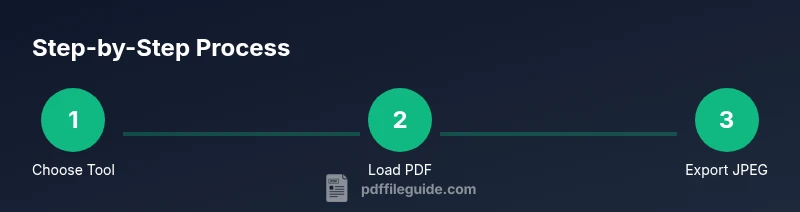
Choose conversion method
Decide between offline software and a reputable online converter based on privacy needs and workflow speed.
Tip: Pro tip: For sensitive PDFs, start with offline tools to avoid uploading files. - 2
Open your PDF in the tool
Launch the selected tool and load the PDF file you want to convert. Ensure the document opens correctly and pages are readable.
Tip: Pro tip: Use a temporary copy of the file to protect the original document. - 3
Set output format to JPEG
In the export or save dialog, choose JPEG as the output format. Confirm that you’ll get image files instead of a consolidated file.
Tip: Pro tip: If you can, select high-quality JPEG to minimize compression artifacts. - 4
Adjust resolution and color
Choose an appropriate resolution and color profile for your target use; higher resolutions are better for print, web-ready settings suit display needs.
Tip: Pro tip: Start with a middle range and adjust after reviewing sample pages. - 5
Decide page range
If you don’t need every page as a JPEG, specify a page range or select individual pages to export.
Tip: Pro tip: Naming conventions help keep the sequence intact when exporting many pages. - 6
Run the conversion
Initiate the export; monitor progress and ensure there are no errors. Save outputs to a clearly labeled folder.
Tip: Pro tip: Save a log of settings used for future reproducibility. - 7
Review output files
Open several JPEGs to verify legibility, color accuracy, and consistency across pages.
Tip: Pro tip: Compare text sharpness on the smallest font sizes to detect blurring early. - 8
Organize and back up
Rename files consistently and back up the folder to a secure location or cloud storage as appropriate.
Tip: Pro tip: Create a simple manifest listing page counts and intended use for teammates. - 9
Document privacy considerations
If online tools were used, note data-handling practices and deletion guarantees for audit trails.
Tip: Pro tip: Delete uploaded files from the service if it doesn’t auto-delete after processing.
Questions & Answers
Can I convert a password-protected PDF to JPEG for free?
Only if you have proper authorization to unlock the document. Use legitimate tools and follow policy guidelines when handling secure PDFs.
If you’re authorized, unlock the PDF first; otherwise, don’t try to bypass protections.
Will online converters preserve image quality?
Quality varies by tool. Preview sample outputs and choose options that preserve text clarity and color accuracy.
Check a few pages to ensure letters stay sharp and colors look correct.
Is batch conversion supported?
Many tools offer batch processing or multi-page export. Verify that the chosen tool can export all required pages in one go.
If you have many pages, batch export saves time and keeps order intact.
What is the best practice for DPI when exporting to JPEG?
Choose a resolution appropriate for your end use—higher for print, moderate for web. Avoid excessive DPI that inflates file size.
Pick a balanced resolution to keep file sizes reasonable while preserving quality.
How should I handle privacy after using online tools?
Delete uploaded files if the service doesn’t auto-delete, and review the provider’s data handling policies.
Delete any uploaded documents and trust only reputable services.
Watch Video
Key Takeaways
- Plan tool choice based on privacy needs.
- Verify output quality before sharing.
- Maintain clear, consistent file naming.
- Document settings for reproducibility.
- Prioritize offline tools for sensitive documents.