How to Convert Files into PDF: A Step-by-Step Guide
A practical, step-by-step guide on converting documents, images, and spreadsheets into PDF, with best practices for quality, accessibility, and security.


In this guide you will learn how to file into pdf using built-in tools, online converters, and desktop software. You’ll discover when to use PDFs for consistency, how to choose the right method, and how to verify the result. This quick answer covers the essential steps and best practices for reliable PDF conversion.
Why convert files to PDF
Converting a file into PDF offers a stable, platform-agnostic format that preserves layout, fonts, and images. This consistency is crucial for sharing documents with clients, colleagues, or vendors who may view files on different devices. The act of file into pdf is often the simplest way to lock content into a universally readable format that remains faithful to the original design. According to PDF File Guide, understanding the core benefits—readability, print fidelity, and reduced format drift—helps professionals decide when to convert. In this section, we explore common scenarios, the value proposition of PDFs, and how to choose the best conversion path for your needs. Expect practical tips, concrete workflows, and examples you can adapt to real work tasks.
Common scenarios for file into pdf conversion
PDFs are ideal for finalized documents, legal briefs, resumes, product specs, and handouts where you want to prevent accidental edits. For example, sending a presentation as a PDF ensures slides appear exactly as designed, regardless of recipient software. When you’re collecting signatures, a PDF can be prepared with form fields or digital seals to streamline approvals. For teams collaborating on drafts, converting to PDF can provide a stable archivable version that teammates can annotate without altering the original file. PDF File Guide analysis shows that many professionals default to PDF for sharing to avoid font substitutions and layout shifts, especially when fonts or embedded graphics are critical to the message. In short, if you need reliability across platforms, PDF is often the best choice.
How PDFs preserve formatting across devices
Portability is the key advantage of PDFs. They encapsulate fonts, vector graphics, images, and hyperlinks within a single file, which means your document looks the same on Windows, macOS, Linux, iOS, and Android. When you file into pdf, the object placement, margins, and line breaks survive transcoding events, so long as the source content uses standard fonts or embedded fonts. The result is predictable output for printing, filing, or archiving. Consider testing critical documents on multiple devices to confirm fidelity, especially for complex layouts with multi-column text, tables, or embedded media. PDF creators also offer options to subset fonts or embed fonts to reduce file size without losing legibility.
Built-in OS features to file into pdf
Most modern operating systems include native options to create PDFs from almost any printable document. Windows offers a virtual PDF printer in the Print dialog, macOS provides Export as PDF from the File menu, and many Linux distros include a print-to-PDF feature integrated with the system print dialog. Using native features is fast, private (your content doesn’t need uploading to a third party), and compatible with workflows that require minimal software. When you file into pdf using these features, you typically select your source file, choose Print, then pick a PDF printer or export option, and finally save to a location you designate. These built-in tools cover most everyday needs for individuals and small teams.
Using third-party software for advanced features
For more control over quality, security, and accessibility, third-party PDF tools offer advanced features like batch conversion, OCR (optical character recognition), form field creation, and metadata management. Enterprise-grade solutions support automated workflows, custom fonts, color management, and preflight checks to ensure compliance with document standards. While exploring third-party options, look for features such as batch processing, repeatable presets, high-fidelity rendering, and robust security settings (password protection, encryption, and permissions). Always verify that the tool supports the specific file types you use and test final outputs for accuracy.
Step-by-step sample workflow: Word to PDF
A common requirement is converting a Word document to PDF while preserving layout and fonts. Start by opening the source in Word, review margins and images, then use the built-in Save As or Export function to create a PDF. If your tool offers options like ISO/A-4 page size, embed fonts, or optimize for online viewing, enable them. After saving, open the PDF to confirm that headings, tables, and graphics align with the original. If your document contains interactive elements, test form fields and hyperlink functionality. This workflow is representative of many office environments and can be adapted to other file types such as presentations or spreadsheets.
Accessibility and searchability: making PDFs usable
Accessible PDFs support screen readers and keyboard navigation. When you file into pdf, consider adding document structure tags, alt text for images, and properly labeled form fields. OCR can improve searchability for scanned documents, but results depend on image quality and language. Tools that generate tagged PDFs or offer accessibility checkers can help you meet compliance standards for accessibility. Clear headings, descriptive link text, and well-structured content improve readability for all users, including those relying on assistive technologies. PDF File Guide emphasizes accessibility as a key factor in professional documents, not an afterthought.
Security considerations when converting and sharing PDFs
PDFs can carry sensitive information, so security should be part of your conversion plan. Use password protection, encryption, and permissions to control printing, copying, and editing. When you file into pdf, consider watermarking confidential documents and applying redaction where necessary. If you’re sharing in a collaborative environment, verify the recipient’s identity and use secure channels for distribution. For archiving, enable long-term preservation settings and ensure compatibility with your organization’s information security policies. Always balance convenience with risk, especially for documents containing personal data or financial details.
Common mistakes and how to avoid them
Rushing through conversion can lead to broken layouts, missing fonts, and inaccessible PDFs. Avoid embedding fonts that are not licensed for distribution, skipping OCR on scanned material, or neglecting accessibility tagging. Another frequent error is failing to verify the final file on different devices before sharing. Take time to perform a quick cross-device check, run a readability scan, and test hyperlinks. By planning ahead and using presets for consistent output, you can greatly reduce revision cycles and produce reliable PDFs the first time.
Tools & Materials
- Computer with internet access(Needed for online tools or software activation)
- PDF creation software or built-in OS tool(Choose dependent on your workflow; include business-critical features like OCR or forms if needed)
- Printer or PDF printer driver(Optional if your OS doesn't include a native PDF export)
- Scanner (for physical documents)(Useful for digitalizing paper documents before converting to PDF)
- Quality test set of source files(Include a mix of text documents, images, and tables to test fidelity)
Steps
Estimated time: 15-25 minutes
- 1
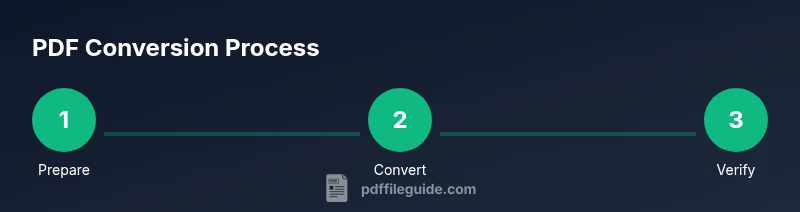
Prepare source document
Open the file you want to convert and inspect it for any last-minute edits, typos, or layout issues. Ensure fonts used are available or embedded, and that images are correctly placed. This step reduces surprises after conversion.
Tip: If the source is editable, consider saving a copy to preserve the original for later edits. - 2
Choose the convert method
Decide whether to use a built-in OS feature, a browser-based converter, or dedicated software. Each path has trade-offs in speed, privacy, and features like OCR or form support.
Tip: For sensitive files, prefer offline tools to avoid uploading content to the cloud. - 3
Export or print to PDF
In the source app, select Export as PDF or Print, then choose the destination and file name. On some systems, you may select a PDF printer. This creates the PDF file while preserving formatting.
Tip: Check page size and orientation before saving to avoid cropped content. - 4
Adjust output settings
If available, configure settings such as quality, image compression, font embedding, and accessibility tagging. Higher quality improves fidelity but increases file size; OCR can improve searchability for scanned content.
Tip: Enable font embedding when distribution across platforms is critical. - 5
Save and verify
Save the resulting PDF and open it in a viewer to verify that text, fonts, images, and links render correctly. Test on different devices if possible.
Tip: Verify hyperlinks and form fields work as intended before sharing. - 6
Secure and share
If needed, apply password protection or permissions. Share via secure channels and confirm the recipient can access the file as intended.
Tip: For sensitive information, avoid sending passwords via the same channel as the PDF.
Questions & Answers
What does it mean to file into PDF?
To file into PDF means converting a variety of file types (documents, images, spreadsheets) into a single, fixed-layout format that preserves content and appearance across platforms. This ensures reliable viewing and sharing.
File into PDF means turning any document into a fixed-format file that stays the same on any device.
Can I convert multiple files at once?
Yes. Many tools support batch processing, allowing you to convert several documents in one operation. Check for batch settings or presets to streamline the workflow.
Yes, you can batch convert multiple files together.
Will fonts be preserved after conversion?
Fonts can be preserved by embedding them in the PDF or by using standard fonts. Embedding provides the closest fidelity but may increase file size.
Fonts can be preserved by embedding them; otherwise substitution may occur.
Are online converters safe for confidential documents?
Online converters introduce data exposure risk. Use offline tools for sensitive content, and review privacy policies if you must use online services.
Online tools can risk exposure; prefer offline options for confidential files.
How do I convert a scanned document into a text-searchable PDF?
Use OCR during or after the conversion process. OCR recognizes text in images and makes the document searchable, but results depend on scan quality.
OCR helps make scanned PDFs searchable, depending on scan quality.
Can I edit a PDF after converting from a source file?
Yes, but editing depends on the PDF tool. Some editors support form fields, annotations, and text changes; others require re-export from the original source.
Editing depends on the tool; some let you modify text and forms, others require re-export.
Watch Video
Key Takeaways
- Choose the right conversion path based on privacy and features.
- Verify output across devices to ensure fidelity.
- Use accessibility-friendly settings for inclusive PDFs.
- Apply security measures when sharing sensitive content.