Free Online OCR: A Practical Guide to Text Extraction
Learn how to locate reliable free online OCR tools, assess accuracy and privacy, and convert images and PDFs into editable text with confidence. This guide covers evaluation, workflows, and best practices for professionals handling documents.


In this guide you will learn to find and evaluate free online OCR tools, test their accuracy, protect your privacy, and extract editable text from images, PDFs, and scans. You will also compare popular options, understand export formats, and apply best practices for reliable results. By the end you can choose a tool and complete a successful OCR workflow.
What is free online OCR and why it matters
Across the digital world, free online OCR services unlock the ability to turn scanned papers, photos, and screenshots into editable text without software installation. According to PDF File Guide, the convenience of cloud-based OCR is matched by concerns about privacy, accuracy, and reproducibility. As you explore these tools, you should keep in mind that OCR stands for optical character recognition, a technology that analyzes image pixels to identify letters, numbers, and symbols and then reconstructs them as text.
For many people, free online OCR is a practical starting point for digitizing receipts, meeting notes, business cards, and old archives. It can save hours compared to manual transcription and enables quick word searches across large document sets. The key is to understand that not all free tools are created equal: some excel at simple layouts, others handle multi-column tables or curved text. In the following sections, you will learn how to evaluate accuracy, compare export options, and apply best practices to maximize results.
How OCR works in the cloud vs on-device
OCR systems fall into two broad camps: cloud-based free online OCR and on-device software. Cloud solutions process images remotely, often using powerful servers and AI models that improve over time. The upside is speed, broad format support, and minimal device requirements. The downside includes data transfer to third-party servers, potential privacy risks, and reliance on internet connectivity. On-device OCR runs entirely on your computer or smartphone, which can offer stronger privacy and offline access but may be slower on large documents and may require installation or subscriptions.
When selecting a tool, consider the document type and sensitivity. A short text page with clean typography is typically easy for both approaches, but a scanned receipt with uneven lighting or a multi-column newsletter may challenge simpler cloud engines. For professionals handling sensitive material, offline options or local processing modes within a trusted app can help maintain control over your data while still delivering reliable OCR results.
Key advantages and caveats of free online OCR
Advantages of free online OCR include:
- No installation required, work from any device with a browser
- Quick tests to see if the tool fits your document type
- Broad input format support, including images and PDFs
Caveats to keep in mind:
- Privacy and data handling vary by service; read terms before uploading
- Some services impose file size or page limits
- Output quality can vary, especially with complex layouts or unusual fonts
- Export options may be limited or include watermarks on free tiers
How to evaluate OCR accuracy for free tools
Start with a small, diverse sample set that matches your typical documents. Compare the OCR output to a ground truth version you create by typing a clean copy. Use metrics like character accuracy and layout preservation to judge performance across fonts, languages, and column structures. Don’t rely on a single test; run multiple passes with different settings (language packs, page orientation, and image preprocessing) to identify consistent strengths and weaknesses. PDF File Guide recommends validating results against real-world tasks such as data extraction from receipts or invoices, where small mistakes can cascade into bigger errors.
Privacy and data handling considerations
Always review a tool’s privacy policy, especially for sensitive documents. Check whether uploads are processed client-side or on remote servers, how long data is retained, and whether results are stored. If privacy is a priority, prefer offline or on-device options or services with strong data-retention controls. Other practical steps include using temporary uploads, avoiding highly sensitive files, and comparing privacy-focused tools to understand trade-offs between accuracy and security.
Use cases and practical examples
Common use cases for free online OCR include digitizing receipts, converting business cards into contacts, extracting text from scanned PDFs, and making archival documents searchable. A typical workflow might involve selecting a tool with good table recognition for a multi-column document, preprocessing the image to improve contrast, and exporting to a preferred format such as TXT or DOCX. For long-form documents, chunking the material into smaller parts can help reduce OCR errors and improve accuracy across sections.
Common formats and export options
Most free OCR tools support exporting to plain text, rich text, Word, and searchable PDFs. Some also offer HTML, CSV, or XML for data extraction workflows. If you need to preserve layout, look for tools that explicitly advertise table and column recognition. Remember that complex layouts with logos, forms, or nested columns may require post-processing in a word processor or spreadsheet editor to correct alignment and spacing.
Tips for improving OCR results
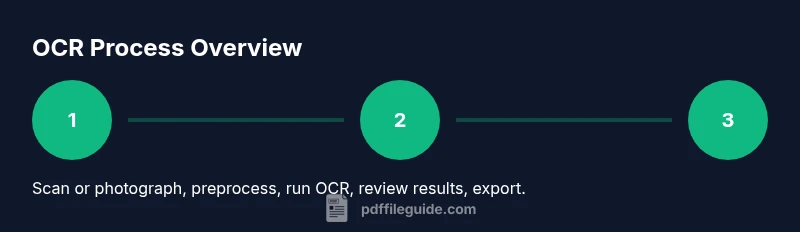
Preprocess input: crop to the area of interest, straighten skew, and adjust brightness/contrast. Use high-resolution images (300–600 dpi) and avoid heavily compressed files. Choose the correct language setting and enable any table or layout recognition features. Split long documents into sections if the tool struggles with large files, and always review results for accuracy before final export.
When free tools aren't enough: paid tiers vs open source alternatives
Free tools are great for quick tasks, but paid tiers often unlock better accuracy, higher limits, and stronger privacy controls. Open source options, such as Tesseract, offer transparency and customization, albeit with a steeper setup curve. For enterprise use, weigh factors like data governance, auditability, and vendor support when deciding whether to upgrade or switch to an offline pipeline.
Future trends in free OCR and AI-assisted text extraction
Expect improvements in multi-language support, better handling of complex layouts, and smarter noise reduction. AI-assisted OCR will increasingly adapt to your typical document types, reducing the need for manual corrections. Privacy-preserving techniques and on-device processing are likely to become more common, enabling offline workflows without sacrificing accuracy.
Tools & Materials
- Internet-connected device (computer, tablet, or smartphone)(Any modern device with a web browser)
- Web browser(Up-to-date and supports JavaScript)
- Sample documents (images or PDFs) to OCR(Include variety like text-rich pages and multi-column layouts)
- Privacy-conscious offline OCR option (optional)(For sensitive data, consider local software)
- Account on OCR sites (optional)(Some services require accounts for batch processing)
Steps
Estimated time: 25-60 minutes
- 1
Identify document type and outputs
Assess whether you need plain text, a formatted document, or a searchable PDF. This determines which tool and export format to prioritize. Consider layout complexity, tables, and language requirements.
Tip: Choose a sample page that reflects your typical documents to guide tool selection. - 2
Choose an OCR tool
Select a free online OCR option that supports your target output and preserves layout well for your document type. Check privacy options and any input limits before uploading.
Tip: If your first tool misses a feature, try a second tool before moving on. - 3
Prepare the document for upload
Crop extraneous borders, rotate to correct orientation, and adjust brightness for better text contrast. High-quality source material improves recognition accuracy.
Tip: Use a grayscale conversion to reduce noise if the image is colorful. - 4
Upload and run OCR
Upload the file and start OCR processing. If available, enable table recognition and language settings. Note any processing time and file size limits.
Tip: If the result is slow, try splitting the file into smaller chunks. - 5
Review, correct, and export
Carefully check the extracted text for errors, especially digits and dates. Export to your preferred format and perform a quick downstream check in the target app.
Tip: Use spell-check and cross-reference critical fields to catch mistakes early. - 6
Archive and reuse results
Store the OCR output alongside the original scans for future reference. Create a simple naming convention to facilitate retrieval.
Tip: Tag documents by source and purpose to speed future searches.
Questions & Answers
What is OCR and how do free online OCR tools differ from paid options?
OCR stands for optical character recognition; it converts images of text into machine-readable text. Free online tools offer basic to intermediate capabilities, while paid options may provide higher accuracy, better privacy controls, and additional features like advanced table recognition or batch processing.
OCR converts images to text. Free tools vary in accuracy and privacy, with paid options offering more features.
Are free online OCR tools safe for sensitive documents?
Privacy safety depends on the service. Read the privacy policy, check if processing is local or cloud-based, and avoid uploading highly sensitive data to untrusted sites. For sensitive material, prefer offline tools or on-device processing.
Be cautious with sensitive data; prefer offline tools when privacy is a concern.
Can free OCR handle tables and complex layouts well?
Free OCR tools vary in their ability to preserve tables and multi-column layouts. Some offer specific table recognition features; for complex layouts you may need post-processing in a spreadsheet or document editor.
Table recognition varies; you may need post-processing for complex layouts.
Do I need to register or sign up to use these services?
Many free OCR sites allow anonymous uploads, but some require accounts for higher limits or batch processing. Check each tool's terms before uploading.
Some sites require accounts for higher limits; check before you upload.
What input formats do free OCR tools usually accept and export?
Common inputs include JPG, PNG, TIFF, and PDF. Outputs typically include TXT, DOCX, and searchable PDFs. Always confirm supported formats before starting.
Inputs like JPG, PNG, PDF; outputs like TXT, DOCX, or searchable PDF.
Watch Video
Key Takeaways
- Test multiple tools for reliability
- Always verify OCR results before export
- Prefer offline options for sensitive documents
- Choose export formats that fit downstream workflows