How to Change a PDF to Word: Step-by-Step Guide
Learn reliable methods to convert a PDF to Word, including Word's built-in import, Acrobat export, and trusted online tools. This guide covers formatting checks, font handling, OCR for scans, and best practices to preserve layout and accessibility.


To change a PDF into Word, choose a reliable method and follow a few simple steps. You can use Microsoft Word’s built‑in Import, Adobe Acrobat’s export to Word, or a trusted online converter. For accuracy, review headings, fonts, images, and tables after conversion, and fix any layout issues before saving the Word document.
Understanding PDF to Word conversion
Converting a PDF to Word is a common task for professionals who need to edit, reuse, or repurpose content. A successful conversion depends on how the original PDF was created: embedded fonts, vector graphics, and table layouts can all influence the final Word document. No single tool guarantees perfect fidelity for every PDF, and trade-offs are often unavoidable. The PDF File Guide team emphasizes testing multiple methods to identify which preserves the structure you need most. The goal is a Word document that feels natural to edit, with readable text, properly sized images, and intact headings. This section lays the foundation for choosing the right path, especially when your PDF contains complex formatting or scanned pages.
Word’s built-in import: opening PDFs directly in Word
Microsoft Word includes a built-in capability to import PDFs and convert them to editable Word documents. This method is quick and requires no additional software. When you open a PDF in Word, the program attempts to translate the layout into editable text and objects. Expect the most straightforward PDFs to convert cleanly, with simple layouts and standard fonts. For PDFs with unusual fonts or heavy formatting, you may need to adjust styles and spacing after conversion. The PDF File Guide recommends starting with a copy of your document to preserve the original file.
Acrobat Pro export to Word: higher fidelity for complex documents
Adobe Acrobat Pro offers an export feature that often preserves more complex layouts, including tables and longer documents. Using Export To > Word can yield a more faithful representation than Word’s import for certain PDFs. The process creates a new Word file that tries to maintain the original fonts, graphics, and structure. After export, you’ll typically need to tidy up any misaligned elements and verify that footnotes, captions, and headings are intact. Acrobat’s OCR options also help when dealing with scanned PDFs, but you should still review the final Word file.
Online tools: balance convenience with privacy considerations
Online PDF-to-Word converters are highly convenient, particularly when you don’t have Word or Acrobat available. They typically require you to upload the PDF, then download a Word file. These tools vary in performance, with some doing an impressive job preserving layout and formatting. However, online tools raise privacy concerns—avoid uploading sensitive documents. If you must use an online service, wipe traces of the file from your device after download and choose reputable providers that publish their privacy policies. PDF File Guide suggests limiting use to non-confidential materials and performing a final check in Word.
OCR for scanned PDFs: turning images into editable text
Many PDFs are scans rather than native text, which means you must rely on optical character recognition (OCR) to extract content. OCR improves the likelihood that text becomes editable in Word, but recognition errors can occur, especially with poor image quality or unusual fonts. Choose tools that offer built-in OCR and, after conversion, proofread the document carefully. If possible, run OCR on a higher-resolution scan to improve accuracy, then apply Word’s built-in spell check and style adjustments. PDF File Guide notes that OCR accuracy can vary by language and font complexity, so anticipate some manual corrections.
Post-conversion fixes: restoring structure, typography, and accessibility
After you convert, the biggest time sink is cleaning up formatting. Font substitutions can alter line breaks, headers may shift, and tables can collapse. Use Word styles for consistent headings, adjust margins, and check that lists, captions, and images align with the original intent. If accessibility matters, ensure heading structure is logical (H1, H2, H3), alt text is present for images, and the document uses semantic tagging where supported. This step is essential for readers relying on screen readers or other assistive technologies.
Practical examples: common scenarios and recommended paths
Scenario A: A simple PDF with text and few images. Path: Word built-in import. Scenario B: A multi-page newsletter with complex tables and color graphics. Path: Acrobat Pro export, followed by post-conversion adjustments in Word. Scenario C: A scanned contract. Path: OCR-enabled conversion, then careful proofreading and redaction as needed. For each scenario, testing multiple methods helps identify the best balance of fidelity and editability. PDF File Guide’s experience shows that planning ahead—knowing which elements are most important to preserve—reduces rework later.
Final checks and saving as Word: clean handoff to editors and collaborators
Before sharing, perform a final check for formatting consistency, font substitutions, and image alignment. Save a master backup file, then save a copy in Word format (.docx). Consider exporting a PDF version of the final Word document for archival purposes and sharing a clean editable Word file with colleagues to ensure collaboration remains smooth. This closing step closes the loop on conversion, making the document ready for editing, review, and distribution.
Authoritative sources
- https://www.nih.gov/
- https://www.nist.gov/
- https://www.mit.edu/
Tools & Materials
- Computer with internet access(Any modern operating system (Windows/macOS) with up-to-date software)
- Microsoft Word (2019 or later)(Prefer current versions for best PDF import accuracy)
- Adobe Acrobat Pro (optional)(Useful for exporting PDFs to Word with higher fidelity)
- Trusted online PDF-to-Word converter(Use only for non-sensitive PDFs; review privacy policies)
- Original PDF file(Keep a backup copy before conversion)
- External storage (cloud or USB)(Backup final Word file)
Steps
Estimated time: 15-40 minutes
- 1
Choose conversion method
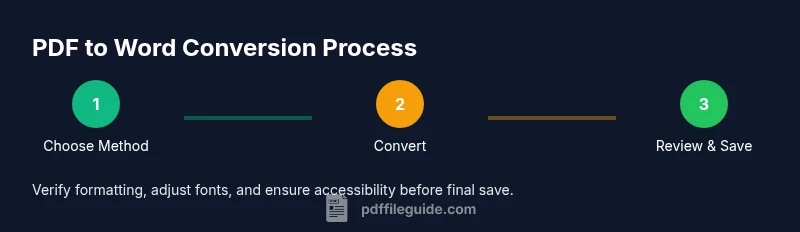
Assess your PDF’s complexity and decide which path to try first. If the PDF is text-heavy with simple layout, Word’s built‑in import is a good starting point. For complex layouts or graphics, Acrobat Pro export may yield better fidelity. If you must, use a trusted online tool but avoid sensitive documents.
Tip: Begin with the simplest method to establish a baseline before moving to more advanced options. - 2
Open or import the PDF in Word
In Word, open the PDF directly or use File > Open. Word will convert the PDF to an editable document. If prompted, allow editing, and be prepared for automatic font substitutions or spacing changes in the resulting document.
Tip: Enable Editing if Word prompts; keep a backup of the original PDF. - 3
Export PDF from Acrobat Pro (optional)
If you have Acrobat Pro, use Export To > Word Document to generate a new Word file. This method often preserves more layout elements like tables and multi-column text. Review the exported file for any adjustments needed after conversion.
Tip: Choose the right page range if you don’t need the entire PDF. - 4
Use a trusted online tool (with caution)
Upload your PDF to a reputable online converter. Download the Word file and compare it to the original. Be aware of privacy implications; avoid uploading confidential documents. After download, save the Word file with a clear version name.
Tip: Do not rely on a single online tool for critical documents. - 5
OCR for scanned PDFs
If the PDF is a scan, use OCR-enabled tools to convert images to editable text. Verify text accuracy and correct recognition errors. OCR performance depends on scan quality and language; higher-res scans yield better results.
Tip: Scan quality directly affects OCR accuracy; use the highest feasible resolution. - 6
Post-conversion cleanup in Word
Tidy up the document by applying Word styles for headings, adjusting fonts, reformatting tables, and aligning images. Verify accessibility, check for orphaned headers, and ensure consistent bullet and numbering formats.
Tip: Use Styles to maintain consistency and facilitate future edits. - 7
Final checks and saving
Run a final read-through for errors, compare with the original PDF, and save the file as a .docx. Create a backup and consider exporting to PDF for archival. Share the Word document with collaborators and note any formatting caveats.
Tip: Save frequently during edits to prevent data loss.
Questions & Answers
What is the easiest method to convert a PDF to Word?
The easiest method often depends on the PDF. For many users, Word’s built-in import offers a quick result, while Acrobat Export can yield better fidelity for complex documents. Try both if needed.
Word’s import is usually the quickest option, but Acrobat’s export can give you better layout fidelity for complex PDFs.
Can I preserve all formatting when converting PDF to Word?
No method guarantees perfect preservation for every PDF. Expect adjustments for fonts, tables, and images. Some layout elements may require manual tweaking after conversion.
Formatting may not be perfect; you’ll often need to tweak styles and spacing after conversion.
Is it safe to use online PDF to Word converters?
Online tools are convenient but can pose privacy risks. Avoid uploading confidential documents and choose tools with clear privacy policies and data handling notes.
Be careful with sensitive documents; only use reputable services for non-confidential files.
What should I do for scanned PDFs?
Scanned PDFs require OCR to become editable. Use OCR-enabled tools and verify text accuracy after conversion.
OCR is essential for scanned documents; check accuracy after conversion.
How long does conversion typically take?
Conversion time depends on document length and method, typically ranging from a few minutes to several minutes for longer files.
Most conversions finish in a short time, but longer PDFs take a bit longer.
Can I edit the Word file after conversion?
Yes. The Word file is editable, so you can revise content, adjust formatting, and re-save as needed. If required, export back to PDF for distribution.
Yes, you’ll be able to edit in Word after conversion.
Watch Video
Key Takeaways
- Test multiple conversion methods to find the best fidelity.
- Always review and adjust formatting after conversion.
- OCR is essential for scanned PDFs; verification is necessary.
- Keep backups before converting
- Save final documents in both .docx and PDF formats for flexibility.