How to Make a PDF a Document: A Complete Guide
Learn step-by-step how to turn a PDF into an editable document—Word, Google Docs, or plain text. This guide covers tools, methods, OCR considerations, and best practices for accurate conversions.


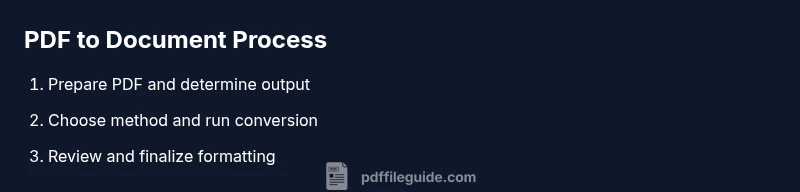
To make a PDF into a document, start by choosing a target format (Word, Google Docs, or plain text) and select a conversion method that fits your needs—preserving layout, extracting clean text, or enabling OCR for scanned pages. Prepare the file, perform the conversion, and verify the output, correcting fonts, spacing, and images as needed. Save backups and assess accessibility considerations.
What it means to turn a PDF into a document
A PDF (Portable Document Format) is designed to look the same on any screen or printout, but it isn't always easy to edit. Turning a PDF into a document means extracting editable content—text, images, tables—and making it available in a format you can revise, format, and share. In practice, this means choosing a target file type (Word, Google Docs, or plain text) and an approach that preserves the parts you care about most: layout, legibility, and accessibility. According to PDF File Guide, the core challenge is balancing fidelity with editable flexibility; the right method depends on page complexity, font usage, and whether the PDF includes scans or native text. A well-planned conversion starts with assessing what you need from the document and what you’re willing to adjust after conversion. This sets expectations and helps you pick tools with features that align to your goals.
3rdBlockFlag":false
Why convert PDFs to editable documents
There are several scenarios where turning a PDF into a document saves time and reduces errors: editing contract language, updating product specs, or collaborating on a report with colleagues. Editable formats make revision tracking easier, enable spell-check and commenting, and improve accessibility for screen readers. PDF conversions also help with archiving: once you have a living document, you can reuse content across multiple files without recreating text from scratch. PDF File Guide analysis shows that professionals frequently convert PDFs when the document will undergo frequent updates or needs to be repurposed for a slide deck or a knowledge base. However, not every PDF converts perfectly—images, complex tables, or exotic fonts may require manual tweaks after the import. Keeping expectations realistic—and preserving a stable backup of the original—reduces frustration.
Essential tools and formats for converting PDFs
A wide range of tools support PDF-to-document conversion, from simple online converters to full-featured desktop suites. For quick edits, online services can be fast but rely on your internet connection and privacy policies. For longer-lived projects, desktop apps or office suites typically offer better formatting fidelity and offline access. The most common output formats are Word (.docx), Google Docs, and plain text (.txt). Some workflows preserve layout using structured formats like RTF or HTML, while OCR-enabled tools turn scanned pages into editable text. When you know your destination format, you can pick features like font embedding, image handling, and table conversion. PDF File Guide recommends evaluating tool capabilities against your document’s needs and keeping a backup before converting.
Step-by-step: prepare your PDF for conversion
Before you convert, inspect the PDF for issues that could derail editing. Check for long paragraphs broken into lines that hamper readability, embedded fonts that may not render correctly, and any nonstandard characters or ligatures. If the document contains scans, confirm whether OCR is required. Consolidate multiple PDFs into a single file if you plan to merge content later. Make sure you have a copy of the original, especially if you’re about to perform mass processing. Finally, note any sections that rely on precise formatting (columns, tables, or multi-page headers) so you can pay extra attention during import.
Step-by-step: choose your conversion method
Your choice depends on the target output and your privacy, budget, and workflow. If you want a quick edit, a lightweight online converter or the built-in export feature of your PDF viewer may suffice. If you need accuracy and offline processing, a desktop editor or a word processor with PDF import capabilities is a better option. For scanned PDFs, pick a tool with robust OCR and layout analysis. Consider whether you’ll only extract text or also preserve images, captions, and charts. It helps to pick a method that can preserve headings and lists as structured elements, not just as plain text.
Step-by-step: perform the conversion
Execute the conversion in your chosen tool, then review the resulting document. If you imported into Word or Google Docs, scan the document for garbled words, misplaced punctuation, and image shifts. Rebuild any broken tables with the editor’s table tools, re-establish headings with consistent styles, and adjust margins to match the original layout. If OCR was used, correct misrecognitions—these errors are common in low-contrast scans or unusual fonts. Save interim versions to compare changes across passes and document what you adjusted for future reference.
Step-by-step: verify and fix formatting after conversion
Verification means more than reading; it means testing the document’s structure. Validate that headings are hierarchical, lists are properly indented, and captions stay aligned with their images. Check fonts across the document, ensuring you haven’t introduced substitutions that hinder readability. Confirm that tables retain row and column integrity, and that page breaks don’t interrupt logical flow. If accessibility matters, ensure alt text exists for images and that the document remains navigable with screen readers. This stage is where many conversions shine or fall apart, so take your time.
Common pitfalls and how to avoid them
Avoid assuming that a direct text import will capture every element. Some PDFs embed fonts or rely on advanced layout tricks that don’t translate cleanly. Watch for orphaned headings, broken hyphenations, or misaligned images after import. Privacy concerns can arise with cloud-based converters, so prefer offline tools for sensitive documents. If you must work with a large or image-heavy file, break it into smaller parts to manage memory and processing time. Finally, always test the final document in the target environment (word processor, cloud editor, or CMS) to ensure compatibility.
Advanced tips: OCR, fonts, and accessibility
When dealing with scanned PDFs, OCR accuracy improves with high-quality source images, clear lighting, and clean margins. If you frequently convert, consider embedding fonts in the destination document to preserve appearance. Some editors support automated style mapping that can preserve headings, lists, and tables better than manual formatting. For accessibility, build a logical reading order, add alternative text for images, and use semantic headings. After conversion, it’s wise to perform a final accessibility check and export alternative formats (e.g., accessible HTML or tagged PDFs) for diverse use cases. PDF File Guide recommends developing a repeatable workflow to reduce rework and maintain document integrity.
Tools & Materials
- Computer or mobile device with internet access(Ensure you can run the chosen conversion tools.)
- Source PDF file(The file you want to convert; keep a copy of the original.)
- Word processor or PDF editor(e.g., Microsoft Word, Google Docs, or a PDF editor with export features.)
- OCR software or OCR-enabled converter(Only needed for image-based or scanned PDFs.)
- Reference backups(Store originals and interim versions.)
Steps
Estimated time: 60-90 minutes
- 1
Identify your target output
Clarify whether you want a Word document, Google Docs, or plain text. This choice guides the conversion method and settings, especially regarding layout preservation versus pure editable text.
Tip: Document your chosen format before starting to avoid rework. - 2
Check if OCR is required
If the PDF contains scanned pages or images, OCR is essential to convert images into selectable text. Non-OCR PDFs will rely on existing text layers.
Tip: For best OCR results, use high-quality scans or images with clear contrast. - 3
Choose your conversion method
Select a method that matches your goal: quick edits via online tools, offline fidelity with desktop editors, or advanced OCR for image-heavy files.
Tip: Prefer offline tools for sensitive documents to protect confidentiality. - 4
Run the conversion
Execute the conversion in your chosen tool and review the initial results. Save an interim version to compare changes across steps.
Tip: If the result looks off, try a different method or adjust export settings. - 5
Review and adjust formatting
Check headings, lists, tables, and images. Reapply styles to create a consistent document structure that matches your source.
Tip: Use consistent heading styles to improve accessibility and navigation. - 6
Export and finalize
Save the final document in the desired format (docx, Google Docs, or txt) and perform a quick quality check before sharing.
Tip: Keep a backup of the final version and the original.
Questions & Answers
Can I convert a scanned PDF to a Word document?
Yes, but you need OCR software or an OCR-enabled converter to recognize text first. Expect some post-processing to fix misread words.
Yes—OCR is required for scanned PDFs, and you’ll likely need to proofread after conversion.
What output formats can I convert to?
Common options include Word (.docx), Google Docs, and plain text (.txt). The best choice depends on how you’ll edit and share the document.
Word, Google Docs, or text—pick based on your editing needs.
Will formatting be preserved exactly?
Preservation depends on the original PDF and the tool. Complex layouts may require manual tweaks after import.
Formatting varies by tool; some adjustments are usually needed.
Do I need to buy software to do this?
Not always. Many free tools handle basic conversions; paid options offer more features like robust OCR and batch processing.
Free tools work for simple tasks; paid tools add OCR accuracy and bulk options.
How long does conversion typically take?
Time depends on file size and complexity. Small PDFs convert quickly; large or image-heavy files take longer.
It varies, but expect longer times for bigger or more complex PDFs.
Watch Video
Key Takeaways
- Define your target format before converting.
- Use OCR for scanned PDFs to access text.
- Choose a method that preserves essential formatting.
- Thoroughly verify headings, tables, and images.
- Save backups and test accessibility.