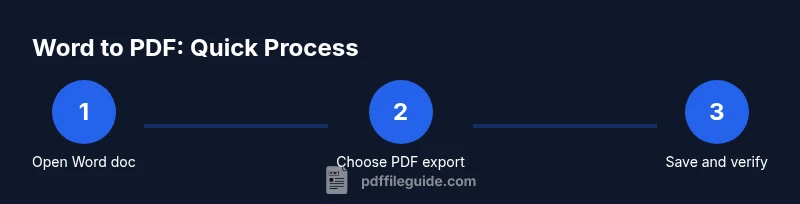
How to Make a Word Document a PDF: 3 Easy Methods
Learn three reliable methods to convert Word documents to PDFs, with step-by-step instructions, tips for preserving formatting, and safety considerations for offline and online options.


Quick answer: You can learn how to make a word document a pdf in minutes using Word’s built‑in options, a virtual printer, or a free online tool. This guide covers three reliable methods, compares output quality and security, and provides step‑by‑step instructions for Windows and macOS. Whether you need compact file size or precise formatting, this article has you covered.
Overview of PDF conversion options
According to PDF File Guide, converting a Word document to PDF preserves layout, ensures universal viewing, and supports secure sharing. If you’re asking how to make a word document a pdf, there are three reliable paths: using Word’s built‑in Save As feature, printing to a PDF from any system, and using trusted online converters for quick results. Each method has its own advantages in terms of fidelity, file size, and privacy. In this section we compare the common approaches, highlight when to use each, and outline what affects output quality—font embedding, image handling, and hyperlink integrity. For professionals who edit, convert, or optimize PDFs, the right method depends on your workflow, platform, and sensitivity to data. Throughout, we’ll reference practical examples and best practices from the PDF File Guide team to support your decision.
Method 1: Save As PDF in Microsoft Word
The simplest and most reliable way to convert a Word document to PDF is to use Word’s built‑in Save As option. This method tends to preserve layout and formatting, including headings, tables, and embedded images, with minimal risk of corruptions. On Windows, you’ll typically access this via File > Save As and choosing PDF from the file type list. On macOS, you can use File > Export > Create PDF/XPS. In both cases you’ll usually see options such as Standard (publishing online and printing) for higher quality and Minimum size for easier sharing. When you encounter fonts or complex graphics, confirm that the embedding settings are appropriate and test the produced PDF in a viewer.
Method 2: Print to PDF (Windows and macOS)
Print to PDF is a versatile alternative that works even when Save As isn’t available or when you want to test the document’s appearance before finalizing. Open the document, then choose Print (Ctrl+P or Command+P). In the printer dropdown, select a PDF printer: on Windows, this is usually Microsoft Print to PDF; on macOS, the built‑in Print dialog offers Save as PDF. Click Print, then choose a location and file name. This approach can be useful for archiving or temporarily sharing a faithful snapshot of the document, though it may yield minor differences if the document relies on dynamic content.
Method 3: Use online converters safely
Online converters can be fast, especially when you don’t have Word installed or you’re working on a device where Word isn’t available. Look for reputable providers with strong privacy policies and clear data handling practices. Upload the Word file, select PDF as the output format, and download the result. Important caveats: avoid converting sensitive documents online, review the privacy terms, and remove any uploaded files after download. For professional or confidential material, offline methods are typically safer.
Quick checks after conversion
After you create the PDF, run a quick quality check. Open the file in a trusted PDF viewer and verify that fonts, images, and color profiles look correct. Test hyperlinks, bookmarks, and table of contents entries if present. If accessibility is a concern, ensure the document uses appropriate headings and tagged content. These checks help prevent surprises when sharing the PDF with colleagues or clients.
Tools & Materials
- Microsoft Word (Windows/macOS) or Word Online(Supports Save As PDF and exports)
- PDF printing option or printer driver(Includes Microsoft Print to PDF on Windows or Save as PDF on macOS)
- Stable internet connection(Needed only for online converters)
- Web browser(Required for online conversion portals)
- Backup copy of the Word document(Preserve originals in case of conversion issues)
Steps
Estimated time: Estimated total time: 10-20 minutes
- 1
Open your Word document
Launch Microsoft Word and load the document you want to convert. Confirm that the content appears as you expect before exporting. This initial check helps you catch shifted formatting early.
Tip: Save a local backup copy before making changes. - 2
Choose Save As PDF
Go to File > Save As and select a location. In the Save as type list, choose PDF. This path preserves most formatting and is the most straightforward for most users.
Tip: If you don’t see PDF, install or enable the Word PDF export feature first. - 3
Pick quality options
Select Standard for online publishing or High Quality if you’ll print or share professionally. These options affect image fidelity and file size, so pick based on your end use.
Tip: For long documents with many images, Standard may yield a smaller file without noticeable loss. - 4
Set the destination and file name
Choose a clear, descriptive file name and a predictable folder. This makes it easy to locate the PDF later and avoids overwriting existing files.
Tip: Include version or date if you manage multiple revisions. - 5
Export and review
Click Save and open the PDF to review fonts, images, and hyperlinks. Ensure all pages render correctly and that accessibility features remain intact where needed.
Tip: Cross‑verify on another device if possible to catch display differences. - 6
Alternative: Print to PDF
If Save As isn’t available, use Print and select a PDF printer. This yields a faithful snapshot of the document, though formatting nuances may vary.
Tip: Choose a high‑quality print preset if available. - 7
Consider online converters for quick needs
When speed matters and data sensitivity is low, an online converter can work well. Upload, convert, and download the PDF, then delete the uploaded file if the service supports it.
Tip: Always review the privacy terms before uploading. - 8
Final verification
Open the resulting PDF in a trusted viewer and run a final check of links, bookmarks, and accessibility tags. Save a backup of the PDF as well.
Tip: Keep both the original Word doc and the PDF in your project folder for traceability.
Questions & Answers
What is the simplest method to convert Word to PDF?
For most users, the Save As PDF option in Word is the easiest and most reliable method. It preserves formatting and avoids extra steps, making it ideal for quick conversions.
Save as PDF in Word is the simplest and most reliable method.
Will the PDF preserve fonts and images?
In most cases, yes. Embedded fonts and images are preserved when using Word’s PDF export. If fonts aren’t embedded, substitutes may appear on some readers.
Most fonts and images are preserved when exporting to PDF from Word.
Can I password-protect the PDF after conversion?
Yes. Use PDF security features in your reader or a dedicated PDF editor after exporting, or choose a Word option that allows protection during export if available.
You can add password protection after exporting using your PDF editor.
Is there a difference between Windows and macOS methods?
The core steps are similar, but the menu paths differ. Windows typically uses File > Save As, while macOS offers File > Export or a Print to PDF option in the macOS dialog.
Windows and macOS paths differ, but the results are similar.
What about Word Online?
Word Online supports saving as PDF, but some advanced export options may be missing. If you need precise control, use the desktop app or a trusted offline method.
Word Online can export as PDF, but some options may be limited.
Can I export multi‑channel content (hyperlinks, bookmarks)?
Yes, most modern Word to PDF exports preserve hyperlinks and bookmarks. Test these features in the resulting PDF to ensure accessibility.
Hyperlinks and bookmarks are usually preserved, but always verify.
Watch Video
Key Takeaways
- Save as PDF is the most reliable method for preserving layout.
- Test fonts, images, and links after export to ensure fidelity.
- Use Print to PDF if Save As is unavailable on your device.
- Be cautious with sensitive files when using online converters.