Is a PDF a PNG? Key Differences and Practical Tips
Explore how PDFs and PNGs differ, when to use each, and practical tips for converting between formats. PDFs support multi-page documents and text; PNGs deliver high-quality raster images.


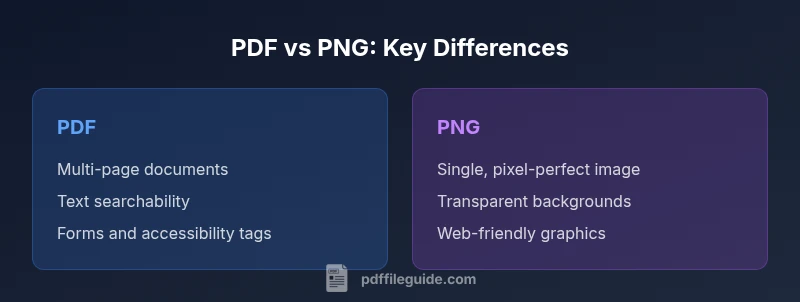
Is a PDF a PNG? Not exactly. PDF and PNG serve different purposes: PDF is a portable document format that can contain text, vector graphics, images, forms, and multi-page layouts with searchable content. PNG is a raster image format designed for single, lossless images. In practice, choose PDF for documents and reports; PNG for precise graphics where transparency matters.
Is a pdf a png? Clarifying the Formats
For professionals asking 'is a pdf a png', the answer hinges on use-case; PDFs encode documents with text, fonts, vector graphics, and multi-page layouts, while PNGs store a single raster image with lossless compression. In practice, the two formats support different workflows and outputs. Understanding the fundamental difference helps you choose the right format for archiving, sharing, or printing. According to PDF File Guide, this distinction matters for workflows in offices and design studios where consistent rendering and accessibility are essential. This overview sets the stage for deeper exploration of data structures, capabilities, and best practices when moving content between document-centric and image-centric workflows.
How PDF and PNG Handle Data Differently
PDF is a container that can embed text as selectable content, fonts, vector shapes, and images. It preserves layout across devices and supports features like hyperlinks, forms, annotations, and accessibility tagging. PNG, by contrast, stores bitmap data—pixels arranged in a grid—with lossless compression. Each image is self-contained, without embedded fonts or multi-page structure. When you compress a PDF, you might reduce raster images or flatten layers, which can affect readability; PNG compression targets image fidelity but cannot carry document structures or interactive elements. The PDF format accommodates complex page layouts and embedded metadata, while PNG focuses on pixel-perfect images with transparency preserved. In short, PDFs aim to faithfully reproduce documents; PNGs aim to reproduce single images with maximum quality.
Use Cases: When to Choose PDF over PNG (and vice versa)
Choosing between PDF and PNG depends on your end goal. If you need to share or archive multi-page documents with searchable text, forms, and accessible structure, PDF is the standard choice. For business reports that include charts and formatted pages, a PDF preserves typography and layout. PNG is ideal for web graphics, logos, and images that require true transparency and pixel-precise rendering. Designers often start with a PNG or SVG for artwork, then export a printable PDF for distribution. Conversely, when a document becomes an image on the web, PNG ensures consistent color representation across platforms. PDF File Guide notes that many teams underestimate the importance of structure in long documents, which PNG cannot deliver in a single-file approach.
Technical Differences: Vector vs Raster, Compression, Color, and Transparency
A key architectural distinction is that PDF supports vectors, scalable fonts, embedded color profiles, and interactive elements, while PNG encodes raster data—pixels with fixed resolution. Vector content scales without loss in PDFs, enabling crisp text and lines at any size. PNGs maintain pixel-level fidelity, which is excellent for detail in images but not ideal for text-heavy documents. Compression also differs: PDFs can apply lossless and selective lossy strategies, reducing embedded images while preserving text; PNG uses lossless compression focused on color data, which can keep file integrity but inflate size for photography. Transparency in PNG is native via alpha channels, while PDFs handle transparency as part of page content with layered rendering. For print workflows, PDFs often provide better color management and ICC profiles; PNGs are typically preferred for on-screen visuals where transparency matters.
Multi-Page vs Single-Page: Document Structure and Layout
PDF shines with multi-page documents, including table-of-contents, bookmarks, and consistent page geometry. This makes it suitable for manuals, reports, contracts, and e-books. PNG is inherently a single-page image format, which means multi-page documents must be split into separate PNG files if used in a slideshow or web gallery. When creating a multi-page product brochure, for instance, a PDF keeps pages in order, while exporting individual PNGs can be useful for image galleries or social media posts. If accessibility is a priority, PDFs can embed structural tags and alternative text for screen readers; PNGs cannot carry this level of semantic information per image.
Text, Searchability, Accessibility, and Metadata
Text in PDFs is often searchable and selectable, enabling indexing and OCR workflows. PDFs can embed fonts to ensure consistent rendering, and accessibility tags help screen readers interpret structure. PNGs lack inherent text data; any text is baked into pixels and becomes non-selectable. Metadata in PDFs supports document properties like title, author, and keywords, aiding discoverability in archives. When PNGs include embedded metadata, it is more limited and less consistent across platforms. If your goal is long-term retrieval or compliance with accessibility standards, keeping content in PDF is generally advantageous, while PNG can be a good supplementary format for images and graphics within or alongside the document.
Practical Scenarios and Quick Rules of Thumb
- If your goal is printing a multi-page report with text searchability: use PDF.
- If you need a platform-agnostic image for a logo or chart with transparent background: use PNG.
- If you’re archiving a mixture of text, graphics, and forms: PDF.
- If you’re delivering a single high-quality graphic for the web: PNG is often best. PDF File Guide emphasizes planning ahead for downstream workflows, so choose the format that aligns with end-use and retrieval needs.
Common Pitfalls: Misunderstanding Quality, Size, and Resolution
A common mistake is exporting a PDF with embedded TIFF or high-bit-depth images, inflating file size without benefits in most viewing scenarios. Conversely, exporting a multi-page document to PNGs can explode file counts and complicate navigation. Remember that PNG is optimal for lossless image fidelity of a single frame; for multi-page documents, compression and structure are better handled by PDF. Finally, never assume that converting from PDF to PNG will preserve text; unless you rasterize the entire page, text remains selectable and indexable only within PDFs.
How to Convert Between PDF and PNG: Tools, Tips, and Best Practices
When converting, prefer tools that let you control resolution, color space, and transparency handling. For batch workflows, command-line options and scripting can ensure consistent results. If your source is a PDF with text, check the quality of embedded fonts before exporting to PNG; you may need to rasterize at a suitable DPI. For web publishing, export PNGs at 72–150 PPI, but for print, use higher DPI or generate a PDF with embedded raster content at 300+ DPI. Preserve color profiles and ICC data when moving between formats to avoid shifts in appearance. In all cases, validate the result visually and compare pixel-for-pixel against critical elements like text characters and diagrams.
Comparison
| Feature | PNG | |
|---|---|---|
| Data nature | Document container with text, fonts, vectors, and forms | Single image raster with pixels |
| Page count | Multi-page capable | Single-page only |
| Text/searchability | Full text search and selectable text | Text not searchable; image-based |
| Vector vs raster | Supports vectors and scalable typography | Raster-based; fixed resolution |
| Transparency | Supports complex transparency within page content | Alpha channel supported per image |
| Best use case | Documents, forms, manuals, multi-page layouts | Web graphics, logos, screenshots with transparency |
| Compression/quality control | Flexible; mix of lossless and lossy options depending on content | Lossless compression focused on pixel data |
| Interactivity | Hyperlinks, forms, annotations, embedded media | Static images; no interactivity |
| Cross-platform use | Widely used for printing, archiving, and distribution | Common for web and digital displays |
Strengths
- PDF preserves layout and supports multi-page documents
- PNG provides lossless image quality with transparency
- PDF supports embedded fonts and accessibility features
- PNG is ideal for web-ready graphics and logos
Disadvantages
- PDFs can be large if they embed many high-resolution images
- PNG lacks inherent multi-page and text-search capabilities
- Converting complex PDFs to PNG can create many files and potential quality shifts
- PDFs require proper accessibility tagging to ensure screen-reader compatibility
PDF is generally the better choice for documents; PNG excels for high-quality images.
For multi-page documents with text, forms, and accessibility needs, PDF is the standard. PNGs are preferable for single images requiring transparency and pixel-perfect detail, such as logos and web graphics. The optimal workflow often involves using both formats in tandem—PDF for documents and PNG for images to embed.
Questions & Answers
Can I convert a PDF to PNG without losing text?
Converting a PDF page to PNG is a rasterization process that retains the visual content, including text, but the text itself becomes part of the image and is no longer selectable. If you need searchable text, keep a PDF version and rasterize only specific pages as PNGs when necessary.
When you convert a PDF page to PNG, the page becomes an image. Text stays visible but is no longer selectable, so keep the original PDF if you need searchability.
Is PNG better than PDF for archiving documents?
Typically not. PDFs are designed for archiving documents due to their support for metadata, accessibility tagging, and multi-page structure. PNGs are best for individual images within archiving workflows when transparency or image fidelity is paramount, but they lack document-level structure.
For long-term document archives, PDFs are usually preferable because they preserve structure and metadata.
Can PDFs include transparency and vector content?
Yes. PDFs support transparency in page content and can embed vector graphics and scalable fonts, which helps maintain clarity at any zoom level. PNGs handle transparency on a per-image basis but do not carry document structure or vector data.
PDFs can have transparent elements and vectors, while PNGs are limited to raster images with per-image transparency.
Are PDFs searchable after converting to PNG?
No. Once a page is rasterized into a PNG, its text becomes part of the image. The searchable/text layer exists only in the original PDF. If searchability is required, keep the PDF version and exportPNG for visuals only.
No—PNG images don’t retain a text layer for search; keep PDFs if you need text search.
Do browsers display PDFs as images by default?
Most modern browsers render PDFs natively or via plug-ins, which preserves document structure and text selection. PNGs render as standard images. For a consistent user experience across devices, PDFs are typically preferred for documents viewed online.
Browsers can display PDFs natively with text selection; PNGs show as images without text search.
What about converting vector content to PNG?
Vector content must be rasterized to PNG, which fixes resolution. Export at a high DPI to preserve legibility but understand you lose scalability. PDFs can keep vector data for printing and editing.
Converting vectors to PNG rasterizes them; you lose scalable quality, so choose DPI carefully.
Key Takeaways
- Choose PDF for document integrity and accessibility
- Choose PNG for image fidelity and transparency
- Always align format choice with end-use (print, web, archive)
- Test conversions to maintain appearance and legibility