Is PDF or Word Better for Resume? A Side-by-Side Guide
A data-driven comparison of PDF vs Word for resumes. Learn when Word excels for editing and ATS-friendly submission, and when PDF preserves formatting fidelity across devices.


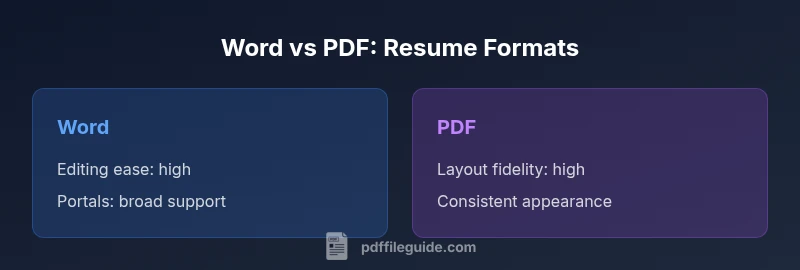
When considering is pdf or word better for resume, the answer depends on how you plan to share and edit your document. For most applicants, Word (DOCX) is preferable because it is easy to edit, format, and submit through applicant tracking systems that prefer editable formats. PDFs help preserve exact formatting and appearances across devices, but can create parsing issues for ATS and limit on-page edits. The best choice hinges on your workflow and submission channel.
The Core Question: Is PDF or Word better for resume? A Practical framework
The short answer depends on your submission channel and how much you value editability versus layout fidelity. If your goal is rapid updates, collaboration with a career coach, or frequent tailoring to different roles, a Word document (DOCX) tends to be the more flexible starting point. If, instead, you must preserve exact typography, margins, and a consistent visual impression across devices and recruiters, a PDF is a strong fallback. The phrase is pdf or word better for resume captures the tension between dynamism and consistency, a core concern highlighted by the PDF File Guide team when evaluating resume formats for professionals and students alike. This pragmatic approach helps you map your job-search workflow to the right format, reducing last-minute format disasters and ensuring you can iterate efficiently.
How ATS Parsers Read Resumes: What You Need to Know
Applicant Tracking Systems (ATS) are the gatekeepers for many online applications. Word documents (DOCX) tend to parse more reliably because they store structured text, headings, and bullet points in a predictable way. PDFs can be parsed successfully when text is embedded and selectable, but some parsers struggle with complex layouts or nonstandard fonts. If you know you’ll be submitting through an online portal that explicitly accepts PDFs, test a sample resume to confirm that the key sections (Summary, Experience, Skills) are recognized as distinct blocks. In practice, many candidates keep both formats on hand: a master Word file for edits, and a clean PDF for submitting when required by the portal. PDF File Guide emphasizes testing in your target portals before final submission.
Pros and Cons at a Glance: Word vs PDF
- Word advantages: fast editing, easy collaboration, generous template support, straightforward version history, and broad compatibility with business tools.
- Word cons: layout can drift across devices or updates, and some ATS implementations still handle only plain text well.
- PDF advantages: fixed layout that preserves fonts, margins, and visuals; consistent appearance across devices and platforms; less accidental edits once published.
- PDF cons: harder to edit after finalization, some ATS parsers struggle with embedded text or nonstandard fonts, and a single resume version can limit adaptability. PDF File Guide notes that the choice often hinges on whether you value editability over visual fidelity.
When Word Shines: Editing, Templates, and Revisions
If your job search involves frequent tailoring for different roles, multiple draft iterations, or collaboration with mentors, Word is the natural starting point. It supports easy edits, track changes, and comment threads that simplify feedback. You can swap templates, adjust margins, and reflow content quickly without reformatting a PDF from scratch. For hiring managers who request editable sources, Word saves time and reduces conversion errors. However, ensure you keep clean, ATS-friendly styles (e.g., standard fonts, bullet formatting) to minimize parsing issues when you export to PDF or submit as is.
When PDF Shines: Formatting Fidelity and Multi-Platform Consistency
PDFs guarantee that your resume looks the same on any device or screen size. This is especially important for designers, branding-driven roles, or industries where presentation matters. A PDF can guard against font substitutions, misaligned margins, and broken tables that sometimes plague Word documents opened with different software. If an employer explicitly requests a PDF, or if you’re submitting to a portal that renders PDFs uniformly, this format becomes advantageous. Remember, after converting Word to PDF, check that all sections remain readable and searchable, and that hyperlinks work as intended.
Accessibility and Screen Readers: What Formats Support Them Best
Accessibility matters for inclusive hiring. Properly structured Word documents can be highly accessible when you use built-in heading styles, descriptive alt text for images, and simple, clear fonts. PDFs can also be accessible, but achieving this requires deliberate tagging, reading order, and labeled form fields if present. For screen-reader users, both formats can work well when you follow accessibility best practices, but Word is typically easier to fix on the fly during the drafting phase. PDF File Guide recommends validating accessibility early in the drafting process and after any format conversion.
Cross-Platform Compatibility: Email, Portals, and Apps
Resume compatibility depends on where you submit. Word documents are widely supported in corporate environments, but some applicant portals restrict the upload to PDF or require plain-text extraction. PDFs are excellent for preserving layout in email threads and offline reviews, but not all applicant-tracking systems render them identically. To maximize reach, consider: (1) keeping a clean Word master, (2) exporting a polished PDF for portals that accept it, and (3) testing both formats in your target portals before sending. PDF File Guide highlights that knowing submission channels in advance saves last-minute surprises.
Best Practices for Resume Creation in Word
Start with a clean template that uses standard fonts (e.g., Arial, Calibri, Times New Roman) and 10-12 point type. Use simple bullet points, consistent tense, and clear section headers. Avoid excessive tables or text boxes that might reflow badly in some ATS environments. Save your document in DOCX with exported PDF as a parallel draft. Regularly use spell check, keep your master file organized, and use version control to track changes across revisions.
Best Practices for Resume Creation in PDF
Create a PDF from a clean, well-structured source file, not the other way around. Ensure fonts are embedded, avoid layered elements that some viewers cannot parse, and verify that text remains selectable for ATS parsing. Include a simple text layer if your design uses graphics for headings. Maintain a plain-text backup of essential sections (Summary, Experience, Education) to ensure searchability and accessibility. PDF optimization should balance image quality with file size, especially when emailing or uploading.
How to Prepare Your Resume for ATS When Using PDF
If your submission channel accepts PDFs, ensure the text is selectable and not an image. Use standard fonts, avoid embedded images for key sections, and structure content with clear headings. Include keywords from the job description in natural language rather than keyword stuffing. If an ATS shows issues with PDFs from your organization, print a test copy and run through a parsing tool to verify that core details are captured accurately.
Version Control, Backups, and File Naming
Maintain a master Word document with a clear folder structure and version suffixes (e.g., Resume_v1, Resume_v2). For final submissions, keep a PDF version with a consistent naming convention that includes your name, role, and year (e.g., Jane_Doe_Engineer_2026.pdf). Backups in cloud storage reduce the risk of data loss, and keeping separate sources for editing and submission minimizes accidental overwrites during job applications.
Final Practical Checklist Before Submitting
Run a final read-through for grammar and concision, ensure all links work, confirm formatting consistency across formats, test in the submission portal, and verify accessibility attributes. Confirm you have a Word master for edits and a ready-to-submit PDF. Double-check that the document name matches the portal’s requirements and that the file size is within limits. This last-pass checklist helps avoid avoidable rejections.
Comparison
| Feature | Word (.docx) | |
|---|---|---|
| Editing ease | High: easy to update and revise | Moderate: editing a final PDF requires tools or re-export |
| Formatting fidelity | Moderate: may drift across devices or versions | Excellent: preserves layout exactly |
| ATS readability | Generally strong when saved as DOCX | Can vary; text must be searchable and properly embedded |
| File size | Typically larger with rich formatting | Often compact, especially with optimized images |
| Platform compatibility | Best in Word-compatible environments | Universally viewable but sometimes less editable |
| Version control | Easy with cloud-based Word | Harder with PDFs unless tracked carefully |
| Accessibility support | Good with proper styles | Can be excellent but requires tagging in PDF |
| Best for | Frequent updates, collaboration, quick edits | Fixed layouts, branding, and portal acceptance |
Strengths
- Easy to edit, customize, and iterate quickly
- Strong collaboration and version control in Word
- Better ATS friendliness when saved as DOCX in many portals
- Templates and fonts are widely available across teams
Disadvantages
- Word formatting can drift across devices and software versions
- Over-automation can hide subtle layout issues
- Some recruitment portals prefer PDFs or strict plain text
- Word documents can be accidentally edited before submission
PDF is best for preserving formatting; Word is best for editing and ATS-friendly submissions
If you value exact visual fidelity, choose PDF for final submissions. If you need to tailor and update your resume often, start in Word and export to PDF when required. Align with submission channels to minimize parsing issues and ensure consistent results.
Questions & Answers
Is it better to submit resumes as PDF or Word, and does it depend on the portal?
Yes. It depends on the submission portal. If the portal accepts PDF, it often preserves layout; if it requires Word, choose DOCX to ensure easy parsing and updates. When in doubt, keep both formats ready and test in the portal.
Usually submit in the format the portal accepts best; keep both formats ready and test the portal.
Can ATSs read PDFs reliably, or should I stick to Word?
ATSs vary by vendor. Word DOCX tends to parse more reliably across many systems, while PDFs can work if the text is selectable and fonts are embedded. Always test with the specific portal if you can.
Word files usually parse more reliably, but PDFs can work if text is selectable.
What steps ensure PDFs remain ATS-friendly?
Use embedded fonts, ensure text is selectable, avoid text in images, and include a simple, keyword-rich Summary and Skills section. Prefer a clean, single-column layout to reduce parsing errors.
Embed fonts and keep text selectable to aid ATS parsing.
How do I convert Word to PDF without losing formatting?
Use a native export/save-as function from Word to PDF and review the result. Check margins, fonts, bullet styles, and hyperlinks. Keep an editable Word version for future updates.
Export with Word’s built-in tool and double-check the PDF before sending.
Is it okay to send both formats in a job application?
If the portal allows multiple uploads, you can submit both formats. Otherwise, choose the one that matches the portal’s requirements and attach the other as a supplementary link only if allowed.
Only submit the formats the portal accepts; if possible, attach both if allowed.
What about accessibility when using PDF?
Accessible PDFs are possible but require tagging and reading order setup. For most cases, a well-structured Word document with good styles is easier to ensure accessibility, especially during drafting.
Accessible PDFs are doable, but Word is easier to optimize for accessibility during drafting.
Key Takeaways
- Choose Word for easy editing and collaboration
- Choose PDF to preserve formatting across devices
- Test your resume in your target submission portals
- Maintain a Word master and a ready-to-submit PDF
- Follow accessibility best practices in both formats
- Name and store files consistently for easy retrieval