Open Document to PDF: A Practical How-To Guide
Learn how to open a document to PDF across apps and platforms, preserve layout, fonts, and links, and apply best practices for accessible, secure PDFs.


Open a document to PDF by using built-in export or print-to-PDF features in your app or OS, then verify layout, fonts, and links. This guide covers steps across Windows, macOS, and Linux, plus tips for preserving fidelity and accessibility.
Why open document to pdf matters in modern workflows
In today’s digital environment, opening a document to pdf is a standard step for reliable sharing, archiving, and collaboration. PDFs preserve formatting across devices and platforms, ensuring your recipient sees the same layout, fonts, and visuals you designed. The PDF File Guide team notes that choosing the right export settings can prevent layout shifts, broken links, and missing images. By converting documents to PDF, you create a universal format that is easy to view, print, and annotate, whether you’re sending a contract, report, or research paper. This guide will walk you through practical methods to open document to pdf, compare common tools, and apply best practices so your PDFs look and behave as intended, every time.
Throughout this article, you will see references to universal workflows and the importance of maintaining fidelity when you open document to pdf, especially for professional documents and client deliverables. According to PDF File Guide, standardizing this process reduces errors and ensures predictable outcomes across teams and devices.
Understanding input formats and how they map to PDF output
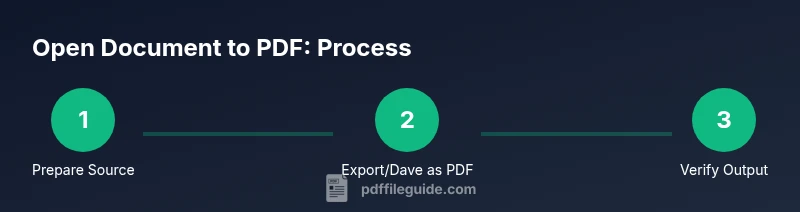
Different source formats carry distinct styling, fonts, and embedded objects. When you open a document to pdf, your goal is to map those elements into a faithful representation. Word processors, presentation apps, and scanners produce outputs that vary in how they handle fonts, images, charts, and hyperlinks. For best results, start with a clean source: use standard fonts, avoid excessive embedded images, and run any spell-check or layout checks before exporting. If you’re converting from Google Docs or cloud apps, ensure you have offline access to the file to avoid missing fonts. The phrase open document to pdf becomes a practical workflow: prepare, export, review, and adjust as needed to maintain fidelity.
Built-in tools across operating systems to export as PDF
Most modern systems offer straightforward ways to save or print documents as PDF without additional software. On Windows, you can use the built-in Print dialog and select the PDF printer option. macOS provides a native Export as PDF feature from the File menu. Linux desktop environments typically expose a Print to File or Print to PDF option within the print dialog. In all cases, you’ll access a dialog where you can choose page range, orientation, and quality. By understanding these native capabilities, you can reliably open document to pdf regardless of the source app, without installing extra utilities.
Free versus paid options for high-fidelity PDF output
For simple text documents, free tools and built‑in export options are often sufficient. When layout, fonts, or professional packaging matter (for reports, manuals, or client deliverables), paid tools can offer better font embedding, image compression controls, and accessibility tagging. The PDF File Guide analysis, 2026, indicates that feature gaps in free options may affect color accuracy, vector graphics fidelity, and metadata handling. If you work with sensitive information, choose trusted, reputable software and review permissions, access controls, and encryption features before sharing the PDF.
A practical narrative: opening and exporting a document to pdf in common apps
Imagine you’re finalizing a report in your word processor. You open the document, review styling, and prepare for export. In most apps, you’ll find a menu labeled “Export” or “Save As.” Select PDF, review the dialog options (page size, orientation, and quality), then save. When you open the resulting PDF, verify that pages align, fonts render correctly, and hyperlinks work. This narrative approach helps you consistently open document to pdf while preserving essential design elements across platforms.
Preserving layout, fonts, and hyperlinks during export
A faithful PDF depends on choices in the export dialog. Embed fonts when possible to avoid font substitution on other devices. Use high-resolution images and avoid heavy compressions that blur details. Maintain hyperlinks and bookmarks for easy navigation; ensure that interactive elements like forms are either preserved or replaced with static equivalents if needed. If your app supports OCR or accessibility tagging, enable those features to improve searchability and screen reader compatibility. Small decisions in the export step have a large impact on the viewer experience when open document to pdf is the goal.
Accessibility, metadata, and compliance considerations
Exported PDFs should be accessible to all users. Add descriptive titles, alt text for images, and proper reading order. Tag the document structure so screen readers can interpret headings and lists. Update metadata (author, subject, keywords) to improve searchability and organization. If you handle regulated content, apply redaction and permissions accordingly and document your process. When you think about open document to pdf, accessibility and metadata are not afterthoughts — they are essential for usability and compliance.
Handling forms and interactive elements in PDFs
If the source document includes forms, check whether export preserves fields, default values, validation rules, and actions. Some apps create flat, non-editable forms when exporting; others maintain live fields. Test by filling out a sample form, saving, and reopening to verify data persistence. For sensitive interviews or contracts, consider adding a password or applying permissions to prevent unauthorized changes. Understanding how open document to pdf behaves with interactive components helps you deliver reliable PDFs.
Batch conversion and file management practices
When you need to convert multiple documents, consider batch tools or scripting to streamline the process. Create a standardized naming convention that includes date, project, and version (e.g., ProjectX_Report_v2.pdf). Organize output PDFs into folders by client or category, and keep a master copy of the original files. Review settings globally, if available, to apply consistent compression, accessibility tagging, and metadata across all PDFs in the batch. This discipline reduces errors and accelerates the open document to pdf workflow.
Troubleshooting and common fixes
If a PDF exports with missing fonts, return to the source document and try embedding fonts or switching to a standard font. If hyperlinks don’t work, re-check hyperlink formatting or try exporting with a slightly different compatibility level. If images appear with low resolution, increase image quality or export at a higher DPI. For scanned documents, apply OCR and verify that text is searchable. Regularly review the export dialog and presets to ensure you’re preserving layout and functionality when you open document to pdf.
Quick-start recap and next steps
- Always start with a clean source and verify fonts before exporting
- Use native export options to minimize compatibility issues
- Review the resulting PDF for layout, links, and accessibility
- Consider batch export for multiple files and consistent results
- Document your process for future opens of document to pdf
Tools & Materials
- Computer or mobile device(Windows, macOS, or Linux; ensure OS is up to date)
- Source documents (DOCX/ODT/PPTX/others)(Have editing rights; keep originals)
- Internet access(For cloud-based converters or updates)
- PDF viewer(To verify output after export)
- Export/Print-to-PDF capability(Built-in or installed option)
- Optional batch tool(Useful for converting many files quickly)
- Metadata editor(For updating title, author, keywords)
- Accessibility checker(For verifying tagging and reading order)
Steps
Estimated time: 15-25 minutes
- 1
Open the document in its native app
Launch the source file in its usual application and perform a quick visual check of layout, fonts, and images before exporting.
Tip: Use keyboard shortcuts (Ctrl/Cmd+P or Ctrl/Cmd+S) to speed up the process. - 2
Choose the export or print-to-PDF option
Access the File menu and select Export as PDF or Print to PDF. This step routes content into a PDF file while preserving most formatting.
Tip: If your app offers presets, choose a high-quality preset to reduce compression artifacts. - 3
Set page, layout, and quality options
Review page size, orientation, margins, and image quality. Enable font embedding if available for fidelity.
Tip: Preview the output if the option is provided; small changes can fix layout issues. - 4
Name the file and select a save location
Use a clear, versioned naming scheme and a logical folder structure to avoid confusion later.
Tip: Include project name and date in the filename. - 5
Open and verify the saved PDF
Open the new PDF and check page order, fonts, and links. Ensure accessibility features align with expectations.
Tip: Test hyperlinks and form fields if present. - 6
Adjust if issues arise and re-export
If you notice missing fonts or broken elements, return to the source and adjust the export settings.
Tip: Try embedding fonts or using a different file format as a fallback. - 7
Consider batch conversion for multiples
For many files, use batch processing to standardize settings and output naming.
Tip: Create a simple folder structure and a consistent naming convention. - 8
Document and store the final workflow
Keep a brief record of settings used and locations for reuse in future opens of document to pdf.
Tip: Regularly review and update your process as tools improve.
Questions & Answers
What file formats can be converted to PDF?
Most common editable formats such as DOCX, ODT, PPTX can be exported to PDF. Image scans and some spreadsheet formats can also be exported or printed to PDF depending on the app.
Most common editable formats can be exported to PDF, and many apps support printing to PDF as well.
Is Save as PDF better than Print to PDF?
Save as PDF typically preserves more metadata and bookmarks. Print to PDF is a universal fallback when the app lacks an explicit export option.
Save as PDF is usually better for preserving metadata, while Print to PDF is a reliable fallback.
Can I keep hyperlinks and interactive elements?
Yes, many exports preserve hyperlinks and some forms; however, some apps may flatten forms unless you choose a specific export option.
Hyperlinks are usually preserved; forms depend on the app, so verify after export.
Do I need internet access to convert documents to PDF?
Not always. Desktop apps and OS features often work offline. Cloud-based tools require an internet connection.
Offline export is common; use online tools if you need cloud features.
How can I batch convert multiple files?
Use a batch tool or scripting in your app or a dedicated batch converter to apply consistent settings across many files.
Batch tools help apply the same settings to many files at once.
What about security and privacy when exporting PDFs?
Review permissions, avoid sending sensitive PDFs over unsecured channels, and consider encryption or password protection when needed.
Protect sensitive PDFs with passwords and secure sharing practices.
Watch Video
Key Takeaways
- Open source documents with care, then export to PDF.
- Embed fonts and preserve links for fidelity.
- Verify PDFs across devices and accessibility needs.
- Use consistent naming and folder structure for batches.
- Document your export workflow for future opens of document to pdf.