PDF Format vs Word Format: A Comprehensive 2026 Comparison
Compare PDF format and Word format across editing, collaboration, security, accessibility, and archival use. Learn when to choose each for professional workflows.


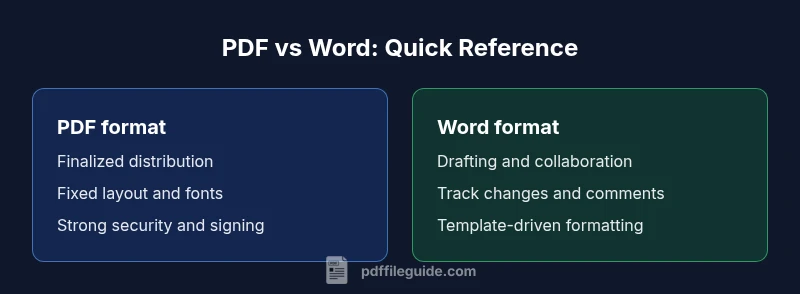
PDF format and Word format serve different goals in professional workflows: PDFs preserve exact layout, fonts, and security, making final documents stable across devices; Word formats excel at drafting, editing, and collaborative review, with track changes and comments. If you require immutable, portable records, choose PDF; for ongoing editing and team collaboration, Word is preferable. The right choice depends on purpose, audience, and downstream processes.
Understanding the formats: PDF vs Word
In considering pdf format or word format, professionals weigh how a document will be used across its lifecycle. PDFs are designed to preserve exact layout, typography, and visual integrity—regardless of the device or software used to view them. Word documents prioritize editability and collaboration, offering features like track changes, comments, and real-time co-authoring. The PDF File Guide team found that most organizations use PDFs for final delivery and archival while relying on Word for drafting and iterative editing. This foundational difference drives how you’ll approach creation, sharing, and archival strategies. Throughout this article we compare formats across editing capabilities, security, accessibility, and long-term viability, with practical workflows that map to real-world tasks.
As you read, keep in mind how your audience interacts with the document, what changes are expected, and how the file will be stored and retrieved in your organization.
When PDF shines: final documents, distribution, and archiving
PDFs excel when the goal is a stable, presentation-ready document that looks the same on every screen and printer. For contract packets, manuals, invoices, or legal briefs, PDF preserves fonts, margins, color profiles, and embedded assets. Enhanced features such as digital signatures, password protection, and restricted permissions add a layer of security that is hard to replicate in a word-processing workflow. In distributed environments, PDFs reduce the risk of accidental edits or formatting drift during sharing. For long-term accessibility and compliance, PDF/A is often the preferred archival standard because it focuses on self-contained documents that do not rely on external fonts or software to render correctly. When designing final deliverables for clients or regulatory review, PDF becomes the default choice and helps ensure a consistent reader experience across platforms.
When Word shines: editing, collaboration, and templates
Word formats are optimized for drafting, revision, and collaboration. Track changes, comments, and version history empower teams to review and refine documents before they are finalized. Word templates streamline repetitive formatting and standardized language, speeding up onboarding and reducing variability. For proposal drafting, internal memos, or policy drafts, Word keeps the workflow fluid—from initial outline to polished draft. When you anticipate frequent edits, variable content, or localization, keeping the document in Word (or using Word as a source format) reduces conversion friction and preserves authoring tools, styles, and metadata that matter in collaborative settings.
Formatting and layout: how fonts, margins, and breaks behave
Layout fidelity is a core differentiator between PDF and Word. PDFs lock in fonts, spacing, and image placement; changing even a single font can alter the entire page flow in Word, especially if fonts are missing or substituted. When converting Word to PDF, fonts must be embedded or licensing must allow substitution; otherwise, you risk unexpected layout shifts. PDFs maintain fixed page breaks and object positions, which is essential for precise forms, multi-page brochures, and print-ready materials. Conversely, Word offers flexible layouts that adapt to content length and screen size, which is ideal during drafting but can lead to reflow issues when viewed in different environments. Planning a project, therefore, means deciding whether you prioritize fixed accuracy (PDF) or fluid adaptability (Word).
Editing, revisions, and track changes: a practical workflow
Editing is second nature in Word. The ability to insert comments, accept or reject changes, and maintain an audit trail lets teams evolve documents collaboratively without breaking the original structure. When a document must move from draft to final with multiple authors, Word’s revision tools can speed up consensus. PDF editing exists but is typically limited to specialized tools; for most business scenarios, editing within PDF is more cumbersome and may require converting back to an editable format. A practical workflow often uses Word in the drafting phase and then converts to PDF for distribution and records. This hybrid approach balances editability with stability. PDF editing is feasible for small fixes or annotations but is not a full replacement for Word during drafting.
Security, permissions, and digital signatures: protecting content
PDF offers robust security options, including password protection, encryption, and granular permission settings. Digital signatures in PDF provide verifiable integrity for finalized documents, which is valuable for contracts and official filings. Word files can also be protected, but their security model relies more on access control and trust within a Microsoft 365 environment, which may be vulnerable to password sharing or alternative access channels if not configured carefully. When handling sensitive information, PDFs with verified signatures and restricted permissions can reduce tampering risk, while Word should be reserved for editable stages in a secure, controlled workflow. For legal or regulatory submissions, PDF with digital signatures is often the expected standard.
Accessibility and usability across devices: screen readers and layout
Accessibility is a shared concern but behaves differently across formats. Word documents can be structured with headings, alternate text, and accessible tables to support screen readers, which is beneficial for drafting and internal distribution to diverse readers. PDFs can also be accessible when properly tagged and labeled, but achieving this requires careful authoring and testing. When a document must be accessible to a broad audience, consider starting in Word to build semantic structure, then exporting to accessible PDF. The goal is to ensure content is navigable and perceivable, whether read on a laptop, tablet, or smartphone.
Converting between formats: what to expect
Conversions are inevitable in many workflows, but each direction has caveats. Word to PDF often preserves layout if fonts are embedded and the document uses standard styles; however, complex scripts, unusual fonts, or advanced formatting can cause shifts. PDF to Word is more challenging; the fixed layout of PDF does not translate cleanly into a fluid, editable document. Expect some reformatting, font substitutions, or image repositioning. A reliable workflow includes validating the converted document against the original, adjusting styles, and re-checking accessibility and signatures if needed. When possible, keep a master source file in Word and generate PDFs for distribution.
In practice, planning the conversion path early—deciding which format will be the source and which will be the output—reduces downstream friction and preserves the integrity of the document across stages.
Practical workflows: from draft to archive
A practical workflow often follows a three-stage pattern: draft in Word, review and revise with collaborators, then finalize and distribute in PDF. Start with a shared Word document to leverage track changes and comments; implement standardized styles, so conversion to PDF remains predictable. During review rounds, export interim PDFs for stakeholder feedback to preserve visual fidelity. For archival and compliance, store PDFs in a structured repository with metadata tagging (title, author, date, version, accessibility flags). If forms are involved, consider maintaining the source Word file for future edits while delivering a fillable PDF to recipients. A disciplined workflow reduces repeat conversions and preserves document integrity throughout the lifecycle.
Common pitfalls and how to avoid them
- Relying on dependent fonts: ensure fonts are embedded for PDFs and installed on recipient systems for Word.
- Overlooking accessibility: build semantic structure in Word and verify tagging in PDF.
- Underestimating version control: use clear naming conventions and version stamps during drafting.
- Ignoring security posture: apply appropriate protections to PDFs for distribution and limit permissions to trusted audiences.
- Skipping verification after conversion: always compare layout, fonts, and images post-conversion to catch subtle shifts.
Comparison
| Feature | PDF format | Word format |
|---|---|---|
| Primary use | Finalized distribution, archiving | Drafting and collaboration |
| Editing capability | Limited editing; annotations possible | Full editing with track changes |
| Layout stability | Fixed layout; fonts embedded | Fluid layout; reflows with content |
| Security & signatures | Strong permissions, digital signatures | Basic protections; relies on platform auth |
| Accessibility | Accessible with proper tagging | Accessible with proper structure and styles |
| Cross-platform viewing | Consistent rendering on all devices | Responsive rendering with viewer differences |
| Archival suitability | Excellent long-term stability (PDF/A) | Better for ongoing editing than long-term fidelity |
Strengths
- PDFs preserve exact layout, fonts, and color across devices
- Word excels at editing, collaboration, and rapid iteration
- PDF/A supports reliable long-term archival
- Forms in PDF offer non-editable, secure data capture
- Word templates streamline standardized documents
Disadvantages
- PDF editing is limited and can require additional tools
- Word formatting can drift when viewed on different devices
- PDF has less flexible collaboration features than Word
- Relying on PDF for drafts can hinder rapid iteration
PDF is best for final, non-editable documents; Word is best for drafting and collaboration.
Choose PDF for stable distribution and archival needs; choose Word for editing and teamwork. A hybrid approach—draft in Word, publish in PDF—often delivers best of both worlds.
Questions & Answers
What is the primary difference between PDF format and Word format?
PDFs prioritize fixed layout, security, and cross-platform viewing, making them ideal for final documents. Word focuses on editing, collaboration, and templates, suited for drafts and iterative work. The choice depends on the document’s lifecycle and audience.
PDFs fix layout and security for final sharing, while Word is best for editing and collaboration; choose based on the document's lifecycle.
Can I edit a PDF directly without converting it back to Word?
Yes, but it typically requires specialized PDF editors and can be less efficient than editing in Word. For complex edits, converting to Word is often preferable, then converting back to PDF for final delivery.
Editing a PDF directly is possible with the right tools, but it’s usually less convenient than editing in Word.
Is it better to convert Word to PDF for sharing?
Converting Word to PDF preserves formatting and prohibits unintended edits. Ensure fonts are embedded and check accessibility tags. This is a common workflow: draft in Word, convert to PDF for distribution.
Yes, converting Word to PDF preserves layout and makes the document harder to edit.
Which format is better for forms and data collection?
PDF forms are generally preferred for data capture because they can be filled offline and securely submitted. Word forms can be used for editable fields but are less portable for standardized data collection.
PDF forms are typically better for secure data capture.
How do accessibility features compare between formats?
Both formats can be accessible when properly structured. Start in Word to build semantic structure, then export to accessible PDF. Ensure headings, alt text, and proper tagging are applied.
Accessibility is possible in both formats with proper structure and tagging.
What’s the best workflow to balance editing and final delivery?
Draft in Word for ease of editing, then convert to PDF for delivery and archiving. Maintain version control and use consistent styles to minimize conversion issues.
Draft in Word, then convert to PDF for final delivery.
Are there long-term archival concerns with Word documents?
Word documents can be less stable for long-term archives if software support changes. Using PDF/A for archival and storing Word sources for editing is a common, robust approach.
Word is not ideal for long-term archives; PDF/A offers better stability.
Key Takeaways
- Choose PDF for final, uneditable distribution
- Choose Word for drafting and collaboration
- Hybrid workflows often work best: Word to PDF
- Plan font embedding and accessibility early
- Verify conversions to avoid layout drift