What is DOCX vs PDF? A Comprehensive Comparison for Editing and Sharing
Explore what is DOCX vs PDF, when to edit and when to share, and how to choose the right format for documents, workflows, and compliance in 2026.


what is docx vs pdf? DOCX is the editable Word processing format that supports revision history, track changes, and easy collaboration. PDF is a fixed-layout format designed for reliable viewing and printing without edits. In practice, use DOCX when edits and collaboration are needed; choose PDF for stable formatting and easy sharing across platforms. This guide helps you decide.
What is DOCX vs PDF? (what is docx vs pdf)
In modern document workflows, understanding what is DOCX vs PDF means more than knowing file extensions. The phrase what is docx vs pdf describes two dominant formats that serve different purposes at different points in a document's life cycle. DOCX is the native format used by Microsoft Word and similar editors, designed for editing, formatting flexibility, and collaboration. PDF, short for Portable Document Format, preserves layout, typography, and embedded content so recipients see exactly what you created, regardless of software or platform. This distinction matters whether you are drafting a proposal, compiling a technical report, or distributing forms. According to PDF File Guide, the choice often hinges on whether the priority is editability or stable presentation. As you evaluate your needs, consider factors such as audience, baseline software, and the need for revision history. If you are asking what is docx vs pdf, the answer depends on your workflow.
When to use DOCX
DOCX excels when the document is expected to undergo frequent edits, revisions, and collaborative input. It supports comments, tracked changes, and user-specific formatting, which makes it ideal for living documents such as project proposals, product specs, and team briefs. Editors appreciate the ability to condense or expand sections without guessing how others will view the final output. The format is also compatible with a broad ecosystem of word processors, plug-ins, and version control workflows. For professionals in research, education, or content marketing, DOCX remains the workhorse for drafting, outlining, and co-authoring in real time.
When to use PDF
PDF shines when the goal is stable presentation, reliable viewing, and easy distribution across devices and platforms. It preserves fonts, images, and layout even when opened on unfamiliar software. PDFs are preferred for client deliverables, legal documents, invoices, and forms that should render identically on Windows, macOS, iOS, and Android. Rich media, annotations, and form fields can be embedded in PDFs, enabling recipients to review or complete the document without altering its structure. For archival purposes, PDFs provide a durable snapshot that remains readable years later.
Key technical differences
Beyond surface-level distinctions, the two formats differ in structure, capabilities, and interoperability. DOCX is a zipped collection of XML files that describe content, styles, and metadata. It supports robust editing features, such as track changes, comments, and content controls. PDF is a fixed-layout file that can contain interactive elements, fonts embedded to guarantee appearance, and security settings. When fonts aren’t embedded in a DOCX, substitutions may occur; in PDF, embedded fonts help preserve typography. Accessibility also diverges: DOCX content can be tagged for screen readers, but PDFs require proper tagging and reading order to be truly accessible. Finally, embedding media — images, charts, and multimedia — behaves differently in each format, influencing how you prepare charts or tables for export.
Editing and conversion workflows in practice
A typical workflow starts in DOCX for drafting, reviewing, and refining a document collaboratively. Once the team agrees on content and structure, you can convert to PDF for final distribution. The conversion process should preserve headings, lists, and key formatting, but you may need to re-check fonts, bullets, and page breaks. When converting to PDF, enable font embedding if available to minimize substitution issues. If you receive a PDF and need to modify content, you’ll often revert to the source DOCX or use a PDF editor that preserves the original layout. In regulated industries, maintain an audit trail of edits by exporting or saving versioned files and using digital signatures when appropriate. Throughout, verify accessibility tags and metadata to ensure your document remains usable by all readers.
Accessibility and compliance considerations
Accessibility matters for both formats, but the paths differ. A well-structured DOCX can be more straightforward to tag for assistive technology, and you can adjust reading order, alt text, and styles in the source file. For PDF, proper tagging, reading order, and accessible forms are essential to meet accessibility standards such as PDF/UA. If you publish PDFs for public access, include descriptive metadata and ensure that linked content is navigable. In regulated settings, keep records of versioning, permissions, and audit trails; document retention policies often drive which format to use for a given task. The objective is to enable all users to access the information without unnecessary barriers.
Security, rights, and permissions
Both DOCX and PDF offer security controls, but they function differently. DOCX can be password-protected and restricted in terms of editing, but these protections are generally less durable against unauthorized copies. PDFs can leverage stronger security features, including encryption at multiple strengths and robust digital signatures. For sensitive materials, consider applying password protection to the PDF and using certificate-based signing for approval workflows. In team environments, combine secure sharing platforms with clear versioning practices, ensuring that recipients access the latest approved draft and that historical versions are retained in a compliant manner.
Practical workflow scenarios
Scenario A: An internal policy draft moves from DOCX to PDF for distribution to employees. The team edits in DOCX, letters and headings are updated, then the file is exported to PDF with embedded fonts and accessibility tagging. Scenario B: A client deliverable requires a fixed layout; the team prepares text and visuals in DOCX, exports to PDF, and includes form fields for responses where appropriate. Scenario C: A legal brief needs annotations; a lawyer keeps the master in DOCX while sharing a PDF for court-ready review. These patterns show how teams blend both formats across stages.
Best practices for archiving and sharing
To maximize longevity and consistency, adopt a clear file-naming convention, add meaningful metadata, and maintain a versioning scheme. Archive the source DOCX alongside the final PDF in a dedicated folder, with a readme explaining the conversion steps and any fonts embedded. When sharing, prefer cloud-based links with expiration and access controls rather than mail attachments. If you must archive long-term, consider converting to PDF/A where compliance requires archiving standards. Finally, document any font substitutions or edits during the conversion so future readers understand the history.
Common pitfalls and remediation
Common issues include font substitutions after exporting from DOCX, broken cross-references after conversion, and forms that don’t render correctly in PDF. Address these by embedding fonts in the PDF, using consistent heading styles, and testing the final file on multiple devices. Be cautious about external links; ensure they remain active after sharing. Remember that complex layouts in DOCX don’t always translate perfectly to PDF, especially with advanced features like text boxes, columns, or nesting in tables. Plan for a validation step to catch these problems before publishing.
A decision framework: choosing the right format
Use this quick framework to decide: first, define whether the audience will edit the document; second, determine whether you need layout fidelity for printing; third, assess the need for form fields, signatures, or accessibility. If editing and collaboration are dominant, start in DOCX and convert to PDF when distribution is essential. If stable presentation and universal viewing are priorities, begin with PDF and supply the editable source separately for authorized changes. This approach aligns with best practices described by PDF File Guide and other industry references.
Comparison
| Feature | DOCX | |
|---|---|---|
| Editability | High - native editing with track changes and comments | Low - primarily viewing; editing is possible but not seamless |
| Layout fidelity | Medium-high (depends on fonts and styles; reflow possible during edits) | High - preserves layout across platforms and devices |
| File size and complexity | Often larger when including tracked changes and rich formatting | Typically compact for fixed-layout content |
| Best for | Active editing, collaboration, and revision history | Sharing, printing, and archival with consistent appearance |
| Accessibility readiness | Easier to tag effectively in the source document | Requires proper tagging and reading order in the PDF |
| Security and permissions | Editing restrictions are available but can be bypassed with effort | Robust encryption and digital signatures are common in PDFs |
Strengths
- High editability supports collaboration and fast iteration
- DOCX templates and styles speed up authoring
- Better track changes and comments aid review cycles
- PDF ensures consistent presentation across devices
Disadvantages
- PDF editing is not as intuitive as DOCX for most users
- DOCX can change appearance when opened in non-native editors
- Conversion between formats can introduce font or layout issues
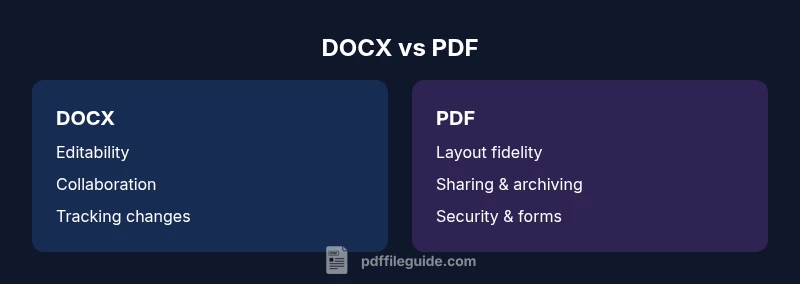
DOCX wins for editing; PDF wins for sharing and archiving
Choose DOCX when collaboration and revision control are priorities. Choose PDF when you need a stable, universally viewable document and archival-friendly format. For most teams, a mixed workflow leveraging both formats is optimal.
Questions & Answers
Can I convert DOCX to PDF without losing formatting?
Conversions generally preserve headings, lists, and basic formatting, but complex layouts, fonts, and tables may shift. Always verify the final PDF and adjust the source or export settings if needed.
Yes, you can convert DOCX to PDF and often maintain formatting, but complex layouts may require tweaks after export.
Which format is better for accessibility, DOCX or PDF?
DOCX can be easier to tag during drafting. PDFs can be accessible with proper tagging and reading order, but they require careful setup during export.
Both can be accessible, but PDFs require proper tagging and structure to be usable with screen readers.
Can forms be filled in DOCX like PDF forms?
DOCX supports basic form fields, but interactive PDF forms are the standard for fillable documents and workflow signatures.
PDF forms are usually better for fillable fields and distribution.
Is there a universal workflow for office documents?
There isn’t a single universal workflow. A common pattern is to draft in DOCX, convert to PDF for sharing, and keep the source for edits.
Most teams draft in DOCX, then export to PDF for distribution, keeping sources for edits.
How should I protect documents from unauthorized changes?
PDFs offer stronger encryption and signing options. Use passwords, permissions, and digital signatures as needed; DOCX protections exist but are generally weaker.
Use encryption and signing for PDFs; DOCX protections exist but are less durable.
Key Takeaways
- Define decision criteria: editability vs fixed presentation
- Draft in DOCX and export to PDF for distribution
- Beware of layout changes during conversion and test outputs
- Archive both sources with metadata for traceability