PDF and Word Merge: Comparing Workflows for Document Fidelity
A detailed, analytical comparison of merging PDFs and Word documents, outlining reliable workflows, fidelity factors, and tool choices to help professionals choose the best approach.


TL;DR: When you need a seamless pdf and word merge, the practical path is to convert Word to PDF, then merge using a capable PDF editor or merge tool. For most workflows, this preserves layout accuracy, fonts, and hyperlinks better than trying to merge in the reverse order. This article compares methods, quality, and reliability to guide your choice.
Understanding the pdf and word merge workflow
Merging PDFs with Word documents is a common task in professional settings, from legal briefs to marketing decks. The core goal is to preserve the source formatting while producing a single, navigable file. The central decision is order: do you convert Word to PDF first and then merge, or do you attempt to merge the PDFs with Word content after export? In practice, the Word-to-PDF-first approach provides stronger layout fidelity, consistent fonts, and clearer hyperlink behavior. According to PDF File Guide, a well-planned workflow reduces rework and helps teams stay on brand. In this article we analyze typical workflows, compare their strengths, and offer concrete steps to implement a reliable merge strategy for pdf and word merge tasks. By understanding both directions, editors and admins can select the approach that minimizes surprises when sharing final documents with clients and stakeholders.
Common methods for merging PDFs and Word documents
There are two dominant approaches for pdf and word merge: (1) convert Word to PDF first, then merge PDFs, and (2) attempt to merge Word content into a PDF using insertions or hybrid editing. The first method is widely recommended for fidelity: Word’s formatting gets translated to PDF, preserving font embedding, margins, and hyperlinks. Post-conversion, you use a PDF editor’s merge function to append pages in the desired sequence. The second method can be attractive for quick-turn tasks but often introduces misaligned fonts, broken links, or inconsistent image rendering. Hybrid workflows—combining Word edits with PDF adjustments—are possible but require careful version control to avoid drift between formats. PDF File Guide notes that choosing the right tool for the merge and validating results across devices is essential for reliability.
Fidelity factors: layout, fonts, and hyperlinks
Fidelity when pdf and word merge is driven by several factors. Font embedding fidelity ensures text renders identically, while vector vs. raster renders influence sharpness during zoom. Margins and page breaks can shift during conversion, especially with complex tables or multi-column layouts. Hyperlinks should remain active after merging, which demands correct destination linking and anchor preservation. Image handling matters too: embedded images must retain resolution and color profiles. When Word is exported to PDF, you should verify that embedded fonts are included and that style sheets are consistently applied. In fast workflows, a small loss in micro-typography may be acceptable, but for professional documents, maintaining precise layout is nonnegotiable. PDF File Guide emphasizes testing across devices to catch subtle rendering differences.
Tools at a glance: offline editors, online services, and hybrid workflows
The tool landscape for pdf and word merge spans offline editors like desktop PDF suites, cloud-based merge services, and hybrid workflows that combine Word processing with PDF tooling. Offline editors typically provide strong fidelity, batch processing, and robust security controls, which is important for sensitive documents. Online services offer speed and convenience but may raise privacy concerns for confidential files. Hybrid workflows can leverage the strengths of both worlds: convert Word to PDF locally, then merge using a desktop editor while keeping source files archived. When evaluating tools, consider fidelity guarantees, font options, batch capabilities, and whether the vendor supports accessibility features like tagged PDFs. The right mix depends on your volume, security requirements, and turnaround time.
Step-by-step reliable merge workflow
A practical, repeatable workflow for pdf and word merge: (1) finalize the Word document, ensuring fonts are standard and margins are set; (2) export Word to PDF with embedded fonts and proper image compression settings; (3) open the PDF in a reputable editor and prepare a clean merge plan (which file starts, the order of pages, and whether to keep bookmarks); (4) use the editor’s merge/append tool to combine PDFs in the desired sequence; (5) run a post-merge quality check for fonts, links, and accessibility tags; (6) save a copy with clear versioning and metadata. This sequence minimizes surprises and aligns with industry best practices.
Common pitfalls and how to avoid them
Pitfalls include font substitutions after export, unexpected line-wrapping in tables, broken hyperlinks, and image quality loss. To avoid these, use standard fonts, enable font embedding, verify export settings for image quality, and test hyperlinks in multiple viewers. Keep a master version of the Word file separate from exported PDFs to facilitate future edits without re-doing the entire merge. If you must reuse content from both documents, consider consolidating data in a shared source file to keep styles consistent. Documentation and a clear naming convention help teams track changes and ensure consistency across revisions.
Automation considerations for bulk merges
For teams merging large volumes, automation reduces manual error. Scripting tools can automate Word-to-PDF exports, batch PDF merges, and automated integrity checks. Ensure scripts preserve metadata, bookmarks, and document structure. When possible, implement a staging environment where automated merges are tested before being rolled out to production. Logging and audit trails are valuable for compliance, especially when merging documents that contain sensitive data or regulated content.
Security and privacy when merging documents
Security considerations include encryption during transfer, access controls for the tools, and retention policies for original files. Prefer on-premises or vetted enterprise-grade tools when handling confidential material. Review the privacy policy of online services and avoid uploading sensitive content to untrusted platforms. After merging, securely delete intermediate files and store the final document with restricted permissions. These steps help protect intellectual property and comply with data protection standards.
When to choose each workflow: best-fit scenarios
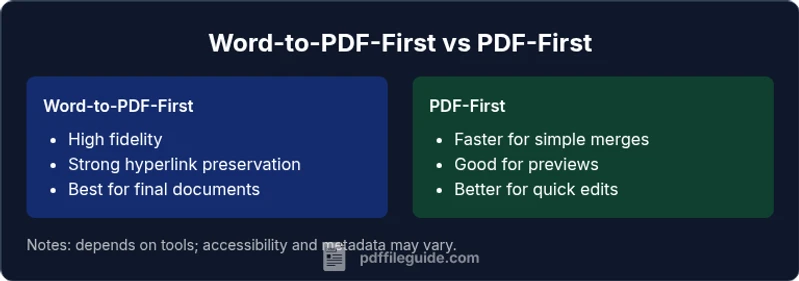
Word-to-PDF-first workflows excel when final deliverables demand high fidelity, such as legal filings or branded reports where layout, fonts, and links must be exact. PDF-first workflows can be advantageous for quick, client-facing previews or when you do not need to modify content extensively after merging. Hybrid approaches suit teams that require both fidelity and iterative editing, enabling staged reviews. For large teams, establishing a standard operating procedure significantly reduces confusion and accelerates approval cycles.
Case examples and practical tweaks
Consider a case where a marketing brochure is authored in Word but must be distributed as a single PDF with precise visuals. Export Word to PDF with embedded fonts, then merge with a separate PDF containing visuals. A tweak you can apply is pre-checking page size and margins in Word and ensuring those settings translate to the final PDF. In another scenario, a contract bundled with exhibits may benefit from using bookmarks for quick navigation; plan the merge to keep the contract and exhibits as distinct, well-linked sections. These practical tweaks help maintain usability and professionalism when pdf and word merge.
Final checks before distribution
Before sharing the final merged file, run a comprehensive QA: verify all links work, test in multiple PDF viewers, confirm accessibility tagging if required, and confirm that metadata is clean and consistent. Ensure the final file size is reasonable for distribution channels and that any digital signatures remain intact if used. A final human review by a teammate can catch subtle issues that automated checks miss. Having a documented checklist ensures consistency across projects and avoids repeat problems in future merges.
Comparison
| Feature | Word-to-PDF first workflow | PDF-first workflow |
|---|---|---|
| Fidelity of layout | High when Word → PDF is cleanly exported and fonts embedded | Medium to high depending on PDF content integration |
| Font support and embedding | Strong when Word fonts are embedded in export | Depends on PDF tooling; can require font subsetting |
| Hyperlinks and bookmarks | More reliable when exporting Word to PDF first; bookmarks preserved in many editors | Varies with editor quality; may require manual re-linking |
| Editing flexibility | Better during Word preparation; post-merge edits in Word require re-export | Better for final assembly; editing after merge is harder |
| Speed and batch handling | Fast for individual documents; batch capabilities depend on tools | Speed depends on file complexity; often good for bulk merges with automation |
| Privacy and security | Offline Word→PDF and local merge offers strong control | Online tools introduce privacy considerations; offline options preferred for sensitive data |
Strengths
- Preserves layout fidelity when exporting Word to PDF first
- Keeps links and bookmarks intact in many tools
- Supports batch processing with automation
- Generally more predictable results in professional workflows
Disadvantages
- Requires an additional export step from Word to PDF
- Some fonts may still require embedding and verification
- Complex documents can reveal edge-case formatting differences
- Offline tools may have steeper learning curves
Word-to-PDF-first generally provides better fidelity for professional merges
For most workflows, exporting Word to PDF first yields more predictable results. PDF-first merging can be faster for quick previews but may require more post-merge adjustments.
Questions & Answers
What is the safest workflow for pdf and word merge?
The safest workflow is typically Word-to-PDF-first, exporting with embedded fonts and then merging PDFs with a reputable editor. This minimizes layout shifts and preserves hyperlinks. Always validate the final file in multiple viewers.
Word-to-PDF-first is usually the safest approach; export with embedded fonts, then merge and test in several viewers.
Can I merge directly Word into a PDF without converting?
Directly inserting Word content into a PDF is uncommon and often unreliable. It may work for simple content but can break formatting and links. Prefer exporting Word to PDF first for consistent results.
Directly merging Word into PDF is usually unreliable; convert Word to PDF first for consistency.
Which tools are best for batch merging?
Batch merging is best supported by desktop PDF editors and automation scripts that handle exports and merges in bulk. Look for tools that support metadata preservation, bookmarks, and accessibility tagging in batch operations.
Use desktop editors and automation scripts for reliable batch merges with good metadata handling.
How do I preserve fonts during the merge?
Embed fonts during Word-to-PDF export and ensure the final PDF has fonts embedded. Some editors offer font substitution controls; disable substitutions to keep typography consistent.
Embed fonts on export and disable substitution in the final PDF when possible.
What privacy concerns exist with online merge tools?
Online merge tools can expose sensitive content. If the document contains confidential data, prefer offline or on-premises solutions and review the provider's privacy policy.
Be cautious with online tools for confidential data; offline options are safer.
Does merging affect accessibility of the document?
Merging can affect accessibility tagging and reading order. After merging, verify that the document remains tagged correctly and that navigation, alt text, and headings are intact.
Yes, merging can impact accessibility; recheck tags and structure after the merge.
Key Takeaways
- Choose Word-to-PDF-first for high fidelity
- Verify fonts, hyperlinks, and bookmarks after merge
- Use offline tools for sensitive documents
- Automate bulk merges where possible to reduce errors
- Test across viewers and devices before distribution