Translate PDF to Spanish: Step-by-Step Guide
Learn how to translate PDFs into Spanish while preserving layout, fonts, and accessibility. This step-by-step guide covers extraction, MT/post-editing, glossary management, QA, and reassembly with PDF File Guide insights.


By the end of this guide, you will be able to translate a PDF to Spanish while preserving layout and fonts, choosing between manual editing, machine translation, or hybrid methods. You’ll learn practical steps for extracting text, translating with CAT tools, checking glossaries, and reassembling the PDF with minimal quality loss. We’ll cover safe practices, accessibility considerations, and common pitfalls. According to PDF File Guide, a well-planned approach saves time and reduces risk, especially when handling technical terminology.
Why translating PDFs to Spanish matters
Translating a PDF to Spanish opens your documents to a broader audience and improves accessibility for Spanish-speaking colleagues, clients, or customers. In professional settings—legal, medical, education, or technical fields—clear, accurate Spanish translations help maintain compliance and reduce miscommunication. This guide explains practical routes for translate pdf to spanish projects, from text extraction to layout preservation, with tips to manage fonts and images. According to PDF File Guide, planning for language, tone, and terminology early reduces rework and saves time. You’ll also learn how to balance speed and quality, choose between manual, machine-assisted, and hybrid workflows, and apply QA checks that fit your organization’s needs. The goal is to empower you to deliver polished, publication-ready Spanish PDFs without guessing.
Common methods to translate PDFs
There are several viable routes to translate PDFs into Spanish, and the best choice depends on file type, accuracy needs, and turnaround time. Manual translation by a bilingual editor preserves nuance but is slow for large documents. Machine translation, followed by human post-editing, offers speed with improved quality. For scanned PDFs, OCR is essential to extract editable text before translation; clean source text reduces errors later. A hybrid approach—OCR for extraction, MT and CAT tools for translation, and human review—often delivers a reliable balance of speed and precision. Translation memories and glossaries help maintain consistent terminology, particularly in regulated industries. PDF File Guide analysis shows that most teams succeed with a hybrid workflow that combines OCR, MT, and post-editing to ensure accuracy while meeting deadlines. Remember to plan terminology and QA checkpoints early to prevent expensive rework.
Step-by-step workflow: extraction, translation, and reassembly
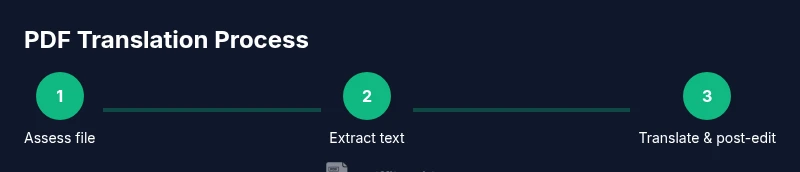
A robust workflow keeps translation projects predictable and scalable. Start with a clear brief: target Spanish variant(s), audience, and any domain-specific terms. Assess the PDF to determine if text is embedded or if OCR is required. Select suitable tools for text extraction, translation, and reassembly, and prepare a glossary for consistent terminology. Translate extracted content using your preferred method, then post-edit to fix fluency, idioms, and terminology alignment. Rebuild the PDF layout, reinsert translated blocks, and run a final QA pass to catch formatting issues, broken links, or misordered sections. Finally, export a final PDF to the required accessibility and compliance standards. This structured approach minimizes rework and keeps delivery on schedule.
Handling fonts, images, and multilingual content
Fonts play a crucial role in preserving the visual integrity of translated PDFs. If the target Spanish text expands or contracts, adjust font sizes and line breaks to maintain readability. When PDFs include images with embedded text, choose between recreating captions in Spanish or using image overlays that reflect translation changes. Avoid embedding fonts that violate licenses; instead, use standard, well-supported fonts with careful kerning. For multilingual sections within a single document, clearly separate languages using subtle typographic cues and consistent document structure. Always test reading order and ensure that screen readers can interpret the content correctly.
Quality assurance and terminology management
Quality assurance (QA) is not a one-off step—it’s an ongoing process. Create and maintain a bilingual glossary covering domain-specific terms, brand names, and common phrases. Use translation memories or CAT tools to enforce consistency, then perform in-context reviews to verify tone, register, and audience suitability. Check punctuation, numbers, dates, and units to align with Spanish conventions. Run automated checks for missing translations, inconsistent formatting, and broken links. Finally, assemble a QA checklist and a sign-off process to ensure the final PDF meets your quality thresholds and client expectations. PDF File Guide emphasizes documenting the workflow for future projects to boost repeatability.
Accessibility and compliance considerations when translating PDFs
Translated PDFs should remain accessible to all users. Ensure proper tagging, reading order, and alternate text for images. Verify that the document structure (headings, lists, tables) is preserved so screen readers can navigate content effectively. If the original file is accessible, aim to preserve that accessibility. When required, re-check color contrast and ensure translated content fits into the original layout without truncation. Compliance considerations vary by industry and region; consult your organization’s accessibility policy and relevant regulatory guidance to align the translated document with required standards.
Tools, templates, and resources you can use
To translate PDFs effectively, you’ll rely on a combination of OCR, PDF editors, and MT/CAT tools, complemented by glossaries and style guides. Start with a text-extraction tool to capture content, then use CAT software or MT engines for translation, followed by human post-editing for quality. Maintain a glossary in your preferred format (CSV, XLSX, or a CAT glossary), and store templates for future projects to accelerate workflow. For accessibility, use tools that validate tagged PDFs and reading order. This mix of tools and templates helps standardize processes and reduce turnaround time over repeated translations.
Common pitfalls and how to avoid them
A few frequent mistakes can derail PDF-to-Spanish translations: neglecting OCR when PDFs are image-based, ignoring font licensing, and failing to preserve layout after translation. Inconsistent terminology leads to reader confusion; always rely on a glossary and post-editing by a native speaker. Rushing the QA step invites missed errors in dates, numbers, and acronyms. Finally, never translate content in isolation—verify context, captions, and metadata to ensure the entire document remains coherent after translation.
Tools & Materials
- Source PDF file(Original document to translate; keep a clean backup copy.)
- OCR software(Needed for image-based PDFs to extract editable text.)
- PDF editor / layout tool(Used to adjust formatting after translation (fonts, spacing, alignment).)
- CAT tool or machine translation (MT) service(Supports translation memory and consistency across the document.)
- Spanish glossary / terminology list(Domain terms and brand nomenclature to maintain consistency.)
- Quality assurance checklist(Used to verify language quality, layout integrity, and accessibility.)
Steps
Estimated time: 60-120 minutes
- 1
Assess file type and scope
Check whether the PDF is text-based or scanned. If scanned, plan OCR to capture editable text. Identify sections to translate and note non-translatable elements like images or graphs.
Tip: Mark non-translatable assets in your notes to avoid accidental edits. - 2
Prepare your toolkit
Open your OCR, PDF editor, MT/CAT, and glossary. Create a project folder with subfolders for source text, translated segments, and QA reports.
Tip: Set up a glossary file before translating to guide consistency. - 3
Extract text
Use OCR if needed to extract editable text. Preserve original document structure (headings, lists, tables) to ease translation.
Tip: Export text in a clean, minimal formatting form to reduce post-edit work. - 4
Translate or load from MT
Import extracted text into your CAT tool or MT engine. Apply glossaries and memory for consistency, then produce a first-draft translation.
Tip: Pay attention to domain terms and regional Spanish variations. - 5
Post-edit and glossary alignment
Review translations in context, adjust fluency, and align terminology with your glossary. Resolve ambiguities and confirm punctuation conventions.
Tip: Involve a native Spanish reviewer for high-stakes texts. - 6
Reflow text and reassemble PDF
Reinsert translated text into the original layout, adjusting fonts and line breaks to preserve aesthetics and readability.
Tip: Test across multiple page views to catch layout issues early. - 7
Quality check and proofreading
Run QA checks for translation gaps, formatting integrity, and accessibility tags. Check numbers, dates, and symbols for locale accuracy.
Tip: Use a dedicated QA checklist and a second reviewer if possible. - 8
Export, archive, and document the workflow
Export the final PDF, save a versioned archive, and document the steps and glossaries used for future projects.
Tip: Store glossary and templates with metadata for quick reuse.
Questions & Answers
Do I always need OCR for PDFs I want to translate?
Not always. If the PDF is text-based, you can translate directly. OCR is necessary when the PDF contains images of text or the text cannot be selected.
OCR is required only for image-based PDFs or text that can't be selected.
How can I preserve formatting after translation?
Translate in a CAT tool and reinsert text into the original layout carefully. Check fonts, line breaks, and spacing, then perform a layout QA pass.
Reinsert translated text and verify layout and fonts after translation.
Is a hybrid MT/manual workflow suitable for legal PDFs?
Yes, but you should rely heavily on domain experts and strict glossaries; machine translation should be post-edited by a qualified translator.
Hybrid workflows with strict post-editing are common for legal texts.
What about translating PDFs with images or charts?
Translate captions and, if possible, recreate or overlay text on images. Ensure chart text remains clear and locale-appropriate.
Translate captions and adjust image text where feasible.
What standards should I follow for accessibility?
Maintain proper tagging, reading order, and alt text. Validate that screen readers can navigate the translated document.
Keep tagging and reading order intact for accessibility.
Watch Video
Key Takeaways
- Plan the translation workflow before touching the PDF
- Choose extraction method based on file type (text vs. image)
- Use glossaries and TM tools to maintain consistency
- Preserve layout to keep readability and navigation
- Include accessibility checks in the final QA