PDF vs Word Doc: A Practical Comparison
An analytical comparison of PDF vs Word doc for editing, conversion, accessibility, and workflows, clarifying when to choose each format in modern settings.


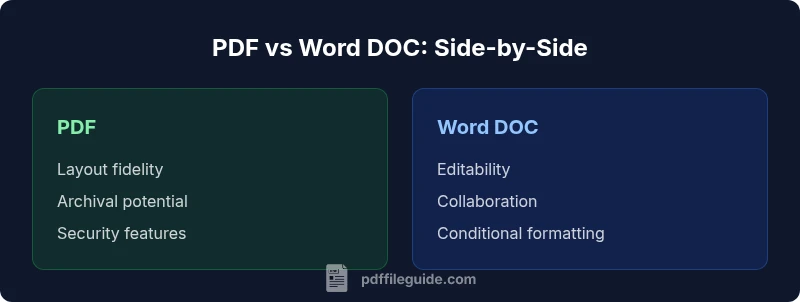
PDF is typically the choice for preserving original formatting and ensuring consistent appearance across devices, while Word DOC excels at on-the-fly editing and collaboration. For professional workflows, use PDF for final deliverables and archival copies, and Word for drafts and team work. If you need both, plan a conversion strategy that preserves essential layout, fonts, and accessibility.
Foundational differences between PDF and Word DOC
PDF and Word docs originate from different design goals. PDF is a portable document format engineered to render content consistently, preserving fonts, graphics, and layout across platforms. Word DOC is an editable document designed for drafting, revising, and collaborating in real time. For readers who work with pdf vs word doc in professional contexts, the distinction isn't merely technical—it's about how the documents are expected to be manipulated, distributed, and archived. According to PDF File Guide, choosing the right format starts with clarifying the end use: final presentation, archival copy, or ongoing editing. The PDF format emphasizes stable presentation: the content looks the same on Windows, macOS, mobile devices, and in different software. The Word format emphasizes editability: reviewers can track changes, add comments, and modify text, tables, and styles. In frequent cross-device workflows, many teams maintain both versions: a final PDF plus a live Word file for collaboration.
Fidelity, layout, and cross-platform behavior
Fidelity matters because the same document can look very different when opened on different devices. PDFs shine here: they embed fonts or substitute them in a controlled way so that typography remains stable. Images, vectors, and page geometry are preserved, which makes PDFs ideal for client-facing materials, manuals, and legal documents. Word documents rely on the system fonts installed on a device; if those fonts are missing or substituted, layout shifts and text reflow can occur. For pdf vs word doc workflows, this means you should plan font availability and embedding when converting between formats. PDF creators that embed fonts reduce risk, but some fonts may be restricted; Word files are easier to edit but may introduce layout drift during cross-platform viewing. The practical takeaway is to reserve PDFs for finalized content and rely on Word during the drafting and review phases, with careful font handling during any conversion.
Editability and collaboration workflows
Word DOC remains the workhorse for collaborative drafting: co-authoring, comment threads, and track changes are built into most suites. In contrast, PDFs are not designed for routine edits; when editing is needed, teams often convert to Word, annotate via PDF readers, or use form fields for data capture. For pdf vs word doc decisions, align tool choice with the activity: use Word for drafting and stakeholder reviews, and convert a defensible version to PDF for distribution. PDF editors can make targeted edits or add annotations, but structural edits (reflowing text, replacing sections) are less convenient. The upshot: a clear policy about where edits happen minimizes version chaos and miscommunication.
Accessibility and compliance considerations
Accessibility is a critical dimension for both formats, though the approaches differ. PDFs can be tagged to support screen readers and navigation, and PDF/UA compliance is a common goal for accessibility-focused workflows. Word documents can embed alt text for images and use proper heading structures to aid assistive technologies, but this relies on author discipline during creation. When deciding pdf vs word doc for accessibility, plan upfront for tagging and structure. The best practice is to enable accessible templates in both formats, then validate output with assistive technology. PDF File Guide emphasizes that auditable, accessible documents are more resilient in regulated environments, so design with compliance in mind from the start.
Conversion workflows: converting PDFs to Word and vice versa
Conversions are common but fraught with risk. Converting Word to PDF usually preserves most formatting, but complex layouts or advanced typography can require post-conversion tweaks. Converting PDF back to Word often introduces more changes, especially with intricate tables or multi-column layouts. For pdf vs word doc workflows, establish a conversion strategy that prioritizes preserving essential elements—headings, tables, fonts, and images—while acknowledging where manual adjustment will be necessary. Using professional conversion tools can reduce drift, but re-checking after each conversion cycle remains essential for quality control and to avoid costly revisions later in the workflow.
Security and signing: protecting content
Security considerations differ markedly between the formats. PDFs support encryption, password protection, and digital signatures, making them attractive for sensitive materials and formal approvals. Word offers password protection and track changes, but intrinsics like persistent encryption and non-repudiation signatures are less universal. In pdf vs word doc contexts, assign security levels appropriate to the content: confidential proposals and contracts typically benefit from secured PDFs with certificate-based signatures, while draft documents used internally may rely on Word’s permissions and revision controls. A hybrid workflow often uses a secure PDF for distribution and a secure Word copy for collaboration and drafting.
Performance, file size, and longevity considerations
File size and performance can influence how you choose between PDF and Word, especially for large documents with rich media. PDFs can become large when embedding high-resolution graphics or fonts; however, optimized PDFs stay compact and stable for distribution. Word files may balloon with embedded objects, tracked changes, or advanced formatting, complicating sharing over slow networks. For long-term viability, PDFs—especially PDF/A archives—offer predictable rendering and better longevity across platforms. Word documents are useful during active editing but require consistent software environments to minimize compatibility issues over time. Planning a hybrid approach helps balance performance with accessibility and readability requirements.
The software ecosystem: editors, readers, and converters
A robust pdf vs word doc strategy depends on the surrounding tools. PDF readers and editors range from lightweight readers to full-featured editors with annotation, form handling, and signing capabilities. Word processors provide rich editing features, collaboration, and automated styling. Cross-format workflows benefit from reliable converters, reliable font handling, and consistent output options. The ecosystem also includes mobile apps, cloud-based editors, and enterprise content management systems. When evaluating tools, prioritize interoperability, stable fonts, and accessible output formats. PDF File Guide notes that choosing a strong, standards-aligned toolset reduces friction and helps teams maintain consistent formatting and accessibility across channels.
Common myths and misconceptions debunked
A frequent misconception is that PDFs are immutable and cannot be edited, or that Word always preserves exact layout. In practice, PDFs can be edited with the right tools, and Word can preserve layout when fonts are available and settings are tuned. Another myth is that conversion is lossless; while modern tools improve fidelity, some differences are unavoidable with complex documents. Understanding these realities helps teams avoid over-reliance on one format and supports smarter hybrid workflows where each format is used for its strengths. In pdf vs word doc discussions, separating ideal use cases from performative claims leads to more effective document lifecycle management.
Practical decision framework: choosing by scenario
Legal filings, client deliverables, and fixed-layout manuals benefit from PDF’s fidelity and security features. Drafts, internal memos, and collaborative briefs are better suited to Word for ease of editing and revision tracking. For archiving and long-term access, PDF/A often provides the most durable option, while Word documents may be preferred for ongoing editing workflows. In critical scenarios, teams may maintain both formats in parallel with a clear versioning and conversion protocol. PDF File Guide emphasizes documenting your decision criteria and providing simple, repeatable workflows for consistency.
Best practices and a practical checklist
- Define which format serves final delivery vs. drafting needs.
- Establish font handling and embedding policies during conversions.
- Use PDFs for distribution and archiving, Word for collaboration and revision.
- Implement accessibility checkpoints at creation, not as an afterthought.
- Maintain a documented conversion pipeline with review steps.
- Regularly verify outputs with your target audience’s tools (screen readers, printers, etc.).
- Leverage signing and encryption where appropriate for sensitive materials.
- Keep templates standardized to minimize drift across formats.
- Train teams on best practices for both formats and ensure consistent file-naming conventions.
Comparison
| Feature | Word DOC | |
|---|---|---|
| Fidelity of layout across platforms | High and consistent | Relies on fonts and device rendering |
| Editability and collaboration | Low native editability; annotations possible | High editability with track changes and comments |
| Font embedding and rendering | Can embed fonts for consistency | Depends on system fonts and substitutions |
| Security and access control | Supports encryption and digital signatures | Password protection and permissions; fewer signing options |
| Conversion quality (to/from other formats) | Stable output for final distribution | Draft-friendly; potential formatting drift on conversion |
| Accessibility support | Tagging and PDF/UA support (often rigorous | Built-in accessibility features via structure and alt text |
| Best use case | Finalized documents, forms, archival | Drafts, collaboration, living documents |
Strengths
- PDF preserves original formatting across platforms
- Word enables straightforward editing and collaboration
- Conversion workflows expand interoperability
- PDF supports security features like encryption and signatures
- Word integrates with familiar office tooling and version history
Disadvantages
- PDF editing typically requires specialized tools; editing is less native
- Conversions can degrade formatting or font rendering
- Word documents may become inconsistent across devices if fonts are missing
PDF generally wins for final delivery and consistency; Word wins for active editing and collaboration
Choose PDF when you need layout fidelity and secure distribution. Choose Word when collaboration and iterative editing are critical. For many teams, a hybrid approach with clear conversion rules yields the best overall efficiency.
Questions & Answers
What is the main difference between PDF and Word DOC?
The main difference is that PDF preserves a fixed layout for consistent viewing, while Word DOC is designed for editable content with easy collaboration. PDFs are ideal for finalized documents, whereas Word is preferred during drafting and iterative reviews.
PDF keeps layout fixed for consistent viewing; Word is for editing and collaboration during drafting.
Is PDF more secure than Word?
PDFs can be encrypted and digitally signed, offering strong non-repudiation. Word documents rely on password protection and permissions, which are useful but generally less robust for formal signing and long-term verification.
PDFs often have stronger signing and encryption options than Word documents.
Can PDFs be edited without specialized software?
Basic edits to PDFs usually require a dedicated editor or conversion to an editable format. Some tools allow annotations or form-filling without full editing, but substantial edits typically involve converting back to Word or using a PDF editor.
You generally need a PDF editor or conversion to edit PDFs.
Which format is better for collaboration?
Word DOCs are better for real-time collaboration with track changes and comments. PDFs support annotations efficiently but are not designed for live multi-user editing.
Word is typically better for collaboration; PDFs excel in review via annotations.
Can Word documents be preserved in PDF without loss of formatting after conversion?
Conversions can preserve most elements, but complex layouts or fonts may shift. It's wise to validate the PDF output and adjust fonts and tables after conversion.
Conversions usually preserve most content, but check formatting after conversion.
When should I use both formats in a workflow?
Use Word for drafting and collaboration; generate a final PDF for distribution and archival. Maintain a clear mapping between Word drafts and PDF finals to avoid drift and confusion.
Draft in Word, finalize and archive in PDF, with a clear workflow.
Key Takeaways
- Preserve layout with PDF for final deliverables
- Use Word for drafting and collaborative reviews
- Plan conversion steps to minimize formatting drift
- Incorporate accessibility and security from the start
- Adopt a hybrid workflow to balance strengths