Save PDF as Image: A Practical Guide
Learn how to save a PDF as an image (PNG/JPG) with reliable methods, quality tips, and step-by-step guidance for editing, sharing, and archiving PDFs. A thorough guide for editors and professionals by PDF File Guide.


Save a PDF as an image by exporting each page to PNG or JPEG, or by capturing a high-resolution screenshot. This approach preserves visual fidelity for sharing, archiving, or using in slide decks. The methods covered work across major PDF viewers, online tools, and desktop programs.
What saving a PDF as an image really means
Saving a PDF as an image converts the content of a page into a picture file—typically PNG or JPEG. For many professionals, this is a practical way to share pages without requiring the recipient to have a PDF reader, or to embed a page in a slide deck or a design draft. It’s also helpful when you need consistent rendering across devices, as an image preserves the exact layout and typography that appears on screen. According to PDF File Guide, this approach can simplify collaboration, especially when you’re distributing snapshots of a document rather than editable text. When done correctly, your image will reflect the visual intent of the original page while staying portable and easy to annotate in common editors.
When to choose an image over a PDF is often about audience and workflow. If recipients don’t need to copy text or search, images make viewing quick and distraction-free. If you’re preparing a presentation or design mockups, saving pages as images can integrate seamlessly with other media. If accessibility is a priority, be aware that images are not readable by screen readers unless you provide alt-text or a separate text layer. PDF File Guide’s guidance emphasizes testing a few pages first to calibrate resolution and file size before converting an entire document.
Tools & Materials
- PDF viewer or editor with export-to-image feature(Examples include built-in export tools, or programs like Adobe Acrobat Pro/Foxit. Check that you can export to PNG/JPEG.)
- Web browser and internet access(If you use online converters, ensure the site is reputable and supports secure connections.)
- Image editor (optional)(For quick crops, annotations, or minor adjustments after export.)
- Target output formats(Common choices are PNG for lossless quality or JPEG for smaller file sizes; TIFF can be used for archival needs.)
- Display DPI reference(Aim for 300–600 DPI for print-quality outputs; 72–150 DPI may suffice for screen viewing.)
Steps
Estimated time: 15-30 minutes
- 1
Open the PDF and navigate to the page
Open the PDF in your chosen tool and jump to the page you want to export as an image. This upfront step reduces wasted exports and helps you verify layout before saving. Take a quick look at margins, fonts, and any color effects that may influence image quality.
Tip: If exporting multiple pages, use the page thumbnail pane to speed up navigation. - 2
Choose export-to-image or capture option
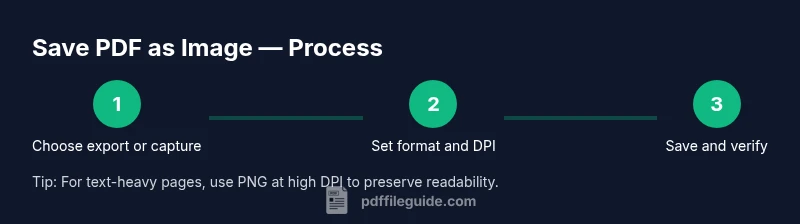
Select the export-to-image option if available, or opt for a high-resolution screen capture. Exporting preserves crisp typography and vector rendering where supported, while captures reproduce exactly what you see on screen but may include UI elements if you’re not careful.
Tip: Prefer export-to-image when your PDF tool supports lossless formats like PNG. - 3
Set format and resolution
Set the image format (PNG or JPEG) and choose a resolution. Higher DPI yields sharper text but larger files. For documents with lots of text, PNG at 300–600 DPI often provides better clarity than JPEG at the same DPI.
Tip: For web sharing, 150–300 DPI works well; for print, 300–600 DPI is preferable. - 4
Save to your chosen location
Choose a predictable file name and a logical folder structure so you can locate pages later. Save each page as a separate image if you’re exporting a multi-page document.
Tip: Use a naming convention like DocumentName_Page01.png to stay organized. - 5
Verify quality and accessibility
Open the saved images to verify legibility and alignment. If the page contains small text, zoom in to check for blurring. If needed, re-export with a higher DPI or a lossless format and consider adding alt text if used in accessible contexts.
Tip: Always compare the image to the on-screen page to catch any rendering issues.
Questions & Answers
Can I save a password-protected PDF as an image?
You must have the password to unlock the PDF and export images. If you don’t have permission, contact the document owner. Some tools refuse to export content from protected files until authentication is provided.
Yes, you need the password to unlock and export; otherwise, you should obtain permission from the document owner.
Is exporting better than taking a screenshot?
Exporting preserves rendering and quality with proper formats, while screenshots are quick but risk compression artifacts and UI elements. For professional results, export when possible.
Exporting usually yields higher quality and cleaner results than a quick screenshot.
What formats should I choose for different uses?
PNG is typically best for text and sharp graphics; JPEG offers smaller file sizes for photos or large documents; TIFF is excellent for archival storage when lossless quality is needed.
Use PNG for clarity, JPEG for smaller size, and TIFF for archival needs.
Can I batch convert a multi-page PDF to images?
Yes, most tools support batch export. Check settings to ensure each page exports as a separate image and verify a sample set before converting the entire document.
Batch exporting is common; review a sample to ensure each page looks right.
How do I ensure accessibility after saving as images?
Images aren’t selectable text by default. Provide alt text or keep a separate text-based version for screen readers before distribution.
Images may not be accessible; add alt text or offer a text alternative.
Are online tools safe for confidential PDFs?
Online converters can pose privacy risks. Prefer offline tools or trusted services and avoid uploading sensitive PDFs when possible.
Be cautious with online tools for sensitive documents; offline options are generally safer.
Watch Video
Key Takeaways
- Save pages as images to simplify sharing and embedding
- Choose PNG for text clarity and JPEG for smaller file sizes
- Verify each page’s quality after export to avoid surprises
- Prefer offline tools for sensitive documents
- Plan a consistent naming convention for multi-page exports