Saving a PDF as a JPEG: A Step-by-Step Guide
Learn how to convert PDFs to JPEGs using desktop and online tools. This step-by-step guide covers quality, batch conversion, and privacy considerations for professionals who edit and optimize PDFs.


Saving a PDF as a JPEG is a reliable way to share a static view of a document. This guide shows desktop and online methods, plus tips for preserving quality and handling multi-page PDFs. By following these steps, you can export each PDF page as individual JPEGs or create a single image sequence with confidence.
Why saving a PDF as JPEG is useful
If you need to share a PDF page as an image, or embed a snapshot of a document into a presentation or website, saving the file as a JPEG is often the most practical approach. JPEGs are universally supported, load quickly on web and mobile devices, and typically require less bandwidth than a full PDF. This is especially helpful for thumbnails, previews, or when sending a document to colleagues who lack PDF software. According to PDF File Guide, saving a PDF as JPEG can simplify distribution while preserving the visual integrity of the original document. When done correctly, you maintain legibility and color accuracy without the overhead of a multi-page PDF. Keep in mind that JPEG is a lossy format, so you may trade off some fine detail for smaller file sizes.
Understanding JPEG versus PDF
JPEG is a raster image format that compresses bitmap data. PDFs, by contrast, are container formats that can hold text, vector graphics, and images across multiple pages. Converting a PDF page to JPEG creates a static image of that page, which is ideal for previews, slideshows, or embedding in documents that do not support PDFs. JPEGs are widely supported by image viewers, web browsers, and editing software, but fonts and layout can shift if the source font is not embedded or if the page includes complex vector elements. When you choose to save as JPEG, you’ll typically decide on resolution (DPI) and quality settings that determine clarity and file size. This trade-off is central to preserving readability while keeping the file manageable.
Common methods to convert PDF to JPEG
There are two main paths: desktop-based conversion and online tools. Desktop methods typically involve built-in export or print-to-image options within PDF readers or editors, sometimes requiring you to set DPI and color space. Online converters offer quick, no-install options, but they raise privacy considerations if the PDF contains sensitive data. A balanced approach for a professional workflow may combine both: use desktop export for sensitive documents and online tools for quick, non-confidential tasks. PDF File Guide emphasizes evaluating source trust, output quality, and batch needs when choosing a method.
Step-by-step offline desktop method (export or print-to-image)
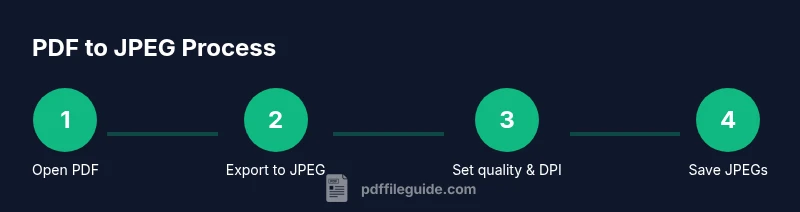
Many PDF editors include an export option that allows saving a page as JPEG. If your software does not, you can use a print-to-image workflow: print the page to an image printer driver or a built-in feature that outputs an image file. In either path, select the target page range, choose JPEG as the output format, and set a DPI that balances clarity and file size. After exporting, review the resulting JPEG for legibility, color fidelity, and any artifacts caused by compression. This method provides the most control over output settings and color handling for professional use.
Step-by-step online converter method (quick and convenient)
Online converters can be ideal for quick tasks, especially when you don’t want to install software. Upload the PDF, choose JPEG as the output, and configure DPI and quality if available. Download the JPEGs and organize them in a dedicated folder. Remember to review privacy policies before uploading sensitive documents. If you require batch processing, look for services that offer multiple-image exports or a limited free tier followed by paid plans for larger jobs. Always prefer reputable providers with strong privacy controls.
Handling multi-page PDFs
If your PDF has multiple pages, you can export every page as an individual JPEG or select a subset of pages for conversion. When exporting multiple pages, automatic numbering (Page_1.jpg, Page_2.jpg, etc.) helps keep files organized. Some workflows also allow exporting all pages into a single image sequence or a PDF-to-image gallery. If you need a single image per page for a slide deck, this approach works well; if you need thumbnails, you might export at a lower DPI to keep the total folder size reasonable.
Maintaining quality and managing file size
Resolution (DPI) and JPEG quality are the primary levers for quality and size. For on-screen use, 96–150 DPI is often sufficient; for high-quality presentations, 150–300 DPI yields crisper text and sharper graphics. If your PDF contains vector elements or fine lines, a higher DPI preserves detail better. Color management matters: convert to sRGB when JPEGs are intended for web use to avoid color shifts on different devices. If file size remains large, try progressive JPEGs or slightly reducing quality while previewing critical regions to ensure readability.
Troubleshooting common issues
Common problems include blurred text at high DPI, color shifts, or loss of transparency. JPEG does not support transparency; if you require transparency, consider exporting to PNG or GIF for web use. Fonts may appear substituted if embedded fonts are not available in the viewing environment; embedding fonts in the PDF or selecting a standard font during export can mitigate this. If your output looks different from the PDF, double-check color profiles (sRGB vs Adobe RGB) and ensure your monitor is calibrated for consistent results.
Practical usage scenarios and workflows
For a slide deck, save selected PDF pages as high-quality JPEGs and insert them as images in your presentation software. For web previews, use a lighter JPEG and a smaller DPI to keep loading times fast. In archival workflows, keep an original PDF intact and store JPEG copies in a separate folder with clear naming conventions. If you regularly convert PDFs to JPEGs, consider a batch process with a script or automation tool to standardize DPI, quality, and file naming across all jobs.
Privacy, security and consent considerations
Online tools inherently pose privacy risks for sensitive documents. Before uploading, remove any microdata or sensitive annotations, or use offline tools when possible. Read the service’s privacy policy and delete history after processing. For work-related material, ensure you have permission to convert and share the content. If the PDF contains personal data, implement access controls and audit trails to prevent unintended distribution, and prefer on-device processing over cloud-based services when confidentiality is paramount.
Automation, batch conversion tips
If you regularly convert PDFs to JPEGs, automation saves time and ensures consistency. On macOS, Automator can chain PDF-to-image actions; on Windows, PowerShell scripts or batch processes can leverage installed converters. Keep a standard naming convention (DocumentTitle_PageNumber.jpg) and apply a uniform DPI (for example, 200) and JPEG quality across all files. Test a small batch before scaling up, and maintain a log of conversions for traceability.
Tools & Materials
- PDF viewer/editor with export-to-JPEG capability(Software that can export or print to image with DPI and color settings)
- Web browser (for online converters)(A secure browser with privacy-conscious extensions)
- Reliable computer with adequate disk space(Ensure you have several hundred megabytes per page)
- Internet connection (for online tools)(Stable connection recommended for batch tasks)
- Image editor (optional for post-processing)(Adjust brightness/contrast or crop after export)
- Color-calibrated monitor (optional)(Helps ensure color accuracy when quality matters)
Steps
Estimated time: 15-25 minutes per typical PDF (depending on pages and tool)
- 1
Decide your export approach
Choose whether you want every PDF page as its own JPEG or a single image per page range. This determines your workflow and determines output naming conventions.
Tip: Plan page ranges in advance to avoid rework. - 2
Open the PDF in your chosen tool
Launch your PDF editor or viewer and load the document. If using online tools, upload the file securely.
Tip: Verify the correct file is opened before exporting. - 3
Select JPEG as output format
In the export or print-to-image dialog, choose JPEG as the target format. If offered, set the DPI to balance clarity and size.
Tip: Use 150–300 DPI for print-ready or high-quality slides; 72–150 DPI for web use. - 4
Configure quality and DPI
Adjust the JPEG quality slider or numeric value. Higher values yield crisper images but larger files.
Tip: Preview a sample page to verify readability before committing to a batch. - 5
Choose output folder and naming
Set a clear destination and adopt a consistent naming scheme (DocumentName_PageNumber.jpg).
Tip: Include the document title and page number for easy retrieval. - 6
Export or save
Run the export. If multiple pages, ensure you’re capturing all pages or preferred ranges.
Tip: Monitor the process for any error prompts and restart if needed. - 7
Review the results
Open several JPEGs to check legibility, color fidelity, and edge sharpness. Compare against the original PDF page.
Tip: Look for artifacts or blurry edges that may require a higher DPI. - 8
Adjust as needed
If quality is insufficient, re-run with higher DPI or a different compression setting. Consider pre-processing.
Tip: Small adjustments can dramatically improve readability. - 9
Document handling and privacy
If using online tools, verify privacy practices and remove sensitive data before or after conversion.
Tip: Prefer offline tools for confidential materials. - 10
Batch processing (optional)
For many PDFs, automate the workflow with a script or tool to apply the same DPI and quality consistently.
Tip: Test a small batch first to confirm no surprises.
Questions & Answers
Can I convert a multi-page PDF to a single JPEG image?
No. A single JPEG represents one image, so multi-page PDFs are best exported as multiple JPEGs or as a contact sheet. If a single file is required, consider combining multiple JPEGs into a ZIP or creating a PDF-to-image gallery instead.
A single JPEG can only hold one page. For multi-page PDFs, export each page as its own JPEG or use a gallery format.
Will fonts and colors look the same after conversion?
Fonts and colors may shift if fonts aren’t embedded or if color management isn’t consistent. Use PDF viewers that embed fonts when exporting and choose standard color spaces like sRGB for web use.
Fonts and colors can change unless fonts are embedded and you pick a standard color space.
Is it better to export to JPEG or PNG?
JPEG is generally smaller and supports photographs well; PNG preserves sharp edges and transparency but often results in larger files. Use JPEG for slides or web thumbnails and PNG when clarity and transparency matter.
JPEG is good for photos and smaller file sizes; PNG is better for sharp details and transparency.
Can I batch convert PDFs to JPEGs?
Yes. Many tools support batch processing, either through desktop software or automated scripts. Define a standard DPI and naming scheme to keep outputs consistent across the batch.
Batch conversion is common; set consistent DPI and naming for all files.
Are online converters safe for confidential PDFs?
Online converters pose privacy risks. If documents contain sensitive data, use offline tools and delete any uploaded files promptly after conversion.
Online tools can risk privacy—prefer offline tools for confidential documents.
What if the output looks blurry after export?
Increase the DPI, select a higher JPEG quality, and re-export. Also verify that you’re exporting the correct page size and that text isn’t being rasterized excessively.
Blurry output? Re-export with higher DPI and quality, and check page size.
Watch Video
Key Takeaways
- Choose the right export method for your needs
- Balance DPI and quality for the intended use
- Verify privacy when using online tools
- Maintain consistent naming for batch work
- Use PNG if transparency is required