How to Check if a PDF Is Malicious: Safe Verification Guide
Learn safe checks to determine if a PDF is malicious. This guide covers metadata, embedded scripts, and viewing practices to reduce risk when handling suspicious PDFs.


You will learn to determine if a PDF is malicious by inspecting metadata and file structure, examining embedded scripts and actions, and using safe, sandboxed viewing and offline scanners. You’ll verify font and URI patterns, test attachments in a controlled environment, and follow step-by-step safeguards to minimize risk. Always start with caution and update your security tools first.
Why checking a PDF for malware matters
In today’s digital workflow, PDFs are ubiquitous, from invoices to eBooks. They can arrive via email, cloud storage, or shared links, and each channel introduces risk. If a PDF contains dynamic content, JavaScript, or embedded files, it can execute malicious actions on your device. This is why 'how to check if pdf is malicious' is not a one-step test but a layered process. According to PDF File Guide, a disciplined verification workflow reduces exposure and helps professionals distinguish benign documents from threats. As you explore this guide, you’ll learn to verify metadata, compare file structure against expectations, and use safe tools that prevent accidental execution. The aim is not to scare you but to empower you to handle PDFs with confidence, especially when files arrive from unfamiliar sources.
The core idea behind safe PDF handling is to treat every file as potentially hostile until proven safe. Even legitimate-looking PDFs can exploit vulnerabilities in readers, drive-by exploits, or social-engineering tricks. For professionals who edit, convert, or archive PDFs, integrating malware checks into routine operations safeguards confidential information and reduces the risk of network infiltration. In practice, you’ll combine static checks (what’s inside the file) with dynamic checks (how the file behaves in a controlled environment). The payoff is a robust, repeatable process that you can apply across teams and projects. PDF File Guide emphasizes the importance of a cautious, methodical approach to protect data and devices.
Key takeaway: build a reproducible workflow that minimizes risk, and keep your security tools up to date to catch evolving threats.
Common attack vectors in PDFs
PDFs can hide danger behind familiar visuals. Here are the main vectors to watch for:
- Embedded JavaScript and actions: Malicious scripts can execute when the PDF is opened, clicked, or printed.
- Embedded attachments and files: Additional payloads (such as ZIPs or executables) may be extracted automatically or upon user interaction.
- Rich media and forms: Interactive elements can trigger hidden behaviors, including asynchronous network calls.
- Font embedding and resource links: Malicious fonts or remote resources can reduce opacity of the threat and complicate detection.
- Metadata and document structure: Anomalies in author, creation date, or modification history may indicate tampering or obfuscation.
Understanding these vectors helps you prioritize checks and select the right tools for analysis. Remember that attackers continuously evolve tactics, so combine several checks for higher confidence. PDF File Guide advises maintaining a baseline of safe-handling practices and updating your tooling as threats shift.
Safe prerequisites before you start
Before you begin any malware verification, set up a safe, controlled environment. Your goal is to prevent accidental execution or network access that could spread an infection:
- Use an isolated workstation or a virtual machine (VM) with network access disabled or strictly limited.
- Ensure your PDF viewing tools have JavaScript disabled by default, and enable it only in a sandbox if needed for testing.
- Create a known-good baseline for your system: verified OS, patched reader, and updated signatures in your antivirus.
- Have a hash calculator handy to compare file hashes against known-good references if supplied.
- Document every step you perform for accountability and audit trails. PDF File Guide highlights that repeatability is key to safety and compliance.
If you’re unsure about your environment, consult your IT policy or a security professional before handling suspicious files. A cautious start minimizes risk and protects sensitive data.
Step-by-step workflow overview
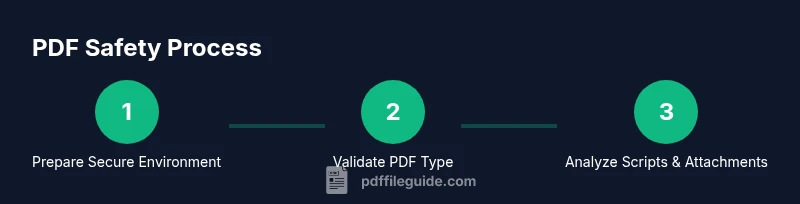
The verification workflow combines static inspection with dynamic testing in a sandbox. Start by isolating the file, then examine its structure, metadata, and any embedded objects. If desktop inspection seems risky, leverage a lightweight, read-only viewer in a controlled environment.
A typical workflow includes: validating the file’s type and extension, generating a hash, examining JavaScript and actions, inspecting attachments, and running a cautious, automated malware scan in a sandbox. This layered approach reduces the chance of false positives and keeps your primary system safe. PDF File Guide recommends keeping a log of observations and test results to improve accuracy over time.
Automated checks you can run
Automated checks provide a quick, repeatable baseline assessment. Use these in a sandboxed environment:
- File type validation: Confirm that the file’s magic bytes align with the PDF format, not a disguised payload.
- Surface script and action analysis: Run a parser or tool that extracts JavaScript and action entries without executing them.
- Hash comparison: Compute SHA-256 and compare with any provided references to detect tampering.
- Attachment discovery: List all embedded attachments and verify their types before extraction.
- Reader compatibility checks: See if the file triggers unusual behavior in a safe viewer, e.g., unexpected prompts or network requests.
Keep automated tools up to date and cross-verify results with multiple sources. PDF File Guide notes that automated checks are powerful when used alongside manual assessment.
Manual checks you can perform safely
Manual checks complement automation and give you deeper insight:
- Inspect metadata: Look for unexpected author names, creation dates, or inconsistencies across fields.
- Examine object streams: Review the PDF structure for suspicious objects or opaque streams that may conceal code.
- Inspect embedded JavaScript manually: If your tools allow, extract scripts without running them to assess intent.
- Review attachments by type: If there are attachments, verify that their extensions and MIME types match expectations before extraction.
- Check external references: Be cautious of remote actions, JavaScript that fetches remote content, or external URLs embedded in the document.
Document all findings and stop analysis if you notice any dangerous behavior. Always report suspected threats to your security team or follow organizational policy for handling suspected malware.
What to do if you suspect malware
If any step raises concern, isolate the file from your network and devices. Do not forward it to colleagues or customers until it’s cleared by your security team. Collect evidence from your checks (hashes, metadata anomalies, script indicators) and consult your incident response process. If confirmed malicious, delete the file from all systems and report the incident per your organization’s policy. PDF File Guide emphasizes prompt containment and thorough documentation to prevent recurrence.
Tools & Materials
- Offline antivirus software(Install on an isolated machine or VM; never scan on a production system)
- Sandboxed PDF viewer(Disable internet access and JavaScript unless testing scripts; use read-only mode when possible)
- Hash calculator (SHA-256)(Compute and compare file hashes with any provided references)
- Virtual machine or isolated test environment(Network isolation; snapshot before analysis)
- PDF analysis utility (static analysis)(Extracts objects, streams, and scripts without execution)
Steps
Estimated time: 25-45 minutes
- 1
Prepare a safe workspace
Set up an isolated VM or dedicated analysis machine. Disable network access and ensure all security tools are up to date. Establish a testing plan and document the file’s origin.
Tip: Take a snapshot of the VM before starting to enable clean retries. - 2
Validate file type and extension
Verify that the file truly is a PDF by checking its header bytes, not just the .pdf extension. Mismatches can indicate disguised payloads.
Tip: Use a hex viewer to confirm the PDF header (%PDF-1.*). - 3
Compute and compare the hash
Calculate the file’s SHA-256 hash and compare it against any provided reference or a known-good baseline. Hash matches increase confidence; mismatches demand caution.
Tip: Record the hash in your incident log for future reference. - 4
Open in a sandboxed viewer (JS disabled)
Open the PDF in a viewer configured to disable JavaScript and restricted to non-network operations. Avoid actions that could trigger remote requests.
Tip: Do not enable any prompts or dialogs that could execute actions. - 5
Inspect embedded scripts and actions
Extract and review JavaScript and any embedded actions without executing them. Look for suspicious functions, opaque callbacks, or external URLs.
Tip: Use a tool that can safely parse JavaScript without running it. - 6
Examine attachments and internal resources
List all attachments and embedded files, verify their types, and extract only in a controlled environment. Be wary of executable payloads.
Tip: If unclear about a file type, quarantine rather than open. - 7
Run an offline malware scan
Scan the file with updated offline antivirus signatures and cross-check results with the sandbox findings. Look for inconsistent or conflicting results.
Tip: Use multiple scanners if available for corroboration.
Questions & Answers
What makes a PDF file malicious?
Malicious PDFs exploit vulnerabilities in readers, contain embedded scripts, or include attachments designed to download or execute malware. They may also use obfuscated code or hidden actions to evade detection.
Malicious PDFs use scripts, attachments, or hidden actions to trigger harm when opened, so static checks plus safe testing are essential.
Can I trust PDFs from reputable sources?
Even PDFs from familiar sources can be compromised. Always perform cautionary checks and use a sandboxed workflow, especially for files from private emails or external links.
Even trusted sources can deliver risky PDFs, so verify with safe checks before opening.
What is sandboxing and why is it important?
Sandboxing runs the file in an isolated environment to observe behavior without risking your device or network. It’s a critical layer in detecting malicious actions safely.
Sandboxing lets you observe a file's behavior safely, without affecting your system.
Should I open a suspicious PDF to inspect it?
Do not open suspicious PDFs directly. Use a sandboxed viewer and perform static analysis first. If in doubt, quarantine and seek assistance from security personnel.
Don’t open suspicious PDFs; analyze in a sandbox and seek help if unsure.
What steps should I take after identifying a malicious PDF?
Contain the file, remove it from affected systems, and report the incident per policy. Restore from clean backups and review detection tooling to prevent recurrence.
Contain, remove, and report; then review tools and backups.
Are macros in PDFs common?
While less common than in other document formats, PDF macros and JavaScript exist. Treat them as potential risk factors and test accordingly in a controlled environment.
PDF macros exist but are less common; still test for them safely.
Watch Video
Key Takeaways
- Verify PDF type and metadata before opening.
- Use a layered approach: static inspection + sandboxed testing.
- Isolate analysis from production systems at all times.
- Document findings for accountability and future protection.