If PDF File Is Not Printing: Quick Troubleshooting Guide
Discover how to diagnose and fix why a PDF file isn't printing, with practical checks, driver tips, and secure-workarounds. This PDF File Guide troubleshooting resource helps professionals resolve print issues quickly.


If your PDF not printing, the issue is usually a printer setting or viewer restriction, not the document itself. Start by selecting the correct printer, printing a test page, and reviewing print options and document security. See our full step-by-step guide for details.
Why if pdf file is not printing happens
When you encounter a print failure with a pdf file, the root causes are usually tied to hardware or software that handles print jobs rather than the document itself. According to PDF File Guide, most printing failures start with the printing chain rather than the PDF data. This includes printer connectivity, driver compatibility, and how the pdf is opened by the viewer. if pdf file is not printing, begin with broad checks that cover both the device and the document environment.
Common culprits include the printer being offline or paused, an incorrect default printer, a stuck print queue, pdf viewer restrictions that block printing, and font or image issues inside the pdf. Document specific restrictions can prevent printing even when the page looks fine. In many cases older drivers or conflicting print spoolers create intermittent results. This block sets up practical fixes that are safe and reversible.
Starting with safe steps allows you to isolate whether the problem is printer side or the pdf itself. The goal is to confirm basic operation before making changes to the document or application. The guidance here focuses on quick wins that do not alter the original pdf content.
Quick hardware checks
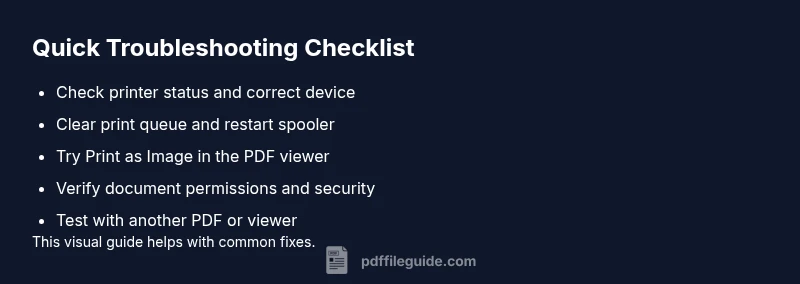
Start with simple hardware checks. Ensure the printer is online and not paused. Verify the printer you intend to use is selected as the default device. Check that all cables are secure and the network or USB connection is stable. Print a test page from another program to determine if the issue is device wide. If the test page prints, the problem is likely in the pdf workflow or viewer settings. If not, focus on the printer or spooler as the root cause.
PDF viewer and print settings to review
Review the pdf viewer printing options. In many cases the issue is tied to how the viewer sends data to the printer. Check that the correct printer is selected in the print dialog and that the page range is appropriate. Try enabling Print as Image in the viewer to bypass font embedding problems and complex vector data. Adjust page scaling to fit, actual size, or a custom scale. If you see a partial print or garbled output, printing as image often resolves the problem. Also verify the option to print including graphics and images rather than only text.
PDF permissions and security restrictions
PDFs can carry restrictions that stop printing. Many documents use password protection or owner restrictions that block printing entirely or limit to low resolution. If you encounter this, check if a password or permission flag is present. If you control the document, remove restrictions or create a version with printing allowed. If you do not control the document, contact the author or issuer to obtain permission.
Alternate routes for printing
If the standard route fails, try alternative routes. Open the pdf in a different viewer or use a web browser to print. Save the pdf as an image or as a different format and print that version. Sometimes exporting to a high quality image first and then printing bypasses embedded font or graphic issues. This approach preserves the original content while providing a print-friendly data stream.
Advanced driver and spooler troubleshooting
When basic checks fail, consider system level steps. Restart the print spooler service, clear the print queue, and reboot the computer. Update or reinstall the printer driver and firmware if available. On some systems, removing and re-adding the printer can resolve persistent issues. Ensure you have admin rights or contact IT to perform these actions safely.
Prevention and best practices
Maintain up-to-date printer drivers and firmware, and keep PDFs optimized for print. Use consistent print settings profiles across devices to minimize surprises. If you frequently print complex PDFs, enable a fallback option like Print as Image. Regularly test print with different document types to catch issues early and document any recurring patterns for IT support.
Steps
Estimated time: 30-45 minutes
- 1
Verify printer status and default device
Check that the printer is on, not paused, and connected. Ensure the intended printer is selected as the default in system settings and in the application print dialog. Print a simple test page to confirm basic operation.
Tip: Keep a simple test page ready to quickly confirm basic functionality. - 2
Inspect pdf viewer printing options
Open the pdf and access the Print dialog. Confirm the correct printer is chosen, and select an appropriate page range. If output is problematic, enable Print as Image to bypass font embedding issues.
Tip: Try actual size or fit to page scaling to avoid cutoffs. - 3
Try alternate viewing routes
Open the pdf in a different viewer or browser and print from there. If successful, the issue is viewer specific. If not, continue with hardware checks.
Tip: Printing from a browser can reveal viewer related quirks. - 4
Check pdf permissions
If printing is blocked by document restrictions, verify if a password or permission policy is present. Request allowed printing or create a permissive copy if you control the file.
Tip: Respect content licensing and legal restrictions. - 5
Advance spooler and driver steps
Restart the print spooler, clear pending jobs, and reboot the system. Update or reinstall the printer driver; verify firmware compatibility with the printer.
Tip: Back up printer profiles before updates. - 6
Fallback printing approach
If issues persist, export the pdf to an image or another format and print that version. This preserves content while avoiding complex font or vector data.
Tip: Use a high resolution image for best print quality. - 7
Document recurring issues
If the problem repeats, document the steps and symptoms and consult IT or printer support with detailed notes. Regular checks can prevent future downtime.
Tip: Create a quick reference guide for frequent print tasks.
Diagnosis: PDF not printing
Possible Causes
- highPrinter offline/paused
- highIncorrect default printer
- highStuck print queue/spooler
- mediumPDF viewer print restrictions
- mediumOutdated or incompatible printer driver
- lowDocument permissions blocking printing
Fixes
- easyVerify printer status, select the correct device as default, and print a test page
- easyClear the print queue and restart the spooler, then reprint
- mediumUpdate or reinstall printer drivers and firmware as needed
- easyOpen the pdf in a different viewer or enable Print as Image in the dialog
- easyCheck pdf document permissions and security settings
- easyTest printing a non pdf document to isolate printer issues
Questions & Answers
Why is my PDF not printing when other documents print fine?
PDF only issues often stem from document restrictions, embedded fonts, or viewer handling of the print data. Check the viewer options and try printing as an image, and test with another PDF to isolate the cause.
PDF issues usually come from document restrictions or viewer settings. Try printing as an image and test with another PDF to narrow down the cause.
How do I print a PDF that has restricted printing?
If the document is restricted, you cannot print unless you have permission from the author. Request permission or obtain a version that allows printing. If you control the file, remove restrictions or save a print-friendly copy.
If printing is restricted, you need permission from the author or a print-friendly copy. If you control the file, remove restrictions.
What should I do if the printer prints blank pages from a PDF?
Blank pages can result from problematic fonts or content not rendering correctly. Try Print as Image, update fonts, or print a simpler page first to verify printer health.
Blank pages often mean fonts or content did not render. Try printing as image or update fonts.
Is there a quick test to tell if the issue is printer-side?
Yes. Print a non PDF document and a test page from the printer. If it fails, the issue is likely printer hardware, driver, or spooler. If it passes, focus on the PDF workflow.
Yes. If a non PDF prints, focus on the printer; if not, the issue is the printer itself.
Can printing issues be caused by the PDF viewer program?
Different PDF viewers handle fonts and print data differently. Try a different viewer or browser to confirm if the issue is viewer related.
Yes, viewer differences can cause printing issues. Try another viewer to verify.
When should I contact IT or printer support?
If basic checks do not resolve the problem, escalate to IT or printer support with details about the symptoms and steps tried. They can run diagnostics on the device and software stack.
If basic steps fail, contact IT with details of what you tried.
Watch Video
Key Takeaways
- Test printer and PDF viewer settings first
- Update drivers to fix compatibility
- Security restrictions can block printing
- Use Print as Image for stubborn PDFs