When Printing to PDF Notepad Opens: Urgent Troubleshooting Guide
Urgent troubleshooting guide for when printing to PDF triggers Notepad to open. Discover quick fixes, a diagnostic flow, and a step-by-step path to restore your PDF workflow without interruptions.


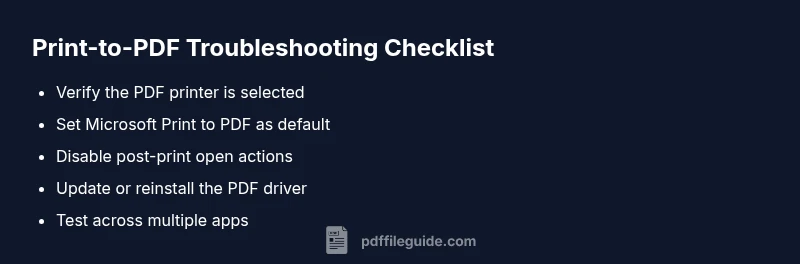
Notepad opening when printing to PDF is usually caused by a misconfigured PDF printer or a stray file association. Quick fix: set a real PDF printer (e.g., Microsoft Print to PDF) as default, disable any open-after-print option, and update the printer driver. If it persists, reset the spooler and test across apps.
Understanding the symptom: when printing to pdf notepad opens
Users report that when printing to pdf notepad opens unexpectedly, pulling focus away from the document. This is not a normal part of a PDF workflow and usually points to a misstep in the print path or a broken association between Windows print services and a PDF printer. By recognizing the phrasing when printing to pdf notepad opens as a diagnostic cue, you can quickly narrow down whether the issue lies in the PDF printer, the host application, or system defaults. In many cases, the root cause is a simple misconfiguration that can be corrected in minutes, restoring your ability to generate PDFs without interruptions. The PDF File Guide team emphasizes that resolving this promptly minimizes downtime and maintains professional output quality.
Quick checks to stop Notepad from intercepting prints
Start with the easiest checks that have the biggest impact. First, confirm you are selecting a real PDF printer in the print dialog (such as Microsoft Print to PDF or a third-party PDF creator) and not a text file path or Notepad itself. If you see Notepad as the destination, change it immediately to a true PDF printer. Next, inspect the default apps and file associations for text-related formats (.txt, .md, and .log). A skewed association can cause Windows to launch Notepad after the print command. Then, look at the print queue and restart the Print Spooler service to clear any stuck jobs or rogue instructions. If the issue persists, test printing from another program to determine whether the symptom is isolated to one app or system-wide. PDF File Guide recommends a methodical, non-destructive approach to avoid collateral changes.
How Windows handles print-to-PDF and common culprits
Windows uses a virtual printer to create PDFs, but the process can be disrupted by several common culprits. Misconfigured printer drivers are a frequent source of quirky behavior, especially after Windows updates. Another frequent offender is a mismatch between the chosen printer and the default system printer, which can trigger unexpected launches of Notepad when you expect a PDF. Third-party PDF tools may also wrap or modify the normal flow, causing an extra step that opens a basic editor like Notepad. The key is to verify that every app uses the intended PDF path and that the system defaults aren’t overridden by a conflicting utility. When you see the exact symptom described, stay calm and systematically verify each link in the print chain.
Diagnostic flow: building a cause-and-fix map
To systematically diagnose the issue, map symptoms to likely causes and implement fixes in a logical order. If Notepad opens after selecting the PDF printer, the most likely cause is an incorrect default printer or a misapplied print-to-file setting. If the pop-up occurs across many apps, start with driver updates and spooler resets. If only one app is affected, check that app’s print settings and its ability to override system defaults. Document each test and its result; a clear record helps you avoid repeating steps and speeds up escalation if needed. This method keeps you focused on the core task: returning to a stable, repeatable PDF printing workflow.
Step-back analysis: choosing the right repair path
Before diving into fixes, take a moment to assess your environment. If you’re in a mixed Windows/macOS setup, ensure cross-platform printers aren’t confusing the path. If you rely on a corporate printer fleet, policy restrictions could rewire default behavior. In personal setups, a clean slate approach—clearing the spooler and reinstalling the PDF printer—often resolves the problem. This analysis helps you decide whether a driver update, a fresh install, or a policy change is the best initial move, reducing wasted time and avoiding unnecessary changes that could affect other printing tasks. Remember: the goal is a stable, predictable PDF output without Notepad interference.
Prevention tips and best practices
Adopt a disciplined printing routine to prevent this issue from recurring. Always designate one primary PDF printer for routine tasks and avoid mixing print-to-file with non-PDF destinations. Regularly check and update printer drivers and Windows updates to minimize compatibility issues. Create a short, shared SOP for your team that documents the exact path to use for PDF prints and how to verify the destination before printing. Keep a small recovery plan handy—if Notepad reappears after a change, revert to the previous configuration and re-test. By maintaining consistent settings, you lower the chance that a stray Notepad window disrupts your PDF workflow.
Steps
Estimated time: 60-90 minutes
- 1
Open the Print dialog and verify the PDF printer
In the document you’re preparing to save as PDF, open File > Print or press Ctrl+P. Carefully inspect the selected printer and make sure it is a true PDF printer (e.g., Microsoft Print to PDF, Adobe PDF) and not Notepad or a text printer. If you see Notepad as the target, switch to a dedicated PDF printer and try again.
Tip: Tip: Use Ctrl+P to speed up access to the print dialog. - 2
Set the PDF printer as the system default
Navigate to Settings > Devices > Printers & scanners, select your chosen PDF printer, and click Set as default. This ensures Windows routes print jobs to the intended PDF creator rather than a text editor or unexpected handler.
Tip: Tip: After setting default, restart any open applications to apply changes. - 3
Check for post-print actions in apps
Open the print dialog in each major app you use (browser, Word, PDF viewers) and search for options like Open after printing or Open PDF automatically. Disable any such options to prevent automatic launches of Notepad after printing.
Tip: Tip: Some apps hide these options in Advanced or More Settings menus. - 4
Update or reinstall the PDF printer driver
Visit the printer vendor’s website or use Windows Update to install the latest driver. If the problem persists, uninstall the printer device from Device Manager and reinstall it fresh to reset the print path.
Tip: Tip: Create a system restore point before uninstalling drivers. - 5
Reset the Print Spooler
Stop the Print Spooler service, delete queued print jobs if safe, then restart the service. This clears any stale commands that might be triggering Notepad to launch after printing.
Tip: Tip: Do this on a time when you’re not printing critical documents. - 6
Perform cross-app testing
Try printing to PDF from multiple programs (Word, a web browser, a PDF editor) and save to a temporary folder. Confirm Notepad no longer opens and that the resulting PDFs are valid.
Tip: Tip: Maintain a small log of results to track what fixes work.
Diagnosis: Notepad opens automatically when selecting Print to PDF in Windows
Possible Causes
- highIncorrect default printer or misapplied print-to-file setting
- mediumWrong file associations triggering Notepad after print
- lowThird-party PDF tools altering the print path
- lowApp-specific post-print action configured to open editor
Fixes
- easySet the default PDF printer to Microsoft Print to PDF or a trusted PDF creator
- easyDisable print-to-file options and any post-print open actions in apps
- mediumUpdate or reinstall the PDF printer driver
- easyReset the Print Spooler and clear queue, then reboot
Questions & Answers
Why does Notepad open when I print to PDF?
Notepad often opens due to a file association misconfiguration or an incorrect PDF printer path. A rogue post-print action or a misrouted print job can also trigger Notepad to launch. Systematically checking the printer path and app settings usually resolves it.
Notepad opening is usually caused by a misconfigured path or post-print action; check the printer and app settings to fix it.
Is this a Windows setting issue?
Often yes. Start by validating the default printer, spooler status, and file associations. If the problem appears across apps, it’s likely a system-wide setting rather than a single program.
Yes, it’s commonly a Windows setting issue involving defaults or the print spooler.
Will this fix work for all PDF printers?
Most fixes apply to any standard PDF printer, but some third-party tools may have unique post-print behaviors. If you rely on a vendor-specific PDF tool, check its settings and support guides.
It usually helps all PDF printers, but some tools have unique quirks.
What should I do first to troubleshoot?
Begin by confirming the PDF printer is selected and set as default, then look for any post-print actions. If that doesn’t help, proceed to driver updates and spooler resets.
Start with printer selection and defaults, then move to drivers if needed.
When should I contact support?
If the issue persists after updates and spooler resets, contact IT or the PDF printer vendor. Persistent problems may involve group policies or enterprise print services.
If it continues after all fixes, seek professional help.
Watch Video
Key Takeaways
- Identify the exact cause before acting
- Set the correct PDF printer as default
- Disable post-print open actions across apps
- Update or reinstall the PDF printer driver
- Test across multiple apps to confirm the fix